Fill Feature and Calibration Tables
R2026bCurrently the feature torque table, T, air-fuel-ratio efficiency multiplier table, F_A, and the spark angle efficiency multiplier table, F_SPK, are not filled.
To create the fill settings for the three tables, in CAGE, click Feature Filling
 process. To specify the fill settings, use the Feature Fill
Wizard.
process. To specify the fill settings, use the Feature Fill
Wizard.
For this example, to fill the feature so that torque table, T, represents the torque at steady-state engine operating conditions, calibrate the tables in this order.
Fill Order | Table | Fill Description |
|---|---|---|
1 | Torque, T | Optimize around conditions which deliver the maximum brake torque (MBT):
|
2 | Spark, F_SPK | Adjust the torque for lower spark angles by optimizing the delta spark angle, delta_S:
|
3 | AFR, F_A | Adjust the torque for different AFRs by optimizing the AFR:
|
Fill Settings for Torque Table, T
Select Feature > New Fill Setting.
For bounds, accept the Feature Fill Wizard defaults. Click Next.

For set up, set Filled by to
tq(s,
                                N, L, A)
. Accept the default input data source and smoothing settings. Click Next.
Connect input
Sto function modelabs_SPARK. Click Connect, then Next.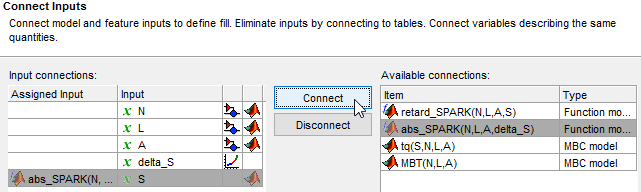
To set the input grid values for:
NandL, accept the default values.delta_S, select Initialize from Normalizer. In the Select Normalizer dialog box, accept the defaults and click OK.A, set value to14.3
Confirm these input grid values. Click Finish.
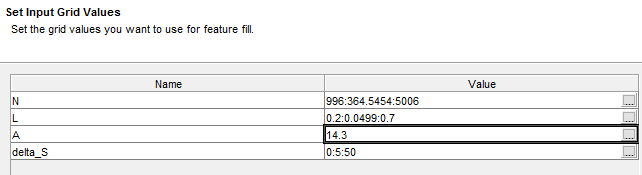
View the lookup table filling progress. After the filling completes, in the Lookup Table Preview tab, view the filled torque table,
T.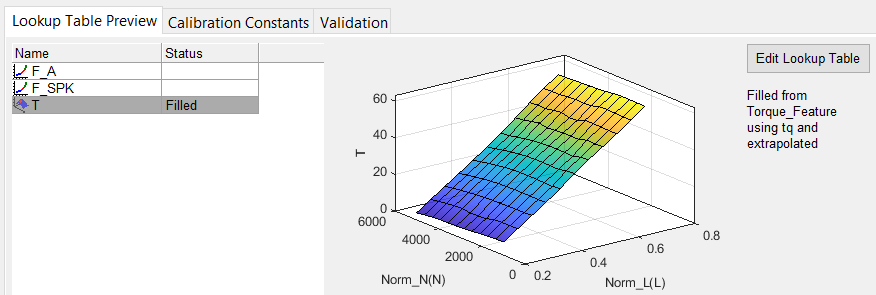
Fill Settings for Spark Table, F_SPK
Select Feature > New Fill Setting.
For bounds, set table bounds at
[0,1]. Set row gradient bounds at[-Inf,0]. Click Next.
For set up, set Filled by to
tq(s,
                                N, L, A)
. Accept the default input data source and smoothing settings. Click Next.Connect input
Sto function modelabs_SPARK. Click Connect, then Next.To set the input grid values for:
N,L, anddelta_S, select Initialize from Normalizer. In the Select Normalizer dialog box, accept the defaults and click OK.A, set value to14.3
Confirm these input grid values. Click Finish.
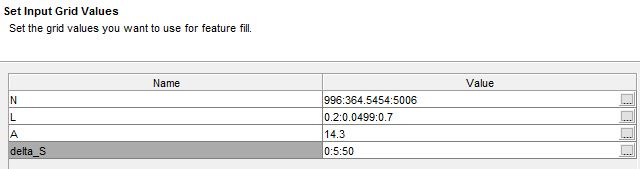
View the lookup table filling progress. After the filling completes, in the Lookup Table Preview tab, view the filled torque table,
F_SPK.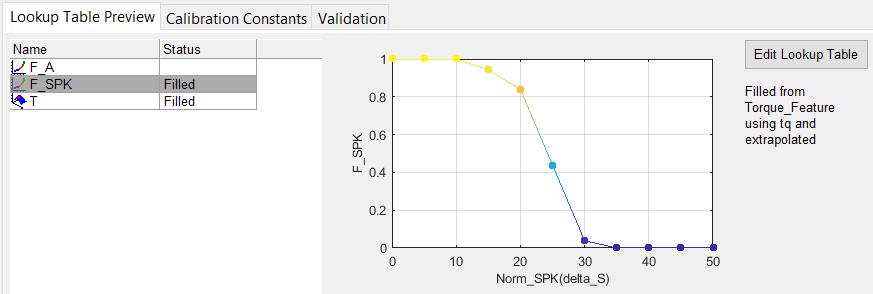
Fill Settings for AFR Table, F_A
Select Feature > New Fill Setting.
For bounds, accept the Feature Fill Wizard defaults. Click Next.

For set up, set Filled by to
tq(s,
                                N, L, A)
. Accept the default input data source and smoothing settings. Click Next.Connect input
Sto function modelabs_SPARK. Click Connect, then Next.To set the input grid values for:
NandL, select Initialize from Normalizer. In the Select Normalizer dialog box, accept the defaults and click OK.A, accept the default valuesdelta_S, set value to0
Confirm these input grid values. Click Finish.
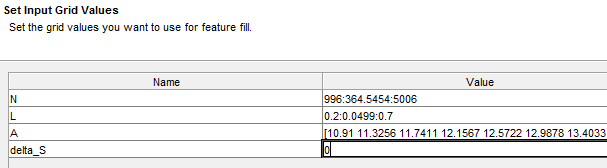
View the lookup table filling progress. After the filling completes, in the Lookup Table Preview tab, view the filled torque table,
F_A.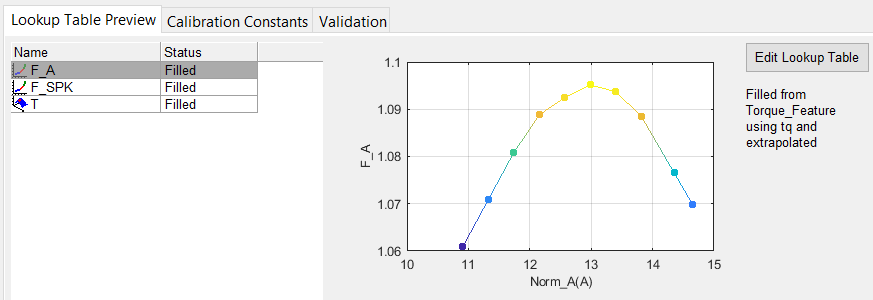
To view the results of the feature fill, view the Feature Fill Settings pane. In this example, the feature filled tables in this order:
T,F_SPK,F_A. Review the root mean squared error (RMSE) values for each of the table fills.

