Validate Feature and Export Lookup Tables
R2026bValidate Feature
After you fill the feature, use validation data to validate the feature fill.
In the Common Tasks pane, select Validate.
In the Select Data File dialog box, navigate to
matlab\toolbox\mbc\mbctraining. OpentorqueValidation.xlsx.In the Data Set Import Wizard:
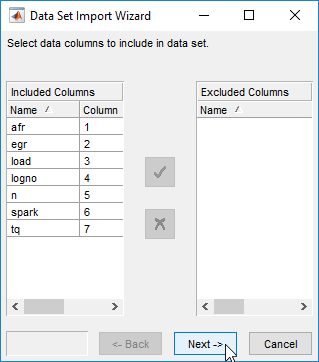
Accept the default data columns to include in the data set. Click Next.
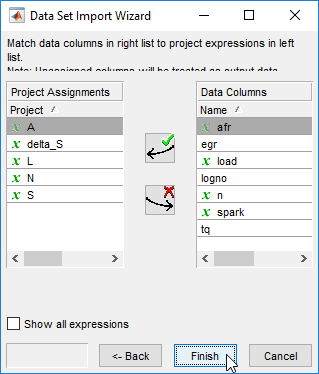
Accept the default project assignments. Click Finish.
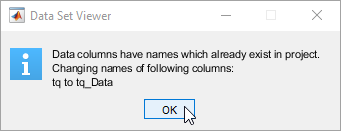
In the Data Set Viewer dialog box, accept the name change. Click OK.
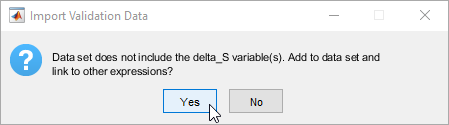
In the Import Validation Data dialog box, click Yes to add variables that are not included in the data set to the data.
In the Link Data Set dialog box, link the
delta_Sdata set factor to theretard_SPARKfunction model. Click OK.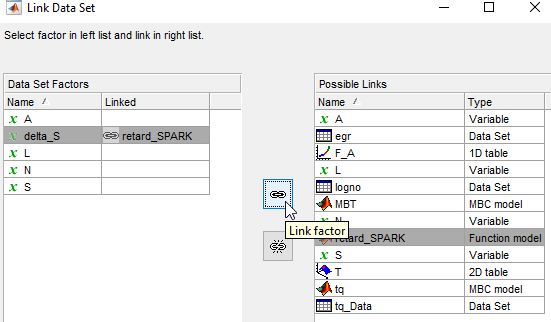
In CAGE, in the Processes pane, click Feature Filling
 .
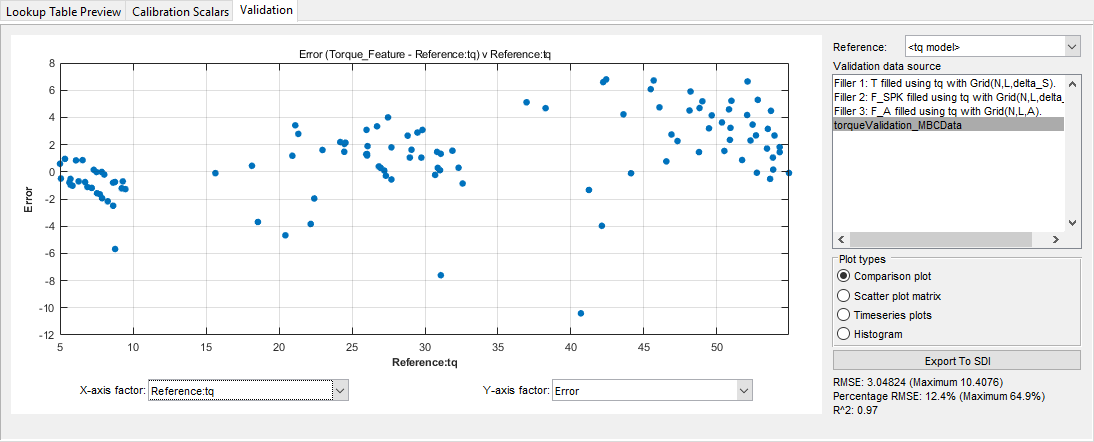
.In the Validation tab, review the validation results. Set:
Validation data source to
torqueValidation_MBCData.Reference to the model that you want to investigate, for example
<tq model>.X-axis factor and Y-axis factor to the values you want to investigate, for example
Reference:tqandError.
The validation results are similar to these.
To view additional validation plots, select the plot type in the Plot types section. You can select:
Comparison plot
Scatter plot matrix
Timeseries plots
Histogram
Comparison plot is selected by default. Select
Histogram to view a histogram of the residuals for the
torqueValidation_MBCData data source.
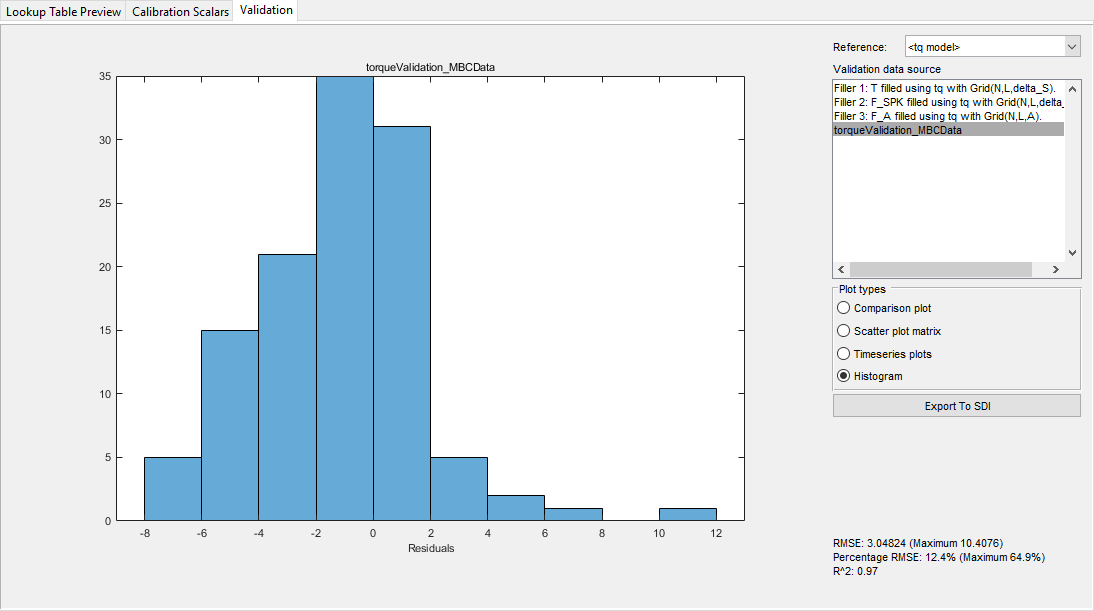
For large scale fills, the histogram plot overlays the data sets on the same histogram.
You can also export the simulation data to the Simulation Data Inspector. Click Export To SDI.
Export Calibration Tables
To export your feature calibration tables:
Select the
Torque_Feature.Select File > Export > Calibration > All Items.
In the Export Calibration Data dialog box, use Export to to specify the exported file type, for example
ATI Vision MAT file. Click OK.Specify a file name and location. Click Save.

