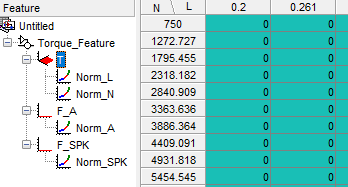
Set Up Feature and Torque Strategy
R2026bThe feature calibration process calibrates an algebraic collection of lookup tables, or strategy, by comparing the tables to the model.
In this example, you create a feature and import the strategy from a Simulink® model file. The strategy represents torque as the product of three lookup tables:
Speed-load
Air-to-fuel ratio (AFR)
Spark angle
At the command line, open the CAGE browser.
cage
To import the strategy, select File > Import > Strategy. Navigate to
matlab\toolbox\mbc\mbctraining. Open thetorqueFeaturemodel file.Model-Based Calibration Toolbox™ imports lookup tables from the Simulink model.
In the MBC Feature Importer dialog box, use the Lookup Table Preview, Feature Details, and Model Reference tabs to review the tables and feature details. Click OK to import the feature.
In CAGE, on the Equation tab, review the
Torque_Featurefeature parsed from Simulink as the output of the algebraic equation of tables.
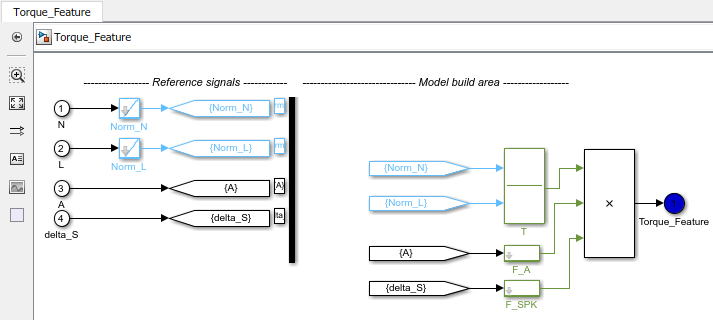
To view the strategy, select Feature > Edit Strategy.
Simulink windows open, displaying the
Torque_Featurestrategy and the CAGE libraries.Close the Simulink windows.
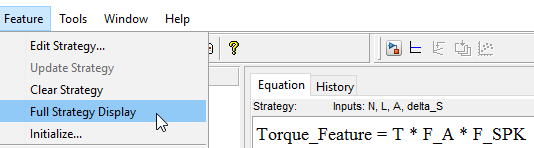
To view a simplified feature expression, clear Feature > Full Strategy Display.
Click the plus next to
Torque_Featureto expand the Feature tree and observe the tables created by importing the strategy.T— Speed and loadF_A— Air-to-fuel ratio (AFR)F_SPK— Spark angle