Open Variant Manager and Visualize Variant Elements
R2026bVariant Manager lets you explore the variant elements in a model by presenting a tree view of the model hierarchy, where each node represents a block or a referenced component.
Open Example Model
This tutorial uses the example model slexVariantManagerOverviewGS, which comes with a minimal set of variant configurations. You can use this model to follow along with the steps in the tutorial.
modelName = "slexVariantManagerOverviewGS";
open_system(modelName);
Explore Variant Elements
You begin by examining the model hierarchy of the top-level model,
slexVariantManagerOverviewGS. For more information on the
model, see Explore the Model.
On the Modeling tab, expand the Design gallery, and click Variant Manager.
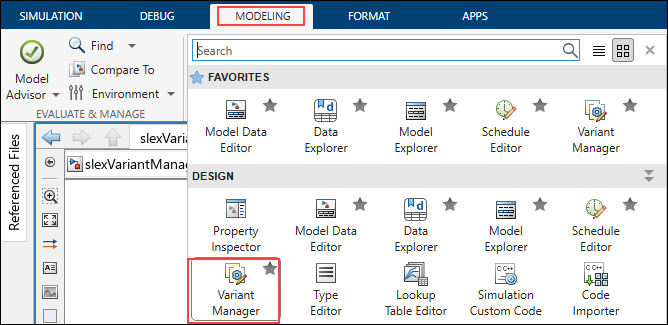
You can add Variant Manager to the Simulink® quick access toolbar for faster access. Right-click the Variant Manager icon in the Simulink Toolstrip and select Add to Quick Access Bar.

If you prefer using the MATLAB® Command Window, you can open Variant Manager with this command.
Simulink.VariantManager.open(modelName);
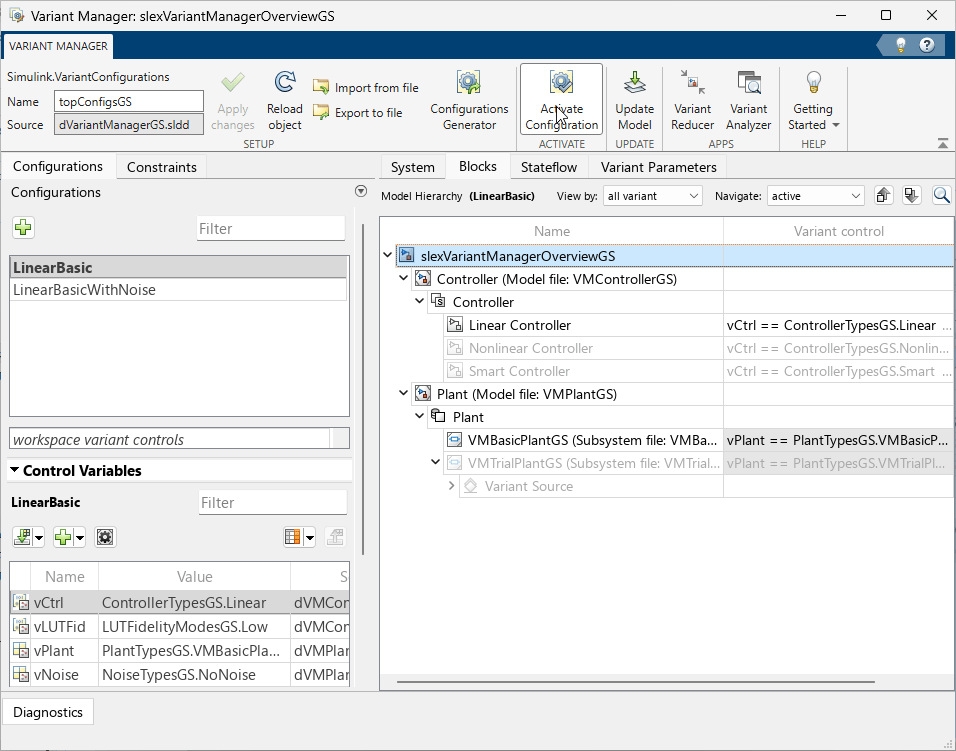
In the default view, Variant Manager shows a tree view of the model hierarchy. Each node represents a block, a referenced component, or a variant parameter.
Tip
Click the Getting Started button in the Variant Manager toolstrip to access a quick overview of the common workflows. To access the documentation, select Getting Started > Help.
The Blocks tab shows only the variant blocks in the model. Try
identifying the control variables used by the Controller variant
subsystem. Notice that all choices use the control variable vCtrl.
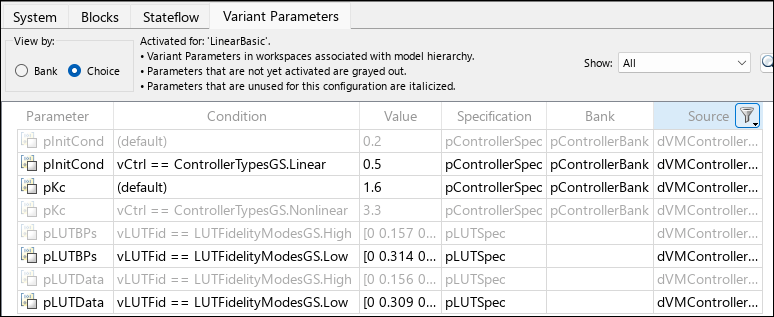
Switch to the Variant Parameters tab and select the
Choice view. This tab lists variant parameters such as
pKc, pInitCond, pLUTBPs, and
pLUTData. These variant parameters use the variant control variables
vCtrl and vLUTFid.
Some rows in the hierarchy might appear dimmed, because when you open Variant
Manager, the tool highlights the active variant choices based on the current control
variable values. These values come from the data sources used by the model. If you want to
see these values for the VMControllerGS model, open the Design Data section of the dVMControllerGS.sldd
in Model Explorer.
To view the data dictionaries used by the model, use Model Explorer. In the Simulink Toolstrip, on the Modeling tab, click Model Explorer.

See Also
Simulink.VariantManager.open | Simulink.VariantManager.findVariantControlVars

