Push Button
R2026b使用按钮更改参数或变量值
Push Button block

To add a block to a model, double-click the canvas and start typing the block name. Then, select the block from the list.
库:
Simulink /
Dashboard
描述
在仿真之前或仿真期间,使用 Push Button 模块更改所连接的变量或参数的值。您可以将按钮配置为仅在按下按钮时更改值,或在再次点击按钮前锁存值变化。将 Push Button 模块与其他 Dashboard 模块结合使用,可以创建交互式仪表板来控制您的模型。
在仿真期间或 Push Button 模块处于选中状态时,双击该模块不会打开其对话框。要编辑模块参数,您可以使用属性检查器或通过以下方式打开模块对话框:
当未选择模块且模型未仿真时,双击模块。
右键点击模块,然后点击“模块参数”按钮
 。
。
普通按钮图标
您可以向 Push Button 模块添加图标,它会显示在普通按钮文本旁边。您可以从包括基本形状、汽车指示灯和无线图标的预定义集中选择一个图标,也可以上传自己的自定义图标。有关详细信息,包括内置图标的完整列表,请参阅图标。
当您向 Push Button 模块添加图标时,您可以为图标配置一种打开颜色和一种关闭颜色,以便其颜色随着模块的状态而变化,并指定图标相对于普通按钮文本的对齐方式。例如,下图中的 Push Button 模块配置为使用圆形图标,且将表示打开状态的颜色指定为亮绿色,图标与按钮文本的左侧对齐。
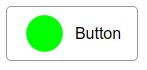
您可以使用 Push Button 模块的图标设置在模型中配置模块的外观。如果您要进一步自定义模块的外观,请考虑使用 Customizable Blocks 库中的 Push Button 模块。Customizable Blocks 库中的 Push Button 模块支持添加自定义图标,但不包含任何内置图标。
连接 Dashboard 模块
此模块是控制模块 - 即连接到参数并调节其值的模块。您可以连接到具有标量值的参数,或连接到矩阵的元素。
Dashboard 模块不使用端口来连接到模型元素。请改用连接模式。要在未连接的模块上进入连接模式,请将鼠标在要连接的模块上暂停并点击连接按钮  。要在已连接的模块上进入连接模式,请选择该模块,在显示的省略号 (…) 上暂停,然后在展开的操作菜单中点击连接按钮。
在连接模式中,选择要连接到其参数的模块。从出现的列表中,选择要连接的参数。然后,请在 Dashboard 模块上悬停并点击完成连接按钮 。
在更新模型图之前,控制模块无法连接到其值为变量的参数。要在仿真未运行时连接到其值为变量的参数或修改作为所连接的参数值的变量值,请按 Ctrl+D 更新模型图。
您可以连接到具有标量值的参数,或连接到矩阵或结构体的元素。有关详细信息,请参阅Connect Dashboard Blocks to Simulink Model。
您还可以将 Dashboard 模块连接到 Stateflow® 图。有关详细信息,请参阅将 Dashboard 模块连接到 Stateflow (Stateflow)。
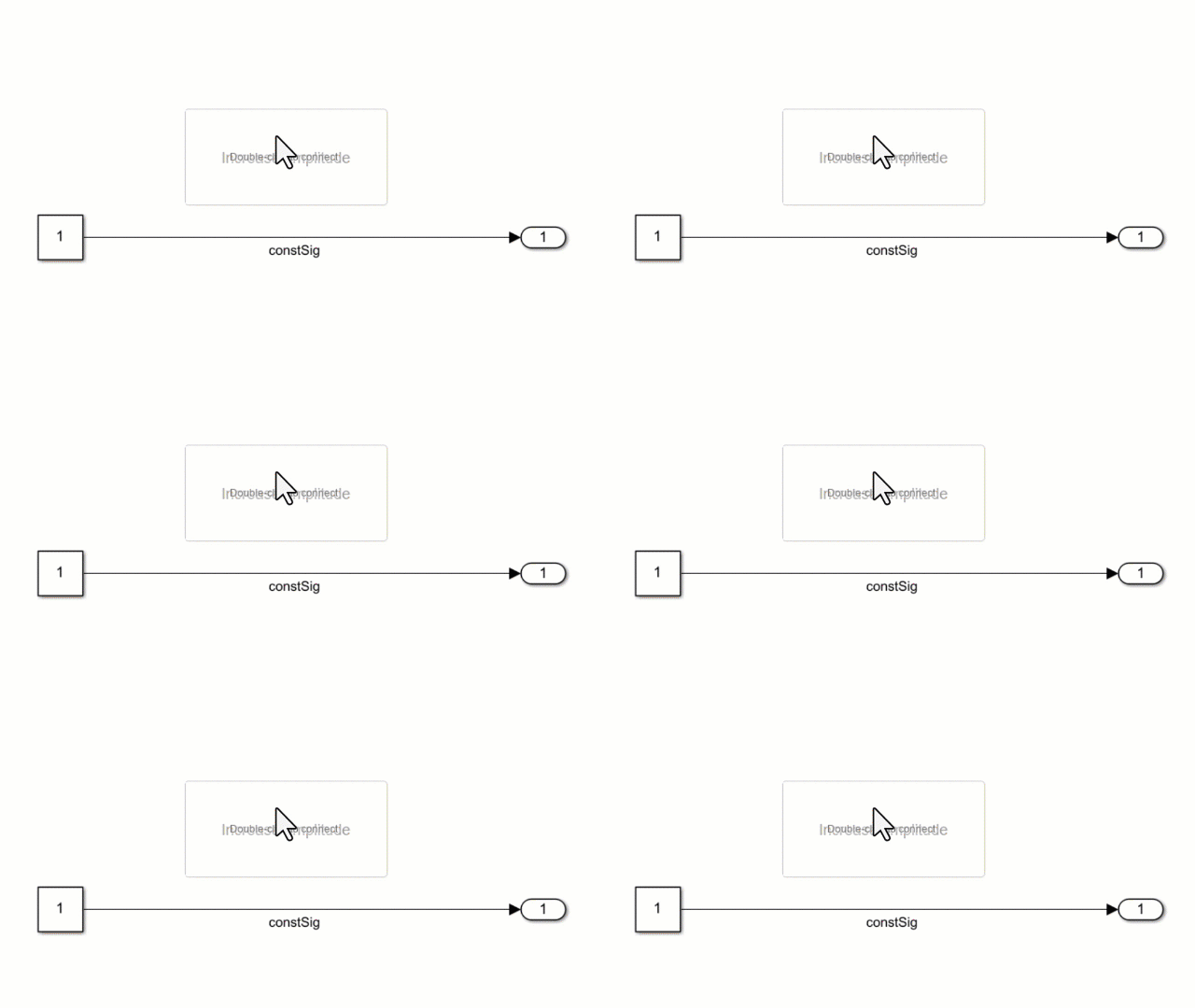
此动画说明如何将 Push Button 模块连接到您的模型。
参数记录
连接到 Dashboard 模块的可调参数数据会记录到仿真数据检查器,您可以在其中查看参数值以及记录的信号数据。您可以通过使用 UI 或 Simulink.sdi.exportRun 函数从仿真数据检查器导出参数数据来访问 MATLAB® 工作区中记录的参数数据。有关使用仿真数据检查器 UI 导出数据的详细信息,请参阅Export Data From Simulation Data Inspector to Workspace or File。参数数据存储在 Simulink.SimulationData.Parameter 对象中,可作为导出的 Simulink.SimulationData.Dataset 中的元素来访问。
示例
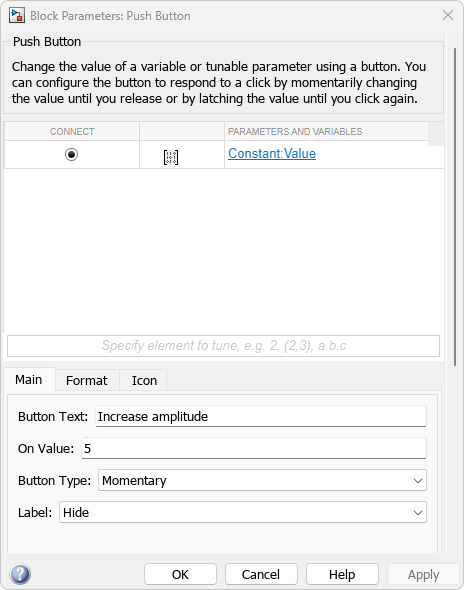
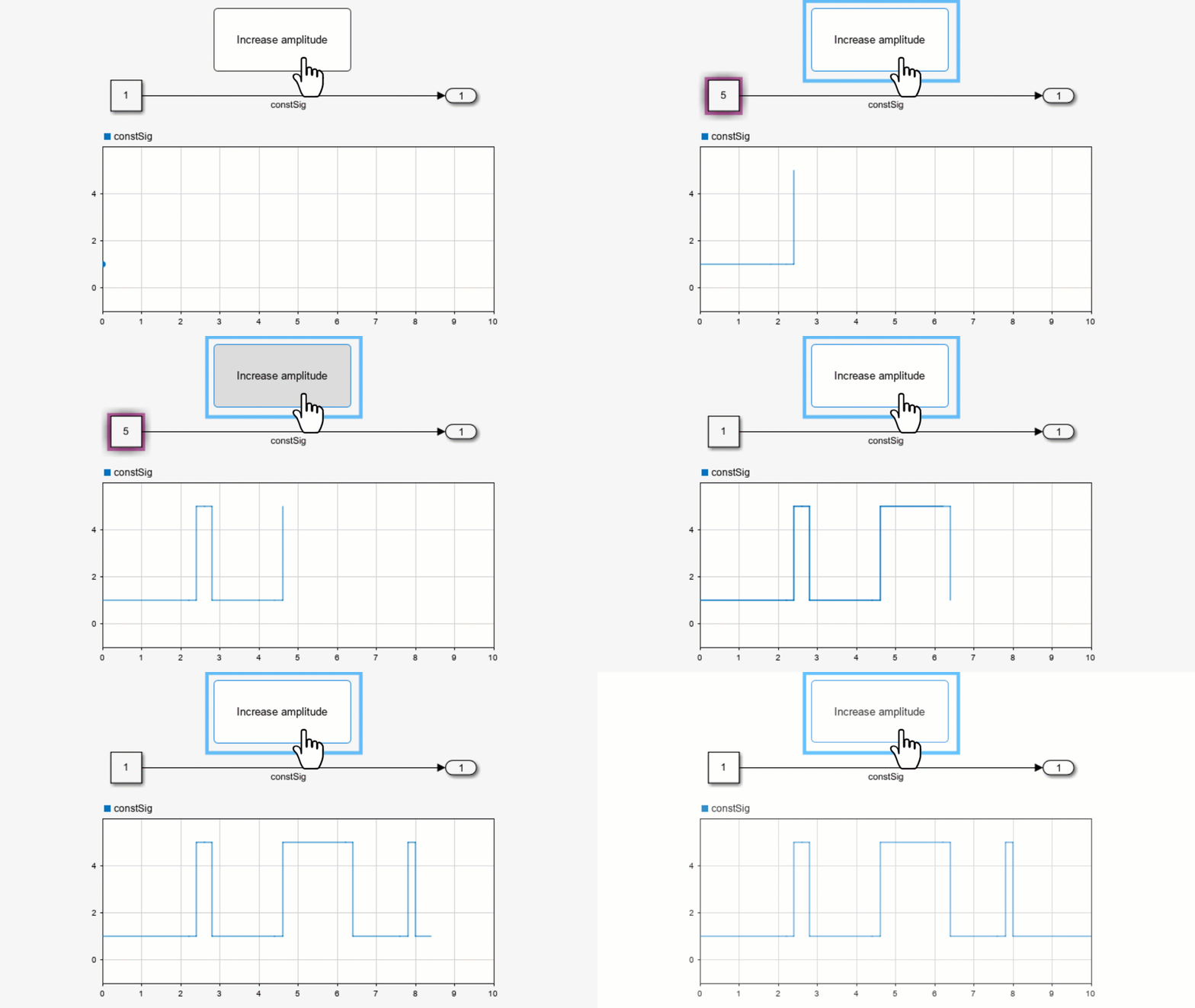
在仿真期间,您可以使用 Push Button 模块更改连接的变量或参数的值。例如,在模型 pushIncrease 中,名为 Increase amplitude 的 Push Button 模块连接到 Constant 模块的值参数。当您按下该 Push Button 模块时,Constant 模块的值变为 5。
对模型进行仿真。要在仿真期间将 Constant 模块的值从 1 增加到 5,请按下该 Push Button 模块。
扩展示例
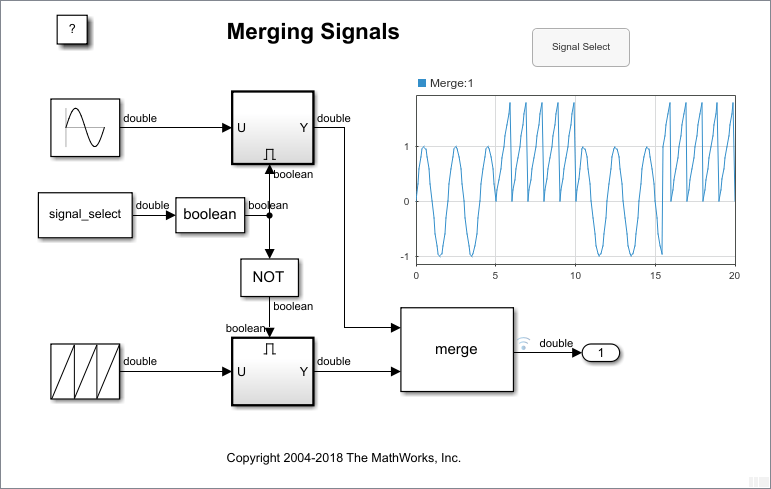
Control Merging Signals with the Push Button Block
Use the Push Button block to control signal that passes to
output in the model mergedemo.
限制
除了 Dashboard Scope 模块和 Display 模块之外,Dashboard 模块只能连接到实数标量信号。
您不能在“模块参数”对话框中使用连接表将 Dashboard 模块连接到已注释掉的模块。使用连接模式将 Dashboard 模块连接到带注释的模块时,Dashboard 模块在您取消注释模块之前不会显示连接的值。
Dashboard 模块无法连接到引用模型中的模型元素。
在仿真模型层次结构时,引用模型内的 Dashboard 模块不会更新。
Dashboard 模块不支持快速加速仿真。
当您在仿真期间将 Dashboard 模块连接到变量或参数时,该变量或参数的数据不会记录到仿真数据检查器中。要将变量和参数数据记录到仿真数据检查器,请在仿真之前将 Dashboard 模块连接到该变量或参数。
当您将默认参数行为设置为内联并在外部模式下对模型进行仿真时,Dashboard 模块看起来像是更改了参数和变量值。但是,更改不会传播到仿真。例如,Gain 模块显示使用 Dashboard 模块对增益参数进行的更改,但仿真中使用的增益值不变。
参数
连接
此模块是控制模块 - 即连接到参数并调节其值的模块。您可以连接到具有标量值的参数,或连接到矩阵的元素。Dashboard 模块不使用端口来连接到模型元素。请改用连接模式、Simulink® 工具条或“模块参数”对话框中的连接表。有关信息,请参阅Connect Dashboard Blocks to Simulink Model。
要使用连接表将控制模块连接到具有标量值的参数,请执行以下操作:
选择模块。
在属性检查器中,在参数选项卡上,点击连接或更改。
选择要连接其参数值的模块。
在出现的表中,选择该参数。
点击应用。
要连接到其值指定为变量的参数或更改已连接变量的值,您必须先更新模型图。要更新模型图,请按 Ctrl+D。
您还可以将 Dashboard 模块连接到 Stateflow 图。有关详细信息,请参阅将 Dashboard 模块连接到 Stateflow (Stateflow)。
编程用法
您可以通过编程方式将控制模块连接到参数。定义一个表示该参数的 Simulink.HMI.ParamSourceInfo 对象。然后,将 Binding 参数的值设置为该对象。要设置 Binding 参数的值,请使用 set_param 函数。
例如,假设名为 vdp 的模型包含名为 myButton 的 Push Button 模块和名为 x1 的 Integrator 模块。要将 Push Button 模块连接到 Integrator 模块的 Initial Condition 参数,请使用以下代码。
blockPath1 = "vdp/myButton";
blockPath2 = "vdp/x1";

myObj = Simulink.HMI.ParamSourceInfo;
myObj.BlockPath = Simulink.BlockPath(blockPath2);
myObj.ParamName = 'InitialCondition';

set_param(blockPath1,Binding=myObj)
| 参数: | Binding |
| 值: | Simulink.HMI.ParamSourceInfo object |
示例: set_param(gcb,Binding=myObj)
常设
编程用法
要以编程方式设置模块参数值,请使用 set_param 函数。
| 参数: | ButtonText |
| 值: | 'Button' (默认) | button label text |
| 数据类型: | string | char |
示例: set_param(gcb,ButtonText="My Button")
当按下或锁存按钮时赋给所连接的模块参数的值。
提示
使用模块类型参数配置模块如何响应点击:
瞬时 - 按钮仅在按下时应用打开值。
锁存 - 在点击按钮时按钮会锁存状态变化,并在您再次点击之前一直应用打开值。
编程用法
要以编程方式设置模块参数值,请使用 set_param 函数。
| 参数: | OnValue |
| 值: | '1' (默认) | scalar formatted as string or character vector |
示例: set_param(gcb,OnValue="0")
指定按钮如何响应点击。
瞬时 - 按钮仅在按下时应用打开值。
锁存 - 在点击按钮时按钮会锁存状态变化,并在您再次点击之前一直应用打开值。
编程用法
要以编程方式设置模块参数值,请使用 set_param 函数。
| 参数: | ButtonType |
| 值: | 'Momentary' (默认) | "Momentary" | "Latch" |
示例: set_param(gcb,ButtonType="Latch")
模块标签的位置。当模块连接到模型中的元素时,标签是所连接的元素的名称。
编程用法
要以编程方式设置模块参数值,请使用 set_param 函数。
| 参数: | LabelPosition |
| 值: | 'Hide' (默认) | "Hide" | "Bottom" | "Top" |
示例: set_param(gcb,LabelPosition="Top")
格式
模块背景不透明度,指定为 0 到 1 之间的标量值。当指定值为 1 时,背景完全不透明。
编程用法
要以编程方式设置模块参数值,请使用 set_param 函数。
| 参数: | Opacity |
| 值: | '1' (默认) | scalar with values between 0 and 1 formatted as string or character vector |
示例: set_param(gcb,Opacity="0.5")
模块前景颜色,包括文本。您可以从标准颜色调色板中选择一种颜色,也可以指定自定义颜色。
编程用法
要以编程方式设置模块参数值,请使用 set_param 函数。
| 参数: | ForegroundColor |
| 值: | [r g b] vector with values between 0 and 1 formatted as a string or character vector |
示例: set_param(gcb,ForegroundColor="[1 0 1]")
模块的背景色。您可以从标准颜色调色板中选择一种颜色,也可以指定自定义颜色。
编程用法
要以编程方式设置模块参数值,请使用 set_param 函数。
| 参数: | BackgroundColor |
| 值: | [r g b] vector with values between 0 and 1 formatted as a string or character vector |
示例: set_param(gcb,BackgroundColor="[1 0 1]")
图标
您可以向 Push Button 模块添加显示在按钮文本旁边或代替按钮文本的图标。您可以从内置形状、汽车图标和无线图标中进行选择,也可以上传您自己的自定义 SVG、PNG 或 JPEG 文件用作图标。
要查看图标选项,请在模块对话框的图标选项卡上选择图标类型。要使用您自己的自定义图标,请选择自定义作为图标类型,并上传图像文件。
添加图标时,可以使用以下参数配置图标外观:
图标对齐方式 - 图标相对于按钮文本的对齐方式
打开颜色 - 按下或锁存模块并将打开值应用于所连接的参数时的图标颜色
关闭颜色 - 当未按下或锁存模块且未将打开值应用于所连接的参数时的图标颜色
要为图标指定打开颜色和关闭颜色,您必须选择自定义图标颜色。
形状图标
| 图标 | 基本形状库模块名称 | 编程使用的值 |
|---|---|---|
|
| Check1 | Check1 |
|
| Check2 | Check2 |
|
| Check3 | Check3 |
|
| Check4 | Check4 |
|
| Circle | Circle |
|
| Ex1 | Ex1 |
|
| Ex2 | Ex2 |
|
| Ex3 | Ex3 |
|
| Ex4 | Ex4 |
|
| Face | Face |
|
| Frown1 | Frown1 |
|
| Frown2 | Frown2 |
|
| Hexagon | Hexagon |
|
| Pentagon | Pentagon |
|
| Rectangle | Rectangle |
|
| Smile1 | Smile1 |
|
| Smile2 | Smile2 |
|
| Solid Face | SolidFace |
|
| Solid Frown1 | SolidFrown1 |
|
| Solid Frown2 | SolidFrown2 |
|
| Solid Smile1 | SolidSmile1 |
|
| Solid Smile2 | SolidSmile2 |
|
| Square | Square |
|
| Triangle | Triangle |


汽车图标
| 图标 | 汽车指示灯库模块名称 | 编程使用的值 |
|---|---|---|
|
| Adaptive Cruise Control | AdaptiveCruiseControl |
|
| Adaptive Cruise Control Failure | AdaptiveCruiseControlFailure |
|
| Antilock Brake System | AntilockBrakeSystem |
|
| Battery | Battery |
|
| Check Engine | CheckEngine |
|
| Check Engine2 | CheckEngine2 |
|
| Cruise Control | CruiseControl |
|
| Eco Mode | EcoMode |
|
| Electronic Stability | ElectronicStability |
|
| Engine | Engine |
|
| Engine Coolant Temp | EngineCoolantTemp |
|
| Engine Failure | EngineFailure |
|
| Engine Heating | EngineHeating |
|
| Engine Oil | EngineOil |
|
| Exterior Bulb Failure | ExteriorBulbFailure |
|
| Front Fog Light | FrontFogLight |
|
| Fuel | Fuel |
|
| Hazards | Hazards |
|
| Headlamp Leveling | HeadlampLeveling |
|
| High Beams | HighBeams |
|
| Hill Descent Control | HillDescentControl |
|
| Lighting Switch | LightingSwitch |
|
| Low Beams | LowBeams |
|
| Parking Assistance | ParkingAssistance |
|
| Rear Fog Light | RearFogLight |
|
| Side Lights | SideLights |
|
| Stability Control | StabilityControl |
|
| Stability Control Off | StabilityControlOff |
|
| Tire Monitor | TireMonitor |
|
| Traction Control | TractionControl |
|
| Traction Control Off | TractionControlOff |
|
| Traction Control Failure | TractionControlFailure |
|
| Turn Signal Left | TurnSignalLeft |
|
| Turn Signal Right | TurnSignalRight |


无线图标
| 图标 | 图标名称 | 编程使用的值 |
|---|---|---|
|
| Network | Network |
|
| Network No Signal | NetworkNoSignal |
|
| Network Transmission | NetworkTransmission |
|
| Network3G | Network3G |
|
| Network4G | Network4G |
|
| Network5G | Network5G |


提示
您可以使用工具条中的按钮选项卡更改 Push Button 模块的图标。
如果您要进一步自定义 Push Button 模块的外观,请考虑使用 Customizable Blocks 库中的 Push Button 模块设计您自己的按钮。
Customizable Blocks 库中的 Push Button 模块支持添加自定义图标,但不包含任何内置图标。
图标的打开颜色和关闭颜色可以应用于以下 SVG 元素:
altGlyphcircleellipsepathpolygonrecttexttextPathtreftspan
编程用法
要以编程方式设置模块参数值,请使用 set_param 函数。
| 参数: | Icon |
| 值: | 'Default' (默认) | icon name formatted as string or character vector |
示例: set_param(gcb,Icon="NetworkTransmission")
图标相对于按钮文本的对齐方式。如果不指定按钮文本,图标将始终位于模块的中心。
编程用法
要以编程方式设置模块参数值,请使用 set_param 函数。
| 参数: | IconAlignment |
| 值: | 'Left' (默认) | "Left" | "Center" | "Right" |
示例: set_param(gcb,IconAlignment="Center")
当您向 Push Button 模块添加图标时,您可以指定打开颜色和关闭颜色,以使图标颜色发生变化来反映模块的状态。要使用并指定图标的打开颜色和关闭颜色,请选择自定义图标颜色。
编程用法
要以编程方式设置模块参数值,请使用 set_param 函数。
| 参数: | IconColor |
| 值: | 'Off' (默认) | "on" | "off" |
示例: set_param(gcb,IconColor="on")
当您向 Push Button 模块添加图标时,您可以指定打开颜色和关闭颜色,以使图标颜色发生变化来反映模块的状态。打开颜色指定按下或锁存模块并将打开值应用于所连接的参数时图标的颜色。您可以从标准颜色调色板中选择一种颜色,也可以指定自定义颜色。
依赖关系
要启用打开颜色参数,请选择自定义图标颜色。
编程用法
要以编程方式设置模块参数值,请使用 set_param 函数。
| 参数: | IconOnColor |
| 值: | [r g b] vector with values between 0 and 1 |
示例: set_param(gcb,IconOnColor=[1 0 1])
当您向 Push Button 模块添加图标时,您可以指定打开颜色和关闭颜色,以使图标颜色发生变化来反映模块的状态。关闭颜色指定未按下或锁存模块且未将打开值应用于所连接的参数时图标的颜色。您可以从标准颜色调色板中选择一种颜色,也可以指定自定义颜色。
依赖关系
要启用打开颜色参数,请选择自定义图标颜色。
编程用法
要以编程方式设置模块参数值,请使用 set_param 函数。
| 参数: | IconOffColor |
| 值: | [r g b] vector with values between 0 and 1 |
示例: set_param(gcb,IconOffColor=[1 0 1])
模块特性
数据类型 |
|
直接馈通 |
|
多维信号 |
|
可变大小信号 |
|
过零检测 |
|
扩展功能
版本历史记录
在 R2015a 中推出从 R2023b 开始,您可以在新窗口中打开仪表板面板。要打开它,请先选择面板并将鼠标暂停在出现的省略号上。在展开的操作菜单中,点击在新窗口中打开按钮  。
。
您可以单独最小化和还原包含面板的新窗口,而不影响模型窗口。您可以通过面板窗口运行、暂停、停止和逐步运行仿真。在面板窗口中,您可以编辑面板及其中包含的模块。
要将面板返回到模型画布,请在面板窗口工具条中,点击在画布中打开  。
。
有关在新窗口中打开面板的详细信息,请参阅Open Panels in New Window。

