slConvertCustomContextMenus
R2026bConvert Simulink context menu customizations to extension points format
Since R2026a
Syntax
Description
slConvertCustomContextMenus(SourceFolder=
converts the file defining your Simulink® context menu customizations to the extension points format. Starting in
R2026a, Simulink context menu customizations must be defined using extension points.source)
The slConvertCustomContextMenus function reads the
sl_customization.m file in the specified source folder and generates a
resources folder containing an extensions.json file
in the destination folder. By default, the destination folder is the current folder. If an
extensions.json file already exists in that location, this syntax does
not overwrite the file.
To run the function, your customization must meet the requirements listed in Limitations and must be enabled. To enable the customization:
Add the parent folder of the
sl_customization.mfile to the MATLAB® path using theaddpathfunction or by right-clicking the folder in the Files panel and selecting Add to Path > Selected Folder(s) and Subfolders.Refresh the customization using the
sl_refresh_customizationsfunction.
Once the conversion is complete, enable the customizations defined in the
extensions.json file:
Add the parent folder of the
resourcesfolder to the MATLAB path using theaddpathfunction or by right-clicking the folder in the Files panel and selecting Add to Path > Selected Folder(s) and Subfolders.Reload the Simulink studio configuration using the
slReloadStudioConfigfunction.
Differences between the limitations of the extension points format and the previous
format can result in the converted customization behaving differently from the original
customization. Check the generated extensions.json file and the resulting
context menu in the software. To learn about the extension points format so that you can
check and edit the extensions.json file, see Customize Simulink Context Menu Using Extension Points.
To troubleshoot the conversion, see Resolve Failure to Convert Context Menu Customization to Extension Point Format.
slConvertCustomContextMenus(SourceFolder=
takes the same action but if the source,Replace,true)resources folder in the destination
folder already contains an extensions.json file, this syntax overwrites
the file.
Examples
Convert this sl_customization.m file.
function sl_customization(cm)
  cm.addCustomMenuFcn('Simulink:ContextMenu', @getMyMenuItems);
end

function schemaFcns = getMyMenuItems(callbackInfo)
  schemaFcns = {@getItem};
end

function schema = getItem(callbackInfo)
  schema = sl_action_schema;
  schema.label = 'My Menu Item';
  schema.callback = @myFunction;
end

function myFunction(callbackInfo)
  disp(["Function Call"]);
end
The file defines a customization that adds a menu item to the bottom of the context menu. The menu item label is My Menu Item. When you click the menu item, the software runs the MATLAB® function named myFunction. The function outputs the text Function Call in the MATLAB Command Window.
1. Open the sl_customization.m file.
2. Check whether the menu tag specified in the file is Simulink:PreContextMenu or Simulink:ContextMenu. If the menu tag is not either of those values, converting the file is not supported. The menu tag is the first input argument of the cm.addCustomMenuFcn function. In this example, the menu tag is Simulink:ContextMenu, which is a supported value.
function sl_customization(cm)
  cm.addCustomMenuFcn('Simulink:ContextMenu', @getMyMenuItems);
end
...
3. Check that all schemas have tags, and that the tags are nonempty and unique. If a schema is missing a tag, the software skips that schema during conversion.
...
function schema = getItem(callbackInfo)
  schema = sl_action_schema;
  schema.label = 'My Menu Item';
  schema.callback = @myFunction;
end
...
The schema named getItem does not have a tag.
4. Add a tag for the schema.
...
function schema = getItem(callbackInfo)
  schema = sl_action_schema;
  schema.tag = "myTag";
  schema.label = 'My Menu Item';
  schema.callback = @myFunction;
end
...
5. Check that all callback property values are MATLAB® function handles, and that none of the callbacks are nested or local functions. If these conditions are not met, conversion is not supported.
...
function schema = getItem(callbackInfo)
  schema = sl_action_schema;
  schema.tag = "myTag";
  schema.label = 'My Menu Item';
  schema.callback = @myFunction;
end

function myFunction(callbackInfo)
  disp(["Function Call"]);
end
The callback property value of the getItem schema is a MATLAB function handle, but the function is a local function because it is defined in the sl_customization.m file.
6. Save the function named myFunction in a separate file named myFunction.m in the source folder.
function myFunction(callbackInfo)
  disp(["Function Call"]);
end
7. Delete the function from the sl_customization.m file.
function sl_customization(cm)
  cm.addCustomMenuFcn('Simulink:ContextMenu', @getMyMenuItems);
end

function schemaFcns = getMyMenuItems(callbackInfo)
  schemaFcns = {@getItem};
end

function schema = getItem(callbackInfo)
  schema = sl_action_schema;
  schema.tag = "myTag";
  schema.label = 'My Menu Item';
  schema.callback = @myFunction;
end
The sl_customization.m file now meets the requirements for conversion. This version of the sl_customization.m file is included in the example folder, along with the myFunction.m file.
8. Enable the customization. Add the parent folder of the sl_customization.m folder to the MATLAB path and refresh the customizations.
addpath(pwd);
sl_refresh_customizations;
9. Convert the file.
slConvertCustomContextMenus(SourceFolder=pwd)
Converting Simulink context menu customizations...
Saving converted extension to /tmp/Bdoc26b_3351752_2870374/tp3c79cba3/simulink-ex81578655.
Customizations converted successfully.
In the source folder, a new folder named resources appears.
10. In the folder named resources, open the file named extensions.json. This file defines the customizations in the new format.
open("resources/extensions.json")11. Enable your customizations. Add the parent folder of the resources folder to the MATLAB path and reload the Simulink studio configuration. In this example, you can skip adding the parent folder to the MATLAB path because the function syntax used for the conversion in step 9 outputs the resources folder in the current folder, which you added to the MATLAB path in a previous step.
slReloadStudioConfig
12. To view the customizations, open a Simulink model, for example, a new model.
h = new_system("myCustomButtonRowsModel");
open_system(h)
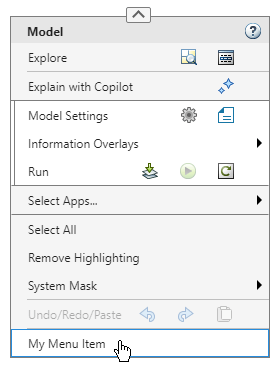
13. Right-click the model canvas or a model element such as a block. Find the menu item labeled My Menu Item. Click the menu item and check the command window for the output of the function named myFunction.
Input Arguments
Name-Value Arguments
Limitations
To run the function, all of these conditions must be true of the
sl_customization.m file.
The menu tag must be
Simulink:PreContextMenuorSimulink:ContextMenu.All schemas must specify tags, and the tags must be nonempty and unique.
All
callbackproperty values must be handles of MATLAB functions.None of the
callbackproperty values can be handles of MATLAB scripts.None of the
callbackproperty values can be commands. For example, thiscallbackproperty value is invalid:action.callback = "disp("Hello World!")"
None of the callbacks can be nested or local functions.
The source folder must be on the MATLAB path.
The slConvertCustomContextMenus function does not convert keyboard
shortcuts for triggering custom actions.
Version History
Introduced in R2026a

