Create Block Mask Icon
You can create a custom block mask icon that visually represents the functionality of a block and dynamically reflects block status and behavior based on mask parameters.
You can design mask icons using one of these methods:
Use Graphical Icon Editor.
Use Mask Drawing Commands.
Add images through Simulink Editor.
Design Mask Icon Using Graphical Icon Editor
Use the Graphical Icon Editor to create and edit mask block icon in a graphical environment. To launch the Graphical Icon Editor, create a mask on a block by right-clicking the block and selecting Create Mask. In the Mask Editor, click Icon tab.
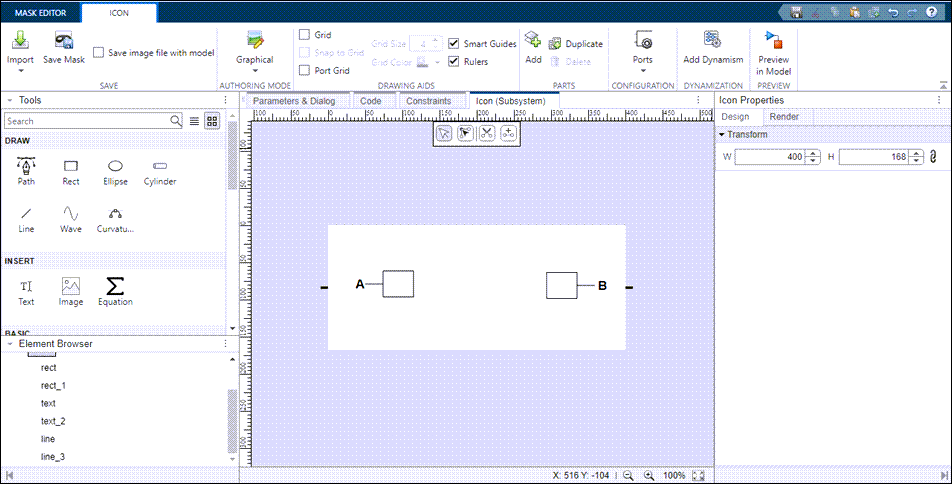
The Tools gallery on the left has multiple tools you can use to
design with shapes such as line, rectangle, and ellipse as well as tools to insert text,
images, and equations using LaTeX markup. You can also search for and insert shapes in a way
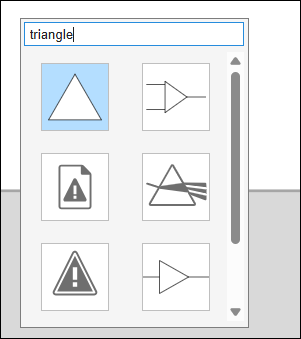
similar to the quick insert feature on the Simulink® canvas. Double-click on the canvas and type the name of the shape that you
want to insert. For example, type triangle to see the different forms of
triangle appearing on the canvas. Click one of the shapes to insert it in the icon
canvas.
Use the Element Browser to identify icon elements by name, vary their stack order, and hide or lock them. Parts are like layers that consists of individual graphical elements or components that make up a complete icon. Each part can be edited, moved, styled, or manipulated independently within the editor. Use tools in the Parts section of the toolstrip to create variations of your icon that vary depending on the value of a condition. You can design a complex icon by distributing its elements across multiple parts and then assemble them to create the final icon.
The Icon tab of the toolstrip includes drawing aids such as Grid and Smart Guides to precisely position mask elements on the canvas. You can also create and duplicate parts to manage parts workflow. Configure the number of ports, and more. The Graphical Icon Editor automatically adjusts the number of ports based on block information.
On the right, the properties pane includes options specific to formatting and positioning the icon. For example, the Design tab has options to modify the height and width of the canvas, and the Render tab has options to control the icon’s behavior on the Simulink canvas such as zoom and resize.
To learn more about creating a mask icon using Graphical Icon Editor, see Create and Edit Block Mask Icon Using Graphical Icon Editor and Add Dynamic Behavior to Masked Icons.
Design Mask Icons Using Mask Drawing Commands
You can use a set of drawing commands to create a script that draws the mask icon. In the Icon tab of the Mask Editor toolstrip, select Drawing Commands in the Authoring Mode. Type commands in the Icon tab to create your script, or select commands from the Icon Drawing Commands pane at the left. When you select a command from this pane, Mask Editor inserts a sample drawing command that you can edit to meet your needs. The available drawing commands are:
plot— Draw graph connecting series of points on masked block icon.patch— Draw colored shape on block mask icon.disp — Display text on the masked icon.
text— Display text at specific location on masked icon.port_label— Display port label on masked subsystem icon.image— Display image on block mask icon.color— Change drawing color of subsequent mask icon drawing commands.block_icon— Promote block icon image to masked Subsystem block.droots— Display transfer function on masked icon.dpoly— Display transfer function on masked icon.fprintf— Display variable text centered on masked icon.
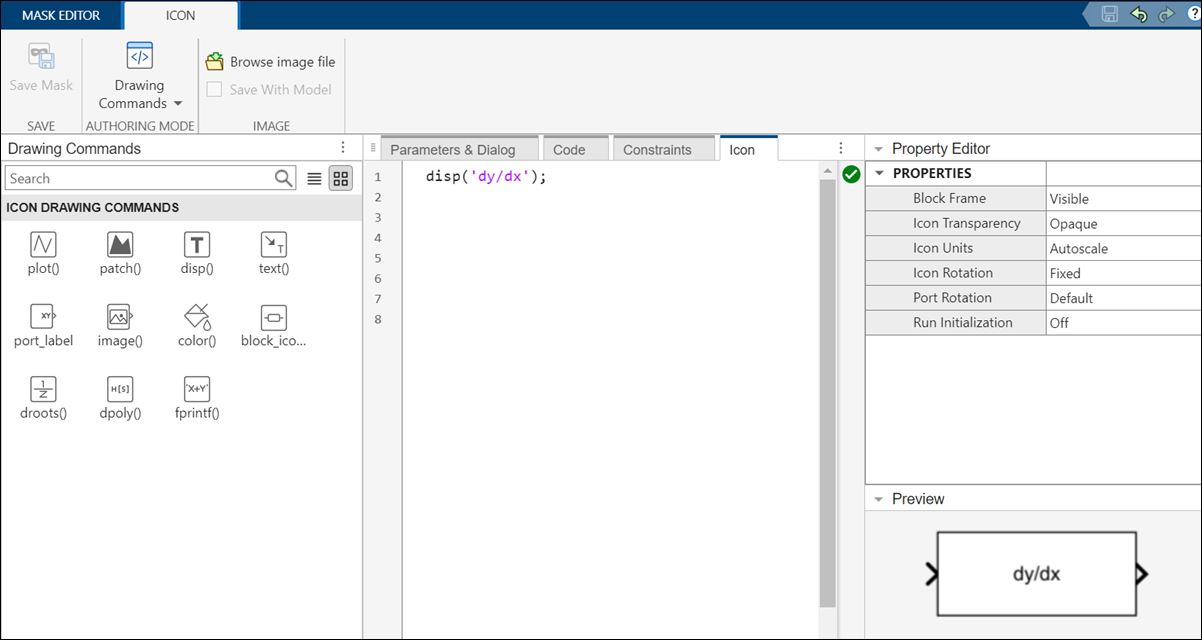
For more information and examples related to mask drawing commands, see Draw Mask Icon Using Drawing Commands.
Add Images to Masked Block Icon Using Simulink Editor
You can add images as icons on a Simulink block mask and save them with the model. Select a masked block and on the Subsystem Block tab, select Add Image. In the Add image dialog box, click Browse to select an image from your local repository. Use the options in the dialog box to set the position and dimensions of the image.
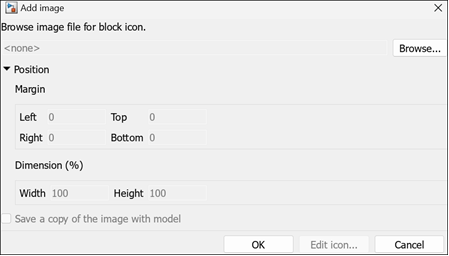
For more information on adding an image to the masked block icon, see Add Images in Masks.
See Also
Graphical Icon Editor Overview | Add Images in Masks

