Create Simulink Bus Objects
R2026bHow you create a Simulink.Bus object depends on what bus information
you have available. You can create a bus object from blocks, cell arrays, structures,
and C code. To determine whether to create bus objects, see Define Bus Properties for Reuse.
This table describes the different ways you can create Simulink.Bus
objects.
| Available Bus Information | Creation Strategies |
|---|---|
| Concept only | Use the Type Editor, Model Explorer, or
|
| Existing bus, such as the output bus of a Bus Creator block or bus element port | For bus element ports, click Otherwise, use the
|
| Cell array | Use the |
| MATLAB® structure | Use the |
C code structure
(struct) | Use the |
| Function or script | In the Type Editor, import the types from the function or script. In the MATLAB Command Window, run the function or script. |
| MAT file | In the Type Editor, import the types from the MAT file. In the MATLAB Command Window, load the MAT file. |

Bus objects created with by the Type Editor and Model Explorer are initially stored in the base workspace or a data dictionary. Bus objects created programmatically are initially stored in the base workspace, a data dictionary, or a MATLAB function.
Create Bus Objects Using Type Editor
How you open the Type Editor depends on whether you want the Type Editor docked in your current model window.
Standalone Type Editor — In the MATLAB Command Window, enter
typeeditor.Docked Type Editor — In the Simulink® Toolstrip, on the Modeling tab, in the Design section, click the down arrow on the far right. Then, under Design, click Type Editor.
To create Simulink.Bus objects in the Type Editor,
use one of these options.
Standalone Type Editor — In the Type Editor toolstrip, in the Add gallery, click Bus.
Docked Type Editor — Click
 .
.
For example, create three empty Simulink.Bus objects named
interface, sinusoidal, and
nonsinusoidal.
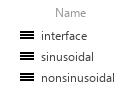
To add Simulink.BusElement objects in the Type
Editor, use one of these options.
Standalone Type Editor — Select the parent
Simulink.Busobject. Then, in the Type Editor toolstrip, in the Add gallery, click Bus Element.Docked Type Editor — Select the parent
Simulink.Busobject. Then, click .
.
For example, add these Simulink.BusElement objects to the
Simulink.Bus objects.
For the bus object named
interface, add elements namedconstant,sinusoidal_bus, andnonsinusoidal_bus.For the bus object named
sinusoidal, add elements namedsineandchirp.For the bus object named
nonsinusoidal, add elements namedpulseandsaw.
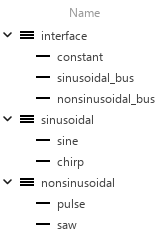
To create a hierarchy of bus objects, nest the bus objects named
sinusoidal and nonsinusoidal in the bus
object named interface.
For the element named
sinusoidal_bus, set the Type column tosinusoidalorBus: sinusoidal.For the element named
nonsinusoidal_bus, set the Type column tononsinusoidalorBus: nonsinusoidal.
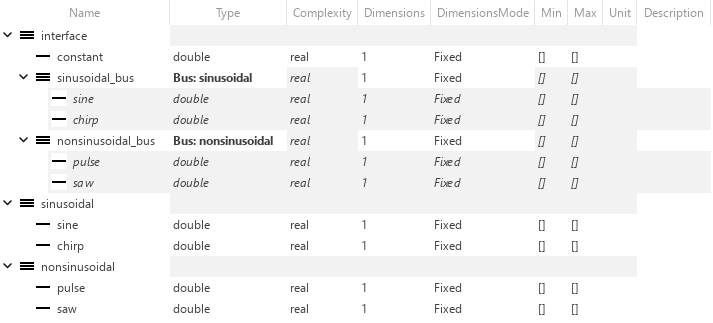
When you set the data type of a Simulink.BusElement object to a
Simulink.Bus object, the Bus: prefix is
optional.
Create Bus Objects from Bus Element Objects
To specify a reusable set of properties for a bus hierarchy, create a hierarchy of Simulink.Bus objects using arrays of Simulink.BusElement objects.
Create an array that contains bus element objects named Chirp and Sine in the base workspace.
elems(1) = Simulink.BusElement;
elems(1).Name = 'Chirp';

elems(2) = Simulink.BusElement;
elems(2).Name = 'Sine';
Array indexing lets you create and access the elements of the array. Dot notation lets you access property values of the elements.
Create a bus object named Sinusoidal that contains the elements defined in the elems array.
Sinusoidal = Simulink.Bus;
Sinusoidal.Elements = elems;
clear elems
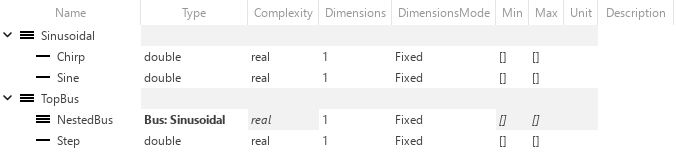
To create a hierarchy of bus objects, create a bus object that references the Sinusoidal bus object.
Create an array that contains bus element objects named NestedBus and Step. Specify the Sinusoidal bus object as the data type of the NestedBus element.
elems(1) = Simulink.BusElement;
elems(1).Name = 'NestedBus';
elems(1).DataType = 'Bus: Sinusoidal';

elems(2) = Simulink.BusElement;
elems(2).Name = 'Step';
Create a bus object named TopBus that contains the elements defined in the elems array.
TopBus = Simulink.Bus;
TopBus.Elements = elems;
clear elems
To view the objects, open the Type Editor.
typeeditor
Create Simulink.Bus Objects from Bus Creator Block
Create Simulink.Bus objects from a Bus Creator block that creates a bus with multiple levels of hierarchy.
Open the example model named BusHierarchy.
mdl = "BusHierarchy";
open_system(mdl)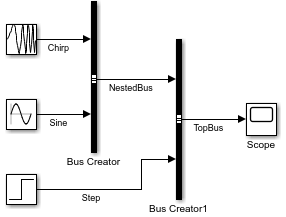
Create a Simulink.Bus object from the Bus Creator block named Bus Creator1. This block receives input from a source block and another Bus Creator block.
block = "BusHierarchy/Bus Creator1";
busInfo = Simulink.Bus.createObject(mdl,block);
This command creates Simulink.Bus objects named TopBus and NestedBus in the base workspace. Each bus object represents a bus in the bus hierarchy.
To view the Simulink.Bus objects, open the Type Editor.
typeeditor
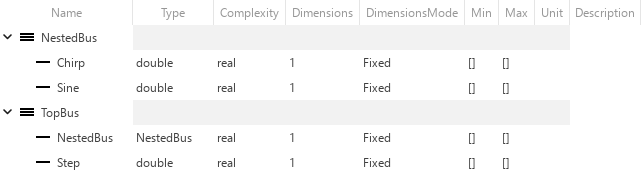
Create Simulink.Bus Objects from Bus Element Port
Create Simulink.Bus objects from a bus element port, which Out Bus Element blocks represent.
Open the example model named BusOutput.
mdl = "BusOutput";
open_system(mdl)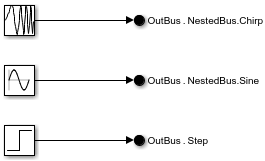
The output bus has multiple levels of hierarchy. The top-level bus contains a nested bus and a signal. The nested bus contains two signals.
Create and assign Simulink.Bus objects that define the bus hierarchy at the output port named OutBus.
Open the Property Inspector or double-click an Out Bus Element block.
Select
OutBus.If the bus attributes are hidden, click
 .
.Next to the Data type attribute, click
 .
.
Alternatively, to create the bus objects programmatically, use the Simulink.Bus.createObject function.
port = "BusOutput/OutBus";
busInfo = Simulink.Bus.createObject(mdl,port);
To view the objects, open the Type Editor.
typeeditor
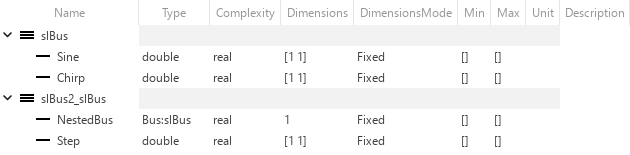
Create Simulink.Bus Objects from Cell Array of Bus Information
This example shows how to create and use a cell array to generate Simulink.Bus objects in the base workspace.
To define the elements that the Simulink.Bus object contains, create an array of Simulink.BusElement objects or a cell array of the property values for the Simulink.BusElement objects.
When you define the elements in an array, specify the values that differ from the default.
elementsArray(1) = Simulink.BusElement;

elementsArray(2) = Simulink.BusElement;
elementsArray(2).Name = "b";
elementsArray(2).Min = -3;
elementsArray(2).Max = 3;
elementsArray(2).Unit = "m";
When you define the elements in a cell array of property values, specify the element name, dimensions, data type, complexity, and sampling mode. Optionally, specify the dimensions mode, minimum, maximum, units, and description.
elementsCellArray = {{'a',1,'double','real','Sample'}; ...
    {'b',1,'double','real','Sample','Fixed',-3,3,'m',''}};
In this example, elementsArray and elementsCellArray create identical Simulink.BusElement objects.
To create multiple Simulink.Bus objects at once, create a cell array with two subordinate cell arrays that define the Simulink.Bus objects. For each Simulink.Bus object, specify the bus name, header file, description, data scope, alignment, preservation of element dimensions, and elements.
busCell = {{'BusObjArray','','','Auto','-1','0',elementsArray}, ...
    {'BusObjCellArray','','','Auto','-1','0',elementsCellArray}};
Create the Simulink.Bus objects in the base workspace from the cell array of cell arrays.
Simulink.Bus.cellToObject(busCell)
To compare the Simulink.Bus objects, open the Type Editor.
typeeditor
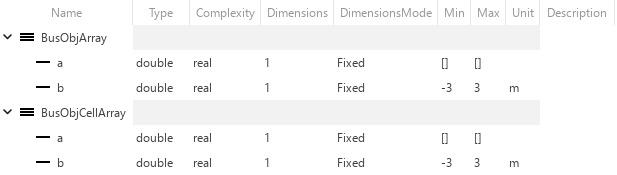
The Simulink.Bus objects are identical other than their names.
Create Simulink.Bus Objects from MATLAB Structures
When you create a nonvirtual bus with a Constant block, you must specify a MATLAB structure for Constant value and a Simulink.Bus object as the Output data type.
For this example, create a structure that contains other structures.
bus_struct.A.A1 = 0;
bus_struct.A.A2 = [0 + 0i;0 + 0i;0 + 0i;0 + 0i;0 + 0i];
bus_struct.B = 5;
bus_struct.C.C1 = 0;
bus_struct.C.C2.A1 = 0;
bus_struct.C.C2.A2 = [0 + 0i;0 + 0i;0 + 0i;0 + 0i;0 + 0i];
Create the Simulink.Bus objects that correspond with the structure.
busInfo = Simulink.Bus.createObject(bus_struct);
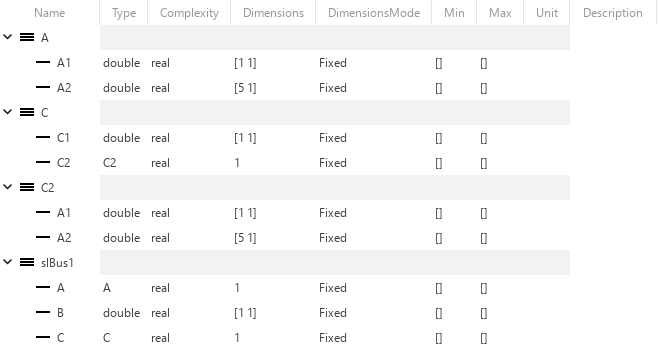
The function creates four Simulink.Bus objects. The object named slBus1 corresponds to the top-level structure and uses a default name. The objects named A, C, and C2 correspond to the nested structures.
To view the objects, open the Type Editor.
typeeditor
Import C Structure as Simulink.Bus Object
To generate Simulink representations of a C structure type (struct)
from a header file, use the Simulink.importExternalCTypes
function.
In your current folder, create the file
BusType.h.
typedef struct {
    double coeff;
    double init;
} params_T;
Then, use the Simulink.importExternalCTypes
function.
Simulink.importExternalCTypes("BusType.h");The function creates a Simulink.Bus object named
params_T in the base workspace.
To inspect the properties of the object, open the Type Editor.
typeeditor

Each bus element uses a name and a data type (double)
that match the corresponding structure field in
BusType.h.
See Also
Tools
Functions
Simulink.Bus|Simulink.BusElement|Simulink.Bus.createObject|Simulink.Bus.cellToObject|Simulink.importExternalCTypes

