Use Base Workspace to Define Globally Accessible Variant Control Variables for Variant Blocks
R2026bYou can define variant control variables in the base workspace so that the models in a MATLAB® session can access them. The base workspace supports all variant activation times, including code compile. Base workspace variables exist only for the duration of the MATLAB session. To restore the variables automatically when the model loads, add a PreLoadFcn callback that defines the variant control variables in the base workspace.
Use variant control variables in the base workspace when you:
Prototype and iterate quickly on variant control variable values
Work in a single-user environment where version control of variant definitions is not needed
Need the
code compilevariant activation time, which produces preprocessor#ifand#elifconditionals in the generated C code, without the additional setup of a data dictionary
For information on variant activation times and variant control variable types that the base workspace supports, see Verify Variable Type Compatibility with Workspace and Variant Activation Time.
For constraints that apply when defining variant control variables in different workspaces, see Workspace Constraints for Variant Control Variables.
Define and Use a Variant Control Variable in the Base Workspace
The slexVariantSubsystems model contains a Variant Subsystem block, Controller.
1. Open the slexVariantSubsystems model.
model = "slexVariantSubsystems";
open_system(model)
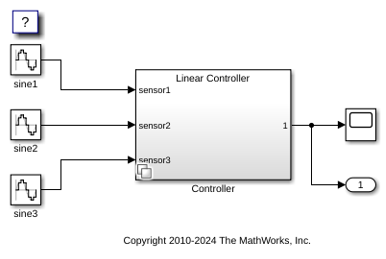
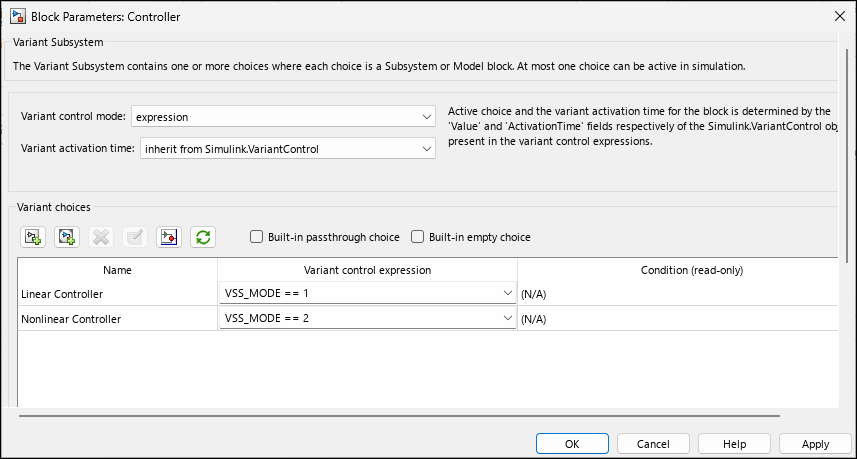
2. Open the Block Parameters dialog box of the Controller block.
The Variant activation time parameter is set to
inherit from Simulink.VariantControlso that the block inherits the activation time fromV.
The variant control expressions are
V == 1andV == 2. The block has two variant choices,Linear ControllerandNonlinear Controller.
Vis aSimulink.VariantControlVat the MATLAB command prompt or open the Workspace browser.
ControllerBlockPath = model + "/Controller";
LinearControllerBlockPath = ControllerBlockPath + "/Linear Controller";
NonlinearControllerBlockPath = ControllerBlockPath + "/Nonlinear Controller";
set_param(LinearControllerBlockPath,"VariantControl","V == 1")
set_param(NonlinearControllerBlockPath,"VariantControl","V == 2")
set_param(ControllerBlockPath,"VariantActivationTime","inherit from Simulink.VariantControl")
3. In the base workspace, define a Simulink.VariantControl object, V. Set its value to 1 and its variant activation time to update diagram.
V = Simulink.VariantControl(Value=1,ActivationTime="update diagram")
V =

  VariantControl with properties:

             Value: 1
    ActivationTime: 'update diagram'
4. Simulate the model. During simulation, the Controller block inherits the update diagram activation time from V, and the variant control expression V == 1 evaluates to true. The Linear Controller block becomes active.
sim(model);
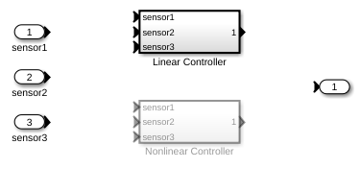
5. Open the Controller block by pressing Ctrl and double-clicking the block. The active variant choice, Linear Controller, is highlighted and the inactive variant choice, Nonlinear Controller, is dimmed.
open_system(model+"/Controller")
Change the Value to Switch the Active Choice
Change the value of V to 2 by using this command or by using the Simulink.VariantControl dialog box. The Nonlinear Controller block becomes active during simulation.
V.Value = 2;
sim(model);
Because V is defined in the base workspace, this change applies globally. All models in the MATLAB session that reference V use the updated value.
Note: If a variable with the same name exists in a closer scope, such as the mask or model workspace, it shadows the base workspace value. Verify that you do not have unintended same-named variables in multiple workspaces.
See Also
Use Data Dictionary to Define Shared Variant Control Variables for Variant Blocks

