Variant Control Modes in Variant Blocks
R2026bThe components of a Simulink® model that contain variants are activated or deactivated based on the variant choice that you select.
Each variant choice in your model is associated with a variant
control. Variant controls determine which variant choice is active. By changing
the value of a variant control, you can switch the active variant choice. While each variant
choice is associated with a variant control, only one variant control can evaluate to
true. When a variant control evaluates to true,
Simulink activates the variant choice that corresponds to that variant control. For a
simple example, see Introduction to Variant Controls.
Types of Variant Control Modes in Variant Blocks
These are types of variant control modes in Simulink:
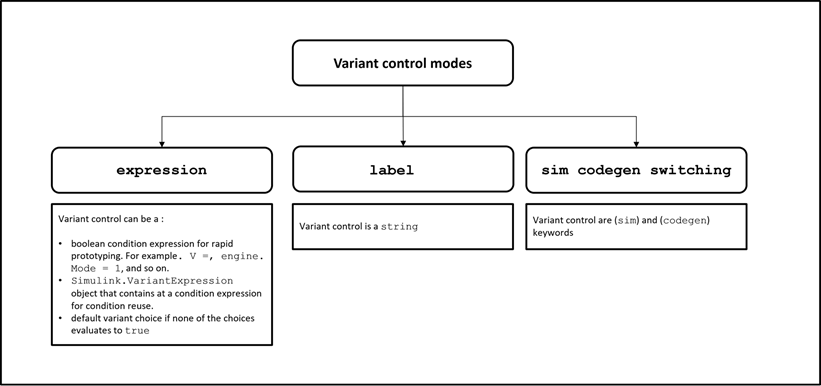
expression— The software chooses the active variant based on the evaluation of the variant conditions. When a condition expression evaluates totrue, the corresponding variant choice becomes active. When a condition expression evaluates tofalse, the corresponding variant choice becomes inactive. See Switch Between Choices Using Condition Expressions in Variant Blocks.label— The software chooses the active variant based on the name of the variant. The variant control is a string and does not require you to create any variable in any workspaces. See Switch Between Choices Using Labels in Variant Blocks.sim codegen switching— Automatically switch between the variants for simulation and code generation workflows without creating any workspace variable. When you simulate a model, the software automatically chooses thesimbranch as the active choice. Similarly, when you do a software-in-the-loop (SIL) or processor-In-Loop (PIL) simulation, generate code, or use external mode, the software automatically chooses thecodegenbranch. See Switch Between Choices for Simulation and Code Generation Workflows Without Using Control Variables in Variant Blocks.
Switch Between Choices Using Condition Expressions in Variant Blocks
In expression mode, Simulink chooses the active variant choice based on the evaluation of a logical
condition called variant control expression. Only the variant choice
whose control expression evaluates to true becomes active. These
expressions are evaluated at specific phases of simulation or code generation, as specified
by the variant activation time, so that the appropriate variant is selected for execution.
You can specify variant control expressions in variant blocks and in variant
parameters.
variant conditions. When a condition expression evaluates to true,
the corresponding variant choice becomes active. When a condition expression evaluates to
false, the corresponding variant choice becomes inactive.
You can use the expression type of variant controls in
variant blocks and in variant parameters.
Note
You can simulate and generate code from the model containing a variant block with
Variant control mode set to expression
mode. The generated code can contain active and inactive choices that are enclosed in
preprocessor conditionals #if and #elif, or
regular if conditions.
Use expression Type of Variant Control in Variant
Blocks
To specify the variant condition expressions in variant blocks:
Right-click the badge on the variant block, and then click the Block Parameters button
 , and then specify the variant condition expression
in the Variant control expression parameter of the block
parameter dialog box.
, and then specify the variant condition expression
in the Variant control expression parameter of the block
parameter dialog box.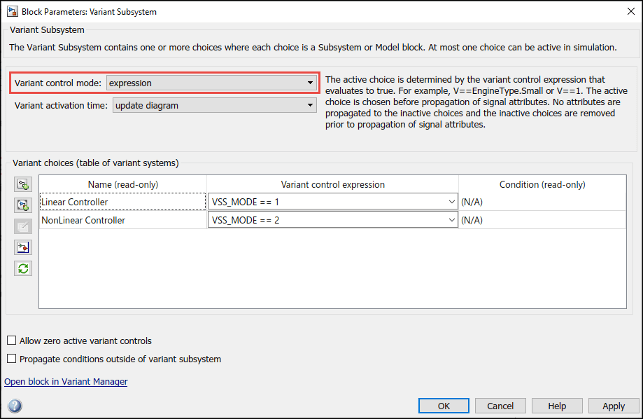
Use this command.
In this command,set_param('Model/Controller/Linear Controller',... 'VariantControl', 'VSS_MODE == 1')Model/Controller/Linear Controlleris the full path of the variant choice, andVSS_MODE == 1is the expression associated with the variant choice in the modelModel.
Types of Variant Controls in expression Mode
The variant controls can be:
A boolean condition expression for rapid prototyping. For example,
A == 1,A ~= B,A && B == 1, and so on.A
Simulink.VariantExpressionobject that contains condition expressions. UseSimulink.VariantExpressionobjects if you need to reuse a complex variant condition expression across multiple variant blocks and variant parameters, and use them for AUTOSAR code generation workflows. See Use Simulink.VariantExpression Objects for Variant Condition Reuse of Variant Blocks.A default variant control if none of the other variant choices evaluate to
true. You can specify at most one variant choice as the default for the block. During simulation, if none of the variant controls evaluate totrue, Simulink uses the default variant as the active variant choice. To set a variant choice as the default, select the(default)keyword in the Variant control expression column for that choice.
Here, A and B are operands called as
variant control variables. +,
==, and && are operators in the condition
expression. The condition expression can contain one or more such variant control
variables and operators. For information on supported types of
variant control variables, see Types of Variant Control Variables (Operands) in Variant Blocks. For information on
choosing a storage location, see Choose and Configure a Workspace for Variant Control Variables of Variant Blocks. For information on
operators, see Types of Operators in Variant Blocks for Different Activation Times.
Note
A Variant Assembly Subsystem block does not support the
Simulink.VariantExpressionobject type of variant control variable.To comment out a variant control, place a
%symbol before the variant control expression. During simulation, if the corresponding variant choice becomes active, Simulink ignores the variant choice. However, Simulink continues to execute any block callbacks inside the commented out variant choice.
Structure of a Variant Control Expression in Variant Blocks
A variant control expression consists of:
Variant control variables — Named variables defined in locations such as the base workspace, model workspace, or a data dictionary.
Operators — MATLAB® operators such as logical operators (
&&,||,~) and relational operators (==,~=,<,>) to combine or compare variant control variables and constants. The types of operators you can use depend on the Variant activation time parameter. For more information, see Types of Operators in Variant Blocks for Different Activation TimesComparison values — Values to compare against variant control variables. These can be any valid MATLAB data type, including numeric, logical, enumeration, or other appropriate types.
Types of Variant Control Variables (Operands) in Variant Blocks
In variant blocks, use Simulink.VariantControl objects for variant control variables. A
Simulink.VariantControl object associates the value of a variant
control variable with Variant activation time, which helps prevent
incorrect variant selection in applications that require frequent variant switching. The
Simulink.VariantControl objects also centralize the variant activation
logic. When you update a Simulink.VariantControl variable, variant blocks
and variant parameters that share this control are synchronized, avoiding mismatches
across different portions of the model.
Alternatively, you can use other types as variant control variables, such as scalar
variables for quick prototyping and simple models, or Simulink.Parameter
objects to specify additional properties and support code generation.
You can define variant control variables in different storage locations based on your requirements. For guidance on choosing a storage location, see Choose and Configure a Workspace for Variant Control Variables of Variant Blocks. If you define a variable with the same name in the base workspace, a mask workspace, and the model workspace, Simulink evaluates the variable first in the mask workspace, then in the model workspace, and finally in the base workspace. Simulink gives priority to the definition in the closest context, so the most relevant value is used to evaluate variant condition expressions. For details on the capabilities and advantages of each storage location, see Determine Where to Store Variables and Objects for Simulink Models.
This table summarizes the types of variant control variables supported in variant blocks. It specifies where you can define each type of variant control variable, the supported variant activation times for each type. For examples on how to use different types of variant control variables, see Use Variant Control Variables in Variant Blocks.
| Type of Variant Control Variable | Workspaces Supported | update diagram | update diagram analyze all choices | code compile | startup | runtime |
|---|---|---|---|---|---|---|
See Use Simulink.VariantControl Variables for Coherent Switching of Choices in Variant Blocks. |
| ✓ | ✓ | ✓ | ✓ | ✓ |
model workspace | ✓ | ✓ | ✓ | ✓ | ||
mask initialization code | ✓ | ✓ | ||||
See Use Custom Data Class Objects as Values of Simulink.VariantControl Objects. |
| ✓ | ✓ | ✓ | ✓ | ✓ |
model workspace | ✓ | ✓ | ✓ | ✓ | ||
|
| ✓ | ✓ | ✓ | ✓ | ✓ |
model workspace | ✓ | ✓ | ✓ | ✓ | ||
See Simulink.Parameter Type of Variant Control Variables for Code Generation in Variant Blocks. |
| ✓ | ✓ | ✓ | ✓ | ✓ |
model workspace | ✓ | ✓ | ✓ | ✓ | ||
Scalar variable — Rapid prototyping and simulation for quick variant switching. See Scalar Variant Control Variables for Rapid Prototyping in Variant Blocks. |
| ✓ | ✓ | ✓ | ✓ | ✓ |
| ✓ | ✓ | ✓ | ✓ | ||
mask initialization code | ✓ | ✓ |
Tip
To provide descriptive names for comparison values and restrict them to a specific, predefined set in variant condition expressions, use enumerations as described in Use Enumerated Types to Improve Code Readability of Variant Control Variables of Variant Parameters.
To reduce the number of variant control variables and improve readability, you can group related variant controls into a MATLAB structure as described in Structures to Group Related Variant Control Variables of Variant Blocks.
When generating code for ERT-based and GRT-based targets, use Code Mappings Editor — C (Simulink Coder) to configure code generation attributes for signals, states, and parameters including the
Simulink.Parameterobjects. Using the editor centralizes control over how these elements appear in the generated code.
How to Choose the Right Variant Control Variable and Comparison Value in Variant Blocks
In variant blocks, use Simulink.VariantControl objects for variant control variables. A
Simulink.VariantControl object associates the value of a variant
control variable with Variant activation time, which helps prevent
incorrect variant selection in applications that require frequent variant switching. The
Simulink.VariantControl objects also centralize the variant activation
logic. When you update a Simulink.VariantControl variable, variant blocks
and variant parameters that share this control are synchronized, avoiding mismatches
across different portions of the model.
Alternatively, you can use other types as variant control variables, such as scalar
variables for quick prototyping and simple models, or Simulink.Parameter
objects to specify additional properties and support code generation.
Use this flow chart to determine the appropriate type of variant control variable and the value to assign based on your requirements. After selecting the type of variant control variable, choose the appropriate data type for its value and a workspace to define it in. See Choose and Configure a Workspace for Variant Control Variables of Variant Blocks.
If you selected Simulink.VariantControl as the type for your variant
control variable, use this flow chart to determine the appropriate data type for its
value.
If you selected Simulink.Parameter as the type for your variant
control variable, refer to the flow chart below to determine the appropriate data type for
its value.
Types of Operators in Variant Blocks for Different Activation Times
Variant condition expressions can contain MATLAB operators, provided the expression evaluates to a Boolean value.
In variant blocks, the operators that you can use to form a variant condition expression depends on the Variant activation time.
When you specify the Variant activation time as:
update diagram— Any condition expression that evaluates totrueorfalse.update diagram analyze all choicesorcode compile— The supported operators are:Parentheses for grouping
Arithmetic Operators, Relational Operators, Logical Operators, and Bit-Wise Operations, as listed in this table.
This table lists the MATLAB operators and their representation in the generated code. In these examples,
AandBare expressions that evaluate to an integer, andxis a constant integer literal.MATLAB Expressions That Support Generation of Preprocessor Conditionals Equivalent Expression in C Preprocessor Conditional of Generated Code Arithmetic A + B+A
A + BA
A - B-A
A - B-A
A * BA * Bidivide(A,B)A / BIf the value of the second operand (
B) is0, the behavior is undefined.rem(A,B)A % BIf the value of the second operand (
B) is0, the behavior is undefined.Relational A == BA == BA ~= BA != BA < BA < BA > BA > BA <= BA <= BA >= BA >= BLogical ~A!A, whereAis not an integerA && BA && BA || BA || BBitwise ( AandBcannot both be constant integer literals)bitand(A,B)A & Bbitor(A,B)A | Bbitxor(A,B)A ^ Bbitcmp(A)~Abitshift(A,x)A << xbitshift(A,-x)A >> x
startup— The supported operators are:Parentheses for grouping
Relational Operators and Logical Operators, as listed in this table.
This table lists the MATLAB operators and their representation in the generated code. In these examples,
AandBare expressions that evaluate to an integer.Supported Operators in Variant Condition Expression Equivalent Expression in Regular ifof Generated CodeRelational A == BA == BA ~= BA != BLogical ~A!A, whereAis not an integerA && BA && BA || BA || B
Note
In variant blocks with startup activation time:
For the variant control variables with any activation time, the variant control variables that originate from the mask or the model workspace cannot be used in the MATLAB in-built functions such as
idivide,bitand, and so on to form expressions.AUTOSAR post-build variants support only
==and&&operators. For more information, see Configure Postbuild Variant Conditions for AUTOSAR Software Components (AUTOSAR Blockset).
Evaluate Variant Condition Expressions at Different Variant Activation Times
In expression mode, you can specify if Simulink must evaluate condition expressions during model compile, simulation-loop,
code compile, or model start up stage of simulation and code generation workflow using
variant activation times. For information on stages of simulation and code generation and
supported variant activation times in expression mode, see
Activate Variant During Different Stages of Simulation and Code Generation Workflow.
Automatically Identify Variant Regions Using Variant Condition Propagation
Simulink determines the model components that are active during simulation by the process of variant condition propagation. This process evaluates the variant controls specified on the variant blocks and automatically propagates the variant conditions to the connecting blocks. Variant conditions can propagate through signal lines, buses, and function calls to reach other blocks in the model. The process deactivates the model components associated with the inactive choices and they do not participate in simulation. You can stop condition propagation to define variant regions in the model.
You can limit variant condition propagation in a bounded region using the Variant Start and Variant End blocks. For more information on bounded region, see Variant Start.
You can use the Variant Legend to visualize the propagated variant conditions that activate each variant choice. Simulink annotates model components if there are variant conditions on them, and the Variant Legend displays the condition that corresponds to each annotation.
For more information, see Propagate Variant Conditions to Define Variant Regions with Variant Blocks.
Switch Between Choices Using Labels in Variant Blocks
In label mode, Simulink chooses the active variant based on the name of the variant. The variant
control is a string and does not require you to create a variable in any workspace.
Note
In label mode, the activation time of the variant block
is set to update diagram by default. In other words, when you
simulate a model or generate code from a model, Simulink determines the active choice in the model compilation stage and generates
code only for the active choice. See Activate Variant During Different Stages of Simulation and Code Generation Workflow.
Use label Mode in Variant Blocks
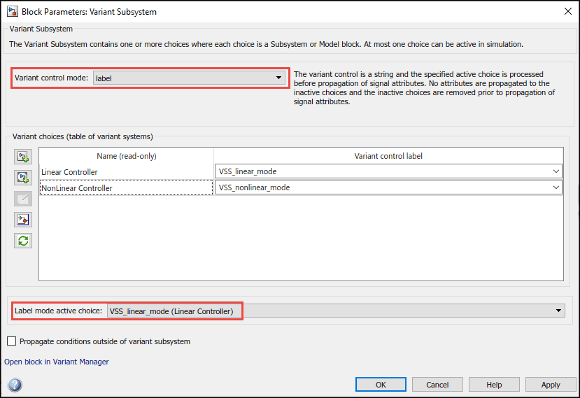
To specify the labels for choices in variant blocks, right-click the badge on the
variant block, and then click the Block Parameters button , and then specify the labels in the Variant
control label parameter of the block parameter dialog box.
Set Active Choices Using Variant Control Labels
You can follow any of these approaches to set active choices in
label mode:
Specify a name for each variant choice in the Variant control label parameter of the variant block dialog box. All the names that you specify are listed in the Label mode active choice drop-down. The label that you select from the list becomes the active choice.
Right-click the badge on the variant block and select Label Mode Active Choice.
From the mask workspace using the initialization code. Using the mask initialization code, you can specify the active choice from variant block or any subsystem in the hierarchy. The active choice you specify in the mask initialization code overrides the active choice you specify using the Label mode active choice drop-down or the Label Mode Active Choice menu item. For more information, see Mask a Variant Subsystem.
Use this command:
where blockName is the name of the variant block and variantChoiceLabel is the label associated with the variant choice.set_param(blockName,'LabelModeActiveChoice', 'variantChoiceLabel')
Switch Between Choices for Simulation and Code Generation Workflows Without Using Control Variables in Variant Blocks
To automatically switch between the choices for simulation and code generation workflows
without creating any workspace variable, use the sim codegen
switching variant control mode.
Note
In sim codegen switching mode, only the update
diagram and the update diagram analyze all
choices activation times are supported. In other words, when you simulate
or generate code from a model, Simulink determines the active choice in the model compilation stage and generates
the code only for the choice. See, Activate Variant During Different Stages of Simulation and Code Generation Workflow.
Use sim codegen switching Mode in Variant Blocks
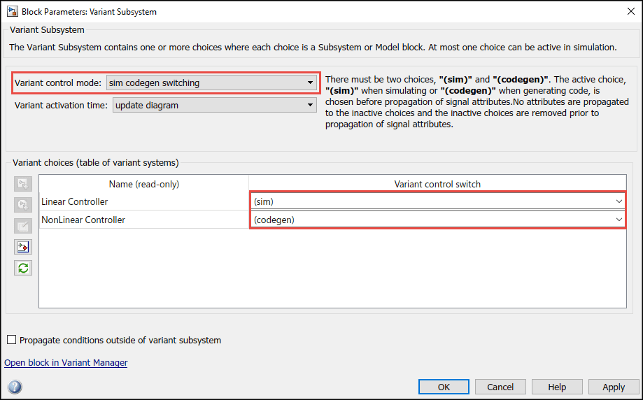
To specify simulation and code generation branches for variant choices, right-click
the badge on the variant block, and then click the Block Parameters button
, and then specify the (sim) and
(codegen) keywords in the Variant control switch
parameter of the block parameter dialog box.
When you simulate a model in normal, accelerator, or rapid Accelerator mode,
Simulink automatically chooses the (sim) branch as the active
choice. Similarly, when you do a software-in-the-loop (SIL), processor-In-Loop (PIL)
simulation or generate code or use external mode, Simulink automatically chooses the (codegen) branch. The code is
generated only for the active choice. Inactive choices are not included in the generated
code. In this mode, you can at most have only two choices in the variant block.
Compare Different Types of Variant Control Modes in Variant Blocks
This table explains the capabilities of different variant control modes to help you choose one that caters to your requirement.
| Variant control mode | Capabilities |
|---|---|
| Use
|
| Use
|
| Use
|
Variant Activation Times for Different Variant Control Modes in Variant Blocks
This table explains the variant activation time supported for different variant control modes in variant blocks. For information on variant activation times, see Activate Variant During Different Stages of Simulation and Code Generation Workflow.
| Variant activation time | ||||||
|---|---|---|---|---|---|---|
| Variant blocks | Variant control mode | update diagram | update diagram analyze all choices | code compile | startup | runtime |
| Variant Subsystem | expression | ✓ | ✓ | ✓ | ✓ | ✓ |
label | ✓ | x | x | x | x | |
sim codegen switching | ✓ | ✓ | x | x | x | |
| Variant Model, Variant Source, Variant SinkVariant StartVariant End | expression | ✓ | ✓ | ✓ | ✓ | not supported |
label | ✓ | x | x | x | not supported | |
sim codegen switching | ✓ | ✓ | x | x | not supported | |
| Variant Connector (Simscape), Manual Variant Source, Manual Variant Sink | expression | ✓ | x | x | x | not supported |
label | not supported | not supported | ||||
sim codegen switching | not supported | not supported | ||||
| Simulink Function, Initialize Function, Reset Function, and Terminate Function | expression | ✓ | x | ✓ | x | not supported |
label | not supported | not supported | ||||
sim codegen switching | not supported | not supported | ||||

