Annotate Vehicle Simulation
R2026bThis example shows how to annotate the trajectory, location, speed, and direction of a vehicle during simulation. First, you create a 3D environment with a straight road and cones to form a double lane change maneuver. Next, add a vehicle to drive in the environment. Then, create an arrow to show the steering direction, text labels for vehicle location and speed during simulation, and path markers to trace the vehicle trajectory.
Open Model
Open the model.
open_system("VehicleAnnotations.slx");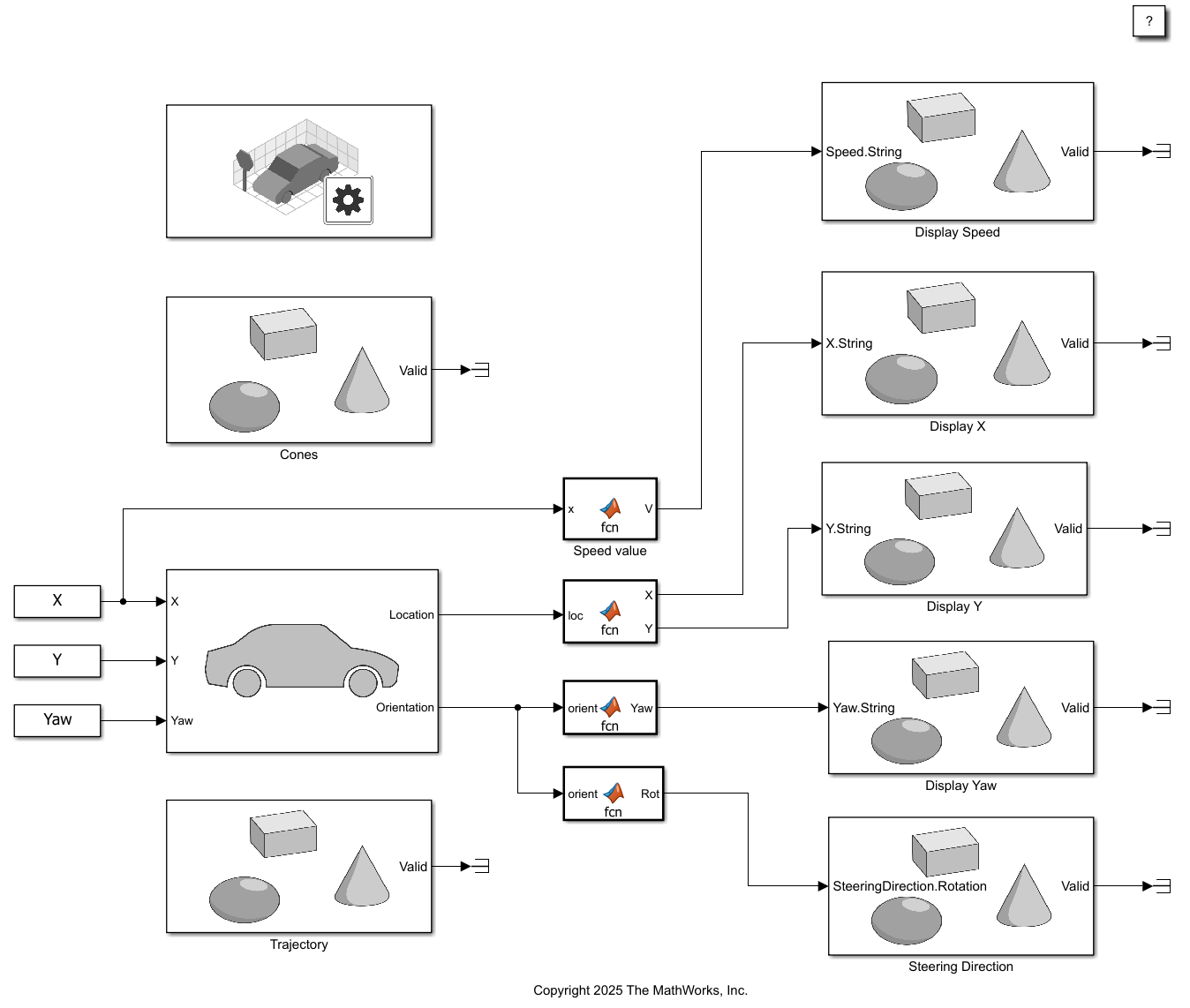
Explore Model Components
The model includes a Simulation 3D Scene Configuration block, a Simulation 3D Vehicle with Ground Following block, and Simulation 3D Actor blocks to create a 3D environment with actors that you can annotate during simulation.
3D Environment
The Simulation 3D Scene Configuration block implements the 3D environment. Double-click the Simulation 3D Scene Configuration block to open the Block Parameters dialog box. Set Scene name to Straight road.
The Simulation 3D Actor block named Cones creates actors with a cone shape and adds them to the 3D environment. The Initialization script of the block loads the ConeLocations.mat file to access the variables LPos and RPos, which specify cone locations. The Initialization script uses the createShape function to build cone shape for each actor created at the LPos and RPos locations.
Vehicle Trajectory
The Simulation 3D Vehicle with Ground Following block adds a vehicle actor to the 3D environment. The vehicle location at each time step is loaded to the X, Y, and Yaw input ports of the block using the VehicleTransformSignals.mat file, which contains the timeseries variables, X,Y, and Yaw.
The Simulation 3D Actor block named Trajectory creates a sim3d.graphics.PathMarker object to trace the vehicle trajectory. Use the Initialization script of the actor block to create and add the sim3d.graphics.PathMarker object to the world. Set the ControlActor argument of the sim3d.graphics.PathMarker object to the name of the vehicle actor, SimulinkVehicle1.
Annotations
These Simulation 3D Actor blocks create and add annotations to the environment and update the annotations during simulation.
Display Speeddisplays the text labelSpeedand the vehicle speed during simulation. Use the Initialization script of the actor block to create and add twosim3d.graphics.Textobjects namedSpeedLabelandSpeedto the environment. The objectSpeedLabeldisplays the text labelSpeed, and the objectSpeeddisplays the vehicle speed at each time step. Use the Input tab of the block to select the input port Speed.String. The speed during each time step is calculated by the MATLAB Function block namedSpeed valueand displays the speed value in the environment using the Speed.String input port of theDisplay Speedblock.Display Xdisplays the text labelXand the vehicle location along X-axis during simulation. Use the Initialization script of the actor block to create and add twosim3d.graphics.Textobjects to display the text label and the value in the environment. Use the Input tab of the block to select the input port X.String. The MATLAB Function block rounds theXvalue from the Location output port of the Simulation 3D Vehicle with Ground Following block and displays it using theDisplay Xblock.Display Ydisplays the text labelYand the vehicle location along Y-axis during simulation. Use the Initialization script of the actor block to create and add twosim3d.graphics.Textobjects to display the text label and the value in the environment. Use the Input tab of the block to select the input port Y.String. The MATLAB Function block rounds theYvalue from the Location output port of the Simulation 3D Vehicle with Ground Following block and displays it using theDisplay Yblock.Display Yawdisplays the text labelYawand the vehicle orientation about Z-axis location during simulation. Use the Initialization script of the actor block to create and add twosim3d.graphics.Textobjects to display the text label and the value in the environment. Use the Input tab of the block to select the input port Yaw.String. The MATLAB Function block rounds theYawvalue from the Orientation output port of the Simulation 3D Vehicle with Ground Following block and displays it using theDisplay Yawblock.Steering Directiondisplays an arrow that changes orientation during simulation based on the vehicle direction. Use the Initialization script of the actor block to create and add asim3d.graphics.Arrowobject namedSteeringDirectionthat displays an arrow in the environment. Use the Input tab of the block to select the input port SteeringDirection.Rotation.The MATLAB Function block rounds the rotation value from the Orientation output port of the Simulation 3D Vehicle with Ground Following block and updates the rotation of the arrow in the 3D environment using the SteeringDirection.Rotation input port of theSteering Directionblock.
Simulate Model
Simulate the model and view the vehicle driving in the environment with annotations in the Simulation 3D Viewer.
sim("VehicleAnnotations.slx");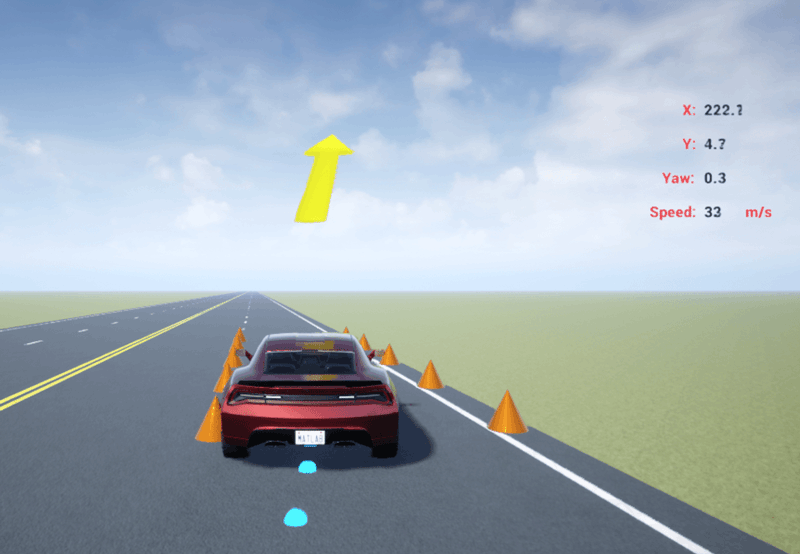
Close Model
Close the Simulink model.
close_system("VehicleAnnotations.slx");See Also
Simulation 3D Scene
Configuration | Simulation 3D
Actor | Simulation 3D Vehicle
with Ground Following | sim3d.Actor | createShape | add | sim3d.graphics.Arrow | sim3d.graphics.Text | sim3d.graphics.PathMarker | MATLAB Function (Simulink)
Topics
- Create 3D Simulations in Unreal Engine Environment
- Unreal Engine Simulation Environment Requirements and Limitations
- Generate Skidpad Test (Vehicle Dynamics Blockset)
- Double Lane Change Reference Application (Vehicle Dynamics Blockset)

