Create and Run a Back-to-Back Test (Tech Preview)
R2026bNote
The redesigned Simulink® Test Manager is a tech preview in R2026b. The primary purpose of the tech preview is to provide early access to the most common testing workflows. For more information about supported workflows, see Overview of the Redesigned Simulink Test Manager (Tech Preview).
To enable the feature, click the New Test Manager button in the
existing Test Manager or use the sltest.stmv2.open function at
the command line.
This step how to run a back-to-back test by using the redesigned Test Manager. You create
run settings files to specify simulation modes, then configure a runlist to compare the
results of normal and software-in-the-loop (SIL) simulations of the assessment test case that
you added to the fuelsys_stm test file in the previous step of the
example.
Define Run Settings
Run settings files specify how the Test Manager runs tests. For example, you can use run settings to specify the simulation mode for the model and enable coverage.
To define the simulation mode for each side of the back-to-back comparison. Create one run settings file for normal mode and another for SIL mode:
In the File section, click New > Run Settings. In the New Run Settings window, choose a location, enter the file name
normalSim. Click Save.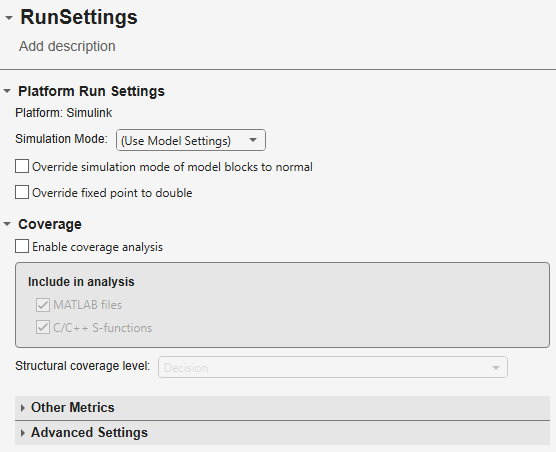
In the normalSim.sltestr tab, in the Platform Run Settings, set Simulation Mode to
Normal. Click Save.Click New > Run Settings. In the New Run Settings window, choose a location, enter the file name
SILSim. Click Save.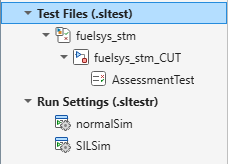
In the SILSim.sltestr tab, in the Platform Run Settings section, set Simulation Mode to
SIL. Click Save.
Configure a Runlist to Run a Back-to-Back Test
Runlists specify which test case and run setting combinations to run and define post-hoc tasks such as comparisons between simulation results.
Create a runlist to assign the normalSim and
SILSim run settings files to the AssessmentTest
test case and define a comparison between the simulation results:
In the Test tab of the toolstrip, click New > Runlist. In the New Runlist window, choose a location, enter the file name
fuelsys_runlist. Click Save.In the Run Setting section, select normalSim and SILSim.
In the Test Cases section, select
fuelsys_stm.In the Runlist tab toolstrip, in the Post-Hoc Tasks section, click Add Comparison.
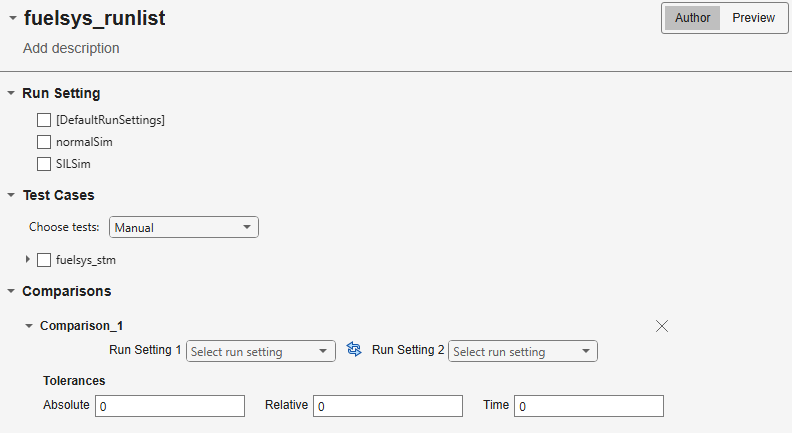
In the Comparison_1 section, set Run Setting 1 to
normalSim. Set Run Setting 2 toSILSim.In the Tolerances section, set Relative to
0.1.In the top-right corner of the
fuelsys_runlisttab, click the Preview button. The preview shows the test case and run settings combinations that execute when you run the runlist.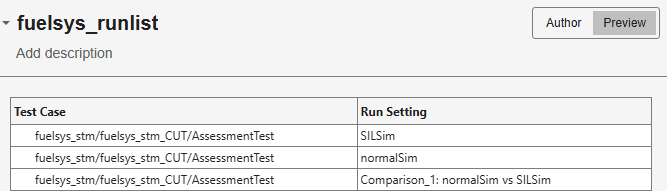
Review Back-to-Back Test Results
After you create the run settings files and the runlist, run the tests and view the results.
To run the test cases, in the Runlist tab, click Run.
After the tests execute, the Test Results pane in the results app shows the new test results. Expand the comparison results and select Comparison Run.

In the Compare tab of the Data Inspector, expand the run and select
fuelGain. The right pane displays the results plots.

