Download and Install Third-Party Tools
R2026bIn this step, you download the third-party tools required for your target hardware board. You can use the Hardware Setup tool to automatically install the software you need or manually select the software to install.
Download Required Third-Party Tools
On the Choose Download Mode for Third-Party Tools page, you can choose to automatically or manually download and install third-party tools for your board.
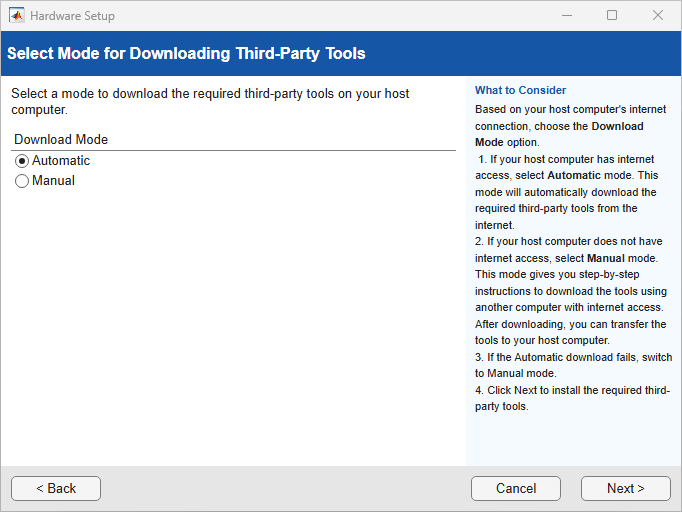
When you select Automatic, the Hardware Setup tool downloads and
installs the necessary third-party tools from the internet to your host computer, which
must have internet connectivity. After installation completes, the third-party tools are
available in the folder support_package_installation_folder
/3P.instrset/. To get to the root folder of support packages, use the
matlabshared.supportpkg.getSupportPackageRoot
function.
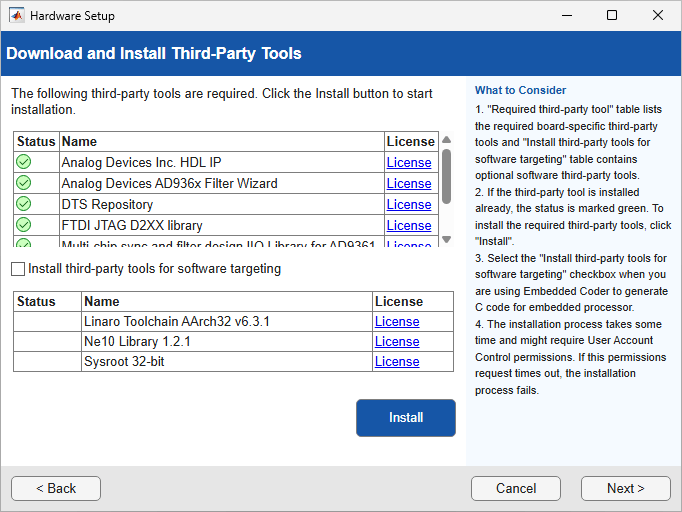
If the development computer does not have internet access, you can select Manual to manually download the third-party tools. The wizard provides step-by-step instructions for downloading the required third-party tools. Use another computer with internet access to download these tools and then transfer them to the development computer. Then, specify the folder path that contains third-party tools and click Next.

Register Root File System for Software Targeting
This is step is required only if you use an Ethernet interface to connect to the target board and you installed third-party tools for software targeting in the Download and Install Third-Party Tools step.
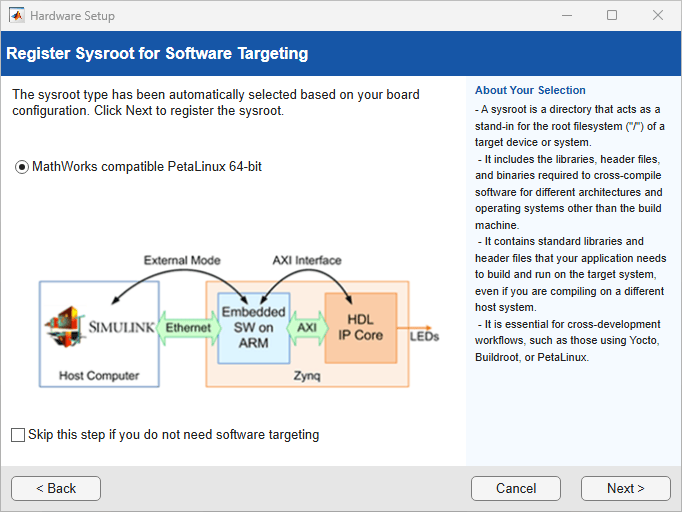
On the Register Sysroot for Software Targeting step, you register the Linux® root file system (sysroot) for the target AMD board. The sysroot provides the libraries, header files, and binaries required to cross‑compile, deploy, and run generated code on the target hardware. You must register a sysroot when using cross‑development workflows, such as those that use Yocto, Buildroot, or PetaLinux.
Select the Linux image type that matches the root file system installed on the target device:
MathWorks compatible PetaLinux 32‑bit — Select this option when the target device is running a 32‑bit PetaLinux image.
MathWorks compatible PetaLinux 64‑bit — Select this option when the target device is running a 64‑bit PetaLinux image.
If you do not want to register a sysroot, select the Skip this step if you do not want to register sysroot check box and click Next. You can register the sysroot later by using the Hardware Setup tool.
Compile Third-Party Tools for SDR or Vision Applications
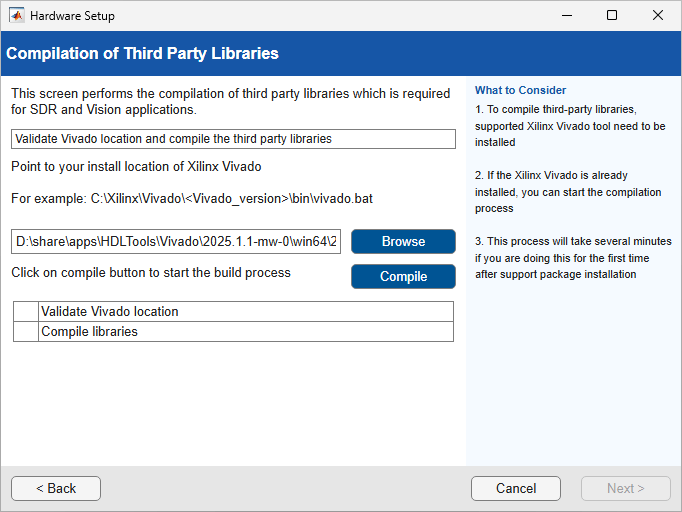
The Compilation of Third Party Libraries step appears only when you setup hardware for software-defined radio (SDR) or vision applications. For example, when you choose Xilinx Zynq ZC706 evaluation kit, you can set the Add-on card to FMCOMMS2/3/4 for SDR applications.
This step compiles these third-party libraries, which are required for SDR applications:
Analog Devices® Inc. HDL IP
Library for interfacing with IIO devices
Xilinx® Linux Binaries
To compile these libraries, provide the Xilinx
Vivado® synthesis tool path and click Compile. If you have already set tool the path by using hdlsetuptoolpath (HDL Coder) function, the tool path appears on the Browse field.
The compilation process takes several minutes to complete. After the process completes, click Next.
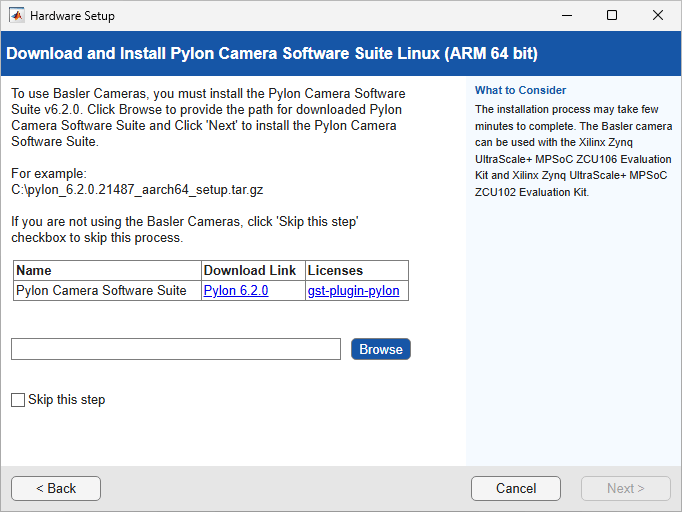
Download and Install Pylon Camera Software Suite Linux (ARM 64 bit)
This step appears when you select the USB Camera add-on card. This step is required only if you are using a Basler USB 3.0 camera. To skip this step, select the Skip this step check box and then click Next.
If you are using a Basler USB 3.0 camera, click the links to download Pylon 6.2.0 Camera Software Suite Linux ARM 64 bit, and a license file. Then, click the Browse button to specify the location of your downloaded software.
Pylon® software versions later than version 6.2.0 are not supported.
Install PCI Express Driver
This step is required only when you select the PCI Express® interface.
If you have already installed the PCI Express drivers, you can skip this step.
Install the PCI Express drivers before you use FIL, FPGA data capture, or AXI manager with a PCI Express connection. This step performs the driver installation for you. The installation process can take 10 minutes or longer and might require system administrator privileges.

You can let the support package setup install the drivers now, or you can choose to perform the setup again later. To run the support package setup, on the MATLAB® Home tab, in the Environment section, select Help > Check for Updates.
Install USB Ethernet Drivers
This step is required only when you select the USB Ethernet interface on a Windows® operating system.
If you have already installed the USB Ethernet drivers, skip this step.
You must install the USB Ethernet drivers before you use AXI manager or FIL with a USB Ethernet connection. To install the drivers, click Install Driver. The installation process might require system administrator privileges.


