Interact with 3D Simulation Environment
R2026bUAV Toolbox provides a cosimulation framework that models UAV algorithms in Simulink® and visualizes their performance in a virtual simulation environment. This environment uses the Unreal Engine® from Epic Games®.
Note
Simulating models in the 3D visualization environment requires a Simulink 3D Animation™ license.
Within this environment, you can create a 3D environment with actors. An actor is any object in the 3D environment that can move and rotate to support 3D transformations. In Simulink, use the Simulation 3D Scene Configuration block to implement and view the 3D simulation environment with the Simulation 3D Viewer interface. To add UAV actors to the 3D environment, use the Simulation 3D UAV Vehicle block.
You can use keyboard shortcuts and mouse controls to view and navigate in the 3D environment. For more information on Simulation 3D Viewer keyboard shortcuts and mouse controls, see Navigate in Unreal Engine Environment.
Simulation 3D Viewer Interface
The Simulation 3D Viewer interface enables you to interact with the actors and the 3D environment. During simulation, right-click an actor or the 3D environment to display a context menu that lists options for interacting with that actor or the 3D environment. You can also double-click anywhere in the world. Double-click an actor to zoom in with a fit-to-screen view and attach the virtual camera to the actor.
Interact with Actor
During simulation, right-click the actor to display the context menu for the actor and the world.
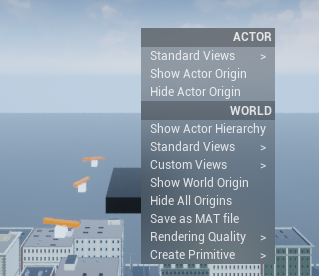
The context menu contains these options for the actor.
| Actor Option | Description |
|---|---|
Standard Views | Lists the standard views of the actor.
|
Show Actor Origin | Displays the axes of the default coordinate system at the actor origin. |
Hide Actor Origin | Hides the coordinate axes of the actor. |
Interact with 3D Environment
During simulation, right-click the 3D environment to display the context menu for the world.
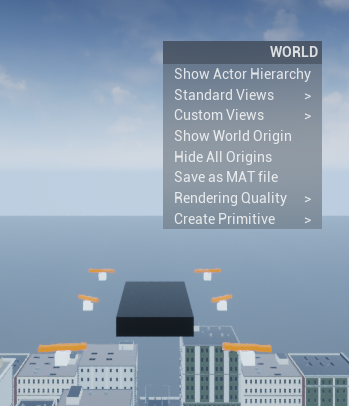
The context menu contains these options for the world.
| World Option | Description |
|---|---|
Show Actor Hierarchy | Opens the Actor Hierarchy to view the hierarchical structure of the actors in the 3D environment during simulation. You can double-click an actor name to display the perspective view of that actor and attach the virtual camera to them. You can also right-click an actor name to display the context menu for that actor and the world. |
Standard Views | Lists the standard views of the 3D environment.
Note When simulating models, this option is available when
the Scene view is set
to |
Custom Views | Lists custom views created to view the 3D environment. Use the Scene view parameter of the Simulation 3D Scene Configuration block to create custom views. |
Show World Origin | Displays the axes of the default coordinate system at world origin. |
Hide All Origins | Hides the coordinate axes of all actors and world origin. |
Save as MAT file | Save the 3D environment as a MAT file, including all the actors in the world. |
Rendering Quality | Lists the simulation rendering quality.
|
| Create Primitive | Create a primitive shape of the selected type at the scene origin.
|

