主要内容

uifitcircle

R2026b

Interactively measure circles in image using circle tool

Since R2026b

Description

The uifitcircle object displays a circle measurement tool on an image object that you create using the imageshow function. You can use this measurement tool to interactively measure circles in an image.

To automatically adjust or correct the placement of the measurement tool to align precisely with a circle edge, use the snap object function. To programmatically measure circles, use the fitcircle function.

Creation

Description

hCircle = uifitcircle(hImage) configures a circle measurement tool on the displayed image hImage.

example

hCircle = uifitcircle(hImage,PropertyName=Value) sets writable properties using one or more name-value arguments.

For example, Snap="true" specifies to snap the circle you interactively define using the circle tool to a circular edge in the image.

Input Arguments

expand all

Input image object, specified as an images.ui.graphics.Image object. To create this image object, use the imageshow function.

Note

By default, spatial image coordinates are in the intrinsic coordinate system, where the center of the upper left pixel has intrinsic coordinates (1.0, 1.0). If you perform a coordinate transformation on the image input to the hImage argument, units are defined in the world coordinate system. To learn more, see Image Coordinate Systems.

Name-Value Arguments

expand all

Specify optional pairs of arguments as Name1=Value1,...,NameN=ValueN, where Name is the argument name and Value is the corresponding value. Name-value arguments must appear after other arguments, but the order of the pairs does not matter.

Example: uifitcircle(hImage,Snap="true") specifies to snap the circle you interactively define using the circle tool to a circular edge in the image

Position of the circle tool, specified as one of these options:

Position formatDescription
3-element row vector

The vector is of the form [xCenter yCenter R], where the [xCenter yCenter] coordinate is the center of the circle and R is the circle radius.

N-by-2 matrix

Each row in the matrix represents a coordinate point to which the circle is fit.

You can specify Position programmatically, or interactively by clicking a start point in the displayed image hImage and then clicking the vertex and end point.

Snap the circle to edges during interactive placement, specified as a numeric or logical 1 (true) or 0 (false). If you specify Snap as true, the tool detects nearby circular edges using the method specified by the EdgeMap argument, and then fits the circle to the edges using the Random Sample Consensus (RANSAC) algorithm.

Specify the snapping neighborhood using the SnapNeighborhood argument.

Snapping neighborhood, specified as a positive scalar. SnapNeighborhood specifies a band-shaped search region for edge snapping, specified as a fraction of the circle radius. The algorithm searches for edges within an annular neighborhood extending from (1 – S)R to (1 + S) R around the circle’s circumference. S is the value of SnapNeighborhood, and R is the radius of the circle. Units are in pixels.

Number of RANSAC iterations to run to detect the most accurately snapped circle, specified as a positive integer. RANSAC algorithm for circle estimation involves repeated random sampling steps to robustly estimate the parameters of a circle from a set of measurement points. Increase the number of iterations to increase the chance that at least one sample contains only inliers (points in the true circle), leading to a good model at the expense of longer computation time.

Inlier distance threshold, specified as a positive numeric scalar. This value defines the maximum allowable distance, in pixels, between a measurement point and the estimated circle for that point to be considered an inlier. Increase the RansacInlierDistance value to count more noisy or slightly off-circle points as inliers, at the expense of a less accurate circle fit and measurement.

Angle defining the circumference arc, specified as a 2-element numeric vector. The vector is in the form [startAngle, stopAngle], where startAngle and stopAngle represent the initial and final angle of the arc, respectively, measured counterclockwise from the positive x-axis. Both angles are unbounded. For example, [0, 360] and [-180, 180] define the same full circle. Specify the AngleRange to snap to an obstructed circle or circle arc.

Edge detection method for snapping, specified as a logical array or one of these options.

MethodDescription
"sobel"

Finds edges at those points where the gradient of the image is maximum, using the Sobel approximation to the derivative.

"canny"

Finds edges by looking for local maxima of the gradient of the image. The edge function calculates the gradient using the derivative of a Gaussian filter. This method uses two thresholds to detect strong and weak edges, including weak edges in the output if they are connected to strong edges. By using two thresholds, the Canny method is less likely than the other methods to be fooled by noise, and more likely to detect true weak edges.

"prewitt"

Finds edges at those points where the gradient of the image is maximum, using the Prewitt approximation to the derivative.

"roberts" Finds edges at those points where the gradient of the image is maximum, using the Roberts approximation to the derivative.
"log" Finds edges by looking for zero-crossings after filtering the image with a Laplacian of Gaussian (LoG) filter.
"zerocross" Finds edges by looking for zero-crossings after filtering the image.
"approxcanny"

Finds edges using an approximate version of the Canny edge detection algorithm that provides faster execution time at the expense of less precise detection.

If you specify EdgeMap as a logical array, you define a binary image that contains precomputed edge locations for snapping. Select this option to avoid repeated edge detection when making multiple measurements on the same image.

Circle measurement tool color, specified as an RGB triplet, or a long or short color name.

Output Arguments

expand all

Circle measurement tool, returned as a uifitcircle object.

Properties

expand all

Measured circle position, specified as a 3-element row vector. The vector is of the form [xCenter yCenter R], where the [xCenter yCenter] coordinate is the center of the circle and R is the circle radius.

Measured circle center, specified as a 2-element row vector. The vector is of the form [xCenter yCenter], where the xCenter and yCenter coordinates define the center of the circle.

Measured circle radius, specified as a positive numeric scalar. Units are in pixels.

Circle measurement tool color, specified as an RGB triplet, or a long or short color name.

This property is read-only.

Measured circle area, specified as a positive numeric scalar. Units are in pixels.

This property is read-only.

Measured circumference, specified as a positive numeric scalar. Units are in pixels.

Object Functions

snapSnap measurement tool line or points to edge in image

Examples

collapse all

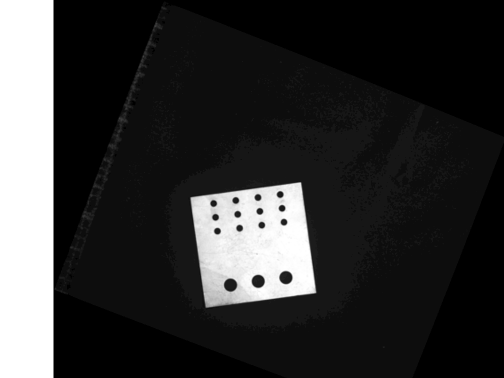
Read a test image of a metal plate containing circular holes into the workspace.

A = imread("metalplate.png");

Adjust the image contrast, and display the image using the imageshow function.

A = imadjust(A);
hIm = imageshow(A);
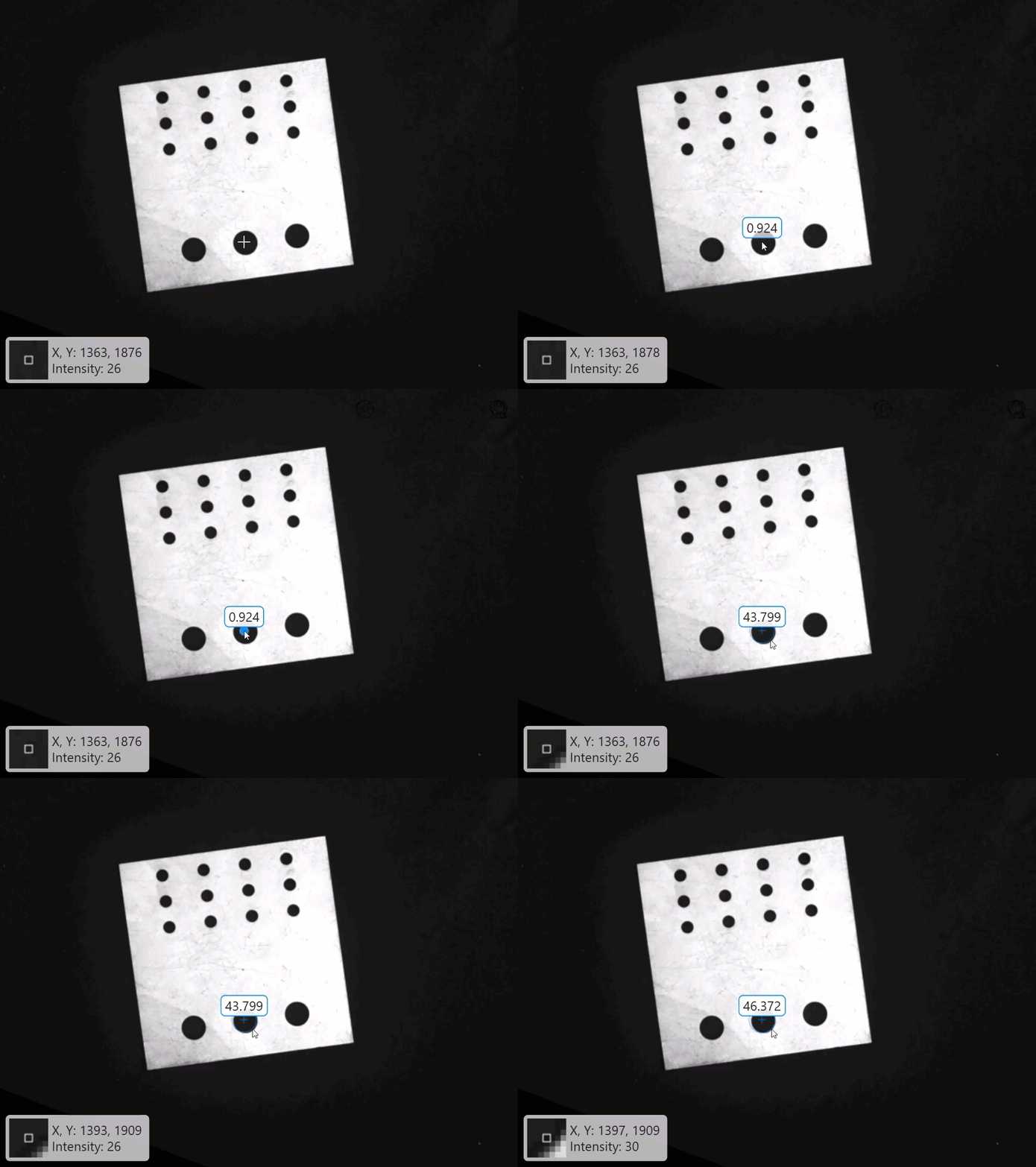
To interactively measure circles, configure the circle tool on the displayed image by using the uifitcircle object. Position the circle tool at the location of the circle center, and drag the tool outwards.

hCircle = uifitcircle(hIm);

This GIF shows how to interactively perform a circle measurement using the circle tool.
Version History

Introduced in R2026b