Create an Interactive Image Cropping Tool
R2026bThis example shows you how to build a lightweight, interactive, image cropping tool that works with images displayed using the imageshow function. Using this tool, users can interactively draw region of interest (ROI) annotations on an image displayed using the imageshow function, resize or move the ROI to adjust the region to be cropped, and finally crop the selected ROI from the image.
In this example, you create a function named uiimagecrop that enables you to draw a rectangular region of interest (ROI) directly on an image by using the uidraw function, adjust it interactively, and then crop the displayed image data when you click Accept in the toolbar.
The uiimagecrop function is attached to this example as a supporting file. For information on how to use the tool, see the Crop Image Using the Tool section.
Create uiimagecrop Helper Function
When you display an image using the imageshow function, the handle of the displayed image is an Image object. The parent of the Image object is a Viewer object. For more information about the Image object, see Image Properties. For more information about the Viewer object, see Viewer Properties.The uidraw function puts a Viewer object into an interactive drawing mode so that you can draw ROI annotations on top of an image displayed in that viewer. This enables you to create custom interaction tools, such as an image cropping tool, by combining the capabilities of imageshow and uidraw with a logic that converts the ROI positions into array indices.
The image cropping tool uses the Parent property of the input Image object to get the Viewer object containing the image. Using the parent Viewer as input, the tool calls the uidraw function, prompting the user to specify a single rectangular annotation. The uidraw function is configured to block MATLAB® execution and wait for the user to select Accept in the viewer toolbar to confirm the specified region of interest. If the user does not cancel or delete the annotation, uidraw returns a non-empty Rectangle annotation object.
The position for the annotation object is stored in its Position property as a 4-element numeric vector of the form [xmin ymin width height]. The xmin and ymin values specify the xy-coordinates of the upper-left corner of the rectangle. The width and height values specify the width and height of the rectangle, respectively. The position of the ROI can contain fractional values, in which case the tool rounds off the fractional values to convert the position to array indices. The Data property of the Image object contains the image data as a numeric array. The tool crops the image data to the ROI by indexing the image data using the ROI position, then returns the cropped image.
To create the image cropping tool as described, define the uiimagecrop function.
function Icropped = uiimagecrop(hImage)
    % uiimagecrop Select a single region of interest from an image to crop
    %
    %   Icropped = uiimagecrop(hImage) prompts the user to interactively place a
    %   rectangular region of interest (ROI) on the image hImage, which is
    %   an images.ui.graphics.Image object returned as the output of
    %   imageshow. The uiimagecrop function outputs the cropped image that contains
    %   only the region within the rectangular region of interest.
    %
    %   You can modify an ROI interactively by dragging it. The ROI also
    %   supports a context menu that controls aspects of its appearance and
    %   behavior.

    %   Copyright 2026 The MathWorks, Inc.
    arguments
        hImage (1,1) images.ui.graphics.Image
    end

    viewer = hImage.Parent;

    d = uidraw(viewer,"rectangle",Wait="accept",Label="");

    if ~isempty(d)
        % If an roi was drawn before closing figure
        pos = round(d.Position);
        Icropped = hImage.Data(pos(2):pos(2)+pos(4),pos(1):pos(1)+pos(3),:);
    end
end
Crop Image Using the Tool
Display an image using the imageshow function. The imageshow function returns the handle of the displayed image as the Image object h.
h = imageshow("peppers.png");Crop the image displayed by the Image object h using the uiimagecrop function.
croppedImg = uiimagecrop(h);
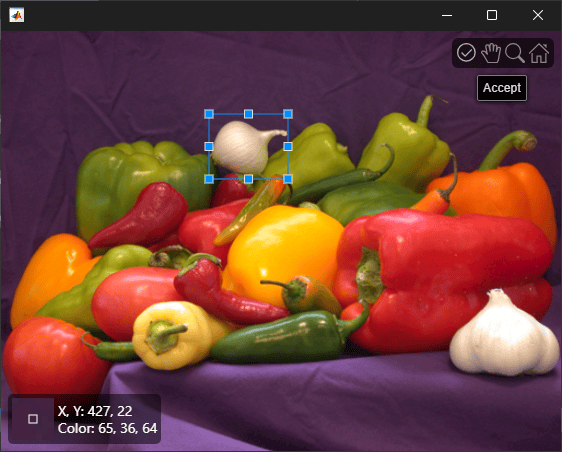
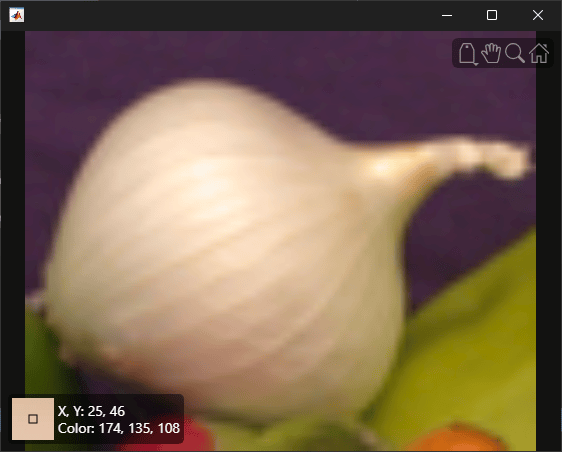
Display the cropped image.
imageshow(croppedImg)
Customize the Tool
You can customize the code of the uiimagecrop function by modifying the attached supporting file. You can configure it to support other ROI-based operations, such as performing image filtering or enhancement operations on the selected ROI. You can also extend support to special categories of images, such as blocked images, that can be displayed using the imageshow function.

