readtimetable
Create timetable from file
Syntax
Description
creates a timetable by reading column-oriented data from a file.TT = readtimetable(filename)
readtimetable determines the file format from the file extension:
.txt,.dat, or.csvfor delimited text files.xls,.xlsb,.xlsm,.xlsx,.xltm,.xltx, or.odsfor spreadsheet files.jsonfor JavaScript Object Notation (JSON) files.xmlfor Extensible Markup Language (XML) files.zip,.gz, or.tarfor compressed and archived files
For text and spreadsheet files, readtimetable creates one variable in
TT for each column in the file and reads variable names from the first
row of the file. For XML files, readtimetable creates one variable in
T for each element or attribute node detected as a timetable variable.
Variable names correspond to element and attribute names.
readtimetable sets the first column of type
datetime or duration in the tabular data to be the
row times of the timetable. The remaining columns become variables of the timetable.
creates a timetable from a file with additional options specified by one or more name-value
pair arguments. Use any of the input arguments from the previous syntaxes before specifying
the name-value pairs.TT = readtimetable(___,Name,Value)
To set specific import options for your data, you can either use the
opts object or you can specify name-value pairs. When you specify
name-value pairs in addition to opts, then
readtimetable supports only these name-value pairs:
Text and spreadsheet parameters —
ReadVariableNames,RowTimes,SampleRate,TimeStep,StartTimeText only parameters —
DateLocale,EncodingSpreadsheet only parameters —
Sheet,UseExcel
Examples
Create a table from the comma-separated text file.
TT = readtimetable('outages.csv');Display a summary of the table. When creating a timetable, if you do not specify any parameters for row times, then the readtimetable function detects and designates the first datetime or duration variable in the data, OutageTime, as the row times variable. The remaining variables become the variables of the timetable.
summary(TT)
TT: 1468×5 timetable
Row Times:
OutageTime: datetime
Variables:
Region: cell array of character vectors
Loss: double
Customers: double
RestorationTime: datetime
Cause: cell array of character vectors
Statistics for applicable variables and row times:
NumMissing Min Median Max Mean Std
OutageTime 0 2002-02-01 12:18 2010-03-18 21:05 2014-01-15 02:41 2009-07-03 12:49 27450:31:25
Region 0
Loss 604 0 180.2583 2.3418e+04 563.8885 1.8793e+03
Customers 328 0 7.5765e+04 5.9689e+06 1.6693e+05 3.6873e+05
RestorationTime 29 2002-02-07 16:50 2010-03-31 10:54 2042-09-18 23:31 2009-07-27 15:47 28592:30:37
Cause 0
Detect import options for a text file, specify the variable types, and then create a timetable from the data.
Create an import options object from a file and examine the variable options.
opts = detectImportOptions('outages.csv');
opts.VariableOptionsans =
1×6 heterogeneous VariableImportOptions (TextVariableImportOptions, DatetimeVariableImportOptions, NumericVariableImportOptions) array with properties:
Name
Type
FillValue
TreatAsMissing
QuoteRule
Prefixes
Suffixes
EmptyFieldRule
Modify the options object to specify the desired datatypes for the variables in the data. Change the datatypes for the variables Region and Cause to categorical.
opts = setvartype(opts,{'Region','Cause'},{'categorical','categorical'});Use readtimetable along with the options object to import the timetable. Then display a summary of the timetable.
TT = readtimetable('outages.csv',opts);
summary(TT)TT: 1468×5 timetable
Row Times:
OutageTime: datetime
Variables:
Region: categorical (5 categories)
Loss: double
Customers: double
RestorationTime: datetime
Cause: categorical (10 categories)
Statistics for applicable variables and row times:
NumMissing Min Median Max Mean Std
OutageTime 0 2002-02-01 12:18 2010-03-18 21:05 2014-01-15 02:41 2009-07-03 12:49 27450:31:25
Region 0
Loss 604 0 180.2583 2.3418e+04 563.8885 1.8793e+03
Customers 328 0 7.5765e+04 5.9689e+06 1.6693e+05 3.6873e+05
RestorationTime 29 2002-02-07 16:50 2010-03-31 10:54 2042-09-18 23:31 2009-07-27 15:47 28592:30:37
Cause 0
Read a table from the comma-separated text file and create a timetable with a row times variable of your choice.
Create an import options object and preview the tabular data.
opts = detectImportOptions('outages.csv'); preview('outages.csv',opts)
ans=8×6 table
Region OutageTime Loss Customers RestorationTime Cause
_____________ ________________ ______ __________ ________________ ___________________
{'SouthWest'} 2002-02-01 12:18 458.98 1.8202e+06 2002-02-07 16:50 {'winter storm' }
{'SouthEast'} 2003-01-23 00:49 530.14 2.1204e+05 NaT {'winter storm' }
{'SouthEast'} 2003-02-07 21:15 289.4 1.4294e+05 2003-02-17 08:14 {'winter storm' }
{'West' } 2004-04-06 05:44 434.81 3.4037e+05 2004-04-06 06:10 {'equipment fault'}
{'MidWest' } 2002-03-16 06:18 186.44 2.1275e+05 2002-03-18 23:23 {'severe storm' }
{'West' } 2003-06-18 02:49 0 0 2003-06-18 10:54 {'attack' }
{'West' } 2004-06-20 14:39 231.29 NaN 2004-06-20 19:16 {'equipment fault'}
{'West' } 2002-06-06 19:28 311.86 NaN 2002-06-07 00:51 {'equipment fault'}
Create a timetable by specifying the RestorationTime variable to be the row times variable for the timetable. Then, display a summary of the timetable.
TT = readtimetable('outages.csv','RowTimes','RestorationTime'); summary(TT)
TT: 1468×5 timetable
Row Times:
RestorationTime: datetime
Variables:
Region: cell array of character vectors
OutageTime: datetime
Loss: double
Customers: double
Cause: cell array of character vectors
Statistics for applicable variables and row times:
NumMissing Min Median Max Mean Std
RestorationTime 29 2002-02-07 16:50 2010-03-31 10:54 2042-09-18 23:31 2009-07-27 15:47 28592:30:37
Region 0
OutageTime 0 2002-02-01 12:18 2010-03-18 21:05 2014-01-15 02:41 2009-07-03 12:49 27450:31:25
Loss 604 0 180.2583 2.3418e+04 563.8885 1.8793e+03
Customers 328 0 7.5765e+04 5.9689e+06 1.6693e+05 3.6873e+05
Cause 0
Create a timetable from a spreadsheet file and format the input data. For instance, create a timetable from the file quarterlyFinances1999To2019.csv, specify the start date of the time stamps and the time between each of them, and remove the "$" symbol from the data.
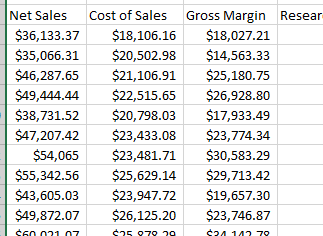
Read the data in the file quarterlyFinances1999To2019.csv as a timetable. Specify the length of time between consecutive row times to be one calendar quarter, beginning on the date January 1, 1999. Set 'VariableNamingRule' to preserve to preserve the whitespace in the variable names, and set 'TrimNonNumeric' to true to remove the "$" symbol before the numeric values in the data.
TT = readtimetable("quarterlyFinances1999To2019.csv","TimeStep", calquarters(1),"StartTime", datetime(1999, 1, 1),... "VariableNamingRule", "preserve", "TrimNonNumeric", true);
Display a summary of the data.
summary(TT)
TT: 80×9 timetable
Row Times:
Time: datetime
Variables:
Net Sales: double
Cost of Sales: double
Gross Margin: double
Research and Development Expenses: double
Administrative Expenses: double
Total Operating Expenses: double
Net Income: double
Total Shares: double
Earnings per Share: double
Statistics for applicable variables and row times:
NumMissing Min Median Max Mean Std
Time 0 01-Jan-1999 16-Nov-2008 01-Oct-2018 15-Nov-2008 04:30:00 50925:56:30
NetSales 0 3.5066e+04 1.0407e+05 1.7684e+05 1.0377e+05 3.8034e+04
CostOfSales 0 1.8106e+04 4.8624e+04 7.7742e+04 4.8410e+04 1.7219e+04
GrossMargin 0 1.4563e+04 5.6719e+04 9.9097e+04 5.5361e+04 2.1060e+04
ResearchAndDevelopmentExpenses 0 4.9049e+03 2.4637e+04 4.5234e+04 2.4761e+04 1.1524e+04
AdministrativeExpenses 0 1.0474e+03 2.0153e+03 2.8115e+03 1.9745e+03 497.5852
TotalOperatingExpenses 0 5.9925e+03 2.6518e+04 4.8045e+04 2.6736e+04 1.1987e+04
NetIncome 0 7.6343e+03 2.8586e+04 5.1051e+04 2.8625e+04 9.8181e+03
TotalShares 0 822 1.8205e+03 2710 1.8013e+03 496.7446
EarningsPerShare 0 6.5200 15.5150 24.6200 15.7921 3.2653
Input Arguments
Name of the file to read, specified as a string scalar or character vector.
readtimetable supports reading data from text, spreadsheet, JSON,
XML, Microsoft® Word, and HTML files.
If filename does not include an extension, use the
FileType name-value argument to indicate the file format. By
default, readtimetable creates variables that have data types that
are appropriate for the data values detected in each column of the input file.
Depending on the location of your file, filename can take one of
these forms.
Location | Form | ||||||||
|---|---|---|---|---|---|---|---|---|---|
| Current folder or folder on the MATLAB® path | Specify the name of the file in
Example:
| ||||||||
File in a folder | If the file is not in the current folder or in a folder on the
MATLAB path, then specify the full or relative pathname in
Example:
Example:
| ||||||||
| Internet URL | If the file is specified as an internet uniform resource locator
(URL), then Example:
| ||||||||
Remote location | If the file is stored at a remote location, then
Based on the remote location,
For more information, see Work with Remote Data. Example: Example: Example: |
Text Files
Files with
.txt,.dat, or.csvextensions are read as delimited text files.By default,
readtimetablecreates one table variable for each column in the file and reads variable names from the first row of the file. Empty fields are converted to eitherNaNfor a numeric variable or an empty character vector for a text variable. White space in the file is ignored.All lines in the text file must have the same number of delimiters.
For commonly used text file workflows, see Import Data from Text File to Table.
Spreadsheet Files
Files with
.xls,.xlsb,.xlsm,.xlsx,.xltm,.xltx, or.odsextensions are read as spreadsheet files.By default,
readtimetablecreates one table variable for each column in the file and reads variable names from the first row of the file.On Windows® systems with Microsoft Excel® software,
readtimetablereads any Excel spreadsheet file format recognized by your version of Excel. If your system does not have Microsoft Excel for Windows or if you are using MATLAB Online™, thenreadtimetableoperates with theUseExcelname-value argument set tofalseand reads only files with.xls,.xlsm,.xlsx,.xltm, and.xltxextensions.Large files in XLSX format sometimes load slowly. For better import and export performance, Microsoft recommends that you use the XLSB format.
For commonly used spreadsheet file workflows, see Read Spreadsheet Data into Table.
JSON Files
(since R2026a)
Files with the
.jsonextension are read as JavaScript Object Notation (JSON) files.By default,
readtimetablecreates one table variable for each object key detected as a table variable. Variable names correspond to JSON object key names.
XML Files
Files with the
.xmlextension are read as Extensible Markup Language (XML) files.By default,
readtimetablecreates one table variable for each element or attribute node detected as a table variable. Variable names correspond to element and attribute names.
Microsoft Word Documents
(since R2021b)
Files with the
.docxextension are read as Microsoft Word files.By default,
readtimetableimports data from the first table in the document, creates one table variable for each column in the file, and reads variable names from the first row of the table.
HTML Files
(since R2021b)
Files with
.html,.xhtml, or.htmextensions are read as Hypertext Markup Language (HTML) files.By default,
readtimetableimports data from the first<table>element, creates one table variable for each column in the table, and reads variable names from the first row of the table.
Compressed and Archived Files
(since R2025a)
Compressed file formats are read as files.
Archived file formats are treated as folders. For example, the function interprets
mydatafiles.zipas a folder, so you must specify a file within it, such asmydatafiles.zip/file1.xlsx.For files ending with the
.gzextension, the function determines the file format by using the extension preceding.gz. For example,mydata.csv.gzis read as a CSV file.
File import options, specified as one of the import options objects in the table,
created by either the detectImportOptions function or the
associated import options function. The import options object contains properties that
configure the data import process. readtimetable uses only the
relevant properties of each import options object.
| File Type | Import Options Object |
|---|---|
| Text files | DelimitedTextImportOptions object
|
| Fixed-width text files | FixedWidthImportOptions object
|
| Spreadsheet files | SpreadsheetImportOptions object
|
| JSON files | JSONImportOptions object |
| XML files | XMLImportOptions object |
| Microsoft Word documents | WordDocumentImportOptions object |
| HTML files | HTMLImportOptions object |
For more information on how to control your import, see Control How MATLAB Imports Your Data.
Name-Value Arguments
Specify optional pairs of arguments as
Name1=Value1,...,NameN=ValueN, where Name is
the argument name and Value is the corresponding value.
Name-value arguments must appear after other arguments, but the order of the
pairs does not matter.
Example: readtimetable(filename,NumHeaderLines=5) indicates that the
first five lines that precede the tabular data are header lines.
Data and Header Location
Number of header lines to skip at the beginning of the file, specified as a
nonnegative integer. If you do not specify this name-value argument,
readtimetable automatically detects the number of lines to
skip.
Reading of variable names and data begins with the first nonheader line.
Data Types: single | double
Range to read from the file, specified as a string scalar, character vector, or numeric vector in one of these forms.
Ways to Specify Range
| Description |
|---|---|
Starting element | Specify the starting element for the data as one of these values:
Using the starting element, Example:
Example:
|
Rectangular range | Specify the rectangular range for the data as one of these values:
The number of columns must
match the number specified in the Example:
Example:
|
Row range | Specify the beginning and ending rows using row numbers in a string
scalar or character vector of the form
Using the specified row range, Example:
|
Column range | Specify the beginning and ending columns using A1 notation column
letters in a string scalar or character vector of the form
Using the specified column range,
The
number of columns must match the number specified in the
Example:
|
Named range (spreadsheet only) | You can create names to identify ranges in a spreadsheet. For
instance, you can select a rectangular portion of the spreadsheet and call
it |
Unspecified or empty | If you do not specify this name-value argument,
Note:
Used range refers to the rectangular portion of the
file that actually contains data. |
Location of the data, specified as a string scalar, character vector, positive
integer, or N-by-2 array of positive integers in
one of these forms.
Ways to Specify DataRange | Description |
|---|---|
Starting cell | Specify the starting cell for the data as a string scalar or
character vector containing a column letter and row number, using A1
notation. For example, Using the starting cell,
Example:
|
Starting row | Specify the starting row containing the data using the positive row index. Using the specified row index,
Example:
|
Rectangular range | Specify the range using the form
Example:
|
Row range | Specify the beginning and ending rows using row numbers in a
string scalar or character vector of the form
Using
the specified row range, Example:
|
Column range | Specify the beginning and ending columns using A1 notation column
letters in a string scalar or character vector of the form
Using
the specified column range, Example:
|
Multiple row ranges | Specify multiple row ranges using an
A valid array of multiple row ranges must:
Use of Example:
|
Empty | Do not read any data. Example:
|
Worksheet to read, specified as a positive integer indicating the worksheet index
or a string scalar or character vector containing the worksheet name. By default,
readtimetable reads the first sheet.
If you specify a string scalar or character vector, the worksheet name cannot
contain a colon (:). To determine the names of sheets in a
spreadsheet file, use sheets = sheetnames(filename). For more
information, see sheetnames.
If you specify the Sheet argument in addition to opts, then the
readtimetable function uses the specified value for
Sheet, overriding the sheet name defined in the import
options.
Example: 2
Example: "MySheetName"
Index of the table to read from a file containing multiple tables, specified as a
positive integer. By default, readtimetable reads the first
table.
If you specify TableIndex, the readtimetable
function automatically sets TableSelector to the equivalent XPath expression.
Data Types: single | double | int8 | int16 | int32 | int64 | uint8 | uint16 | uint32 | uint64
Table to read, specified as a string scalar or character vector. If you do not
specify this name-value argument, readtimetable detects the table
location.
JSON Files
Specify the table to read as a string scalar or character vector containing a
JSON Pointer. You must specify TableSelector as a valid RFC 6901
JSON Pointer. For more information, see the IETF definition of JSON
Pointer.
An empty string ("") refers to the whole JSON file.
Example:
TableSelector="/engineID"
XML Files
Specify the table to read as a string scalar or character vector containing an
XPath expression. You must specify TableSelector as a valid XPath
version 1.0 expression.
| Selection Operation | Syntax |
|---|---|
| Select every node whose name matches the node you want to select, regardless of its location in the document. | Prefix the name with two forward slashes
(//). |
| Select the value of an attribute belonging to an element node. | Prefix the attribute with an at sign (@). |
| Select a specific node in a set of nodes. | Provide the index of the node you want to select in square brackets
([]). |
| Specify precedence of operations. | Add parentheses around the expression you want to evaluate first. |
Example:
TableSelector="//table[1]"
JSON key name or XML node name for the table data to read, specified as a string scalar or character vector.
Rule for cells merged across columns, specified as one of the values in this table.
| Import Rule | Behavior |
|---|---|
"placeleft" | Place the data in the leftmost cell and fill the remaining cells
with the contents of the You can
set the |
"placeright" | Place the data in the rightmost cell and fill the remaining cells
with the contents of the You can
set the |
"duplicate" | Duplicate the data in all cells. |
"omitrow" | Omit rows where merged cells occur. |
"error" | Display an error message and cancel the import operation. |
Rule for cells merged across rows, specified as one of the values in this table.
| Import Rule | Behavior |
|---|---|
"placetop" | Place the data in the top cell and fill the remaining cells with
the contents of the You can set the
|
"placebottom" | Place the data in the bottom cell and fill the remaining cells
with the contents of the You can
set the |
"duplicate" | Duplicate the data in all cells. |
"omitvar" | Omit variables where merged cells occur. |
"error" | Display an error message and cancel the import operation. |
Variables
Read variable names, specified as a numeric or logical 1
(true) or 0 (false). If you
do not specify this name-value argument, readtimetable
automatically detects the presence of variable names.
Value | Description |
|---|---|
| Read variable names. If you also specify an import
options object |
| Do not read variable names. Create default variable names of the
form If you also specify an import options
object |
| Unspecified | Automatically detect whether the region contains variable names. |
For text, spreadsheet, Microsoft Word, and HTML files, variable names are detected after header rows. For JSON files, variable names are detected from object key names (since R2026a). For XML files, variable names are detected from element node and attribute names.
If both ReadVariableNames and ReadRowNames
are true, then readtimetable saves the name in
the first column of the first row of the region to read as the first dimension name in
the property T.Properties.DimensionNames.
Rule for variable names, specified as one of these values:
"modify"— Convert invalid variable names (as determined by theisvarnamefunction) to valid MATLAB identifiers. This value is the default for text and spreadsheet files."preserve"— Preserve variable names that are not valid MATLAB identifiers, such as variable names that include spaces and non-ASCII characters. This value is the default for JSON, XML, Microsoft Word, and HTML files.
Variable and row names do not have to be valid MATLAB identifiers. They can include any characters, including spaces or non-ASCII characters. Also, they can start with any character, not just letters.
Expected number of variables, specified as a nonnegative integer. If you do not
specify this name-value argument, readtimetable automatically
detects the number of variables.
Location of variable names, specified as a nonnegative integer.
If VariableNamesLine is 0, then
readtimetable does not import variable names. Otherwise,
readtimetable imports the variable names from the specified
line.
If variable names exist, and both VariableNamesLine and
ReadVariableNames are unspecified,
readtimetable detects which line contains variable names and
imports them.
Data Types: single | double | int8 | int16 | int32 | int64 | uint8 | uint16 | uint32 | uint64
Location of variable names, specified as a string scalar, character vector, or positive integer in one of these forms.
Ways to Specify
VariableNamesRange | Description |
|---|---|
Starting cell | Specify the starting cell for the variable names as a string scalar or character vector containing a column letter and row number, using A1 notation. Example:
|
Rectangular range | Specify the range using the form
The range must span only one row. Example:
|
Number index | Specify the row containing the variable names using a positive row index. Example:
|
Row range | Specify the range using the form
Variable names must be in a single row. Example:
|
Unspecified or empty | Indicate that there are no variable names. Example:
|
Data Types: string | char | single | double
Location of variable names, specified as a nonnegative integer.
If VariableNamesRow is 0, then
readtimetable does not import variable names. Otherwise,
readtimetable imports the variable names from the specified
row.
If you do not specify VariableNamesRow, and
ReadVariableNames is true (default), then
readtimetable imports variable names. If both are unspecified,
readtimetable detects if a row contains variable names to
import.
Data Types: single | double | int8 | int16 | int32 | int64 | uint8 | uint16 | uint32 | uint64
JSON key names or XML node names to read as table variables, specified as a string
array, character vector, or cell array of character vectors. If nested JSON objects or
nested XML nodes have the same name, VariableNodeNames selects the
nodes at the top level.
Example: VariableNodeNames=["XMLNodeName1","XMLNodeName2"]
Variables to read, specified as a string array, character vector, or cell array of
character vectors. If you do not specify this name-value argument,
readtimetable detects the location of variables.
JSON Files
(since R2026a)
Specify the variables to read as a string array, character vector, or cell array
of character vectors containing JSON Pointers. You must specify
VariableSelectors as valid RFC 6901 JSON Pointers. For more
information, see the IETF
definition of JSON Pointer.
An asterisk (*) in a VariableSelectors
value indicates an entire array at that corresponding level is selected.
To read keys as variables, include the string "Keys" with
VariableSelectors. For example,
VariableSelectors=["Keys" "/ID" "/Name/FirstName"].
An empty string ("") refers to the whole JSON file.
Example:
VariableSelectors="/enginetemp"
Example:
VariableSelectors=["/enginetemp1","/enginetemp2"]
XML Files
Specify the variables to read as a string
array, character vector, or cell array of character vectors containing XPath
expressions. You must specify VariableSelectors as valid XPath
version 1.0 expressions. For example, suppose you want to import the XML file
myFile.xml, which has this structure:
<data>
<table category="ones">
<var>1</var>
<var>2</var>
</table>
<table category="tens">
<var>10</var>
<var>20</var>
</table>
</data>
| Selection Operation | Syntax | Example |
|---|---|---|
| Select every node whose name matches the node you want to select, regardless of its location in the document. | Prefix the name with two forward slashes
(//). | Select every node named
T = readtimetable("myFile.xml",VariableSelectors="//var") |
| Select the value of an attribute belonging to an element node. | Prefix the attribute with an at sign (@). | Select the value of the T = readtimetable("myFile.xml",VariableSelectors="//table/@category") |
| Select a specific node in a set of nodes. | Provide the index of the node you want to select in square brackets
([]). | Select the first T = readtimetable("myFile.xml",VariableSelectors="//table/var[1]") |
| Specify precedence of operations. | Add parentheses around the expression you want to evaluate first. | Select the first T = readtimetable("myFile.xml",VariableSelectors="//table/var[1]") |
Select the first T = readtimetable("myFile.xml",VariableSelectors="(//table/var)[1]") |
Concatenate data, specified as a numeric or logical 1
(true) or 0 (false). If
CollectOutput is true, then
readtimetable concatenates consecutive output cells of the same
fundamental MATLAB class into a single array.
Time Data
Row times variable, specified as the comma-separated pair consisting of
'RowTimes' and a variable name or a time vector.
Variable name must be a character vector or string scalar containing the name of any variable in the input table that contains
datetimeordurationvalues. The variable specified by the variable name provides row time labels for the rows. The remaining variables of the input table become the variables of the timetable.Time vector must be a
datetimevector or adurationvector. The number of elements of time vector must equal the number of rows of the input table. The time values in the time vector do not need to be unique, sorted, or regular. All the variables of the input table become variables of the timetable.
Data Types: char | string | datetime | duration
Sample rate for row times, specified as the comma-separated pair consisting of
'SampleRate' and a numeric scalar. The sample rate is the number
of samples per second (Hz) of the time vector of the output timetable.
When you use 'SampleRate' to specify the row time vector of the
timetable, the default first row time (start time) is zero second. To set a start time
other than zero, specify the'StartTime' name-value pair.
Data Types: double
Time step between row times, specified as the comma-separated pair consisting of
'TimeStep' and a duration scalar or calendarDuration scalar. The
value of the 'TimeStep' parameter specifies the length of time
between consecutive row times. The importing function uses the time step value to
calculate regularly spaced row times.
When you use 'TimeStep' to specify the row time vector of the
timetable, the default first row time (start time) is zero second. To set a start time
other than zero, specify the 'StartTime' name-value pair.
If the 'TimeStep' is a calendar duration value, then the
'StartTime' must be a datetime value.
Data Types: duration | calendarDuration
Start time of the row times, specified as the comma-separated pair consisting of
StartTime and a datetime scalar or duration scalar.
To define the time vector for the timetable, use 'StartTime'
with either the 'SampleRate' or the 'TimeStep'
name-value pair arguments.
The data type of the start time, dictates the data type of the row time vector.
If the start time is a datetime value, then the row times of the timetable are datetime values.
If the start time is a duration value, then the row times are durations.
Data Types: datetime | duration
Rows
XPath expression for selecting individual rows from a table, specified as a string
scalar or character vector. You must specify RowSelector as a valid
XPath version 1.0 expression.
If you do not specify this name-value argument, readtimetable
detects the location of rows.
Example: "/RootNode/ChildNode"
XML nodes specifying rows, specified as a string scalar or character vector.
Data Types
Type for imported text data, specified as one of these values:
"char"— Import text data as character vectors. This value is the default for text and spreadsheet files."string"— Import text data as string arrays. This value is the default for JSON, XML, Microsoft Word, and HTML files.
Type for imported date and time data, specified as one of the values in this table.
| Value | Resulting Data Type |
|---|---|
"datetime" | MATLAB
|
"text" | The data type depends on the value of
|
"exceldatenum"
| Excel serial date numbers This value is valid only for spreadsheet files. A serial date number is a single number equal to the number of days from a given reference date. Excel serial date numbers use a different reference date than MATLAB serial date numbers. For more information on Excel dates, see Differences between the 1900 and the 1904 date system in Excel. |
Type for imported duration data, specified as one of the values in this table.
| Value | Resulting Data Type |
|---|---|
"duration" | MATLAB
|
"text" | The data type depends on the value of
|
Type for imported hexadecimal data, specified as one of the values in this table.
Value | Resulting Data Type |
|---|---|
| Detected data type; |
| Unaltered input text |
| 8-bit integer, signed |
| 16-bit integer, signed |
| 32-bit integer, signed |
| 64-bit integer, signed |
| 8-bit integer, unsigned |
| 16-bit integer, unsigned |
| 32-bit integer, unsigned |
| 64-bit integer, unsigned |
The input file can represent hexadecimal values as text, using either
0x or 0X as a prefix and the characters
0-9,
a-f, and
A-F as digits. Uppercase and lowercase letters
represent the same digits—for example, "0xf" and
"0xF" both represent 15.
Type for imported binary data, specified as one of the values in this table.
Value | Resulting Data Type |
|---|---|
| Detected data type; |
| Unaltered input text |
| 8-bit integer, signed |
| 16-bit integer, signed |
| 32-bit integer, signed |
| 64-bit integer, signed |
| 8-bit integer, unsigned |
| 16-bit integer, unsigned |
| 32-bit integer, unsigned |
| 64-bit integer, unsigned |
The input file can represent binary values as text, using either
0b or 0B as a prefix and the characters
0 and 1 as digits. For example,
0b11111111 represents 255.
Locale for reading dates, specified as a string scalar or character vector of the
form , where:xx_YY
xxis a lowercase ISO 639-1 two-letter code indicating a language.YYis an uppercase ISO 3166-1 alpha-2 code indicating a country.
Use DateLocale to specify the locale in which
readtimetable interprets month and day-of-week names and
abbreviations.
This table lists some common values for the locale.
| Locale | Language | Country |
|---|---|---|
"de_DE" | German | Germany |
"en_GB" | English | United Kingdom |
"en_US" | English | United States |
"es_ES" | Spanish | Spain |
"fr_FR" | French | France |
"it_IT" | Italian | Italy |
"ja_JP" | Japanese | Japan |
"ko_KR" | Korean | Korea |
"nl_NL" | Dutch | Netherlands |
"zh_CN" | Chinese (simplified) | China |
If you specify the DateLocale argument in addition to an import
options object opts, the argument value overrides the locale
defined in the import options.
Whether to remove nonnumeric characters from a numeric variable, specified as a
numeric or logical 1 (true) or
0 (false). For example, if
TrimNonNumeric is true, then
readtimetable reads "$500/-" as
500.
Decimal separator character in numeric variables, specified as a string scalar or
single-character character vector. The separator character distinguishes the integer
part of a number from the decimal part. For example, if the separator is
",", then readtimetable imports the text
"3,14159" as the number 3.14159.
When converting to integer data types, readtimetable rounds
numbers with a decimal part to the nearest integer.
DecimalSeparator does not accept numeric digits as values.
Thousands grouping character in numeric variables, specified as a string scalar or
character vector. The grouping character acts as a visual separator, grouping a number
at every three place values. For example, if the grouping character is
",", then readtimetable imports the text
"1,234,000" as 1234000.
Exponent characters, specified as a string scalar or character vector. The default
exponent characters are e, E,
d, and D.
Example: "eE"
Data Cleaning
Placeholder text to treat as missing value, specified as a string array, character
vector, or cell array of character vectors. readtimetable imports
table elements corresponding to this placeholder text as the missing value associated
with the data type of the element.
Example: "N/A"
Example: [".","NA","N/A"]
Rule for import errors, specified as one of the values in this table. An import
error occurs when readtimetable cannot convert a text element to
the expected data type.
| Import Error Rule | Behavior |
|---|---|
"fill" | Replace the data where the error occurred with the contents of the
You can set the
|
"error" | Display an error message and cancel the import operation. |
"omitrow" | Omit rows where errors occur. |
"omitvar" | Omit variables where errors occur. |
Rule for missing data, specified as one of the values in this table.
| Missing Rule | Behavior |
|---|---|
"fill" | Replace missing data with the contents of the
You can set the
|
"error" | Display an error message and cancel the import operation. |
"omitrow" | Omit rows that contain missing data. |
"omitvar" | Omit variables that contain missing data. |
For text files, Microsoft Word, and HTML files, data is considered missing if an expected field in a row does not exist. Because missing fields cause subsequent elements of a row to shift fields, the missing fields are interpreted at the end of the row.
For spreadsheet files, data is considered missing if the expected field in a row has no data and the field type is blank or empty.
For JSON and XML files, data is considered missing if an expected node does not exist.
Rule for extra columns in the data, specified as one of the values in this table.
readtimetable considers columns to be extra if a row has more
columns than expected.
| Extra Columns Rule | Behavior |
|---|---|
"addvars" | To import extra columns, create new variables. If there are
|
"ignore" | Ignore the extra columns of data. |
"wrap" | Wrap the extra columns of data to new records. This action does not change the number of variables. |
"error" | Display an error message and cancel the import operation. |
Rule for empty lines in the data, specified as one of the values in this table.
readtimetable considers a line to be empty if it contains only
white-space characters.
| Empty Line Rule | Behavior |
|---|---|
"skip" | Skip the empty lines. |
"read" | Import the empty lines. readtimetable parses an empty
line using the values specified in VariableWidths,
VariableOptions, MissingRule, and
other relevant arguments, such as Whitespace. |
"error" | Display an error message and cancel the import operation. |
Rule for empty rows in the data, specified as one of the values in this table.
| Empty Line Rule | Behavior |
|---|---|
"skip" | Skip the empty rows. |
"read" | Import the empty rows. readtimetable parses an empty
row using the values specified in VariableWidths,
VariableOptions, MissingRule, and
other relevant arguments, such as Whitespace. |
"error" | Display an error message and cancel the import operation. |
Rule for empty columns in the data, specified as one of the values in this table.
| Empty Column Rule | Behavior |
|---|---|
"skip" | Skip the empty columns. |
"read" | Import the empty columns. readtimetable parses an
empty column using the values specified in
VariableWidths, VariableOptions,
MissingRule, and other relevant arguments, such as
Whitespace. |
"error" | Display an error message and cancel the import operation. |
Rule for partial fields in the data, specified as one of the values in this table.
readtimetable considers a field to be partially filled if it
reaches the end of a line in fewer characters than the expected width. This name-value
argument applies only to fields with fixed widths.
| Partial Field Rule | Behavior |
|---|---|
"keep" | Keep the partial field data and convert the text to the appropriate data type. If |
"fill" | Replace missing data with the contents of the
You can set the
|
"omitrow" | Omit rows that contain partial data. |
"omitvar" | Omit variables that contain partial data. |
"wrap" | Begin reading the next line of characters. |
"error" | Display an error message and cancel the import operation. |
File Information
Type of file, specified as one of the values in this table.
| Value | File Type |
|---|---|
"spreadsheet" | Spreadsheet files |
"text" | Text files |
"delimitedtext" | Delimited text files |
"fixedwidth" | Fixed-width text files |
"json" | JSON files |
"xml" | XML files |
"worddocument" | Microsoft Word documents |
"html" | HTML files |
Specify this name-value argument when filename does
not include the file extension or when its extension is not in this list:
.txt,.dat, or.csvfor text files.xls,.xlsb,.xlsm,.xlsx,.xltm,.xltx, or.odsfor spreadsheet files.jsonfor JSON files.xmlfor XML files.docxfor Microsoft Word documents.html,.xhtml, or.htmfor HTML files
Character encoding scheme associated with the file, specified as
"system" or a standard character encoding scheme name. When you
do not specify any encoding, the readtimetable function uses
automatic character set detection to determine the encoding when reading the
file.
If you specify the Encoding argument in addition to an import
options object opts, the argument value overrides the encoding
defined in the import options.
Whether to start an instance of Microsoft
Excel for Windows when reading spreadsheet data, specified as a numeric or logical
1 (true) or 0
(false).
Based on this argument, readtimetable supports different file
formats and interactive features, such as formulas and macros.
Support | If | If |
|---|---|---|
| Supported file formats |
|
|
Support for interactive features, such as formulas and macros | Yes | No |
UseExcel is not supported in noninteractive, automated
environments.
Since R2022a
HTTP or HTTPS request options, specified as
a weboptions object. The
weboptions object determines how to import data when the
specified filename is an internet URL containing the protocol type
"http://" or "https://".
Text Parsing
Field delimiter character, specified as a string array, character vector, or cell
array of character vectors. Specify Delimiter as any valid
character such as a comma "," or a period
".".
This table lists some commonly used field delimiter characters.
Specifier | Field Delimiter |
|---|---|
| Comma |
| Space |
| Tab |
| Semicolon |
| Vertical bar |
| Unspecified | If you do not specify this name-value argument,
|
To treat multiple characters as a single delimiter, specify
Delimiter as a string array or cell array of character vectors.
If you want to treat an unknown number of consecutive delimiters as one, specify
ConsecutiveDelimitersRule="join".
Delimiter is valid only with delimited text files and is not
valid with fixed-width text files.
End-of-line characters, specified as a string array, character vector, or cell
array of character vectors. Common end-of-line characters include the newline
character ("\n") and the carriage return ("\r").
If you specify "\r\n", then readtimetable treats
the combination of the two (\r\n) as end-of-line characters. If you
specify {"\r\n", "\r", "\n"}, then \r,
\n, and \r\n are all treated as end-of-line
characters.
The default end-of-line sequence is \n, \r,
or \r\n, depending on the contents of your file.
Characters to treat as white space, specified as a string scalar or character vector containing one or more characters.
This table shows how to represent special characters that you cannot enter using ordinary text.
Special Character | Representation |
|---|---|
Percent |
|
Backslash |
|
Alarm |
|
Backspace |
|
Form feed |
|
New line |
|
Carriage return |
|
Horizontal tab |
|
Vertical tab |
|
Character whose Unicode® numeric value can be represented by the hexadecimal number,
|
|
Character whose Unicode numeric value can be represented by the octal number,
|
|
Example: " _"
Example: "?!.,"
Comment indicators for text to ignore, specified as a string array, character vector, or cell array of character vectors.
For example, specify a character, such as "%", to ignore text
following that character on the same line. Specify a string array, such as
["/*","*/"], to ignore any text between sequences.
readtimetable checks for comments only at the start of each
line, not within lines.
Example: ["/*","*/"]
Rule for leading delimiters in a delimited text file, specified as one of the values in this table.
| Rule | Behavior |
|---|---|
"keep" | Keep the delimiter. |
"ignore" | Ignore the delimiter. |
"error" | Display an error message and cancel the import operation. |
Rule for trailing delimiters in a delimited text file, specified as one of the values in this table.
| Rule | Behavior |
|---|---|
"keep" | Keep the delimiter. |
"ignore" | Ignore the delimiter. |
"error" | Display an error message and cancel the import operation. |
Rule for consecutive delimiters in a delimited text file, specified as one of the values in this table.
| Rule | Behavior |
|---|---|
"split" | Split the consecutive delimiters into multiple fields. |
"join" | Join the delimiters into one delimiter. |
"error" | Display an error message and cancel the import operation. |
Whether to treat multiple delimiters as one, specified as a numeric or logical
1 (true) or 0
(false).
Field widths of variables in a fixed-width text file, specified as a vector of positive integers. Each integer corresponds to the number of characters in a field that make up the variable.
Example: [10,7,4,26,7]
JSON and XML Parsing
Since R2026a
How strictly to follow JSON standards while parsing, specified as one of these values:
"lenient"– The values ofAllowComments,AllowInfAndNaN, andAllowTrailingCommasare set totrue."strict"– The values ofAllowComments,AllowInfAndNaN, andAllowTrailingCommasare set tofalse.
Since R2026a
Allow comments in the input file, specified as one of these values:
Numeric or logical
1(true) – Comments do not cause an error during import. Comments in the file are not considered data and are not read into MATLAB. Comments can start with "//" for single-line comments or start with "/*" and end with "*/" for multi-line comments.Numeric or logical
0(false) – Comments cause an error during import.
Since R2026a
Read Inf and NaN values in the input file,
specified as one of these values:
Numeric or logical
1(true) –InfandNaNvalues (includingInfinity,-Inf, and-Infinity) are read into MATLAB.Numeric or logical
0(false) –InfandNaNvalues cause an error during import.
Since R2026a
Read trailing commas in the input file, specified as one of these values:
Numeric or logical
1(true) – Trailing commas after a JSON array or JSON object do not cause an error during import.Numeric or logical
0(false) – Trailing commas cause an error during import.
Rule for repeated JSON (since R2026a) or XML nodes in a
given row of a table, specified as one of the values in this table. For JSON files,
this rule applies when the VariableSelectors name-value argument
contains a JSON Pointer that points to an array. The array entries are considered
repeated nodes.
Rule | Behavior |
|---|---|
"addcol" | Add columns for each repeated node in a variable to create a matrix
in the associated variable. For example: Input XML data <table>
<row>
<Var1>1</Var1>
<Var2>2</Var2>
<Var3>3</Var3>
<Var1>11</Var1>
<Var1>111</Var1>
</row>
<row>
<Var1>4</Var1>
<Var2>5</Var2>
<Var3>6</Var3>
</row>
<row>
<Var1>7</Var1>
<Var2>8</Var2>
<Var3>9</Var3>
</row>
</table>Output table Var1 Var2 Var3
_______________ ____ ____
1 11 111 2 3
4 NaN NaN 5 6
7 NaN NaN 8 9 |
"ignore" | Skip the repeated nodes. |
"error" | Display an error message and cancel the import operation. |
Whether to import XML attributes as variables in the output table, specified as a
numeric or logical 1 (true) or
0 (false). By default,
readtimetable imports XML attributes as variables in the output
table.
Suffix used to distinguish attributes from elements in the output table, specified
as a string scalar or character vector. This argument specifies the suffix
readtimetable appends to all table variables that correspond to
attributes in the input XML file. If you do not specify
AttributeSuffix, then readtimetable appends
the suffix "Attribute" to all variable names corresponding to
attributes in the input XML file.
Example: "_att"
Set of registered XML namespace prefixes, specified as an
N-by-2 string array of prefixes and their associated URLs.
readtimetable uses these prefixes when evaluating XPath
expressions on an XML file.
You can use RegisteredNamespaces when you also evaluate an
XPath expression specified by a selector name-value argument, such as
VariableSelectors.
By default, readtimetable automatically detects namespace
prefixes to use in XPath evaluation. To select an XML node with an undeclared
namespace prefix, register a custom namespace URL for the namespace prefix using the
RegisteredNamespaces name-value argument. For example, assign the
prefix myprefix to the URL
https://www.mathworks.com in an XML file that does not contain a
namespace prefix.
T = readtimetable(filename,VariableSelectors="/myprefix:Data", ... RegisteredNamespaces=["myprefix","https://www.mathworks.com"])
Variable Metadata
Location of variable units, specified as a nonnegative integer.
If VariableUnitsLine is 0, then
readtimetable does not import variable units. Otherwise,
readtimetable imports the variable units from the specified
line.
Data Types: single | double | int8 | int16 | int32 | int64 | uint8 | uint16 | uint32 | uint64
Location of variable units, specified as a string scalar, character vector, or positive integer in one of these forms.
Ways to Specify
VariableUnitsRange | Description |
|---|---|
Starting cell | Specify the starting cell for the variable units as a string scalar or character vector containing a column letter and row number, using A1 notation. From the starting cell,
Example:
|
Rectangular range | Specify the range using the form
The range must span only one row. Example:
|
Number index | Specify the row containing the variable units using a positive row index. Example:
|
Row range | Specify the range using the form
Variable units must be in a single row. Example:
|
Unspecified or empty | Indicate that there are no variable units. Example:
|
Data Types: string | char | single | double
Location of variable units, specified as a nonnegative integer.
If VariableUnitsRow is 0, then
readtimetable does not import variable units. Otherwise,
readtimetable imports the variable units from the specified
row.
Data Types: single | double | int8 | int16 | int32 | int64 | uint8 | uint16 | uint32 | uint64
Variable units, specified as a string scalar or character vector. If you do not
specify this name-value argument, readtimetable does not import
variable units.
JSON Files
(since R2026a)
Specify the variable units as a string scalar or character vector containing a
JSON Pointer. You must specify VariableUnitsSelector as a valid
RFC 6901 JSON Pointer. For more information, see the IETF definition of JSON
Pointer.
Example:
VariableUnitsSelector="/statuses/metadata/units"
XML Files
Specify the variable units as a string scalar or character vector containing an
XPath expression. You must specify VariableUnitsSelector as a
valid XPath version 1.0 expression.
Example:
VariableUnitsSelector="/RootNode/ChildNode"
Example:
VariableUnitsSelector="//table[1]/units/"
Location of variable descriptions, specified as a nonnegative integer.
If VariableDescriptionsLine is 0, then
readtimetable does not import variable descriptions. Otherwise,
readtimetable imports the variable descriptions from the
specified line.
Data Types: single | double | int8 | int16 | int32 | int64 | uint8 | uint16 | uint32 | uint64
Location of variable descriptions, specified as a string scalar, character vector, or positive integer in one of these forms.
Ways to Specify
VariableDescriptionsRange | Description |
|---|---|
Starting cell | Specify the starting cell for the variable descriptions as a string scalar or character vector containing a column letter and row number, using A1 notation. From the starting cell,
Example:
|
Rectangular range | Specify the range using the form
The range must span only one row. Example:
|
Row range | Specify the range using the form
Variable descriptions must be in a single row. Example:
|
Number index | Specify the row containing the descriptions using a positive row index. Example:
|
Unspecified or empty | Indicate that there are no variable descriptions. Example:
|
Data Types: string | char | single | double
Location of variable descriptions, specified as a nonnegative integer.
If VariableDescriptionsRow is 0, then
readtimetable does not import variable descriptions. Otherwise,
readtimetable imports the variable descriptions from the
specified row.
Data Types: single | double | int8 | int16 | int32 | int64 | uint8 | uint16 | uint32 | uint64
Variable descriptions, specified as a string scalar or character vector. If you do
not specify this name-value argument, readtimetable does not import
variable descriptions.
JSON Files
(since R2026a)
Specify the variable descriptions as a string scalar or character vector
containing a JSON Pointer. You must specify
VariableDescriptionsSelector as a valid RFC 6901 JSON Pointer.
For more information, see the IETF definition of JSON
Pointer.
Example:
VariableDescriptionsSelector="/statuses/metadata"
XML Files
Specify the variable descriptions as a string scalar or character vector
containing an XPath expression. You must specify
VariableDescriptionsSelector as a valid XPath version 1.0
expression.
Example:
VariableDescriptionsSelector="/RootNode/RowNode/@Name"
Example:
VariableDescriptionsSelector="//table[1]/descriptions/*"
Output Arguments
Output timetable. The timetable can store metadata such as descriptions, variable
units, variable names, and row times. For more information, see the Properties sections
of timetable.
Tips
Use XPath selectors to specify which elements of the XML input document to import. For example, suppose you want to import the XML file
myFile.xml, which has the following structure:This table provides the XPath syntaxes that are supported for XPath selector name-value arguments, such as<data> <table category="ones"> <var>1</var> <var>2</var> </table> <table category="tens"> <var>10</var> <var>20</var> </table> </data>VariableSelectorsorTableSelector.Selection Operation Syntax Example Result Select every node whose name matches the node you want to select, regardless of its location in the document. Prefix the name with two forward slashes ( //).data = readtimetable('myFile.xml', 'VariableSelectors', '//var')
data = 4×1 table var ___ 1 2 10 20Read the value of an attribute belonging to an element node. Prefix the attribute with an at sign ( @).data = readtimetable('myFile.xml', 'VariableSelectors', '//table/@category')
data = 2×1 table categoryAttribute _________________ "ones" "tens"Select a specific node in a set of nodes. Provide the index of the node you want to select in square brackets ( []).data = readtimetable('myFile.xml', 'TableSelector', '//table[1]')
data = 2×1 table var ___ 1 2Specify precedence of operations. Add parentheses around the expression you want to evaluate first. data = readtimetable('myFile.xml', 'VariableSelectors', '//table/var[1]')
data = 2×1 table var ___ 1 10data = readtimetable('myFile.xml', 'VariableSelectors', '(//table/var)[1]')
data = table var ___ 1
Version History
Introduced in R2019aRead JSON data as a timetable. Specify optional name-value arguments to control the
import behavior. For example, set AllowComments to
false if you want comments in the input JSON file to cause an error
during import.
You can read data from compressed and archived files as a timetable.
When importing data from spreadsheets, you can specify how
readtimetable imports cells that are merged across rows and columns by
using the MergedCellRowRule and MergedCellColumnRule
name-value arguments.
See Also
Functions
Live Editor Tasks
Apps
MATLAB Command
You clicked a link that corresponds to this MATLAB command:
Run the command by entering it in the MATLAB Command Window. Web browsers do not support MATLAB commands.
Select a Web Site
Choose a web site to get translated content where available and see local events and offers. Based on your location, we recommend that you select: .
You can also select a web site from the following list
How to Get Best Site Performance
Select the China site (in Chinese or English) for best site performance. Other MathWorks country sites are not optimized for visits from your location.
Americas
- América Latina (Español)
- Canada (English)
- United States (English)
Europe
- Belgium (English)
- Denmark (English)
- Deutschland (Deutsch)
- España (Español)
- Finland (English)
- France (Français)
- Ireland (English)
- Italia (Italiano)
- Luxembourg (English)
- Netherlands (English)
- Norway (English)
- Österreich (Deutsch)
- Portugal (English)
- Sweden (English)
- Switzerland
- United Kingdom (English)