Import and Merge Data in MBC Model Fitting App
R2026bUse the MBC Model Fitting app to import and merge data to display and manipulate in the Data Editor.
Import Data
To import data, choose a modeling workflow:
If you want to fit models to data, open the Model Browser home page from the MBC Model Fitting app (use the toolbar button or File > Home), then click Import Data. Choose file or workspace, then use the file browser to select a file or files to import.
Note
If you select Use data to fit a separate model for each operating point in the Import Data dialog box and click OK, the Define Operating Point Groups dialog box automatically. Use this dialog box to define operating point groupings for point-by-point models.
If you have designed an experiment, collected data, and want to import data for modeling, then from the test plan node, in the Common Tasks pane, click Fit models. The Fit Models Wizard guides you through selecting data.
Alternatively, to import data without following a modeling workflow task:
To import data from a file or files, click Import Data on the home page, or select Data > Import Data from File.
To import data from the Workspace, select Data > Import Data from Workspace.
Supported Data File Formats
You can import data from these file formats:
Excel — The first row must contain variable names followed by the data. Optionally, use the second row to define units.
Delimited/CSV — The first row must contain variable names followed by the data. Optionally, use the second row to define units.
MAT — The file must contain a table object or MBC data structure. If your MAT file contains multiple tables or MBC data structures, select the appropriate variable from the Import from Workspace dialog box. For more information, see Data Loading Application Programming Interface.
Merge Data
To merge new data, perform one of these actions:
Open the Data Editor with the existing data set, then import more data. Click Import Data on the home page. The wizard prompts you with merging options.
If you want to refit existing models to a new data set, from the test plan node, in the Common Tasks pane, click Fit models. In the Fit Models Wizard, you can import new data or select another data set in the project.
You can import and merge data from files, from the workspace, and from tailor-made Excel® sheets.
A test plan can only use a single data set, so if you want to use more than one source file, you must use the merge functions to combine data variables in order to incorporate desired variables into one model. You can import and merge multiple files at once.
Importing and Merging Data from File
If you already have data imported and want to merge in more data from a file, use the following workflow.
In the Data Editor with the existing data set, select File > Import File. To import data from a file, enter the file pathname in the edit box, or use the Browse button to find and select the data file or files.
The drop-down list contains the file types recognized by the Model Browser, including Excel, delimited text files, and MATLAB®. The default tries to determine the type of file by looking at the file extension.
For Excel files with multiple sheets, select the sheet you want to use and click OK.
The Import Wizard now displays a summary screen showing the total number of records and variables imported. You can view the range, mean, standard deviation, and units in the list box. You can edit variable names and units of each variable in this list. Click Next. This action brings you to the data merging screen of the wizard.
You must choose one of the radio buttons:
Append new records (all variable names and units match current data)
Append new records (add NaNs to unmatched variables)
Add new variables to current data
Overwrite current data
To accept the data and return to the Data Editor, click Finish.
Note
The merge might not succeed if the data sets do not contain the same variables. A message appears if the merge is impossible and you must make another choice.
To read delimited text files to an MBC data format, from the
Open As list, select
Delimited Text File.
These files can be delimited by tabs, vertical bars ( | ),
commas, or spaces. The files may optionally contain a
variable name header and units header line. For more
information, see readtable.
Importing and Merging Data from Workspace
If you already have data imported and want to merge in more data from the workspace, use the following workflow.
From the project node choose Data > Import Data from Workspace.The Data Editor opens.
You can also import variables in the Data Editor by choosing File > Import Workspace.
The Loading Data from Workspace dialog box appears.
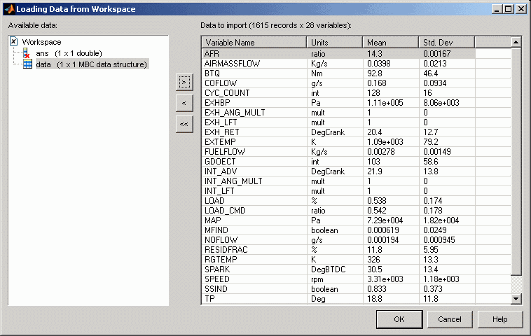
Variables in the workspace are displayed in hierarchical form in the top left pane.
From the tree at the top left, select a variable to import.
Click Add.
The number of records and variables appears in the Output Data pane. You can add variables one at a time as many times as you like as long as no names conflict. The software appends repeated names with
_n.You can double-click to edit variable names and units.
Click Remove to remove selected variables one at a time from the right list, or click or Remove all to remove all variables at once.
Click OK to accept the data to import.
If you already have data imported, the Data Merging Wizard appears, where you must choose one of these radio buttons:
Append new records (all variable names and units match current data)
Append new records (add NaNs to unmatched variables)
Add new variables to current data
Overwrite current data
Click Finish.
Note
The merge might not succeed if the data sets do not contain the same variables. A message appears if the merge is impossible and you must make another choice.
Click Finish to accept the data and return to the Data Editor.
Tailor-Made Excel Sheets
The Data Editor can create a tailor-made Excel sheet for you to fill with data and then import. This sheet is in the format the Data Editor expects to import data.
Note
This workflow is not recommended. Instead, put data into an Excel file with the first row containing variable names and, optionally, the second row containing units.
Select File > Import Excel.
Excel opens with a new sheet that contains the labeled rows
Name,Unit, andData.Copy your data and variable names into this sheet, then click Next in the wizard to import into the Data Editor.
If the data has been entered in the columns in a way that the Data Editor expects, a summary screen shows you information about the numbers, ranges, means, units, and standard deviations of the records and variables you can import.
Click Finish to import the data.

