主要内容

Second-Order Section Filter

Implement cascade of second-order section filters

Since R2023b

  • Second Order Section Filter block icon

Libraries:
DSP System Toolbox / Filtering / Filter Implementations

Description

The Second-Order Section Filter block implements a cascade of second-order section (SOS) filters in Simulink®. You can specify the numerator and denominator coefficients of the filter in the block parameters dialog box or through input ports.

Examples

expand all

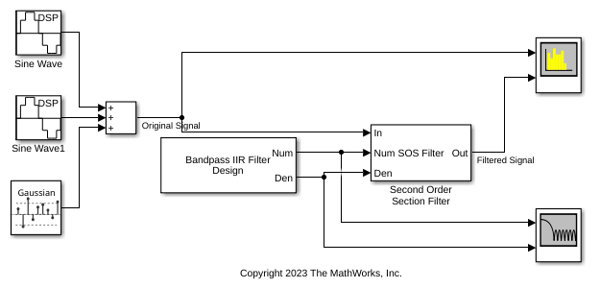
Filter a noisy sinusoidal signal using the Second-Order Section Filter block. Obtain the numerator and denominator coefficients of the SOS filter using the Bandpass IIR Filter Design block.

Tune the frequency specifications of the SOS filter during simulation.

Open and Run Model

Open the secondordersectionfilter model.

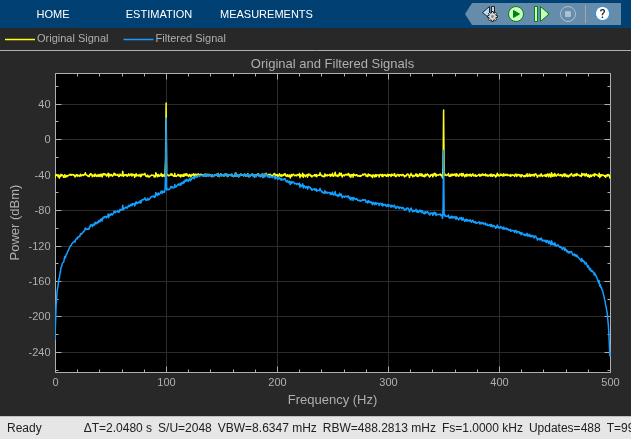
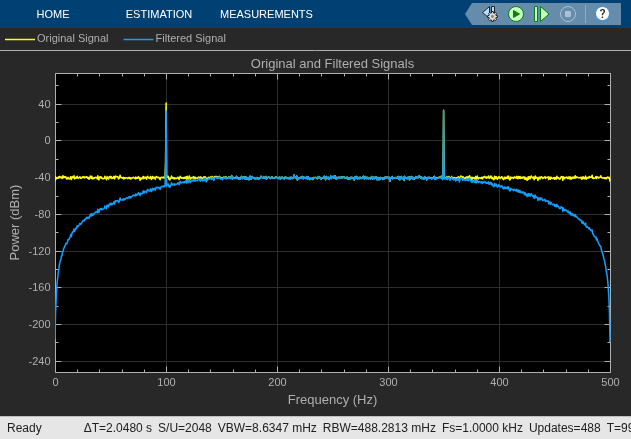
The input signal in the model is a sum of two sine waves with the frequencies of 100 Hz and 350 Hz. The sample rate is 1000 Hz and the number of samples in each frame is 1024. The Random Source block adds zero-mean white Gaussian noise with a variance of 1e-4 to the sum of the sine waves.

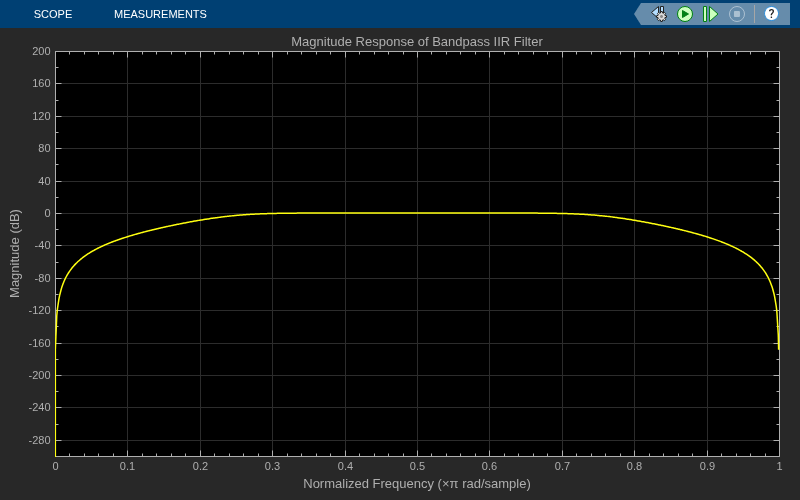
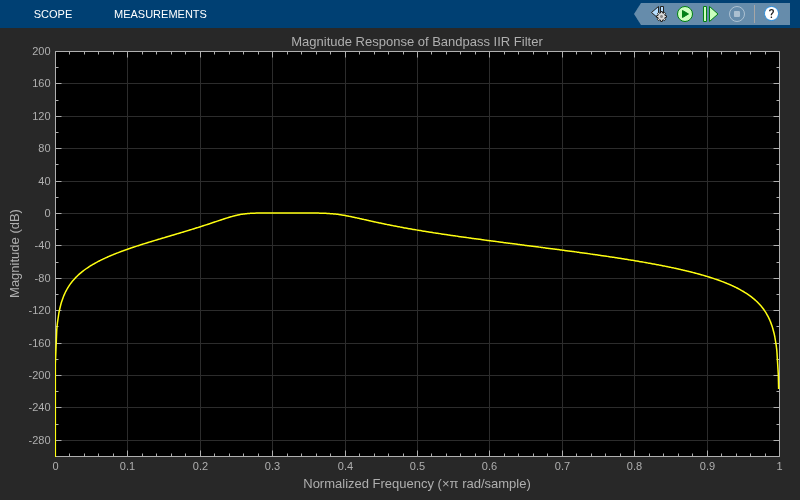
The Bandpass IIR Filter Design block designs a sixth-order bandpass IIR filter with the first and second 3-dB cutoff frequencies of 0.25 ${\pi}$ rad/sample and 0.75 ${\pi}$ rad/sample, respectively. The block generates coefficients as a cascade of second-order sections. Visualize the frequency response of the filter using the Filter Visualizer.

Run the model.

The Second-Order Section Filter block filters the noisy sinusoidal signal. Visualize the original sinusoidal signal and the filtered signal using the Spectrum Analyzer.
Tune Frequency Specifications of SOS Filter

During simulation, you can tune the frequency specifications of the SOS filter by tuning the frequency parameters in the Bandpass IIR Filter Design block. The frequency response of the SOS filter updates accordingly.

Change the second 3-dB cutoff frequency to 0.4 ${\pi}$ rad/sample in the Bandpass IIR Filter Design block. To change the parameter values more gradually during simulation, select the Smooth tuned filter parameters check box and specify a smoothing factor in the Bandpass IIR Filter Design block dialog box. The smoothing factor determines the speed at which the parameter values change until they match the desired new value. If you specify a smoothing factor of 0, the block does not smooth the parameter and immediately sets the parameter to the new value. As the smoothing factor approaches 1, the number of smoothing operations, and consequently, the number of filter redesigns increase. This example uses a smoothing factor is of 0.6.

When you change the second 3-dB cutoff frequency to 0.4 ${\pi}$ rad/sample, the second tone of the sinusoidal signal gets attenuated as it no longer falls in the passband region of the filter.

Filter a noisy sinusoidal signal using the Second-Order Section Filter block. Obtain the numerator and denominator coefficients of the SOS filter using the Bandstop IIR Filter Design block.

Tune the frequency specifications of the SOS filter during simulation.

Open and Run Model

Open the secondordersection_bandstopfilter model.

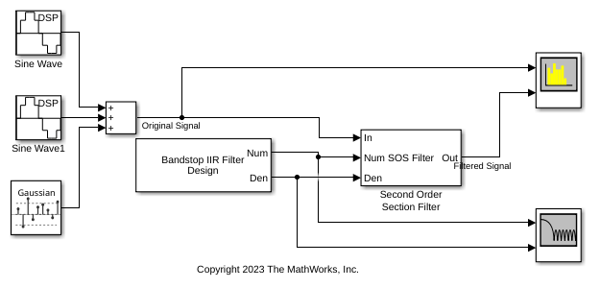
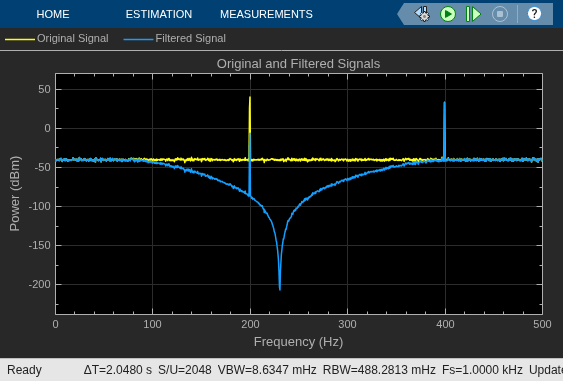
The input signal in the model is a sum of two sine waves with the frequencies of 200 Hz and 400 Hz. The sample rate is 1000 Hz and the number of samples in each frame is 1024. The Random Source block adds zero-mean white Gaussian noise with a variance of 1e-4 to the sum of the sine waves.

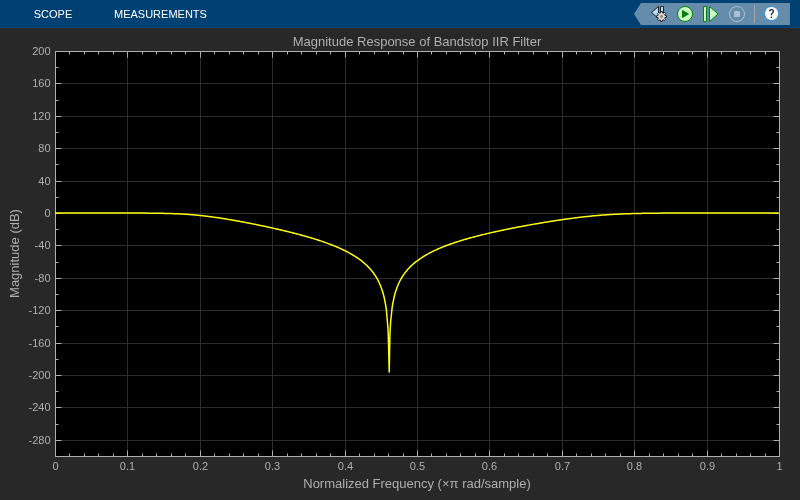
The Bandstop IIR Filter Design block designs a sixth-order bandstop IIR filter with the first and second 3-dB cutoff frequencies of 0.2 ${\pi}$ rad/sample and 0.75 ${\pi}$ rad/sample, respectively. The block generates coefficients as a cascade of second-order sections. Visualize the frequency response of the filter using Filter Visualizer.

Run the model.

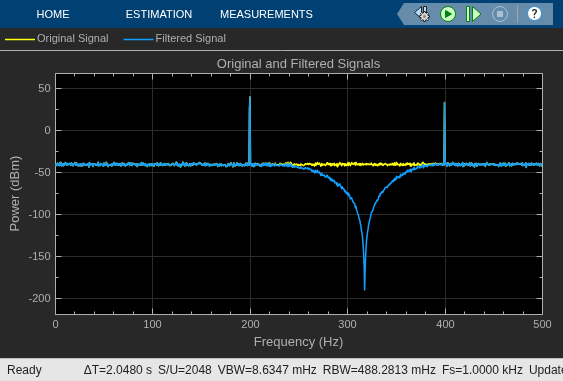
The Second-Order Section Filter block filters the noisy sinusoidal signal. Visualize the original sinusoidal signal and the filtered signal using the Spectrum Analyzer. The first tone is attenuated as it falls in the stopband region of the filter while the second tone remains unaffected as it falls in the passband region of the filter.
Tune Frequency Specification of SOS Filter

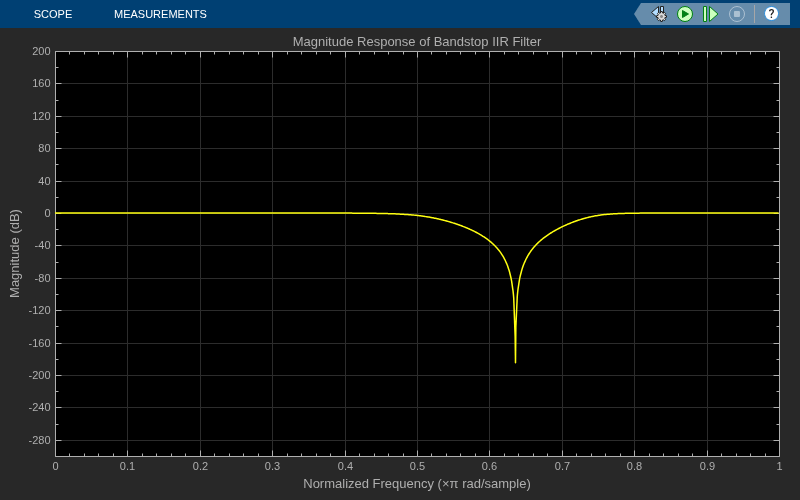
During simulation, you can tune the frequency specifications of the SOS filter by tuning the frequency parameters in the Bandstop IIR Filter Design block. The frequency response of the SOS filter updates accordingly.

Change the first 3-dB cutoff frequency to 0.5 ${\pi}$ rad/sample in the Bandstop IIR Filter Design block. The first tone of the sinusoidal signal now falls in the passband region and is therefore unattenuated.
Ports

Input

expand all

Specify the input signal as a vector or a matrix. The input can be a variable-size signal, that is, the frame size of the signal can change during simulation but the number of channels cannot.

If the input is fixed-point, it must be signed only. (since R2026a)

This port is unnamed until you set the Coefficient source parameter to Input ports.

Data Types: single | double | int8 | int16 | int32 | int64 | fixed point
Complex Number Support: Yes

Specify the numerator coefficients of the SOS filter as a P-by-3 matrix, where P is the number of filter sections. For more details on this input port, see Numerator.

During simulation, you cannot change the size of the coefficients matrix but you can change the coefficient values.

The size and complexity of the Num and Den inputs must be the same. If the Num input is fixed-point, it must be signed only. (since R2026a)

Dependencies

To enable this port, set the Coefficient source parameter to Input ports.

Data Types: single | double | int8 | int16 | int32 | int64 | fixed point
Complex Number Support: Yes

Specify the denominator coefficients of the SOS filter as a P-by-3 matrix or a P-by-2 matrix, where P is the number of filter sections. For more details on this input port, see Denominator.

When you specify a P-by-3 matrix, the block always assumes the leading denominator coefficient to be 1. If you specify any other value in the first column, the block ignores this value and treats it as 1. If you specify a P-by-2 matrix, the block prepends each row of the matrix with a value of 1.

During simulation, you cannot change the size of the coefficients matrix but you can change the coefficient values.

The size and complexity of the Num and Den inputs must be the same. If the Den input is fixed-point, it must be signed only. (since R2026a)

Dependencies

To enable this port, set the Coefficient source parameter to Input ports.

Data Types: single | double | int8 | int16 | int32 | int64 | fixed point
Complex Number Support: Yes

Specify the scale values that the block applies before and after each section of the SOS filter as a scalar or a vector with P + 1 elements, where P is the number of filter sections.

If you input a scalar, the block applies this gain value before the first filter section and sets the gain values before all the other sections to 1. If you specify a vector of P + 1 values, the block applies each value to a separate section of the filter.

If the g input is fixed-point, it must be signed only. (since R2026a)

Tunable: Yes

Dependencies

To enable this port, set Coefficient source to Input ports and select the Specify scale values parameter.

Data Types: single | double | int8 | int16 | int32 | int64 | fixed point

Output

expand all

Filtered output, returned as a vector or a matrix. The output has the same size as the input. The output signal is complex if the input signal, numerator coefficients, or the denominator coefficients is complex.

When the input to the block is floating-point, the output data type matches the input data type since floating-point inheritance takes precedence over the fixed-point settings. When the input to the block is fixed-point, the data type of the block output is determined based on the value you specify in the Output data type parameter.

This port is unnamed until you set the Coefficient source parameter to Input ports.

Data Types: single | double | int8 | int16 | int32 | int64 | fixed point
Complex Number Support: Yes

Parameters

expand all

To edit block parameters interactively, use the Property Inspector. From the Simulink Toolstrip, on the Simulation tab, in the Prepare gallery, select Property Inspector.

Main Tab

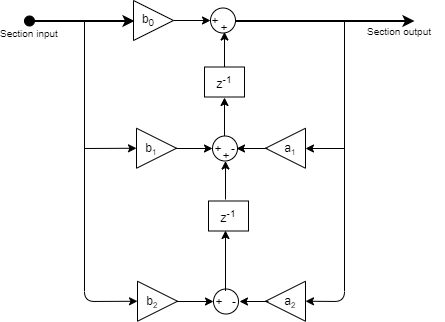
Specify the filter structure as one of these:

  • Direct form I

  • Direct form I transposed

  • Direct form II

  • Direct form II transposed

Specify the filter coefficient source as one of these:

  • Dialog parameters — Set the filter coefficients and scale values through the Numerator, Denominator, and Scale Values parameters in the block dialog box.

  • Input ports — Set the filter coefficients and the scale values through the Num, Den, and g input ports.

Specify the numerator coefficients b of the SOS filter as a P-by-3 matrix, where P is the number of filter sections.

b=[b01b11b21b02b12b22b0Pb1Pb2P]

This equation represents the SOS filter in the transfer function form.

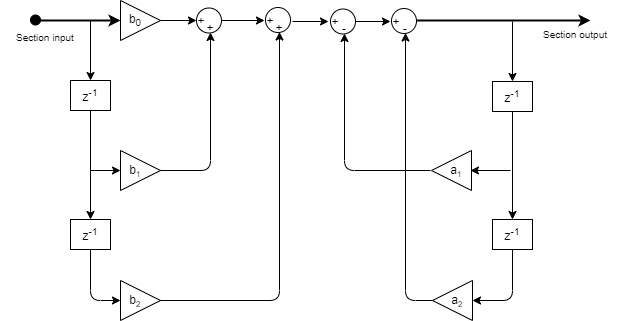
H(z)=k=1PHk(z)=k=1Pb0k+b1kz1+b2kz2a0k+a1kz1+a2kz2,

where

  • a is the denominator coefficients matrix. For more details on how to specify this matrix, see Denominator.

  • k is the row index.

You cannot change the size of this parameter during simulation, but you can change its value.

Dependencies

To enable this parameter, set Coefficient source to Dialog parameters.

Tunable: Yes

Complex Number Support: Yes

Specify the denominator coefficients a of the SOS filter as a P-by-3 matrix or a P-by-2 matrix, where P is the number of filter sections.

a=[a01a11a21a02a12a22a0Pa1Pa2P]

The block algorithm assumes that the value of the leading coefficients is always 1. If the denominator is of size P-by-2, the block algorithm prepends a column of 1s to the denominator to change its size to P-by-3. If the denominator is of size P-by-3 and the elements in the first column do not equal 1, the algorithm ignores the values in the first column and sets them to 1.

This equation represents the SOS filter in the transfer function form.

H(z)=k=1PHk(z)=k=1Pb0k+b1kz1+b2kz2a0k+a1kz1+a2kz2,

where

  • b is the numerator coefficients matrix. For more details on how to specify this matrix, see Numerator.

  • k is the row index.

You cannot change the size of this parameter during simulation, but you can change its value.

Dependencies

To enable this parameter, set Coefficient source to Dialog parameters.

Tunable: Yes

Complex Number Support: Yes

Specify if the filter has scale values for each section. When you select this parameter, you can specify the scale values using the Scale Values parameter in the block dialog box or through the g input port.

Specify the scale values that the block applies before and after each section of the SOS filter as a scalar or a vector with P + 1 elements, where P is the number of filter sections.

If you set this property to a scalar, the block applies this gain value before the first filter section and sets the gain values before all the other sections to 1. If you set this property to a vector of P + 1 values, the block applies each value to a separate section of the filter.

Tunable: Yes

Dependencies

To enable this parameter, set Coefficient source to Dialog parameters and select the Specify scale values parameter.

Specify the input processing method as one of these:

  • Columns as channels (frame based) — The block treats each column of the input as a separate channel.

    For more information, see What Is Frame-Based Processing?

  • Elements as channels (sample based) — The block treats each element of the input as a separate channel.

    For more information, see What Is Sample-Based Processing?

Open the Filter Visualization tool and display the magnitude response of the SOS filter. The response is based on the parameters you select in the block dialog box. To update the magnitude response, modify the parameters in the dialog box and click Apply.

Data Types Tab

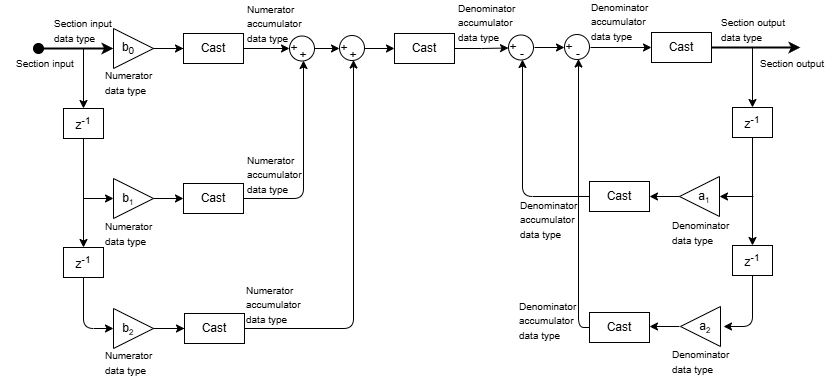
Use these parameters to control the fixed-point data type settings in the Second-Order Section Filter block. Selecting appropriate word lengths and scalings for the fixed-point parameters in your model can be challenging. To aid you, an Inherit via internal rule choice is available for the fixed-point data type parameters. For more information on these rules, see Specify Fixed-Point Attributes for Blocks. For more information on how the block uses the fixed-point block data type parameters, see Filter Structures with Fixed-Point Settings. (since R2026a)

Specify the rounding method for fixed-point operations as one of the following:

  • Floor

  • Ceiling

  • Convergent

  • Nearest

  • Round

  • Simplest

  • Zero

For more details, see Rounding Modes. The filter coefficients do not obey this parameter; instead, they always round to Nearest.

When you select this parameter, the block saturates the result of its fixed-point operation. When you clear this parameter, the block wraps the result of its fixed-point operation. For details on saturate and wrap, see overflow mode for fixed-point operations.

The filter coefficients are always saturated and do not obey this parameter.

When you set Coefficient source to Dialog parameters, specify the word- and fraction-length designations of the filter coefficients (numerator, denominator, and scale values) as one of these:

  • Inherit: Same word length as input — Word length of the filter coefficients matches that of the input to the block. The block automatically sets the fraction length of the coefficients to the binary point-only scaling that provides the best precision possible given the value and word length of the coefficients.

  • Specify word length — Enter the word length of the filter coefficients, in bits. The block automatically sets the fraction length of the coefficients to the binary point-only scaling that provides the best precision possible given the value and word length of the coefficients.

  • Specify word and fraction lengths — Enter the word length and the fraction length of the coefficients, in bits. Enter separate fraction lengths for the numerator and denominator coefficients, and for the scale values.

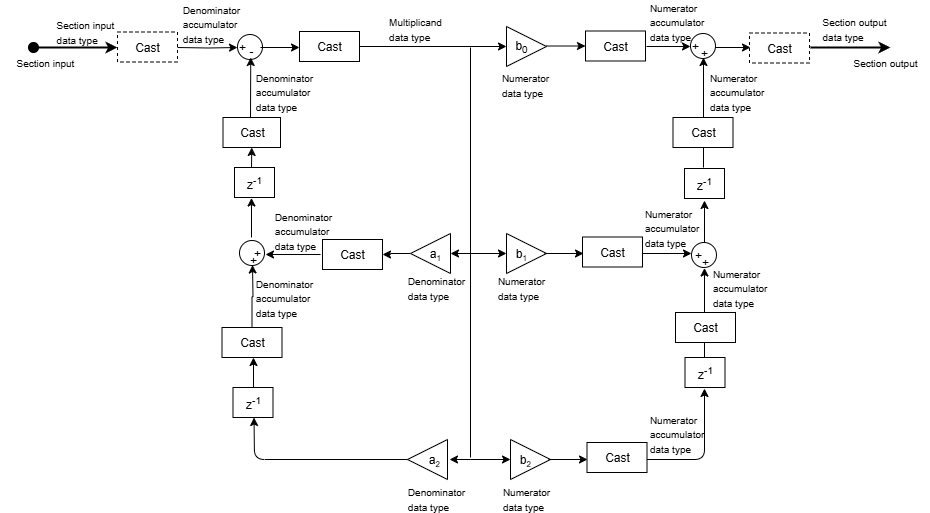
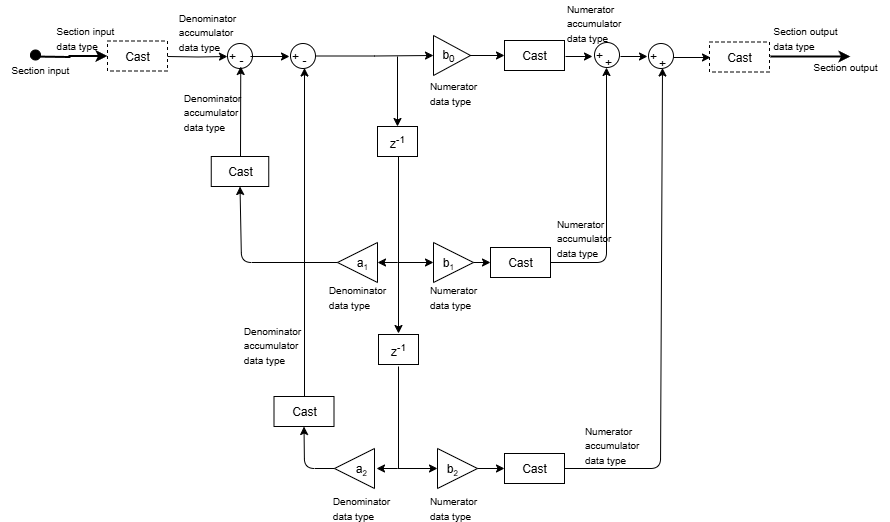
See the Filter Structures with Fixed-Point Settings section for illustrations depicting the use of the coefficient data types in this block.

The filter coefficients do not obey the Integer rounding mode and the Saturate on integer overflow parameters. Instead, they are always saturated and rounded to Nearest.

Dependencies

To enable this parameter, set Coefficient source to Dialog parameters.

Specify the word length of the numerator and denominator coefficients and scale values as a positive integer when you specify these parameters in the block dialog box.

Dependencies

To enable this parameter, set:

  • Coefficient source to Dialog parameters

  • Coefficient data type to Specify word and fraction lengths or Specify word length

Specify the fraction length of the numerator coefficients as a scalar integer when you specify the coefficients in the block dialog box.

Dependencies

To enable this parameter, set:

  • Coefficient source to Dialog parameters

  • Coefficient data type to Specify word and fraction lengths

Specify the fraction length of the denominator coefficients as a scalar integer when you specify the coefficients in the block dialog box.

Dependencies

To enable this parameter, set:

  • Coefficient source to Dialog parameters

  • Coefficient data type to Specify word and fraction lengths

Specify the fraction length of the scale values as a scalar integer when you specify the scale values in the block dialog box.

Dependencies

To enable this parameter:

  • Set Coefficient source to Dialog parameters

  • Select Specify scale values

  • Set Coefficient data type to Specify word and fraction lengths

Specify the section input and output word- and fraction-length designations as one of these:

  • Inherit: Same as input — Word length and fraction length characteristics of the section input and section output data types match those of the input to the block.

  • Specify word and fraction lengths — Enter the word and fraction lengths of the section input and output data types, in bits.

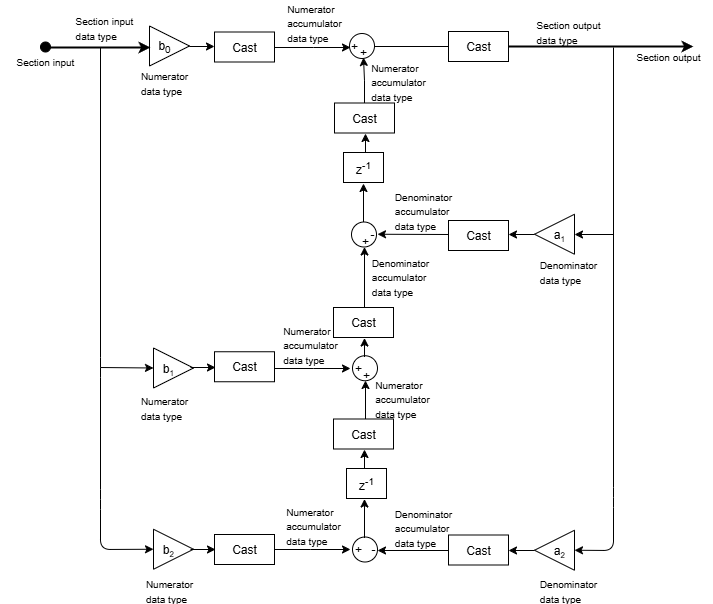
This data type determines the word and fraction lengths of the fixed-point data type going into each section of a biquadratic filter. See the Filter Structures with Fixed-Point Settings section for illustrations depicting the use of the section input and section output data type in this block.

Dependencies

To enable this parameter, select Specify scale values.

Specify the word length of the section input and section output data types as a positive integer.

Dependencies

To enable this parameter:

  • Select Specify scale values

  • Set Section IO data type as Specify word and fraction lengths

Specify the fraction length of the section input data type as a scalar integer.

Dependencies

To enable this parameter:

  • Select Specify scale values

  • Set Section IO data type as Specify word and fraction lengths

Specify the fraction length of the section output data type as a scalar integer.

Dependencies

To enable this parameter:

  • Select Specify scale values

  • Set Section IO data type as Specify word and fraction lengths

Specify the multiplicand word- and fraction-length designations of a Direct form I transposed filter structure as one of these:

  • Inherit: Inherit via internal rule — Inherit word and fraction lengths of multiplicand data type based on an internal rule.

  • int8, int16, int32, int64, fixdt(1,16,0) — Built-in integer data type

See the Filter Structures with Fixed-Point Settings section for illustrations depicting the use of the multiplicand data type in this block.

Dependencies

To enable this parameter, set Filter structure to Direct form I transposed.

When you set the filter structure to Direct form II, specify the state word- and fraction-length designations as one of these:

  • Inherit: Inherit via internal rule — Inherit word and fraction lengths of state data type based on an internal rule.

  • int8, int16, int32, int64, fixdt(1,16,0) — Built-in integer data type

See the Filter Structures with Fixed-Point Settings section for illustrations depicting the use of the state data type in this block.

Dependencies

To enable this parameter, set Filter structure to Direct form II.

Specify the numerator and denominator accumulator word- and fraction-length designations as one of these:

  • Inherit: Inherit via internal rule — Inherit word and fraction lengths of the numerator and denominator accumulator data type based on an internal rule.

  • Specify word and fraction lengths — Enter the word length and fraction length of the numerator and denominator accumulator data type, in bits.

See Multiplication Data Types and the Filter Structures with Fixed-Point Settings section for illustrations depicting the use of the accumulator data type in this block.

Specify the word length of the numerator and denominator accumulator data type as a positive integer.

Dependencies

To enable this parameter, set Accumulator data type to Specify word and fraction lengths.

Specify the fraction length of the numerator accumulator data type as a scalar integer.

Dependencies

To enable this parameter, set Accumulator data type to Specify word and fraction lengths.

Specify the fraction length of the denominator accumulator data type as a scalar integer.

Dependencies

To enable this parameter, set Accumulator data type to Specify word and fraction lengths.

Specify the output word- and fraction-length designations as one of these:

  • Inherit: Inherit via internal rule — Inherit word and fraction lengths of the output data type based on an internal rule.

  • int8, int16, int32, int64, fixdt(1,16,0) — Built-in integer data type

When the input to the block is floating-point, the output data type matches the input data type since floating-point inheritance takes precedence over the fixed-point settings.

See the Filter Structures with Fixed-Point Settings section for illustrations depicting the use of the output data type in this block.

Select this parameter to prevent the fixed-point tools from overriding the data types you specify in the block dialog box.

Block Characteristics

Data Types

double | single | int8 | int16 | int32 | int64 | signed fixed point

Direct Feedthrough

no

Multidimensional Signals

no

Variable-Size Signals

yes

Zero-Crossing Detection

no

More About

expand all

Extended Capabilities

expand all

C/C++ Code Generation
Generate C and C++ code using Simulink® Coder™.

Fixed-Point Conversion
Design and simulate fixed-point systems using Fixed-Point Designer™.

Version History

Introduced in R2023b

expand all