polygonSweep
R2026bSyntax
Description
The polygonSweep function generates a path for a sweep tool
to follow to cover a polygon. For concave polygons, use the
polygonMonotonicity and plotMonotonicity functions
to identify and visualize the valid sweep angle intervals of the polygon.
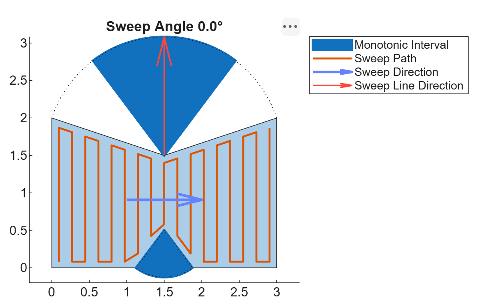
This figure shows an example of path generated for a concave polygon along the sweep
direction, defined by a sweep angle of 0 degrees. For more information about identifying valid
sweep angles, see the Monotonicity section of the
polygonMonotonicity function. Note that the sweep angle refers to the
angle of the sweep direction, not the lines of the sweep path.
[___,
returns additional information about the sweep path solution using any combination of input
arguments from previous syntaxes.solnInfo] = polygonSweep(___)
Examples
Define the geometry of a polygon as a polyshape object.
poly = polyshape([0 0 1.5 3 3 1.875 1.5 1.1250 0],[0 2 1.5 2 0 0 0.5 0 0]);
Check if any regions of the polygon are monotonic, and return the monotonic angle intervals for those regions.
[isMono,intervals] = polygonMonotonicity(poly);
Plot the monotonic intervals of the polygon.
hVis = plotMonotonicity(poly);
axis equal tight
title(["Polygon and Corresponding","Monotonic Intervals"])
legend("Polygon","Monotonic Intervals",Location="northeastoutside")
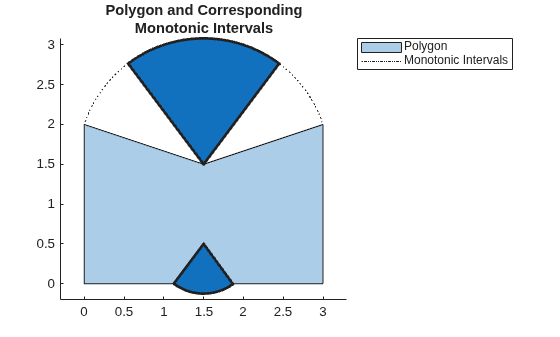
You can use these monotonic intervals to plan sweep paths. Sweeping in a monotonic interval ensures that you can fully sweep the corresponding region of a polygon in one direction, without needing to backtrack.
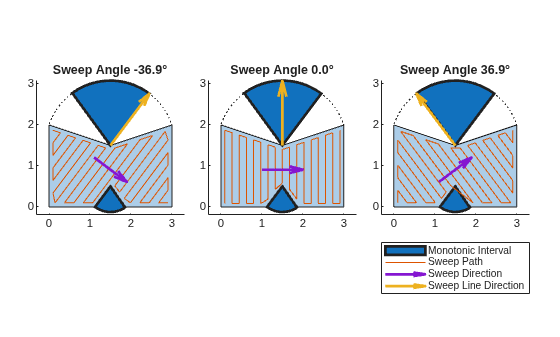
Store three sweep angles from within the first monotonic angle interval.
sweepAngles = [intervals(1,1) mean(intervals(1,:)) intervals(1,2)] - pi;
Define the geometry of the sweep tool. In this case, assume the tool is shaped like a regular pentagon.
tool = nsidedpoly(5,Radius=0.1);
Set up three subplots, for showing the sweep paths along the selected sweep angles.
t = tiledlayout(1,3,Padding="compact",TileSpacing="compact");
Generate and plot a sweep path for each of the stored sweep angles. Plot the sweep direction arrow and sweep line direction arrow to show their relationships to the sweep angle and path.
for i = 1:3
opts = polysweepoptsbous(SweepAngle=sweepAngles(i),BoundaryBehavior="inset",SweepToolGeometry=tool);
path = polygonSweep(poly,opts);

nexttile

hVis = plotMonotonicity(poly);

hold on
axis equal tight

% Plot the swept path
pathHandle = plot(path(:,1),path(:,2));

% Plot the sweep direction arrow and sweep line direction arrows to
% show their relationships to the sweep angle and path.
sweepLineDirHandle = exampleHelperHighlightInterval(hVis,sweepAngles(i)+pi/2);
sweepDirHandle = exampleHelperPlotSweepDirection(poly,sweepAngles(i));

% Add a title to the current tile
title("Sweep Angle " + num2str(rad2deg(sweepAngles(i)),"%.1f") + "°");

hold off
end

handles = [hVis.MonotoneIntervals.Children(1), ...
           pathHandle, ...
           sweepDirHandle, ...
           sweepLineDirHandle];

legend(handles,{"Monotonic Interval","Sweep Path","Sweep Direction","Sweep Line Direction"},Location="southoutside",Orientation="vertical");
Input Arguments
Output Arguments
Extended Capabilities
Version History
Introduced in R2026a

