主要内容

Hilbert FIR

Design Hilbert finite impulse response filter

Description

A Hilbert filter applies the Hilbert transform, which shifts the phase of an input signal by 90° while preserving its energy. A finite impulse response (FIR) filter computes an output signal as a running weighted average of input samples.

Signal Processing Toolbox™ provides different ways to design Hilbert FIR filters:

All of these methods return digitalFilter objects. If you have a DSP System Toolbox™ license, you can generate your design as a filter System object™ and include additional Design Method Options.

For other ways to design Hilbert FIR filters using MATLAB, see Other Hilbert FIR Filter Design Functions.

Examples

expand all

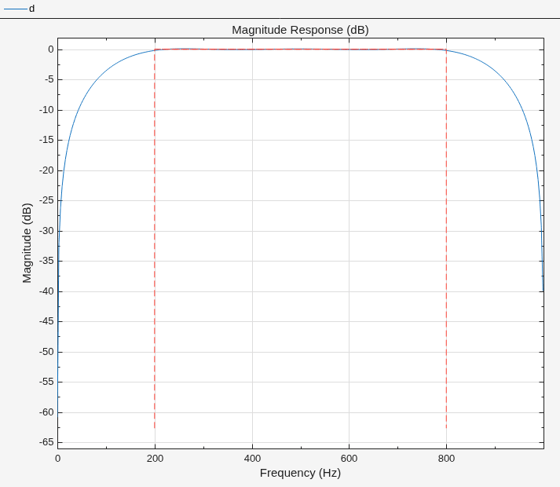
To design the filter at the command line or in a script, use the designfilt function with "hilbertfir" as the first argument. Use name-value arguments to specify your design further.

d = designfilt("hilbertfir", ...    % Response type
    SampleRate=2000, ...            % Sample rate
    FilterOrder=12, ...             % Filter Order
    TransitionWidth=400, ...        % Frequency constraints
    DesignMethod="ls");             % Design method
filterAnalyzer(d)
To design the filter using the Design Filter Live Editor task:

  1. Specify the filter:

    • Under Select filter response, select Hilbert FIR.

    • Under Sample Rate, specify Frequency units as Hz and Input sample rate (Hz) as 2000.

    • Under Specify filter order, specify the Order mode as Specify and the Order as 12.

    • Under Specify frequency parameters, specify a transition width of 400 Hz.

    • Under Specify algorithm, select FIR least-squares.

  2. The Live Editor task updates the filter automatically by default.
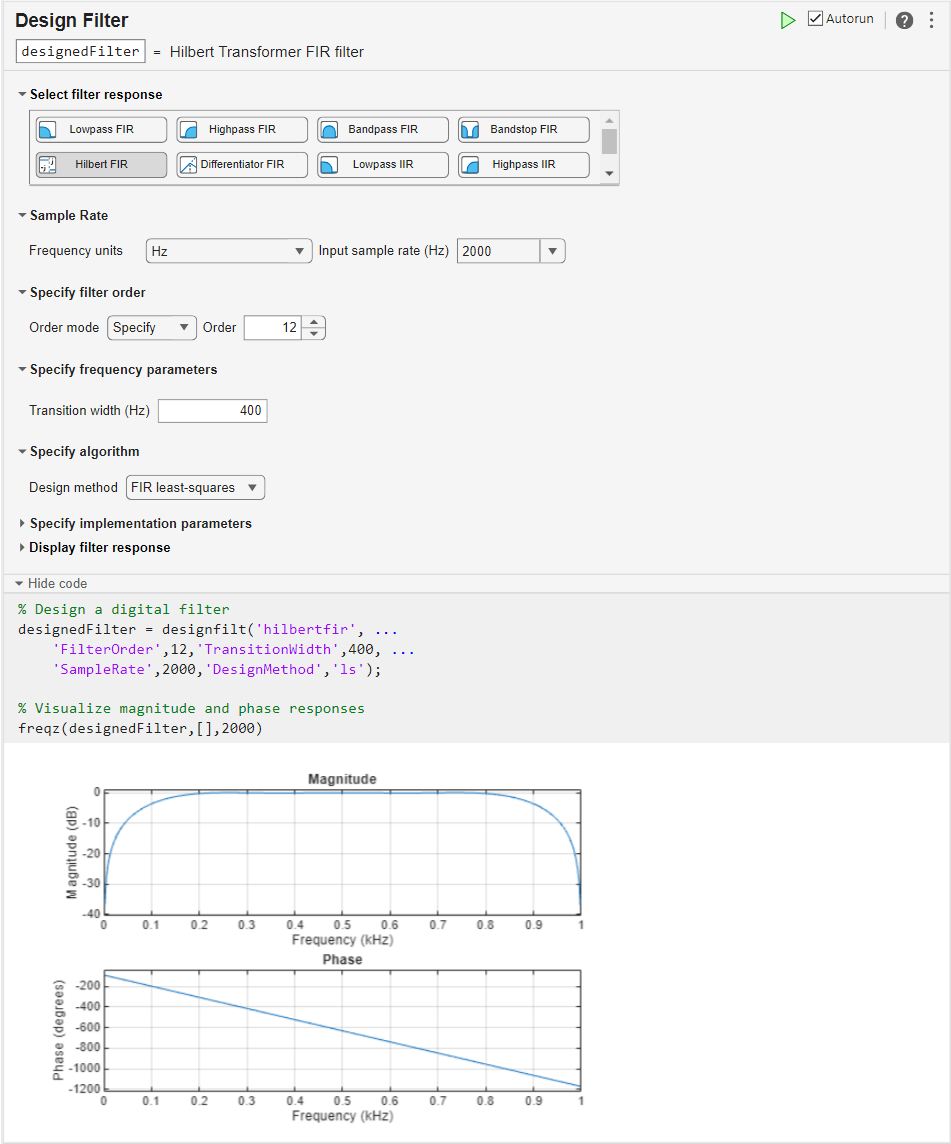
    Hilbert FIR filter design using Live Editor task

To design the filter using the Filter Designer app:

  1. In the Response gallery of the Designer tab in the app toolstrip, select Hilbert FIR.

  2. Specify the filter using the options in the Filter Parameters table:

    • In Sample Rate, specify Frequency units as Hz and Input sample rate (Hz) as 2000.

    • Under Filter Order, specify the Order mode as Specify and the Order as 12.

    • Under Frequency Specifications, specify a transition width of 400 Hz.

    • Under Algorithm, select FIR least-squares.

  3. In the Filter section of the Designer tab, click Update Filter.
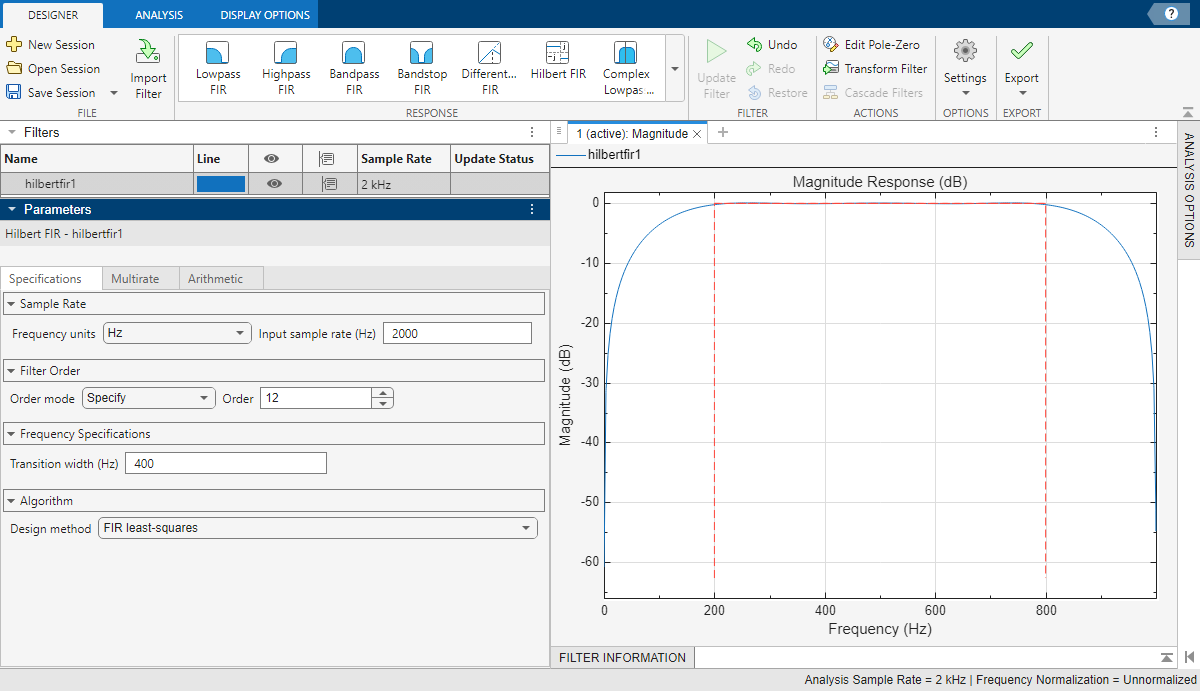
    Hilbert FIR filter design using Filter Designer app

  4. Export code to create your digital filter. On the toolstrip, click Export and select Generate MATLAB function > Digital Filter Object. The code appears in the editor.

    function designedFilter = hilbertfir1filt
    
    designedFilter = designfilt('hilbertfir', ...
        'FilterOrder',12,'TransitionWidth',400, ...
        'SampleRate',2000,'DesignMethod','ls');
    
    end

Parameters

expand all

Design Method

Specify the algorithm to design the filter. The available design methods correlate with the set of design specifications that you choose.

Design the filter using the Parks-McClellan algorithm. Equiripple filters have a frequency response that minimizes the maximum ripple magnitude over all bands.

designfilt FunctionDesign Filter Live Editor TaskFilter Designer App

Specify DesignMethod="equiripple"

In the Specify algorithm section of the task, set Design method to Equiripple

In the Algorithm section of the filter parameters panel, set Design method to Equiripple

The equiripple design method supports these design parameter combinations.

Filter OrderFrequency SpecificationsMagnitude SpecificationsDesign Method OptionsDSP System Toolbox License Required

N/AN/A 
N/A

Design the filter using the least-squares algorithm. The method minimizes the discrepancy between a specified arbitrary piecewise-linear function and the filter’s magnitude response.

designfilt FunctionDesign Filter Live Editor TaskFilter Designer App

Specify DesignMethod="ls"

In the Specify algorithm section of the task, set Design method to FIR least-squares

In the Algorithm section of the filter parameters panel, set Design method to FIR least-squares

The least-squares design method supports these design parameter combinations.

Filter OrderFrequency SpecificationsMagnitude SpecificationsDesign Method OptionsDSP System Toolbox License Required

N/AN/A 

Sample Rate

Specify the filter sample rate as a positive scalar expressed in hertz.

designfilt FunctionDesign Filter Live Editor TaskFilter Designer App
  • To specify a sample rate, use the SampleRate name-value argument and input a value in hertz.

  • To work with normalized frequencies, omit the sample rate.

In the Sample Rate section of the task:

  • To specify a sample rate, set Frequency units to Hz and type a value for Input sample rate (Hz).

  • To work with normalized frequencies, set Frequency units to Normalized.

In the Sample Rate section of the filter parameters panel:

  • To specify a sample rate, set Frequency units to Hz and type a value for Input sample rate (Hz).

  • To work with normalized frequencies, set Frequency units to Normalized.

Filter Order

Specify the filter order N as a positive integer. Some design methods let you specify the order. Others generate minimum-order designs, which are the shortest filters that satisfy the specified constraints.

designfilt FunctionDesign Filter Live Editor TaskFilter Designer App

  • To specify a filter order, use the FilterOrder name-value argument and input a positive integer.

  • To use a minimum-order design, specify frequency and magnitude constraints accordingly.

In the Specify Filter Order section of the task:

  • To specify a filter order, set Order mode to Specify and enter a value for Order.

  • To use a minimum-order design, set Order mode to Minimum.

In the Filter Order section of the filter parameters panel:

  • To specify a filter order, set Order mode to Specify and enter a value for Order.

  • To use a minimum-order design, set Order mode to Minimum.

Frequency Specifications

Specify the width of the transition band as a positive scalar smaller than the Nyquist frequency. If you work with normalized frequencies, the Nyquist frequency is 1. If you specify a sample rate Fs, the Nyquist frequency is Fs/2.

The transition band separates the frequency region with positive phase shift from the frequency region with negative phase shift.

designfilt FunctionDesign Filter Live Editor TaskFilter Designer App
  • Use the TransitionWidth name-value argument. Input the value as a positive scalar.

  • In the Specify Frequency Parameters section of the task, set Transition Width by entering a positive scalar as the value.

  • In the Frequency Specifications section of the filter parameters panel, set Transition Width by entering a positive scalar as the value.

Magnitude Specifications

Specify the passband ripple as a positive scalar in decibels.

The passband ripple measures the fluctuation of the passband gain of the filter about the reference value, usually 0 dB.

designfilt FunctionDesign Filter Live Editor TaskFilter Designer App
  • Use the PassbandRipple name-value argument. Input the value as a positive scalar in decibels.

  • In the Specify Magnitude Parameters section of the task, select a set of Magnitude Constraints containing Passband ripple (dB) and enter a positive scalar in decibels as the value.

  • In the Magnitude Specifications section of the filter parameters panel, select a set of Magnitude Constraints containing Passband ripple (dB) and enter a positive scalar in decibels as the value.

Design Method Options

Advanced Options

Density of the frequency grid used by the Equiripple algorithm, specified as a positive scalar ≥ 10. The frequency grid has roughly (Density Factor × Filter Order)/(2 × Transition Width) frequency points. Increasing the density factor results in filters that more closely approximate an equiripple filter but take longer to compute.

You must have a DSP System Toolbox license to use this option. This parameter is available only in the designfilt function.

designfilt FunctionDesign Filter Live Editor TaskFilter Designer App
  • Use the DensityFactor name-value argument. Input the value as a positive scalar greater than 10.

N/A

N/A

Type of linear-phase FIR filter of an Equiripple algorithm, specified as one of these options:

  • 1 –– Even-order and symmetric FIR filter

  • 2 –– Odd-order and symmetric FIR filter

  • 3 –– Even-order and antisymmetric FIR filter

  • 4 –– Odd-order and antisymmetric FIR filter

You must have a DSP System Toolbox license to use this option. Some parameter values are available only in the designfilt function.

designfilt FunctionDesign Filter Live Editor TaskFilter Designer App
  • Use the FIRType name-value argument. Input the value as "1", "2", "3", or "4".

  • In the Specify Algorithm Options section of the task, set FIR filter type to 3 or 4.

  • In the Algorithm Options section of the filter parameters panel, set FIR filter type to 3 or 4.

More About

expand all