Automatically Label Ground Truth Using Vision-Language Model
R2026bThis example shows how to automatically label ground truth images for object detection using the Grounding DINO vision-language model (VLM) in the Image Labeler app. Grounding DINO is a vision-language model that combines image understanding with natural language processing to enable open-set object detection based on textual prompts [1]. By leveraging both visual and linguistic information, it automatically detects and localizes objects in images according to the text descriptions you provide.
In the Image Labeler and Video Labeler apps, you can efficiently annotate images by specifying objects of interest using descriptive noun phrases as simple text queries. Use the Grounding DINO tool for these labeling tasks.
Automatically label objects based on ROI label definitions, or label names.
Select specific types of objects to automatically label using descriptive noun phrases. For example, instead of labeling all car objects, label only red car objects.
To get started with the Image Labeler app, see Get Started with the Image Labeler.
This example requires the Computer Vision Toolbox™ Model for Grounding DINO Object Detection and a Deep Learning Toolbox™ license. Processing image data on a GPU requires a supported GPU device and Parallel Computing Toolbox™.
Open the Image Labeler
Open the Image Labeler app. You can also open the app from the Apps tab of the MATLAB® Toolstrip, under Image Processing and Computer Vision.
imageLabeler
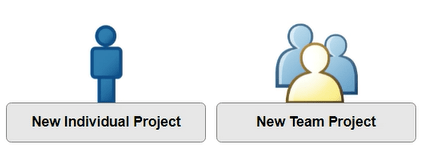
On the app menu, select New Individual Project.
Load an Image into Image Labeler
To load an image into the Image Labeler app, on the app toolstrip, click Import. Then, under Images, select From File. Browse to the location of timessquarephoto.jpg in the same directory as this example, select the image file, and click Open.

Create Label Definitions
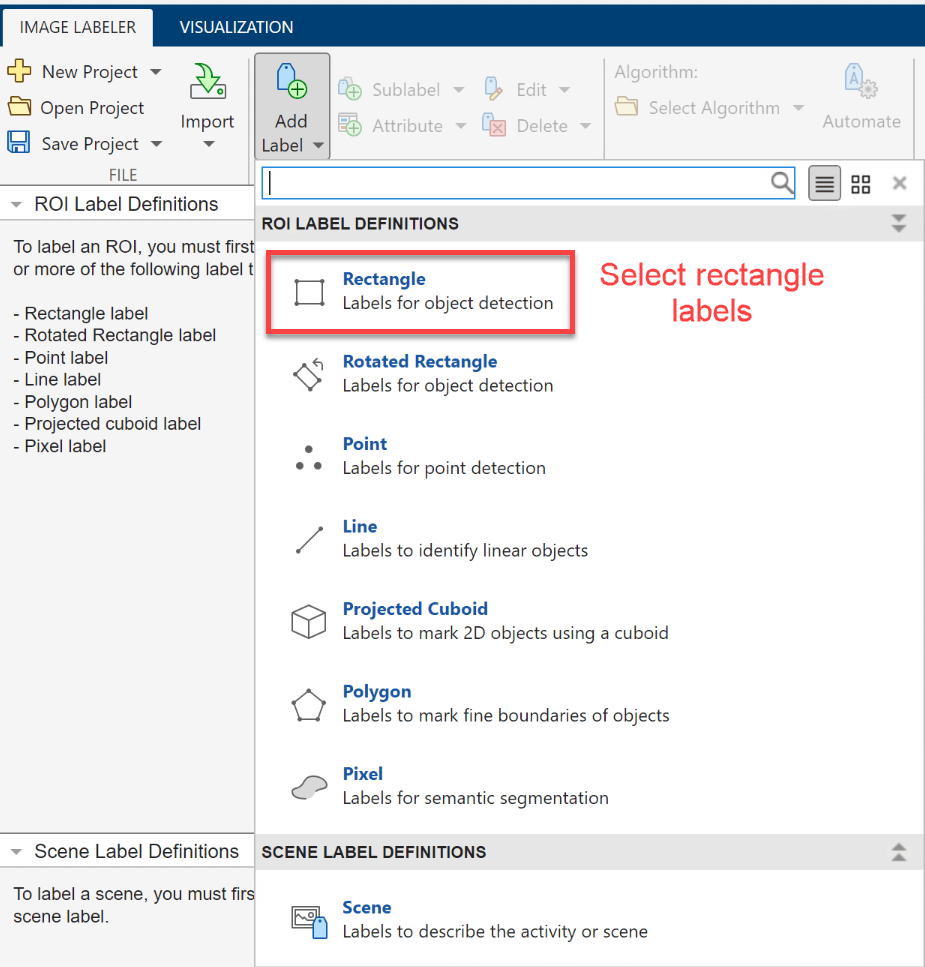
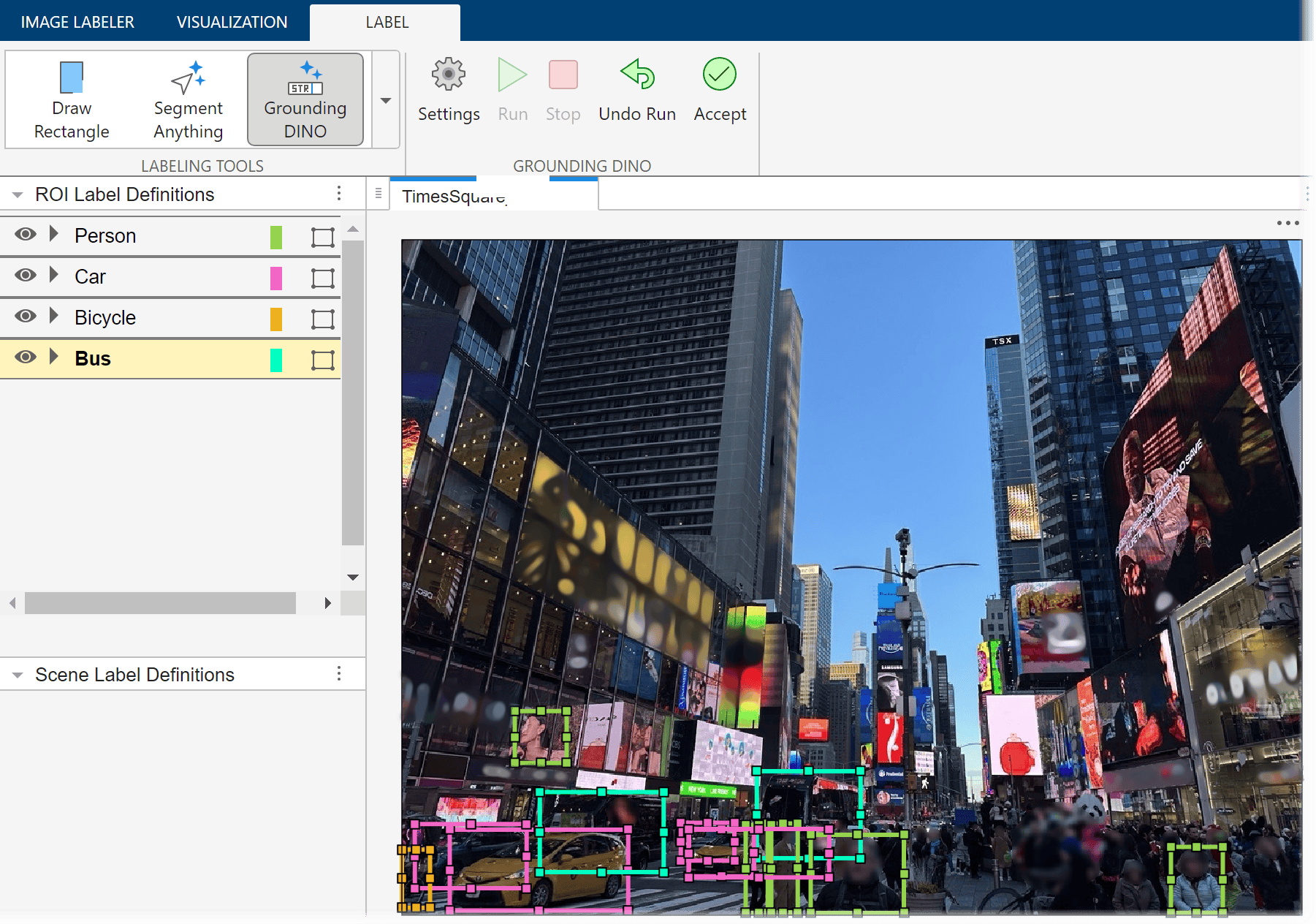
A label definition specifies the name, color, and numeric index of a label. To label rectangular ROIs for object detection, on the Image Labeler tab of the app toolstrip, select Add Label, and, under ROI Label Definitions, select Rectangle.
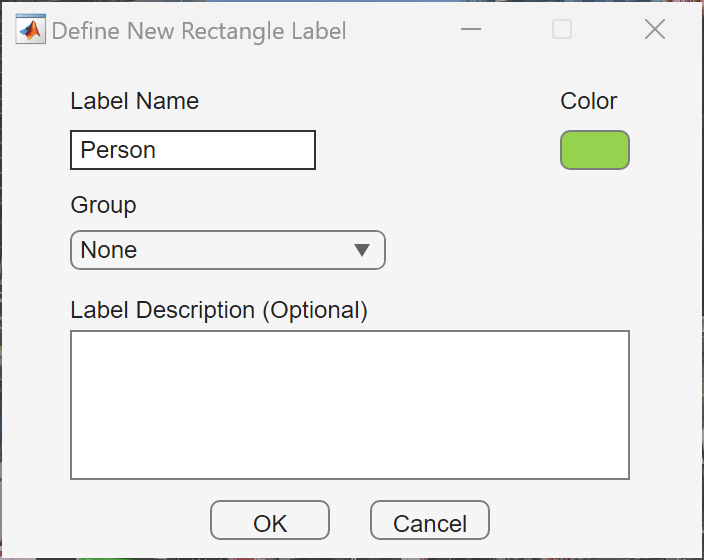
In the Define New Rectangular Label dialog box, specify Label Name as Person. The label name must be a valid MATLAB variable name with no spaces. Select OK to create the new ROI label.
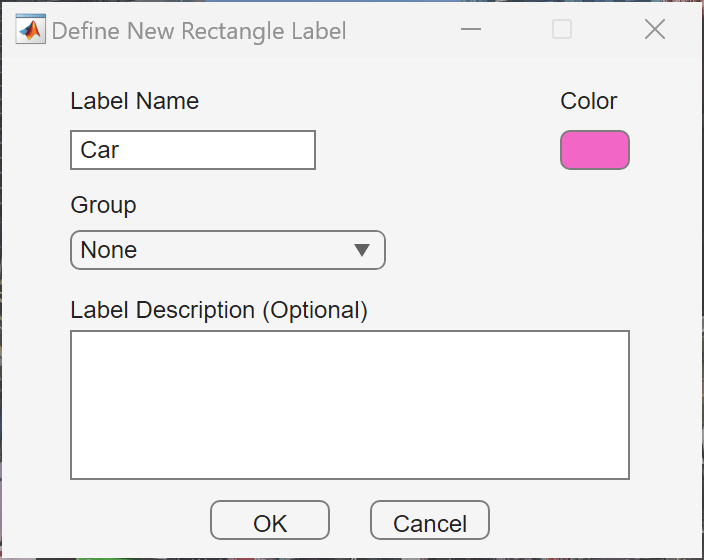
To define another label, select the Add Label on the Image Labeler tab of the app toolstrip again, and select Rectangle. Specify Label Name as Car, and select OK. Define additional ROI definitions using this process.
Select Grounding DINO Tool
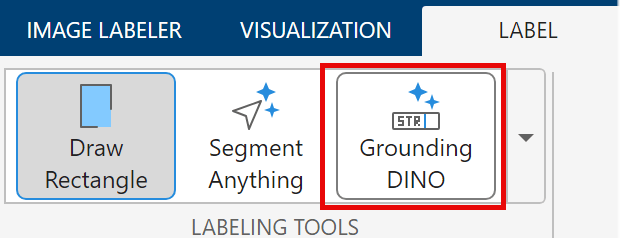
On the Label tab of the app toolstrip in the Labeling Tools section, select Grounding DINO.
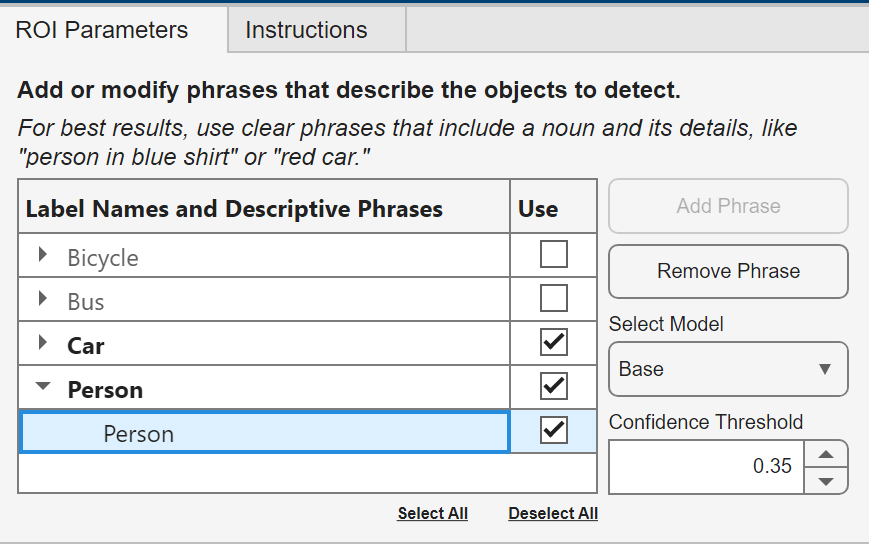
The toolstrip adds a Grounding DINO section, and opens a Grounding DINO tool parameters menu with an interactive ROI Parameters tab on the top-right corner of the app. By default, Image Labeler app creates labels for all existing label definitions. To only label a subset of objects, uncheck the Use checkbox next to the corresponding label name. You can tune the confidence threshold using the Confidence Threshold selector. Increase the confidence threshold to see fewer, more confident detections, or decrease it to detect more objects, including less certain ones. Use the Select Model dropdown menu to select a pretrained Grounding DINO model. Select the Base model for higher accuracy and more robust detections at a higher computational cost. Select the Tiny model when limited computational resources are available.
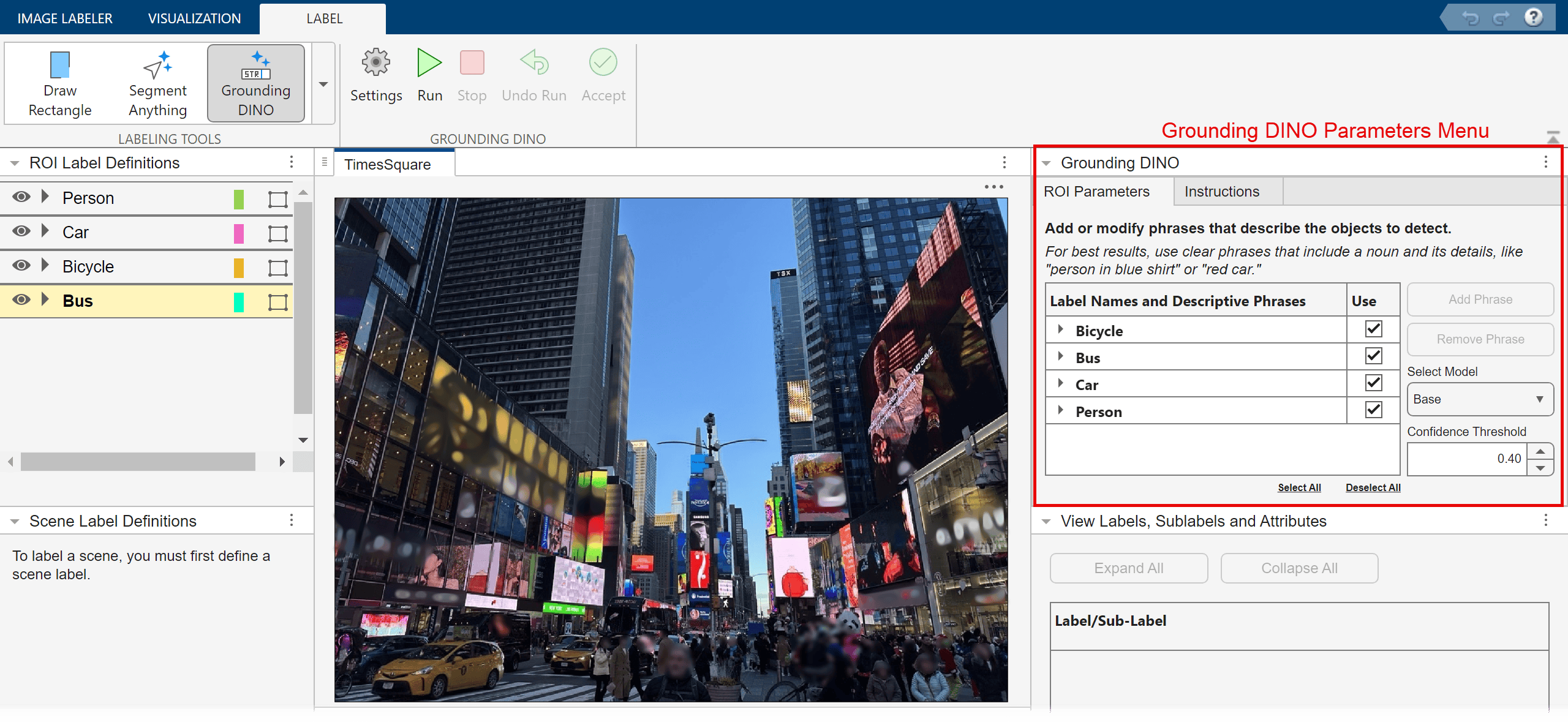
For this example, specify the confidence threshold as 0.35 in the Confidence Threshold selector.
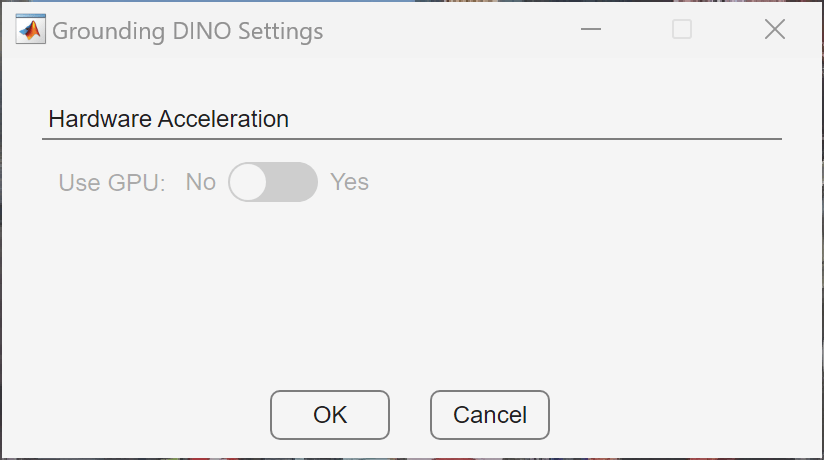
To label images using Grounding DINO, the Image Labeler app automatically uses an GPU device, if one is available. To improve processing speed, provide an acceptable GPU device. Using a GPU requires a Parallel Computing Toolbox™ license and a CUDA®-enabled NVIDIA® GPU. For more information, see GPU Computing Requirements (Parallel Computing Toolbox).
To use a GPU device, in the Grounding DINO section of the app toolstrip, click Settings. The app opens the Settings dialog box. To use a GPU, toggle the Use GPU button to Yes. Click OK.
Automatically Label Objects Using Grounding DINO
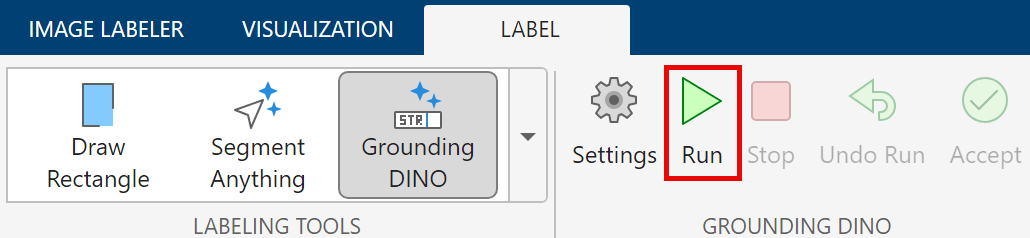
To automatically label objects using the Grounding DINO tool, click the Run in the Grounding DINO section of the app toolstrip.
The Image Labeler app automatically generates rectangle ROI labels for each object, outlining the labeled objects in the color associated with the label.
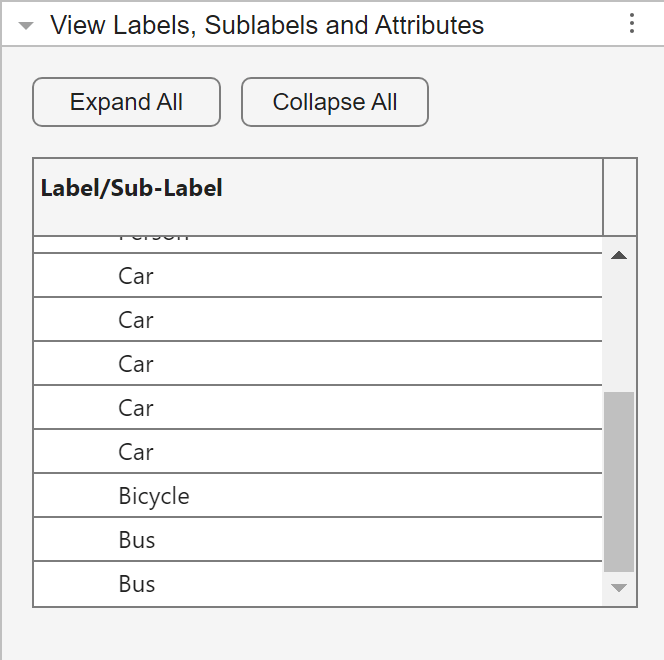
You can view a list of the generated rectangular ROI labels in the View Labels, Sublabels, and Attributes bottom-right panel of the app.
To remove the last generated labels, click Undo Run. If you are satisfied with the created labels, click Accept.
Label Specific Objects Using Descriptive Phrases
To label specific types of objects or subsets or objects, you can add descriptive noun phrases to each label definition. Descriptive noun phrases are text queries that describe objects of interest to label, centered around the noun that describes the object.
In the interactive ROI Parameters tab of the Grounding DINO tool parameters menu, click on an expanding tab containing a label name to view its associated descriptive phrases. By default, each label definition contains a single descriptive noun phrase that is identical to the label definition.
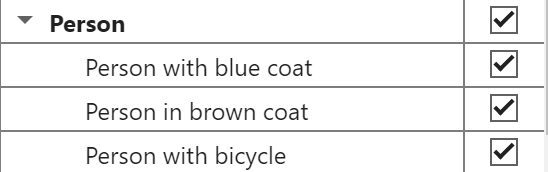
To add a new descriptive noun phrase, such as Person with blue coat, write the phrase in the editable entry below the corresponding label name, highlighted in blue. To remove a descriptive noun phrase, select the noun phrase and click Remove Phrase.

To add an additional descriptive noun phrase, select the associated label and click the Add Phrase button. Write the descriptive phrase in the new editable entry that appears below the last added phrase.
When you are done creating descriptive noun phrases, click the Run in the Grounding DINO section of the app toolstrip to label the specified objects. The Image Labeler app automatically generates rectangle ROI labels for each object, outlining the labeled objects in the color associated with the label. You can view a list of the generated rectangular ROI labels in the View Labels, Sublabels, and Attributes bottom-right panel. The label names are not specific to the descriptive noun phrases.
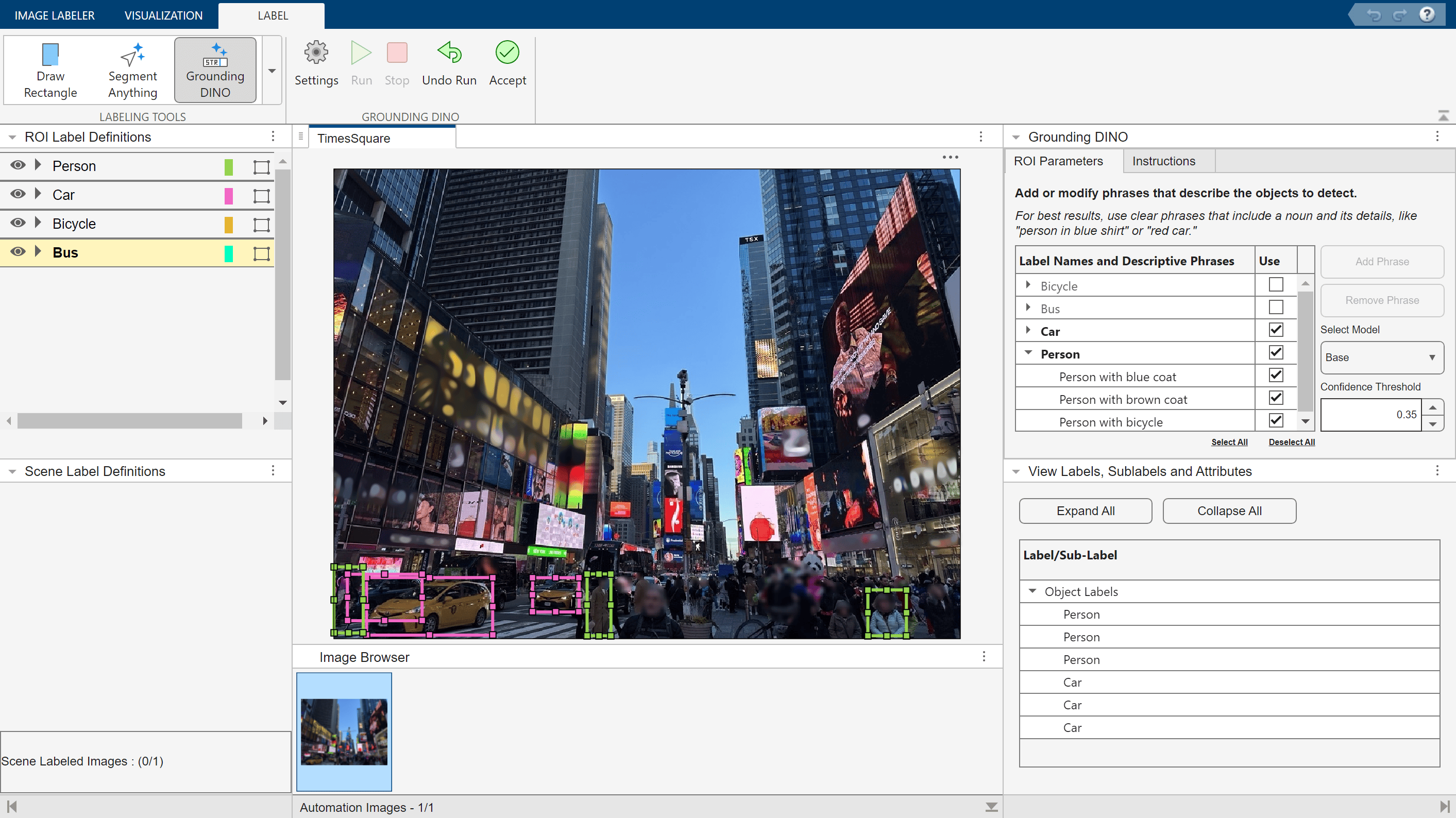
To remove the last generated labels, click Undo Run. If you are satisfied with the created labels, click Accept.
References
[1] Liu, Shilong, et al. Grounding DINO: Marrying DINO with Grounded Pre-Training for Open-Set Object Detection. arXiv:2303.05499, arXiv, 19 Jul. 2024. arXiv.org, https://doi.org/10.48550/arXiv.2303.05499.

