asset3d.read
R2026bDescription
Add-On Required: This feature requires the 3D Asset Processing Library for MATLAB add-on.
result = asset3d.read(filename,Name=Value)ReadAs="mesh" forces the function to return a Mesh object
regardless of the file contents.
Examples
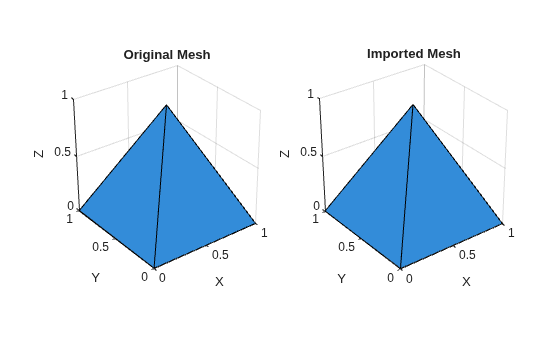
Create a simple pyramid mesh, write it to an FBX file, and read it back using the asset3d.read function. Then, inspect the geometric properties of the imported mesh and display it in a figure.
Create a temporary folder for your asset files.
tmpDir = fullfile(tempdir,"asset3dReadExamples");
if ~isfolder(tmpDir)
    mkdir(tmpDir)
end
Define a simple pyramid mesh.
vertices = [0 0 0; 1 0 0; 1 1 0; 0 1 0; 0.5 0.5 1];
faces = [1 2 5; 2 3 5; 3 4 5; 4 1 5; 1 3 4; 1 2 3];
srcMesh = asset3d.Mesh(vertices,faces);
Write the mesh to an FBX file.
fbxFile = fullfile(tmpDir,"pyramid.fbx");
asset3d.write(srcMesh,fbxFile,UpAxis="Z")
Read the FBX file. Because the file contains one mesh, asset3d.read returns a Mesh object.
mesh = asset3d.read(fbxFile)
mesh =
  Mesh with properties:

         Vertices: [5×3 double]
            Faces: [6×3 double]
      FaceNormals: [6×3 double]
    VertexNormals: [5×3 double]
           UpAxis: "Z"

           Bounds: [2×3 double]
         Centroid: [0.5000 0.5000 0.2303]
          Extents: [1 1 1]
             Area: 3.2361
           Volume: 0.3333
     IsWatertight: 1

       FaceColors: []
     VertexColors: []
               UV: [0×2 double]
         Material: [1×1 asset3d.Material]
Inspect the axis-aligned bounding box limits of the imported mesh.
mesh.Bounds
ans = 2×3

    0    0    0
    1    1    1
Display the original mesh and the imported mesh side by side.
figure

subplot(1,2,1)
patch(srcMesh,FaceColor=[0.2 0.55 0.85],EdgeColor="k")
axis equal
view(3)
grid on
title("Original Mesh")

subplot(1,2,2)
patch(mesh,FaceColor=[0.2 0.55 0.85],EdgeColor="k")
axis equal
view(3)
grid on
title("Imported Mesh")
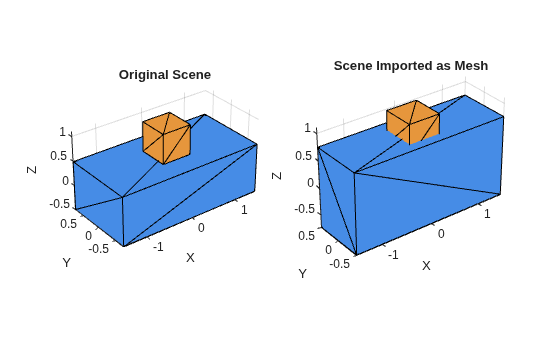
Build a two-part scene from simple box meshes, write it to a GLB file, and read it back as a single flattened mesh using name-value arguments. Then, inspect the properties of the imported mesh and display it in a figure.
Create a temporary folder for your asset files.
tmpDir = fullfile(tempdir,"asset3dReadExamples");
if ~isfolder(tmpDir)
    mkdir(tmpDir)
end
Define the vertices and faces for a box.
boxVertices = [-0.5 -0.5 -0.5; 0.5 -0.5 -0.5; 0.5 0.5 -0.5; -0.5 0.5 -0.5; -0.5 -0.5 0.5; 0.5 -0.5 0.5; 0.5 0.5 0.5; -0.5 0.5 0.5];
boxFaces = [1 2 3; 1 3 4; 5 8 7; 5 7 6; 1 5 6; 1 6 2; 2 6 7; 2 7 3; 3 7 8; 3 8 4; 4 8 5; 4 5 1];
Create a body mesh and a sensor mesh, with distinct face colors.
blueFaces = repmat(uint8([70 140 230]),size(boxFaces,1),1);
orangeFaces = repmat(uint8([230 150 60]),size(boxFaces,1),1);
bodyMesh = asset3d.Mesh(boxVertices,boxFaces,FaceColors=blueFaces);
sensorMesh = asset3d.Mesh(boxVertices,boxFaces,FaceColors=orangeFaces);
Scale each mesh to the desired dimensions.
scale(bodyMesh,[3 1.5 1])
scale(sensorMesh,[0.6 0.6 0.6])
Create a scene, and add the body mesh.
sceneOut = asset3d.Scene;
addMesh(sceneOut,bodyMesh,Name="Body",NodeName="body")
Place the sensor mesh on top of the body mesh using a transform.
T = eye(4);
T(1:3,4) = [0; 0; 0.8];
addMesh(sceneOut,sensorMesh,Name="Sensor",NodeName="sensor",ParentNodeName="body",Transform=T)
Write the scene to a GLB file.
sceneFile = fullfile(tmpDir,"twoPartScene.glb");
asset3d.write(sceneOut,sceneFile,FileType="glb")
Read the file into the workspace as a single mesh. Specifying the ReadAs argument as "mesh" flattens the scene graph into one Mesh object, while specifying UpAxis as "auto" preserves the native axis orientation of the file.
importedMesh = asset3d.read(sceneFile,FileType="glb",ReadAs="mesh",UpAxis="auto")
importedMesh =
  Mesh with properties:

         Vertices: [72×3 double]
            Faces: [24×3 double]
      FaceNormals: [24×3 double]
    VertexNormals: [72×3 double]
           UpAxis: "Y"

           Bounds: [2×3 double]
         Centroid: [0 0 0.0857]
          Extents: [3 1 1.8500]
             Area: 20.1600
           Volume: 4.7160
     IsWatertight: 0

       FaceColors: []
     VertexColors: [72×4 uint8]
               UV: [0×2 double]
         Material: []
Display the original scene and the imported mesh side by side.
figure

subplot(1,2,1)
patch(sceneOut,EdgeColor="k")
axis equal
view(3)
grid on
title("Original Scene")

subplot(1,2,2)
patch(importedMesh,EdgeColor="k")
axis equal
view(3)
grid on
title("Scene Imported as Mesh")
Input Arguments
Name-Value Arguments
Output Arguments
Version History
Introduced in R2026b
See Also
asset3d.write | asset3d.segmentMeshSDF | asset3d.showSegments | Mesh | Scene | trellis

