Generate Optimized Simscape Three-Phase PMSM Drive Model for Real-Time FPGA HIL Deployment
R2026bThis example shows how to generate an optimized three-phase PMSM drive model from a Simscape™ model by replacing a Simscape machine block with an optimized equivalent for FPGA HIL deployment.
Simscape Model with PMSM Block Optimized for FPGA Deployment
In this example, you use the sschdl.generateOptimizedModel function to convert a Simscape three-phase permanent magnet synchronous motor (PMSM) model to an optimized equivalent for HDL code generation and synthesis. First, you replace the Simscape PMSM (Simscape Electrical) block with an equivalent optimized PMSM block and generate an HDL implementation model by using the Simscape HDL Workflow Advisor. Then, for this implementation model, you generate the HDL code and synthesize the results by using the guided steps in the HDL Workflow Advisor. For more information, see HDL Workflow Advisor Tasks. You can then deploy the generated HDL code onto a Speedgoat® FPGA I/O module.
Generating an optimized model by replacing the Simscape PMSM block with an optimized PMSM block provides:
Improved resource utilization on FPGA boards
Improved timing on hardware facilitating higher switching frequency
Dead time stability when using the Backward Euler local solver
Tunability for run-time parameters (Simulink® tunable parameters and Simscape run-time parameters) on the FPGA
Set Up Synthesis Tool Path
To synthesize the generated HDL code, before you use HDL Coder™ to generate code, set up your synthesis tool path. For example, if your synthesis tool is Xilinx® Vivado®, install the latest version of Xilinx Vivado as shown in HDL Language Support and Supported Third-Party Tools and Hardware.
Then, set the tool path to the installed Xilinx Vivado executable by using the hdlsetuptoolpath function. For example, this command sets the synthesis tool path to point to your installed Vivado® Design Suite 2024.1 batch file:
hdlsetuptoolpath("ToolName","Xilinx Vivado",...
"ToolPath","C:\Xilinx\Vivado\2024.1\bin\vivado.bat")
Permanent Magnet Synchronous Motor (PMSM) Model
The PMSM drive model is a physical system in Simscape. This model uses field-oriented control (FOC) to control the speed of a three-phase PMSM. You can use the PMSM and a three-phase inverter in a typical hybrid vehicle. In the model, inside the Simscape Plant subsystem, the Permanent Magnet Synchronous Motor is a nonlinear block. The Three-phase inverter subsystem has the switching elements as insulated gate bipolar transistors (IGBTs) modeled using dynamic switches. In the model, the inverter is connected to the battery. This model runs at a time step of 1 μs with a switching frequency of 25 kHz.
Open the model in the MATLAB® command prompt.
open_system("sschdlexPMSMDriveSimscapeMotor")
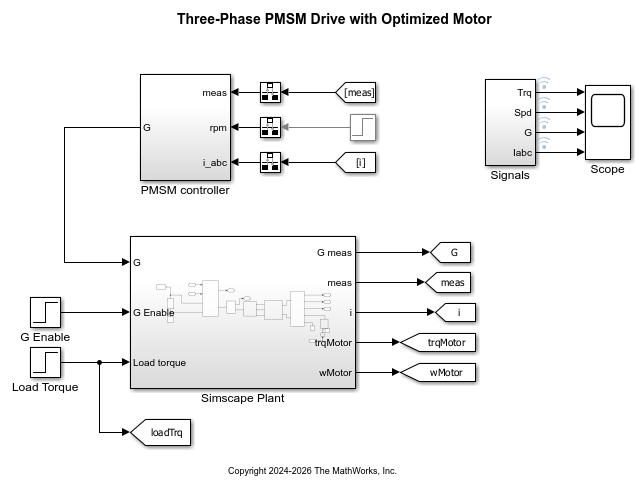
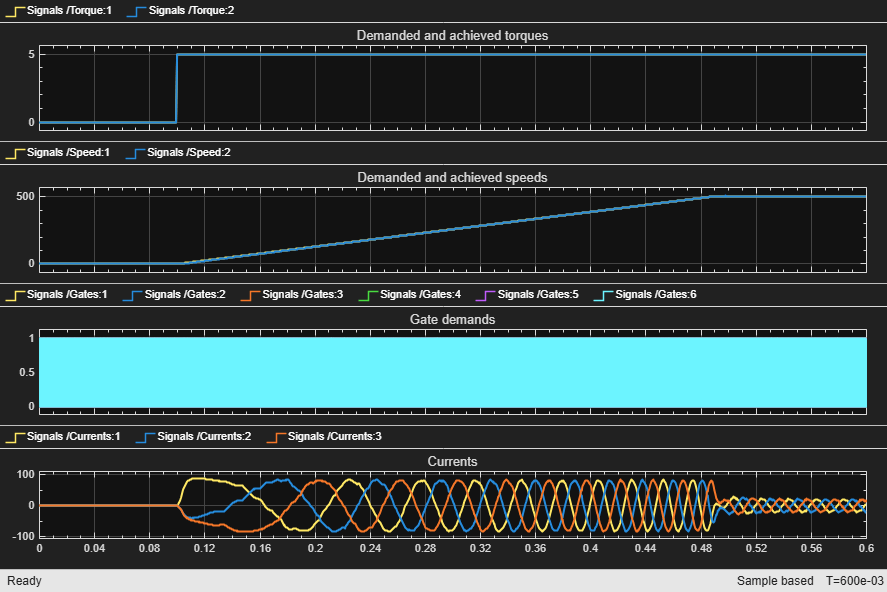
To see the waveforms, simulate the model and open the Scope block.
sim("sschdlexPMSMDriveSimscapeMotor")
open_system("sschdlexPMSMDriveSimscapeMotor/Scope")
Generate Optimized PMSM Model
You can optimize this model for FPGA deployment by replacing the Simscape PMSM block with an optimized PMSM block. To generate equivalent tunable parameters in the optimized model, set the parameters in the Simscape Permanent Magnet Synchronous Motor block of sschdlexPMSMDriveSimscapeMotor > Simscape Plant subsystem as run-time parameters.
To optimize the model, run the sschdl.generateOptimizedModel function at the MATLAB® command prompt:
generatedModel =
sschdl.generateOptimizedModel("sschdlexPMSMDriveSimscapeMotor",ReplaceMachines=true);
The generated optimized model for the three-phase PMSM drive model is saved as sschdlexPMSMDriveSimscapeMotor_generated. When the Simscape PMSM block is replaced with an equivalent optimized PMSM block, the Simscape network splits and a secondary Solver Configuration (Simscape) block is automatically added and connected.
When you replace the Simscape PMSM (Simscape Electrical) block, the sschdl.generateOptimizedModel function also replaces the Ideal Rotational Motion Sensor (Simscape) block with an optimized equivalent that wraps the angular position to the range [0, 2pi). This wrapping prevents numeric errors during long-running simulations and eliminates validation mismatches in angular position, speed, and current.
The generated optimized PMSM can operate in either torque-driven or speed-driven mode. In the Permanent Magnet Synchronous Motor block inside the Simscape Plant subsystem, set External load parameter to Torque-driven or Speed-driven based on whether there is a torque or speed load in the mechanical network. Inertia in the mechanical system must be modeled externally to the motor (in speed-driven mode) or within the motor (in torque-driven mode). The optimized PMSM block does not support modeling external inertia while in torque-driven mode.
To replace a PMSM or other supported machine block, the block must use supported parameter configurations. For the list of supported machine blocks and required parameter settings, see the ReplaceMachines limitations sschdl.generateOptimizedModel.
Initial Conditions for Optimized Model
The sschdl.generateOptimizedModel function automatically sets initial conditions for the optimized machine block based on the original Simscape model.
To verify initial conditions, use the Variable Viewer. In the model window, on the Debug tab, click Simscape > Variable Viewer. To learn more about Variable Viewer, see Configure the Variable Viewer (Simscape).
If you change parameters in the original Simscape model, update the initial conditions in the optimized model:
Update parameters in the original Simscape model.
Rerun
sschdl.generateOptimizedModelfunction on the Simscape model to generate a new optimized model with updated initial conditions.Continue with the Simscape HDL Workflow Advisor or parameter tuning using the new optimized model.
To open the optimized model, at the MATLAB® command prompt, enter:
open_system("sschdlexPMSMDriveOptimizedMotor")
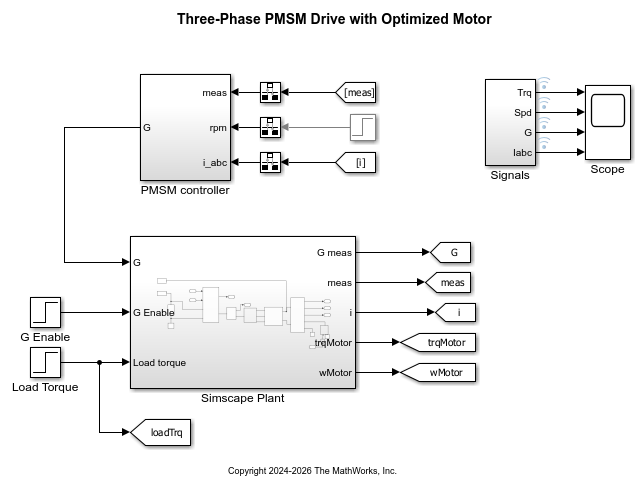
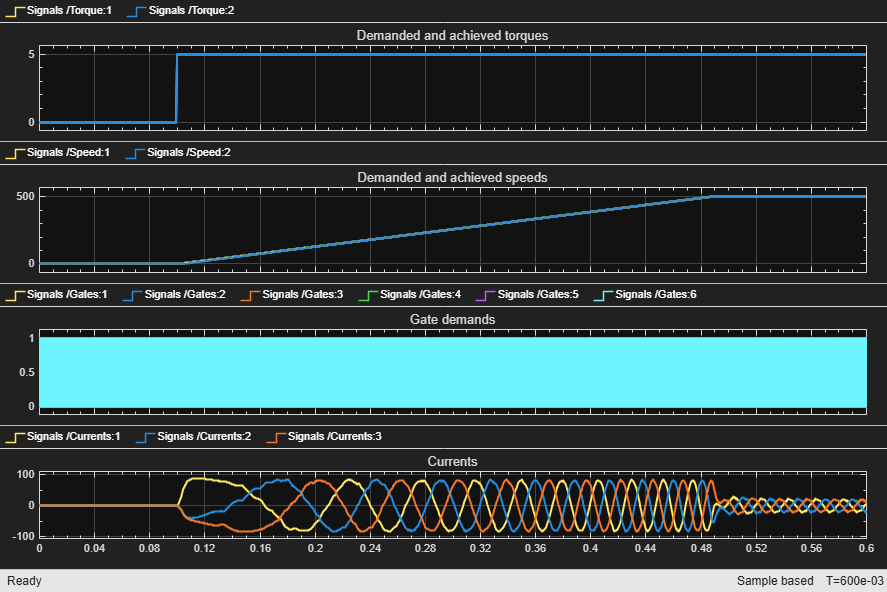
When you simulate the optimized model, compare its waveforms with the original Simscape model to verify that the optimized model produces matching simulation behavior. To see how the model works, simulate the model.
sim("sschdlexPMSMDriveOptimizedMotor")
open_system("sschdlexPMSMDriveOptimizedMotor/Scope")
Generate HDL Code and Synthesize the Results
To generate the HDL code, first generate an HDL implementation model from the Simscape model by using the Simscape HDL Workflow Advisor. The Advisor converts the Simscape plant model to an HDL-compatible implementation model from which you generate HDL code.
To open the Advisor, run the sschdladvisor function for the Simscape Plant subsystem of your model.
sschdladvisor("sschdlexPMSMDriveOptimizedMotor/Simscape Plant")
After the task passes in the Advisor, you see a link to the generated HDL implementation model. You generate HDL code for this generated HDL implementation model and synthesize the HDL code. For details about the HDL code generation and synthesis of code, see Generate FPGA Bitstream for Two-Phase DC-DC Converter with Tunable Run-Time Parameters.
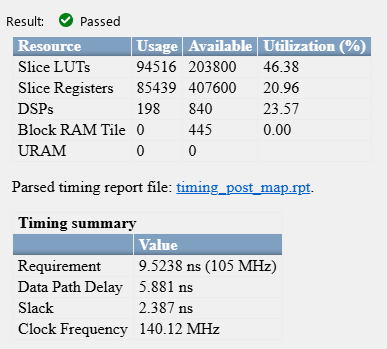
You can select the data type precision in the Generate implementation model task pane of the Simscape HDL Workflow Advisor. For generating the synthesis results, set the Target Frequency (MHz) to 105 in Set Target Frequency task of HDL Workflow Advisor.
Generate HDL Code with Fixed-Point Data Type and Synthesize the Results
To achieve better timing and resource utilization for Simscape models containing Simscape PMSM blocks, use fixed-point data type precision when generating the HDL code.
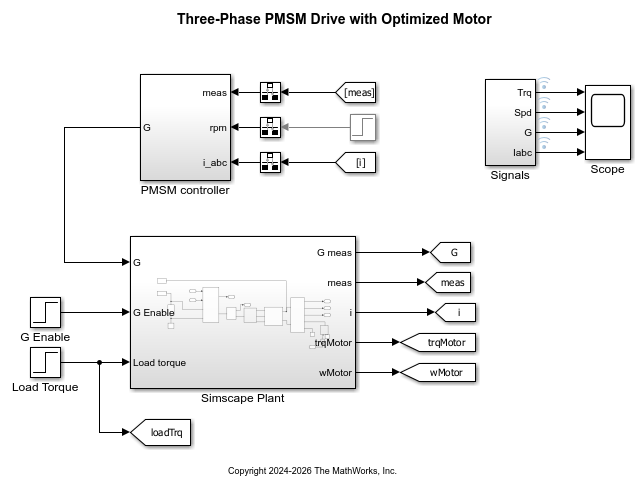
To generate HDL code and synthesize the results with fixed-point data type precision, use the sschdlexPMSMDriveOptimizedMotorFixPt model. This model does not use run-time parameters. Run-time parameters are not supported with fixed-point data type precision.
Open the model in the MATLAB® command prompt.
open_system("sschdlexPMSMDriveOptimizedMotorFixPt")
Generate HDL Implementation Model
To generate the HDL implementation model from the Simscape PMSM model with fixed-point data type:
1. Open the Simscape HDL Workflow Advisor for the Simscape Plant subsystem of the model.
sschdladvisor("sschdlexPMSMDriveOptimizedMotorFixPt/Simscape Plant")
2. For each task, right-click and select Run This Task.
3. Under the Implementation model generation task folder, select the Set target task and specify Synthesis tool as Xilinx Vivado. Specify Family as Kintex7, Device as xc7k325t, Package as fbg676, and Speed as -1. Right-click the Generate implementation model task and select Run to Selected Task.
4. Under the Implementation model generation task folder, in the Generate implementation model task pane, set the Data type precision to Fixed-point with Fixed-point word length set to 36-bit.
After the task passes, you see a link to the HDL implementation model gmStateSpaceHDL_sschdlexPMSMDriveOpt_fixpt.
Generate HDL Code and Synthesize
For the generated HDL implementation model:
1. Modify the configuration parameter values for HDL code generation.
hdlsetup("gmStateSpaceHDL_sschdlexPMSMDriveOpt_fixpt")
2. Open the HDL Workflow Advisor for the Simscape Plant subsystem.
hdladvisor("gmStateSpaceHDL_sschdlexPMSMDriveOpt_fixpt/Simscape Plant")
Alternatively, to open the HDL Workflow Advisor from your model window, select the Simscape Plant subsystem and select HDL Coder app from Apps tab on the Simulink Toolstrip and click the Workflow Advisor button.
3. Select the task that you want to run and click Run This Task.
4. In the Set Target task folder, the fields under the Set Target Device and Synthesis Tool are auto-populated if you have specified the target device in Simscape HDL Workflow Advisor while generating the HDL implementation model. In the Set Target Frequency task, set the value of Target Frequency to 100.
5. In the HDL Code Generation task folder, click Set HDL Options and then click the HDL Code Generation Settings button. This opens the Configuration Parameters dialog box. Select Adaptive pipelining under HDL Code Generation > Optimizations > Pipelining and click Apply. To generate HDL code, run the tasks under the HDL Code Generation task folder.
6. In the FPGA Synthesis and Analysis task folder, create an FPGA synthesis project and right-click the Run Synthesis task under the Perform Synthesis and P/R task folder. This starts Xilinx Vivado and executes the Vivado Synthesis step.

See Also
sschdl.generateOptimizedModel | sschdladvisor | hdladvisor | sschdl.updateRuntimeParameters

