Detect Air Compressor Sounds Using Wavelet Scattering and TensorFlow Lite
R2026bThis example shows how to generate and deploy code to detect air compressor sounds using wavelet scattering and a TensorFlow™ Lite deep learning network in Simulink® within an Intel® desktop environment.
This example uses a reference model block to conduct software-in-the-loop (SIL) simulations which help in collecting the execution time metrics of the generated code.
Note: The model used in this example runs in Microsoft® Windows® and Linux environments only.
Import the TensorFlow Lite Model into Simulink
The TensorFlow Lite network used in this example is created by converting the deep learning network used in Detect Air Compressor Sounds in Simulink Using Wavelet Scattering (DSP System Toolbox) to a TensorFlow Lite Network. The network is pretrained using a data set that contains recordings from air compressors. The data set is classified into eight classes, one healthy state and seven faulty states. For more information on training see exportNetworkToTensorFlow (Deep Learning Toolbox). The data set is classified into eight classes, one healthy state and seven faulty states. For more information on training, see Fault Detection Using Wavelet Scattering and Recurrent Deep Networks.
To download the pretrained network and a set of air compressor sounds to detect, run the following commands. These commands download and unzip the files to a location on the MATLAB® path and import the TensorFlow Lite model into Simulink.
if (exist("AirCompressorMdl.tflite",'file') ~= 2)
    zipFile = matlab.internal.examples.downloadSupportFile("dsp","AirCompressorTFLiteMdl.zip");
    dataFolder = fileparts(zipFile);
    unzip(zipFile,cd)
end
addpath("SupportingFiles")
Open the parent model included with this example by executing
mdl = 'AirCompressorHealthModel';
open_system(mdl)
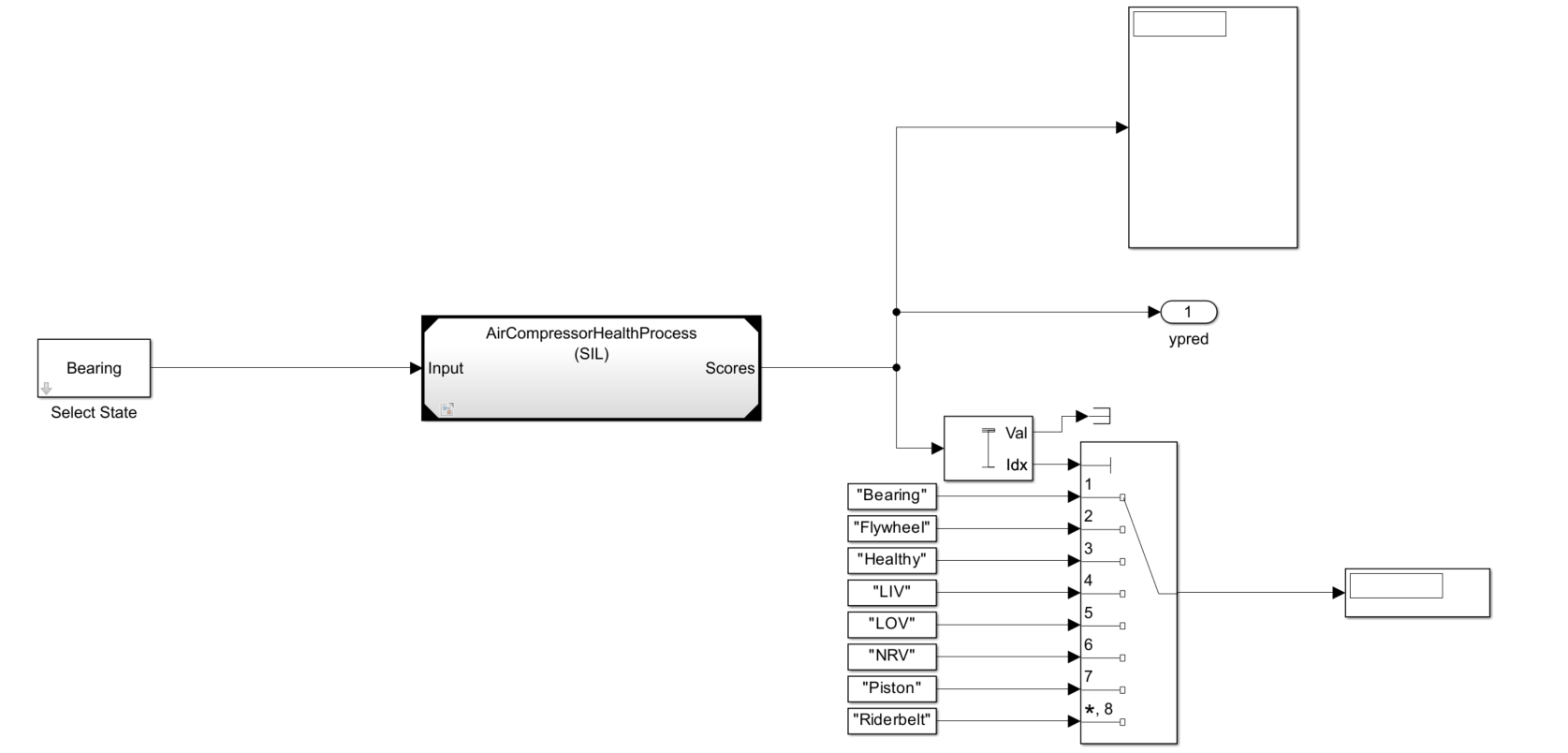
The sound type by default is set to 'Bearing'. The parent model contains a Model (Simulink) block that references another Simulink model for input processing. The referenced model outputs the predicted scores. The Maximum (DSP System Toolbox) and Multiport Switch (Simulink) blocks use the predicted scores to compute the fault label.
The referenced model has a Wavelet Scattering subsystem and a DNN Processing subsystem.
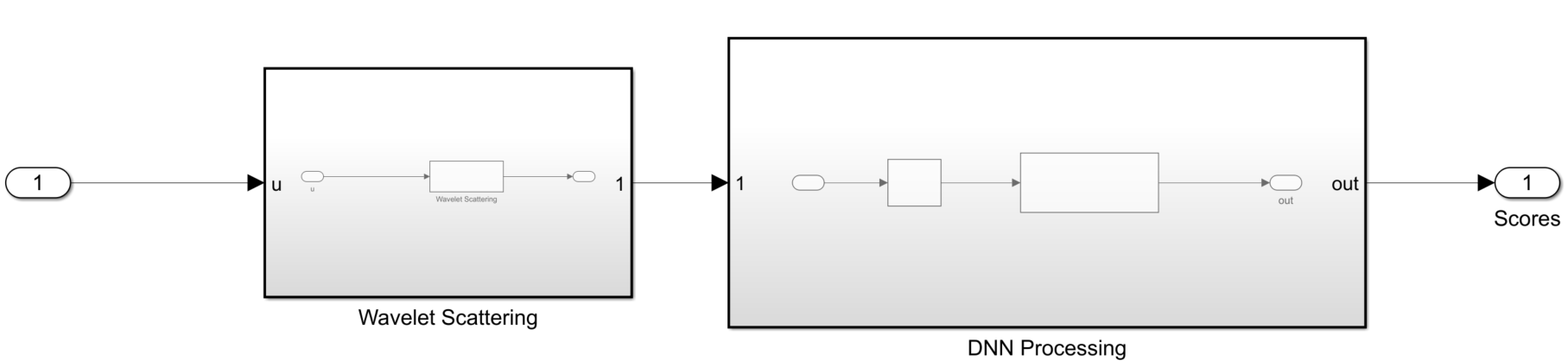
The Wavelet Scattering subsystem has a Wavelet Scattering (DSP System Toolbox) block that extracts the features of the audio input.

The DNN Processing subsystem has a MATLAB Function (Simulink) block that imports the TensorFlow Lite network into the Simulink model. To match the input dimension expectation of the TensorFlow Lite model, the Permute Dimensions (Simulink) block changes the dimensions from 329-by-8-by-1 to 329-by-1-by-8.

The MATLAB function block defines the TensorFlow Lite network and outputs the prediction scores using this code.
function out = TFLitePredict(input)

persistent tfliteNet;

if isempty(tfliteNet)
    tfliteNet = loadTFLiteModel('AirCompressorMdl.tflite');
end

tfliteNet.NumThreads = 6;

out = predict(tfliteNet, input);

end
To generate code for the TensorFlow Lite mode, set the environment variable TFLITE_PATH to the location of the TensorFlow Lite library. For more information on how to build the TensorFlow Lite library and set the environment variables, see Prerequisites for Deep Learning with TensorFlow Lite Models (Deep Learning Toolbox).
To simulate the parent model, set the Solver type to "Fixed-step" and the simulation target language of the parent and the referenced model to C++ . Run the parent model. The Display block displaysb the scores and label of the predicted class. While the simulation is running, you can change the input sound type by double-clicking the Select State block and choosing a different type of sound from the drop-down list.
set_param(mdl ,'SimTargetLang','C++');
set_param(mdl,'SimDLTargetLibrary','None');
set_param(mdl,'SolverType','Fixed-step');
refMdl = 'AirCompressorHealthProcess';
load_system(refMdl);
set_param(refMdl,'SolverType','Fixed-step');
set_param(refMdl ,'SimTargetLang','C++');
set_param(refMdl,'SimDLTargetLibrary','None');
set_param([mdl '/Model'],'SimulationMode','Normal');
sim(mdl);
Configure Model to Generate Code for SIL Simulations
You can configure the referenced model interactively by using the Configuration Parameters dialog box from the Simulink model toolstrip, or programmatically by using the MATLAB command-line interface.
Configure Model Using UI
To configure a referenced Simulink model to generate code, complete these steps.
Open the referenced Simulink model. In the Modeling tab of the referenced model, click Model Settings to open the Configuration Parameters dialog box.

In the Hardware Implementation pane, set the Device vendor parameter to Intel. Set the Device type parameter to x86-64(Windows 64) or x86-64(Linux 64) based on your desktop environment.

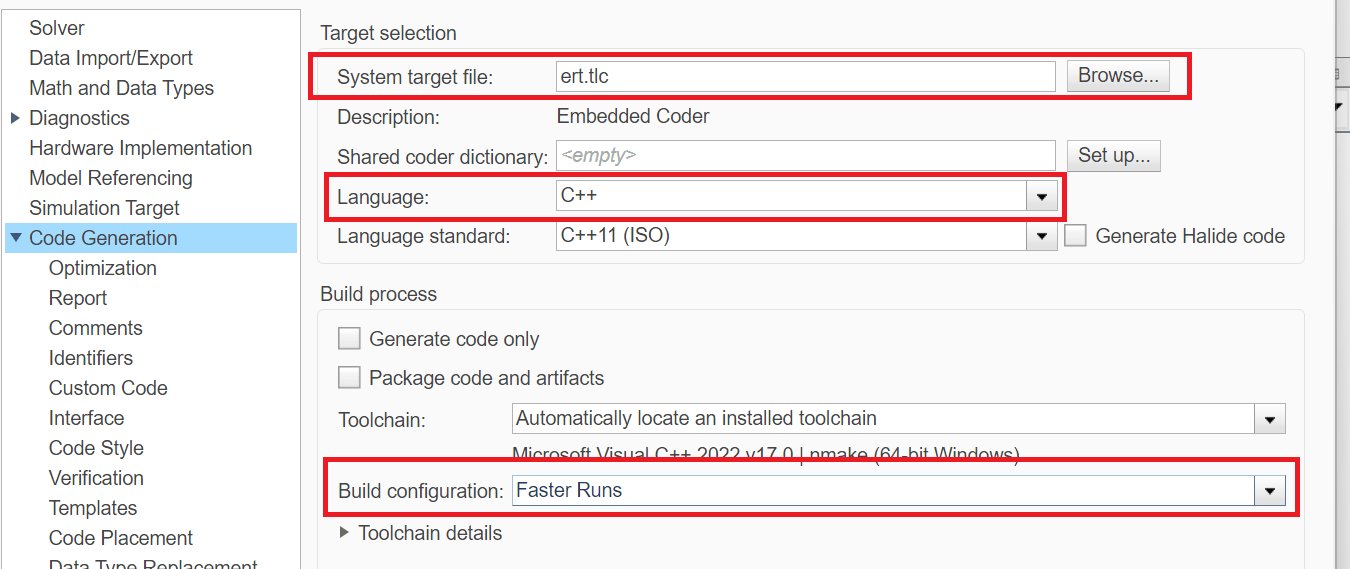
In the Code Generation pane:
Set System target file to
ert.tlc.Set Language to
C++.Set Build configuration to
Faster Runsto prioritize execution speed.
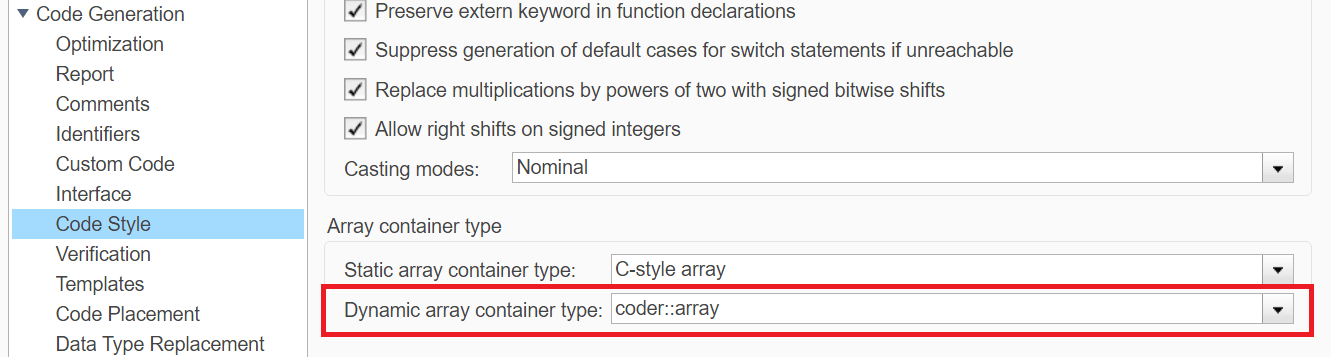
Under Code Generation, in the Code Style pane, set Dynamic array container type to coder::array.
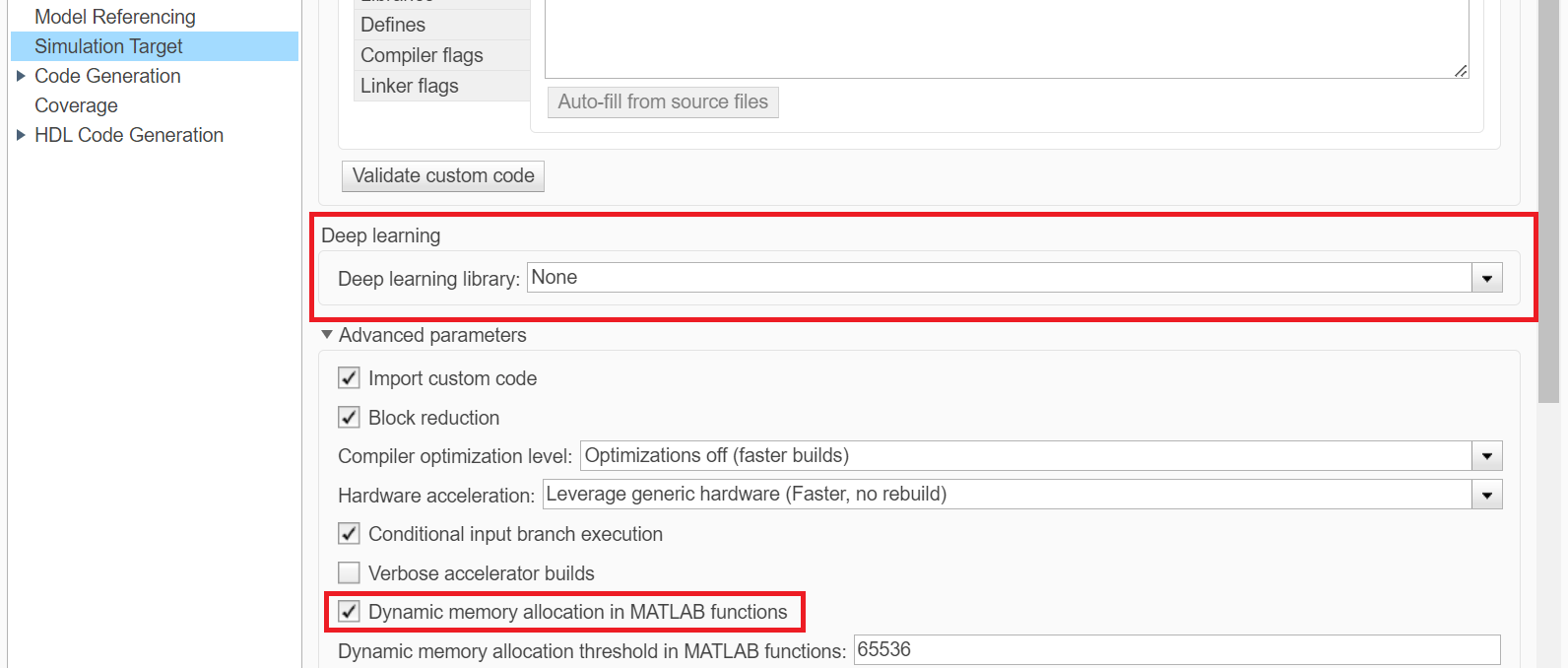
In the Simulation Target pane:
Set Deep learning library to
None.Enable Dynamic memory allocation in MATLAB functions.
Configure Model Using Programmatic Approach
Alternatively, you can set all the configurations using set_param commands.
Set the Device vendor parameter to Intel. Set the Device type parameter to x86-64 (Windows 64) or x86-64 (Linux 64) based on your desktop environment.
if strcmp(computer('arch'),'win64')
    set_param(refMdl,'ProdHWDeviceType','Intel->x86-64 (Windows64)')
elseif strcmp(computer('arch'),'glnxa64')
    set_param(refMdl,'ProdHWDeviceType','Intel->x86-64 (Linux 64)')
end
Select 'ert.tlc' as the system target file to optimize the code for embedded real-time systems, 'C++' as the target language, and choose 'Faster Runs' for the build configuration to prioritize execution speed.
set_param(refMdl,'SystemTargetFile','ert.tlc')
set_param(refMdl,'BuildConfiguration','Faster Runs')
set_param(refMdl ,'TargetLang','C++')
Enable dynamic memory allocation for MATLAB functions. Set the dynamic array container type to 'coder::array'.
set_param(refMdl,'MATLABDynamicMemAlloc','on')
set_param(refMdl,'DynamicArrayContainerType','coder::array')
Generate the code generation report and show blocks that triggered code replacement.
set_param(refMdl,'GenerateReport','On')
set_param(refMdl,'LaunchReport','On')
Enable code execution profiling to analyze the performance of the code.
set_param(refMdl,'CodeExecutionProfiling','on')
close_system(refMdl,1)
Set the Simulation mode parameter of the model reference block to 'Software-in-the-loop (SIL)' to generate the code for the referenced model and use the code for SIL simulation.
set_param([mdl '/Model'],'SimulationMode','Software-in-the-loop (SIL)')
Run the parent model to initiate code generation from the referenced Simulink model and use the model for SIL simulation.
sim(mdl);
close_system(mdl,1)
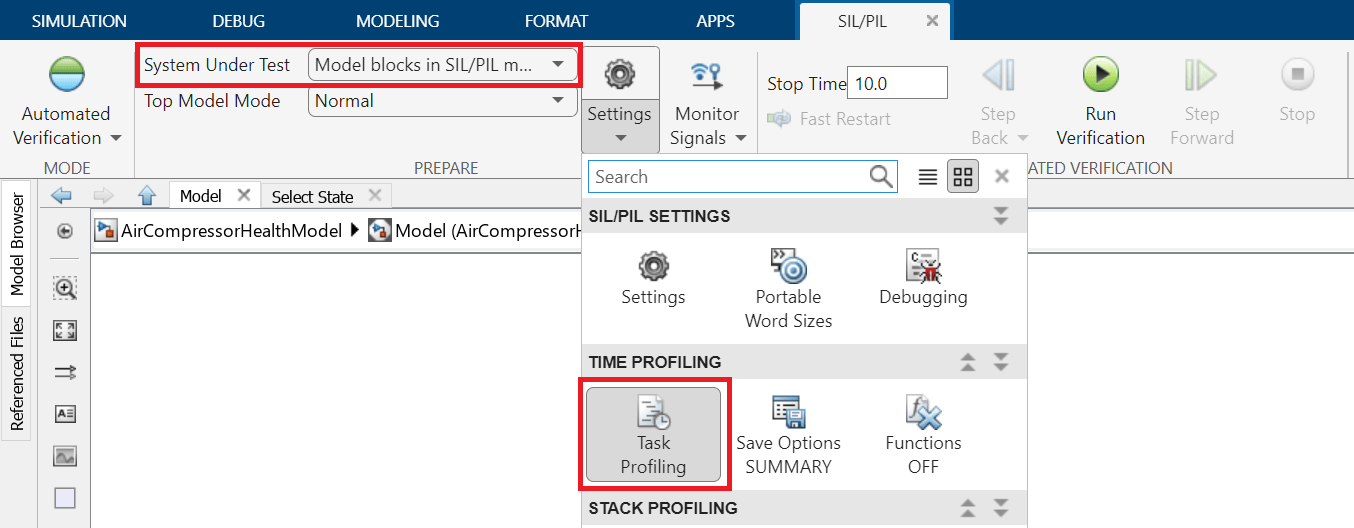
Configure the parent model to check if the model works in real time. In the Apps tab of the Simulink model toolstrip, click the SIL/PIL Manager app. Set System Under Test to 'Model blocks in SIL/PIL Mode' and enable Task Profiling. Click on Run Verification to start profiling.
Check the average execution time for the generated step function.

In this example, as the average time taken for the step function is less than the frame duration of the input, which is 64 ms, you can conclude that the generated code will work in real time.
See Also
Blocks
- Wavelet Scattering (DSP System Toolbox)
Functions
waveletScattering|exportNetworkToTensorFlow(Deep Learning Toolbox)
Topics
- Wavelet Scattering
- Build and Deploy Your First Simulink Model to Raspberry Pi (Raspberry Pi Blockset)
- Detect Air Compressor Sounds in Simulink Using Wavelet Scattering (DSP System Toolbox)
- Fault Detection Using Wavelet Scattering and Recurrent Deep Networks
- Deploy Wavelet Scattering and TensorFlow Lite Network on a Raspberry Pi Using Simulink

