Tire Manager
R2026bDescription
Add-On Required: This feature requires the Extended Tire Features for Vehicle Dynamics Blockset add-on.
The Tire Manager app lets you import, edit, plot, and fit tire data. You can also use the app to convert between tire model types and export tire models to supported Simulink® and Simscape™ wheel blocks to use in simulations.
This app uses the tireData and
tireModel functions
and methods. For more information, see Get Started with the Extended Tire Features for Vehicle Dynamics Blockset.
Video Walkthrough
For a high-level walkthrough of the app, play the video.
Open the Tire Manager App
MATLAB® Toolstrip: On the Apps tab, under Automotive, click the Tire Manager icon.
MATLAB Command Window: Enter
tireManager.
Examples
Parameters
Workspace
Click New Tire
 to create a new tire object. A new tire object contains
an empty tire data object and an empty tire model folder.
to create a new tire object. A new tire object contains
an empty tire data object and an empty tire model folder.
Click Import
 to import tire data or tire models.
These options are available for importing tire data.
| Tire Data Import Option | Description |
|---|---|
Import Data
| Import tire data from files. These file types are supported:
|
Import Data from Workspace
| Import tire data from the MATLAB workspace. The workspace variable must be a |
Import Data from Folder
| Import tire data from a folder. Optionally, select Include Subfolders to import data from all tire data files within the selected folder and its subfolders. These file types are supported:
All files are imported, even if both file types are present in the folder or its subfolders. |


Tip
If the Tire Manager app does not support your tire data file type for
direct import, first import the file to the workspace using the tireData.import function. Then, import the tire data from the
workspace into the app.
These options are available for importing tire models.
| Tire Model Import Option | Description | ||||
|---|---|---|---|---|---|
Import TIR file
| Import tire model from a TIR file. | ||||
Import Model from Workspace
| Import tire model from the MATLAB workspace. The workspace variable must be a | ||||
Get Model from Block
| Import a tire model from a Simulink or Simscape block. In addition to manually specifying the block path, you can:
|

Click Duplicate
 to duplicate a tire, data, or model object, depending
on which node is selected in the Workspace tree.
to duplicate a tire, data, or model object, depending
on which node is selected in the Workspace tree.
Click Delete
 to delete a tire, data, or model object, depending on
which node is selected in the Workspace tree.
to delete a tire, data, or model object, depending on
which node is selected in the Workspace tree.
Tools
Click Edit Data
 to select one of these functions to edit tire data that
is selected in the Workspace tree.
to select one of these functions to edit tire data that
is selected in the Workspace tree.
Tip
Select Keep Original to keep an original copy of the data set that you are editing.
| Option | Description | ||||||||
|---|---|---|---|---|---|---|---|---|---|
Crop
| Remove data from a tire data set. The crop criteria are based on the x-axis. You can crop tire data sets interactively using the plot preview, or by entering values in the Crop Range (start) and Crop Range (end) edit boxes. The crop is applied to all the tire data sets that are selected in the Workspace tree. | ||||||||
Split
| Split a single tire data set into multiple tire data sets. You can split a tire data set interactively using the plot preview, or by specifying the data criteria for splitting. You can split only one data set at a time. The split is applied to the selected data in the Workspace tree. | ||||||||
Filter
| Apply a filter to a tire data channel. Define the filter design method and the parameter values to filter a data set under Edit Data Settings. You can include all selected data or select a specific data set to preview in the plot. The filter is applied to all tire data sets that are selected in the Workspace tree. These filter methods are available.
Note The Signal Processing Toolbox™ is required for the
| ||||||||
Mean
| Assign the mean or median value of a tire data channel in a tire data set. You can include all selected data or select a specific data set to preview in the plot. The mean or median is applied to all tire data sets that are selected in the Workspace tree. | ||||||||
Downsample
| Decrease the sample rate of a tire data set by an integer factor. Specify values for Downsample Factor and Sample Offset. |


Tip
If you need to make edits that the Tire Manager app does not support, export the data to the workspace, make your edits, and then import the data to the app again.
Click Convert
 to convert between tire model types. The convert
function is applied to the tire model selected in the Workspace
tree.
to convert between tire model types. The convert
function is applied to the tire model selected in the Workspace
tree.
These tire model types are supported:
Magic Formula 6.2
Magic Formula 5.2
Dugoff
Fiala
Model
Click New Fit to fit one of these tire model types to tire measurement data:
Fit New MF6.2 Model
Fit New MF5.2 Model
Fit New Dugoff Model
Fit New Fiala Model
Fit New Model From File
Fit Selected Model
If tire data has already been imported for the tire object, you can choose to have the Tire Manager app automatically attach the existing data to the appropriate fit steps in the fit scheduler. See Settings.
Note
The fit function requires Optimization Toolbox™.
Publish
Click Export
 to export tire data or tire models. The item exported
depends on which object is selected in the tree.
to export tire data or tire models. The item exported
depends on which object is selected in the tree.
You can use these options to export tire data.
| Tire Data Export Option | Description |
|---|---|
Export TYDEX File(s)
| Export tire data to TYDEX v1.3 data files. |
Export CSV File(s)
| Export tire data to comma-separated value (CSV) files. |
Export To Workspace
| Export tire data to the MATLAB workspace. The data is exported as a |


Tip
To customize the export of tire data, first export the tire data to the
workspace. Then, use the export
function to complete the process.
You can use these options to export tire models.
| Tire Model Export Option | Description |
|---|---|
Export TIR file
| Export a tire model to a TIR file. |
Export Model from Workspace
| Export a tire model to the MATLAB workspace. The tire model is exported as a |
Click Set to Block
 to export a tire model selected in the
Workspace tree to a Simulink or Simscape block.
to export a tire model selected in the
Workspace tree to a Simulink or Simscape block.
In addition to manually specifying the block path, you can:
Click the Get Current Block button to populate the Set to Block dialog box with the path of the currently selected block.
Click the Search Models button to select from a list of block paths to compatible tire blocks found in all loaded Simulink models.
| Supported Simulink Blocks | Supported Simscape Blocks |
|---|---|
|
Options
Click Settings
 to specify these settings. Settings are saved with the
session file.
to specify these settings. Settings are saved with the
session file.
| Type | Setting | Description |
|---|---|---|
Files | Import Options
| This setting determines whether to overwrite the tire data properties of the tire data object in the Workspace tree when importing new tire data from a TYDEX file or tire models form a TIR file, especially if the new data has different properties than those already imported. Select one of these options:
|
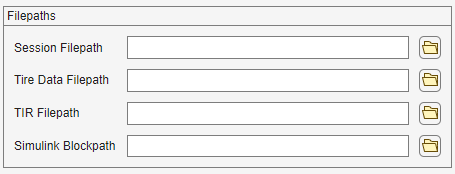
Filepaths
|
| |
Model Fitting | Fit Scheduler Settings
| Setting to specify whether tire data is attached to fit steps. Select one of these options:
Note You can modify the data configured for each fit step from the settings of the selected fit step.
|
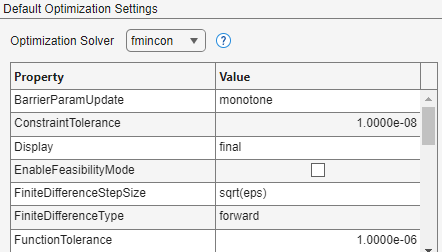
Default Optimization Settings
| Option to select Optimization Solver and modify the default settings. Select one of these optimization solvers:
| |
Workspace | Tire Data Sorting
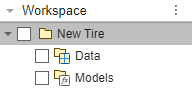
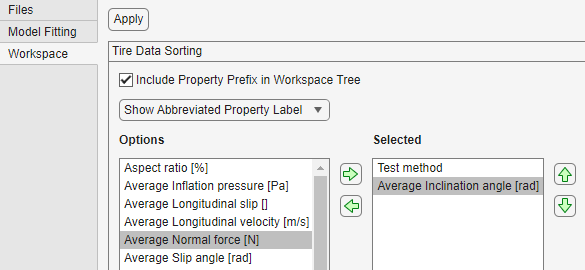
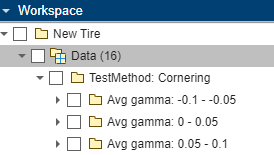
| Option to Include Property Prefix in Workspace tree and to select Show Abbreviated Property Label or Show Full Property Label. Select how data is sorted in the Workspace tree by selecting from the Options list and adding to the Selected list. The available options are based on tire data properties. See tireData Properties. For example, if Include Property Prefix in Workspace tree is selected, Show Abbreviated Property Label is selected, and the tree is sorted by test method and average inclination angle, the Workspace tree appears like this image.
|


Fit Schedule
Click Open Schedule
 to open a previously saved fit schedule. Opening a fit
schedule will overwrite the current fit schedule, and optionally the tire model
parameters.
to open a previously saved fit schedule. Opening a fit
schedule will overwrite the current fit schedule, and optionally the tire model
parameters.
Click Save Schedule
 to export version information, tire model parameters,
and these fit step details to an XML file:
to export version information, tire model parameters,
and these fit step details to an XML file:
Fit type
Parameters
Upper and lower bounds
Solver and optimization settings
Fitting
Click Use Parallel
 to enable parallel fitting. This option requires
Parallel Computing Toolbox™.
to enable parallel fitting. This option requires
Parallel Computing Toolbox™.
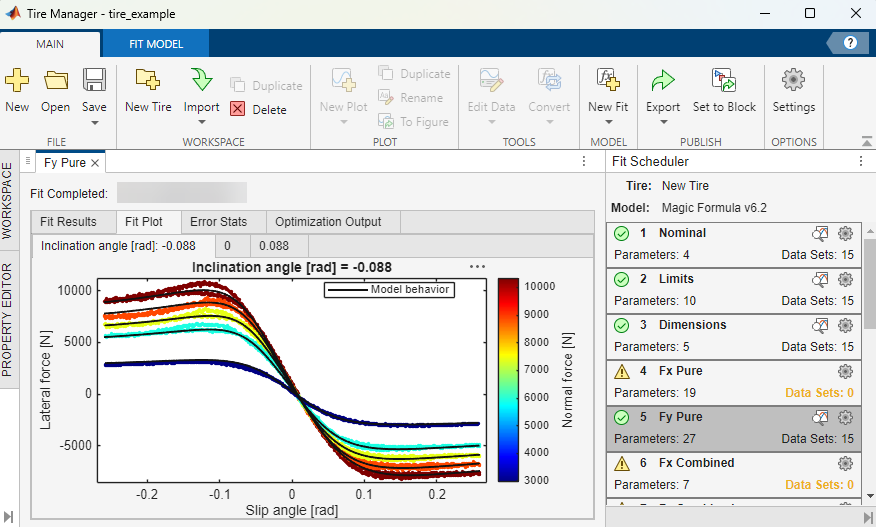
The fit scheduler displays the fit steps relevant to the selected fit type. To edit
a fit step, click the gear  icon. This action opens a document with these tabs:
Parameters — From the table on the Parameters tab, you can adjust parameter values, edit lower and upper bounds of a parameter, and change the selection of parameters to use for model fitting. If a parameter is defined in multiple fit steps, a warning appears in the table.
Data — View the test method and variable values for each data object. You can change the selection of data objects to use for model fitting.
Options — If applicable, the Options tab contains solver settings that you can modify for the fit step.

To view the results of a fit step, click the View Fit Results  button next to the gear icon. The results document
includes a table of fit results, a plot of the fit, error statistics, and optimization
output.
button next to the gear icon. The results document
includes a table of fit results, a plot of the fit, error statistics, and optimization
output.


