主要内容

Create Plot

Interactively visualize filter responses and other outputs for several signal processing functions

Since R2023a

Description

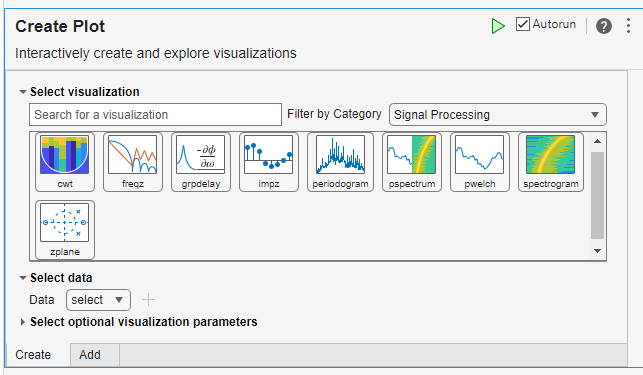
The Create Plot task lets you interactively visualize filter responses and other outputs for several signal processing functions in your MATLAB® workspace.

You can create a Create Plot task to visualize the outputs of these signal processing functions:

The functions covered in this task are available when you select Signal Processing in the Filter by Category menu in the Create Plot Live Editor task. To learn more about Live Editor tasks, see Add Interactive Tasks to a Live Script.

Create Plot task in the Live Editor

Open the Task

To add the Create Plot task to a live script in the MATLAB Editor:

  • On the Live Editor tab, click Task > Create Plot.

  • In a code block in the live script, type a relevant keyword, such as cwt, grpdelay, pspectrum, or spectrogram. Select Create Plot from the suggested command completions. When you add the task using this method, then MATLAB automatically selects the corresponding chart type in the Select visualization section of the task.

Examples

expand all

Use the Create Plot task in the Live Editor to interactively create and visualize the spectrogram of a vibrational signal.

Load the signal, vib, which measures vibration in a helicopter. The signal lasts for 10 seconds at a sample rate Fs of 500 Hz.

load helidata

To visualize the spectrogram using the pspectrum visualization:

  1. Open the Create Plot task.

  2. In the Filter by Category menu of the Select visualization section, select Signal Processing. The gallery that appears shows several visualization functions that you can use to plot outputs related to signal processing.

  3. In the gallery, click the pspectrum visualization.

  4. Set the parameters for the visualization. Expand the Select data section.

    • Set Configuration to Specify sample rate for spectrogram.

    • Set Input signal to vib.

    • Set Sample rate to fs.

  5. To see the code that this task generates, expand the task display by clicking Show code at the bottom of the task parameter area.

Live Task
% Create spectrogram estimate plot of vib


pspectrum(vib,fs,"spectrogram");
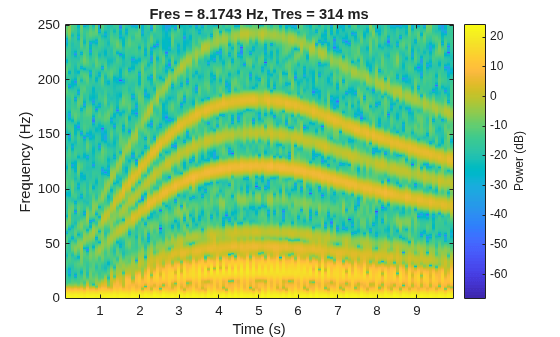
Figure contains an axes object. The axes object with title Fres = 8.1743 Hz, Tres = 314 ms, xlabel Time (s), ylabel Frequency (Hz) contains an object of type image.

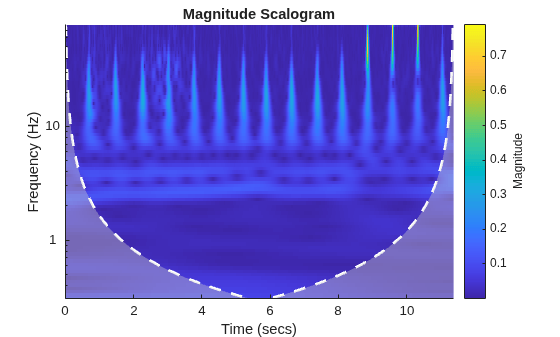
Use the Create Plot task in the Live Editor to interactively create and visualize the scalogram using the continuous wavelet transform.

Load the electrocardiogram (ECG) signal into your workspace. The sample rate is 180 Hz.

load wecg
Fs = 180;

To visualize the scalogram, open the Create Plot task. Start by typing the keyword cwt in a code block and then click Create Plot. Select the input signal and sample rate to plot the scalogram. By default, the cwt function uses the (3,60) analytic Morse wavelet

To see the code that this task generates, expand the task display by clicking Icon Show code at the bottom of the task parameter area.

Live Task

Figure contains an axes object. The axes object with title Magnitude Scalogram, xlabel Time (secs), ylabel Frequency (Hz) contains 3 objects of type image, line, area.

Change Default Wavelet

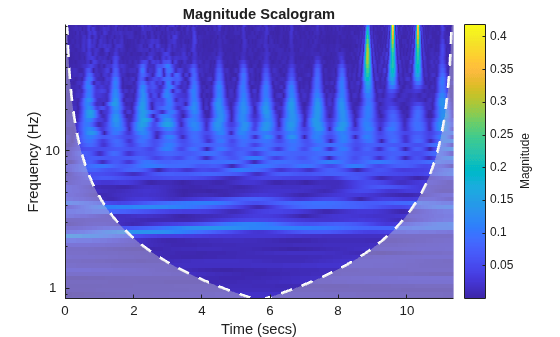
To visualize the scalogram using the bump wavelet, open the Create Plot task. Start by typing the keyword cwt in a code block and then click Create Plot. Select the input signal and sample rate to plot the scalogram. Expand Select optional visualization parameters and select the bump wavelet.

To see the code that this task generates, expand the task display by clicking Icon Show code at the bottom of the task parameter area.

Live Task

Figure contains an axes object. The axes object with title Magnitude Scalogram, xlabel Time (secs), ylabel Frequency (Hz) contains 3 objects of type image, line, area.

Specify Sample Time

Load the Kobe earthquake data. The sample time is 1 second.

load kobe
Ts = seconds(1);

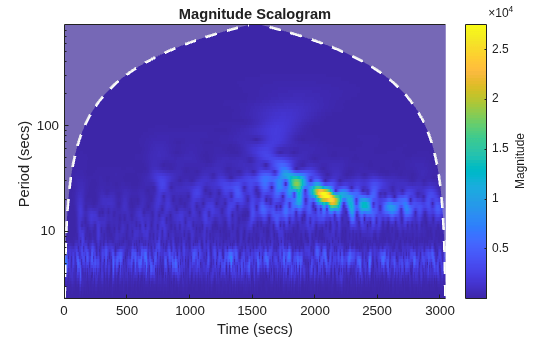
To visualize the scalogram using the sample time, open the Create Plot task. Start by typing the keyword cwt in a code block and then click Create Plot. Select the configuration Specify signal with sample time for scalogram. Select the input signal and sample time to plot the scalogram.

To see the code that this task generates, expand the task display by clicking Icon Show code at the bottom of the task parameter area.

Live Task

Figure contains an axes object. The axes object with title Magnitude Scalogram, xlabel Time (secs), ylabel Period (secs) contains 3 objects of type image, line, area.

Parameters

expand all

This table lists the parameters that you can set for the selected visualization.

VisualizationParameter NameParameter Value
cwtInput signal — Input signal

Vector of at least four elements

Sample rate — Sample rate in Hz

To specify this parameter, set Configuration to Specify signal with sample rate for scalogram.

1 (default) | Positive scalar

Sample time — Sample time

To specify this parameter, set Configuration to Specify signal with sample time for scalogram.

seconds(1) (default) | duration scalar

freqz (Signal Processing Toolbox)
grpdelay (Signal Processing Toolbox)
impz (Signal Processing Toolbox)

Digital filter — Digital filter object

To specify this parameter, set Configuration to Specify a digital filter.

digitalFilter (Signal Processing Toolbox) object

SOS — Filter representation as second-order section (SOS) matrix

To specify this parameter, set Configuration to Specify a second order section (SOS) matrix.

L-by-6 matrix

L is the number of sections.

Numerator coefficients — Filter numerator coefficients

To specify this parameter, set Configuration to Specify numerator and denominator coefficients.

Scalar | vector | L-by-m matrix

L is the number of sections and m – 1 is the numerator order.

Denominator coefficients — Filter denominator coefficients

To specify this parameter, set Configuration to Specify numerator and denominator coefficients.

1 (default) | scalar | vector | L-by-n matrix

L is the number of sections and n – 1 is the denominator order.

Sample rate — Sample rate in Hz

This parameter applies only for the impz visualization.

Positive scalar

By default, the visualization uses normalized frequencies.

Number of points — Number of points to use to evaluate response

Positive integer

periodogram (Signal Processing Toolbox)
pwelch (Signal Processing Toolbox)
spectrogram (Signal Processing Toolbox)
Input signal — Input signal

Vector | matrix

For the spectrogram visualization, the Create Plot task only supports a vector.

Window — Spectral window to segment input signal

Positive integer | vector

For the periodogram visualization, the window must be a vector of the same size as the input signal.

Number of overlap samples — Number of overlap samples between adjoining segments

This parameter does not apply for the periodogram visualization.

[] (default) | nonnegative Integer

Frequencies — Cyclical frequencies (in Hz) associated with PSD estimate or power spectrum

To specify this parameter, set Configuration to Specify frequencies and sample rate.

Vector

Sample rate — Sample rate (in Hz) of input signal

To specify this parameter, set Configuration to Specify frequencies and sample rate.

Positive scalar

By default, the visualization uses normalized frequencies

Normalized frequencies — Normalized frequencies (in πrad/sample) associated with PSD estimate or power spectrum

To specify this parameter, set Configuration to Specify normalized frequencies.

Vector

Number of DFT points — Number of points to compute discrete Fourier transform (DFT)

To specify this parameter, set Configuration to Specify number of DFT points.

Positive integer

pspectrum (Signal Processing Toolbox)Input signal — Input signal

Vector | matrix

The Create Plot task only supports a matrix input when you select a power spectrum configuration.

Sample rate — Sample rate in Hz

To specify this parameter, set Configuration to Specify signal with sample rate for output type, where output type is either persistence spectrum, power spectrum, or spectrogram.

Positive scalar

By default, the visualization uses normalized frequencies.

Sample time — Sample time

To specify this parameter, set Configuration to Specify signal with sample time for output type, where output type is either persistence spectrum, power spectrum, or spectrogram.

duration scalar

By default, the visualization uses normalized frequencies.

zplane (Signal Processing Toolbox)

Digital filter — Digital filter object

To specify this parameter, set Configuration to Specify a digital filter.

digitalFilter (Signal Processing Toolbox) object

Numerator coefficients — Filter numerator coefficients

To specify this parameter, set Configuration to Specify numerator and denominator coefficients.

L-by-m matrix

L is the number of sections and m – 1 is the numerator order.

Denominator coefficients — Filter denominator coefficients

To specify this parameter, set Configuration to Specify numerator and denominator coefficients.

1 (default) | L-by-n matrix

L is the number of sections and n – 1 is the denominator order.

Zeros — Zeros of filter transfer function

To specify this parameter, set Configuration to Specify zeros and poles.

Scalar | column vector

Poles — Poles of filter transfer function

To specify this parameter, set Configuration to Specify zeros and poles.

Scalar | column vector

By default, the visualization assumes no poles.

Sample rate — Sample rate in Hz

Positive scalar

By default, the visualization uses normalized frequencies.

This table lists the optional parameters that you can set for the selected visualization.

VisualizationParameter NameParameter Value
cwtWavelet — Name of analytic wavelet

"Morse" (default) — Morse wavelet |
"amor" — Morlet (Gabor) wavelet |
"bump" — Bump wavelet

freqz (Signal Processing Toolbox)
grpdelay (Signal Processing Toolbox)
Output type — Option to evaluate frequency response around entire unit circle

"whole"

By default, the visualization evaluates the response around the upper half of the unit circle.

periodogram (Signal Processing Toolbox)
pwelch (Signal Processing Toolbox)
spectrogram (Signal Processing Toolbox)
Spectrum type — Power spectrum scaling

"psd" (default) — Power spectral density (PSD) estimate |
"power" — Power spectrum estimate

Trace — Mode to trace Welch's estimate in each frequency bin

This parameter applies only for the pwelch visualization.

"mean" (default) — Average estimate values |
"maxhold" — Select maximum value |
"minhold" — Select minimum value

Frequency location — Axis on which to locate frequencies

This parameter applies only for the spectrogram visualization.

"xaxis" (default) — Show frequencies on x-axis and times on y-axis |
"yaxis" — Show times on x-axis and frequencies on y-axis

Version History

Introduced in R2023a

expand all

See Also

Functions

Live Editor Tasks