Model
Reference another model to create model hierarchy
Libraries:
Simulink /
Ports & Subsystems
HDL Coder /
Ports & Subsystems
Description
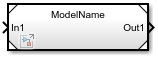
The Model block references the specified model. It displays input and output ports that correspond to the top-level input and output ports of the referenced model. These ports allow you to connect the referenced model to other blocks in the parent model.
To determine whether the Model block is better suited for your goal than another block with similar functionality, see Explore Types of Simulink Components and Compare Capabilities of Simulink Components.
For instructions on how to reference a model with a Model block, see Reference Existing Models.
By default, the Model block displays a representation of the contents of the referenced model. For more information, see Preview Content of Model Components. To see the contents of a referenced model, double-click the Model block.
If you have a Simulink® Coder™ license, you can conceal the implementation details of a referenced model by protecting the model. To protect a model, see Protect Models to Conceal Contents (Simulink Coder). To reference a protected model, see Reference Protected Models from Third Parties.
Examples
You can include one model in another by using a Model block. Each Model block is a model reference, or a reference to another model. You can reference a model multiple times without making redundant copies, and multiple models can reference the same model.
Open the example, which contains a model named BasicCounterAlgorithm.

Before you reference a model, consider its configuration, interface, and contents.
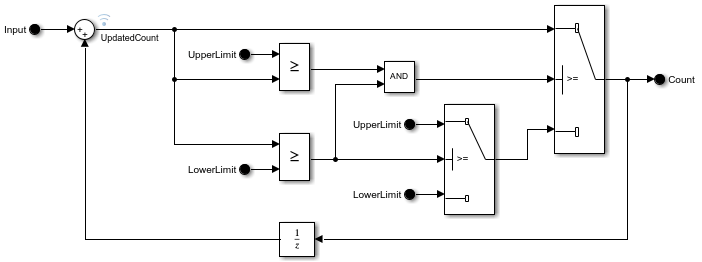
The model named BasicCounterAlgorithm represents a counter algorithm and uses a fixed-step discrete solver.
To view the model interface, in the Simulink Toolstrip, on the Modeling tab, in the Design gallery, select Interface View. The Component Interface View opens.
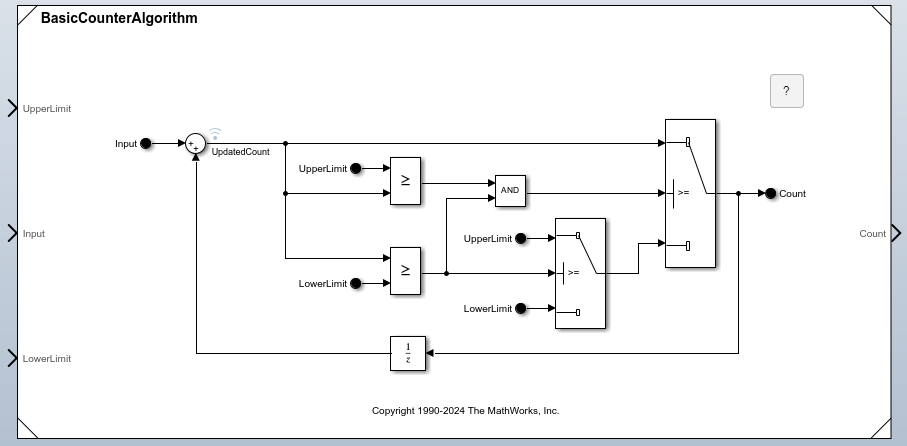
The model has three input ports and one output port.
The input port named
UpperLimitprovides the upper limit for the counter.The input port named
LowerLimitprovides the lower limit, or starting value, for the counter.The input port named
Inputprovides the value that the counter increments at each time step.The output port named
Countprovides the current count.
In a new model, add a Model block.

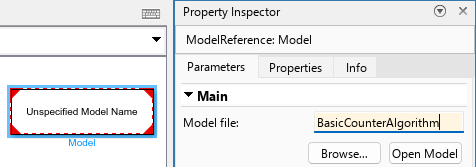
In the Property Inspector, set Model name to BasicCounterAlgorithm.

To better display the information on the block icon, drag a corner of the Model block until no information overlaps.
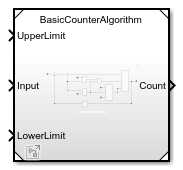
The Model block icon displays:
The name of the referenced model:
BasicCounterAlgorithmInput ports named
UpperLimit,Input, andLowerLimitAn output port named
Count
Configure the top model for fixed-step discrete simulation.
In the Simulink Toolstrip, on the Modeling tab, click Model Settings.
In the Configuration Parameters dialog box, on the Solver pane, set Type to
Fixed-stepand Solver todiscrete (no continuous states).Click OK.
Connect inputs and outputs to the Model block that match the expected inputs and outputs of the referenced model.
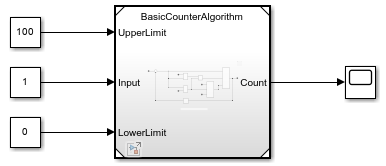
To represent the upper limit of the counter, add a Constant block with Constant value set to
100. Then, connect the block to the UpperLimit port.To represent the counter increment, add a Constant block with Constant value set to
1. Then, connect the block to the Input port.To represent the lower limit of the counter, add a Constant block with Constant value set to
0. Then, connect the block to the LowerLimit port.To display the counter output in a plot, add a Scope block. Then, connect the block to the Count port.

In the Simulink Toolstrip, on the Modeling tab, click Run.

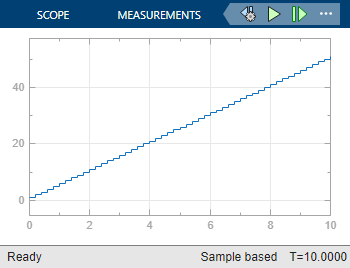
The top model simulates and executes the referenced model. The Scope window shows the output count for the simulation.
Open the model SecondOrderSystemTop. The model contains a Ramp block that provides the input signal for a Model block that references a model of a second-order system. The Model block output signal connects to an Outport block.
topmdl = "SecondOrderSystemTop";
open_system(topmdl)

To navigate inside the referenced model, double-click the Model block. Alternatively, create a Simulink.BlockPath object for the Model block and use the open function to open the referenced model in the context of the model hierarchy.
mdlblkpath = Simulink.BlockPath(topmdl + "/Model");
open(mdlblkpath)
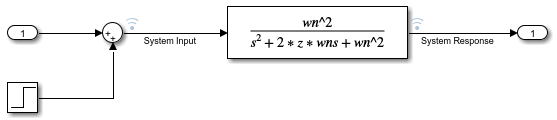
The referenced model implements the second-order system using a Transfer Fcn block and contains a Step block that models a change or disturbance to the system.
The system transfer function is specified in the Transfer Fcn block using two model workspace variables, wn and z, which represent the natural frequency of the system, in radians per second, and the system damping coefficient.
Configure the system with a natural frequency of 100 radians per second by specifying the value of the variable wn as 100 in the model workspace.
refmdl = "SecondOrderSystem"; mdlwksp = get_param(refmdl,"ModelWorkspace"); assignin(mdlwksp,"wn",100)
Configure the referenced model to use a local solver with a step size of 0.01 seconds. You can configure the settings for the referenced model from the top model using the Property Inspector or the Block Parameters dialog box.
Open the Property Inspector. On the Modeling tab, expand the Design section and select Property Inspector, or press Ctrl+Shift+I.
To open the Configuration Parameters dialog box for the referenced model, select the Model block. Then, in the Property Inspector, expand the Solver section and click the hyperlink next to the Use local solver parameter.
Configure the model to use a local solver when referenced in a model hierarchy. In the Configuration Parameters dialog box, on the Model Referencing pane, select Use local solver when referencing model.
Select the fixed-step
ode3as the local solver. On the Solver pane, from the Type list, selectFixed-step. Then, from the Solver list, selectode3 (Bogacki-Shampine).Set the local solver step size to 0.01 seconds. On the Solver pane, expand Solver details. Then, in the Fixed-step size (fundamental sample time) box, enter
0.01.Click OK.
Alternatively, use the set_param function to configure the parameters.
set_param(refmdl,UseModelRefSolver="on",... SolverType="Fixed-Step",Solver="ode3",FixedStep="0.01")
In the top model, the Model block indicates the local solver you specify.
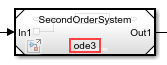
Specify the communication step size for the model reference. The communication step size specifies when the parent and local solvers exchange data and is registered as a discrete sample time in the top model.
The Ramp block in the top model has a slope of 0.2, and the top solver uses a step size of 0.2 seconds. Because the input signal from the top model changes slowly compared to the dynamics of the second-order system, the communication step size can be much larger than the local solver step size without significant effect on the accuracy of the simulation results.
Specify the communication step size as 0.4 seconds. Select the Model block. Then, in the Property Inspector, under Solver, in the Communication step size box, enter 0.4.
Alternatively, use the set_param function to set the CommunicationStepSize parameter.
set_param(topmdl + "/Model",CommunicationStepSize="0.4")
Simulate the model, using the local solver to compute the response of the second-order system.
out = sim(topmdl);
To view the simulation results, open the Simulation Data Inspector. On the Simulation tab, under Review Results, click Data Inspector. Alternatively, call the Simulink.sdi.view function.
Simulink.sdi.view
Plot the signals named System Response and System Response - Top on separate subplots. Alternatively, use the Simulink.sdi.loadView function to load the view named FastSecondOrderSystem, which was created for this example.
Simulink.sdi.loadView("FastSecondOrderSystem.mldatx");
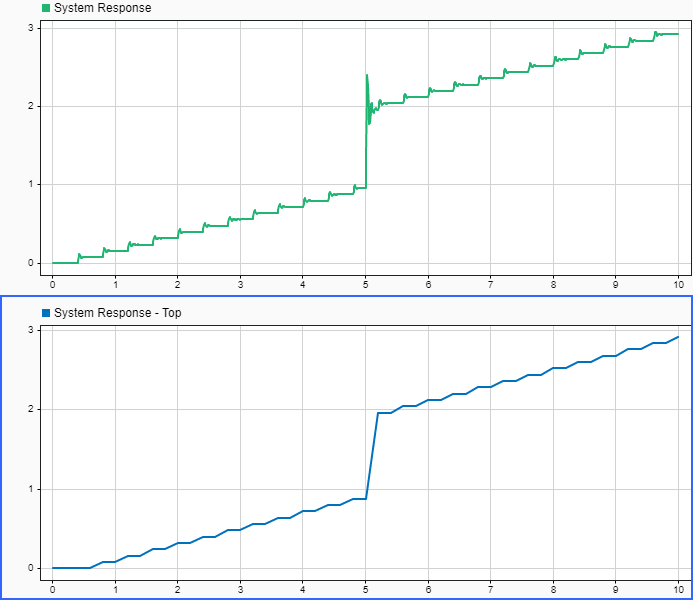
The System Response and System Response - Top signals are the same signal, logged in different locations. The System Response signal is logged inside the referenced model at a rate determined by the local solver step size. The System Response - Top signal is logged by the Outport block in the top model at a rate determined by the top solver step size. Because the local solver step size is much smaller than the top solver step size, the System Response signal captures the system response to the change in the input signal when the Step block output value changes with higher fidelity.
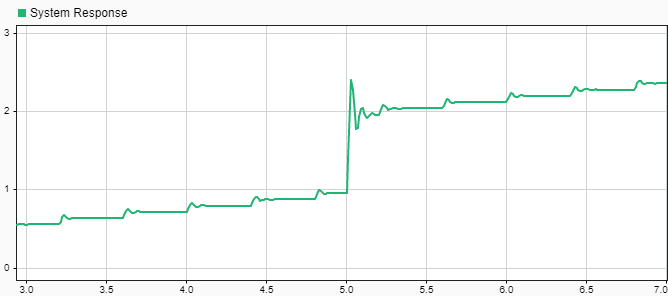
In the System Response signal, you can see the effect of the local solver interpolating the input signal with a zero-order hold between each communication step. If you zoom on the time axis around 5 seconds, you can see the oscillations in the system response to the step.
Open the model SecondOrderSystemTop. The model contains a Ramp block that provides the input signal for a Model block that references a model of a second-order system. The Model block output signal connects to an Outport block.
topmdl = "SecondOrderSystemTop";
open_system(topmdl)

To navigate inside the referenced model, double-click the Model block. Alternatively, create a Simulink.BlockPath object for the Model block and use the open function to open the referenced model in the context of the model hierarchy.
mdlblkpath = Simulink.BlockPath(topmdl + "/Model");
open(mdlblkpath)
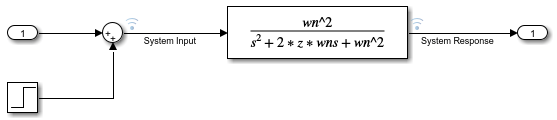
The referenced model implements the second-order system using a Transfer Fcn block and contains a Step block that models a change or disturbance to the system.
The system transfer function is specified in the Transfer Fcn block using two model workspace variables, wn and z, which represent the natural frequency of the system, in radians per second, and the system damping coefficient.
Configure the system with a natural frequency of 1 radian per second by specifying the value of the variable wn as 1 in the model workspace.
refmdl = "SecondOrderSystem"; mdlwksp = get_param(refmdl,"ModelWorkspace"); assignin(mdlwksp,"wn",1)
Configure the referenced model to use a local solver with a step size of 0.4 seconds. You can configure the settings for the referenced model from the top model using the Property Inspector or the Block Parameters dialog box.
Open the Property Inspector. On the Modeling tab, expand the Design section and select Property Inspector, or press Ctrl+Shift+I.
To open the Configuration Parameters dialog box for the referenced model, select the Model block. Then, in the Property Inspector, expand the Solver section and click the hyperlink next to the Use local solver parameter.
Configure the model to use a local solver when referenced in a model hierarchy. In the Configuration Parameters dialog box, on the Model Referencing pane, select Use local solver when referencing model.
Select the fixed-step
ode3as the local solver. On the Solver pane, from the Type list, selectFixed-step. Then, from the Solver list, selectode3 (Bogacki-Shampine).Set the local solver step size to 0.4 seconds. On the Solver pane, expand Solver details. Then, in the Fixed-step size (fundamental sample time) box, enter
0.4.Click OK.
Alternatively, use the set_param function to configure the parameters.
set_param(refmdl,UseModelRefSolver="on",... SolverType="Fixed-Step",Solver="ode3",FixedStep="0.4")
In the top model, the Model block indicates the local solver you specify.
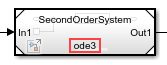
When the local solver step size is larger than the parent solver step size, inherit the communication step size by specifying the Communication step size parameter as -1. The communication step size specifies when the parent solver and local solver exchange data and is registered as a discrete sample time in the parent model.
set_param(topmdl + "/Model",CommunicationStepSize="-1")
Simulate the model, using the local solver to compute the response of the second-order system.
out = sim(topmdl,StopTime="20");To view the simulation results, open the Simulation Data Inspector. On the Simulation tab, under Review Results, click Data Inspector. Alternatively, call the Simulink.sdi.view function.
Simulink.sdi.view
Plot the signals named System Response and System Response - Top on separate subplots. Alternatively, use the Simulink.sdi.loadView function to load the view named SlowSecondOrderSystem, which was created for this example.
Simulink.sdi.loadView("SlowSecondOrderSystem.mldatx");
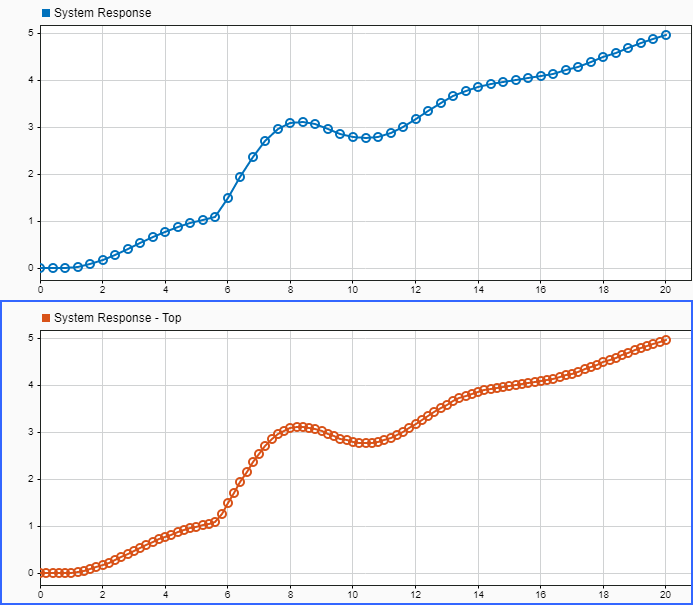
The System Response and System Response - Top signals are the same signal, logged in different locations. The System Response signal is logged inside the referenced model at a rate determined by the local solver step size. The System Response - Top signal is logged by the Outport block in the top model at a rate determined by the top solver step size. Fewer data points are logged for the System Response signal because the local solver step size is larger than the parent solver step size.
Extended Examples
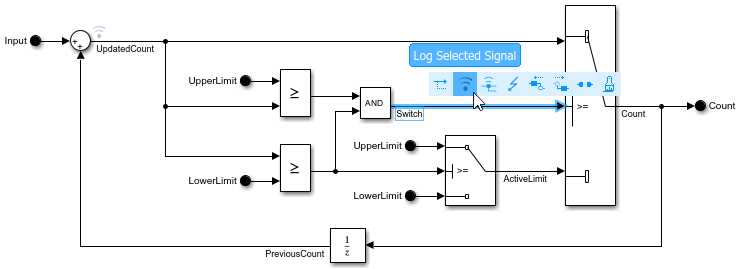
Component-Based Modeling with Model Reference
Walks you through simulation and code generation of a model that references another model multiple times.
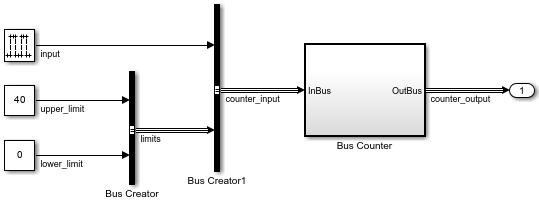
Convert Subsystem to Referenced Model
Convert a subsystem to a referenced model by using the Model Reference Conversion Advisor or the Simulink.SubSystem.convertToModelReference function. For comprehensive instructions, see Convert Subsystems to Referenced Models.
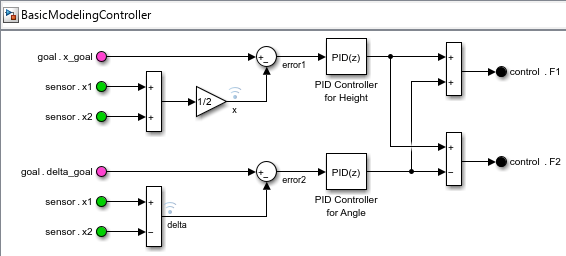
Reuse Model Components from Files
Save components in separate subsystem and model files.
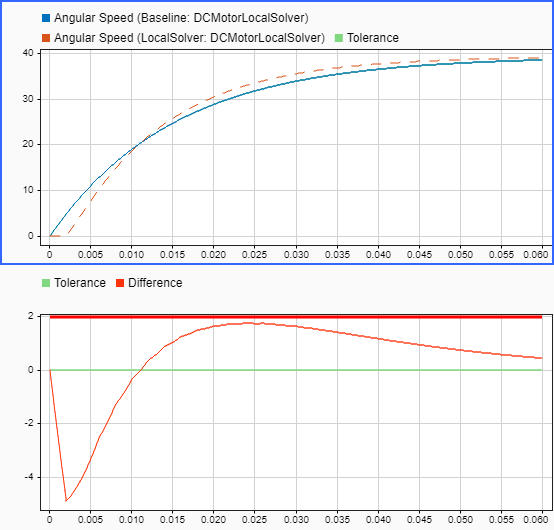
Improve Simulation Performance by Using Local Solvers
Improve simulation performance by using a local solver for a component with much faster dynamics compared to the rest of the system.
Ports
Input
The Model block has an input port for each input port of the model it references. The input ports of referenced models are defined by Inport and In Bus Element blocks. The name of the Model block port matches the name of the corresponding port in the referenced model. The input signal, message, or function call for each Model block port must be valid for the corresponding port in the referenced model. For more information, see Define Model Reference Interfaces.
Tips
Signal attributes in a referenced model are independent from the context of the Model block. For example, signal dimensions and data types do not propagate across the Model block boundary. To define signal attributes in a referenced model, define block parameters for root-level Inport and In Bus Element blocks.
Function calls connected to an input port pass into the referenced model. To conditionally execute the referenced model based on a function call, see Function Call.
Data Types: single | double | int8 | int16 | int32 | int64 | uint8 | uint16 | uint32 | uint64 | Boolean | fixed point | enumerated | bus | image
Complex Number Support: Yes
Output
The Model block has an output port for each output port of the model it references. The output ports of referenced models are defined by Outport and Out Bus Element blocks. The name of the port on the Model block matches the name of the corresponding port in the referenced model. The output signals and messages of a Model block are the signals and messages connected to the Outport and Out Bus Element blocks in the referenced model. See Define Model Reference Interfaces.
Data Types: single | double | int8 | int16 | int32 | int64 | uint8 | uint16 | uint32 | uint64 | Boolean | fixed point | enumerated | bus | image
Complex Number Support: Yes
Control
Conditional Execution
The enable port appears at the top of the Model block. The port label is an icon that represents an enable signal.
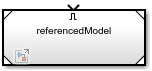
The control signal that connects to the port determines when to execute the referenced model. For more information, see Conditionally Execute Referenced Models.
Dependencies
To enable this port, add an Enable block to the top level of the referenced model.
Data Types: single | double | int8 | int16 | int32 | int64 | uint8 | uint16 | uint32 | uint64 | Boolean | fixed point
The trigger port appears at the top of the Model block. The port label is an icon that represents a trigger signal.
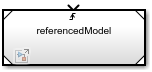
The control signal that connects to the port determines when to execute the referenced model. For more information, see Conditionally Execute Referenced Models.
Dependencies
To enable this port, add a Trigger block to the
top level of the referenced model and set its Trigger
type to rising,
falling, or
either.
Data Types: single | double | int8 | int16 | int32 | int64 | uint8 | uint16 | uint32 | uint64 | Boolean | fixed point
The function-call port appears at the top of the Model block. The port label displays the name of the referenced model as a function.

The function-call control signal that connects to the port determines when to execute the referenced model. For more information, see Conditionally Execute Referenced Models.
Dependencies
To enable this port, add a Trigger block to the
top level of the referenced model and set its Trigger
type to
function-call.
Model Events Simulation
The initialize event port provides a function-call control signal that triggers a model initialize event, which initializes the states of the referenced model.
The referenced model can contain an Initialize Function block that corresponds to the model initialize event. For more information, see Using Initialize, Reinitialize, Reset, and Terminate Functions.
Dependencies
To enable this port, select Show model initialize port.
A reset event port provides a function-call control signal that triggers a model reset event, which resets the states of the referenced model.
The referenced model must contain a Reset Function block that corresponds to each model reset event. For more information, see Using Initialize, Reinitialize, Reset, and Terminate Functions.
To specify the port name, use the Event name parameter of the Event Listener block in the Reset Function block.
Dependencies
To enable this type of port, select Show model reset ports.
A reinitialize event port provides a function-call control signal that triggers a model reinitialize event, which reinitializes the states of the referenced model.
The referenced model must contain a Reinitialize Function block that corresponds to each model reinitialize event. For more information, see Using Initialize, Reinitialize, Reset, and Terminate Functions.
To specify the port name, use the Event name parameter of the Event Listener block in the Reinitialize Function block.
Dependencies
To enable this type of port, select Show model reinitialize ports.
The terminate event port provides a function-call control signal that triggers a model terminate event, which reads and saves the states of the referenced model.
The referenced model can contain a Terminate Function block that corresponds to the model terminate event. For more information, see Using Initialize, Reinitialize, Reset, and Terminate Functions.
Dependencies
To enable this port, select Show model terminate port.
Periodic event ports provide function-call control signals that specify when to execute the model. For an example, see Test Rate-Based Model Simulation Using Function-Call Generators.
Each port label displays information about the periodic event, such as the sample time of the corresponding Inport block. For example, the Model block in this image displays periodic event ports and references a model with two discrete rates: 0.01 and 0.1.
![A Model block has ports labeled D1[0.01] and D2[0.1].](model-block-periodic-event-ports.png)
Dependencies
To enable this type of port, set Schedule rates with to
Ports.
Parameters
To interactively modify Model block parameters, select the Model block. Then, in the Simulink Toolstrip, on the Model Block tab, click Block Parameters.
Main
Specify fundamental information for the Model block.
Specify the filename of the referenced model. The filename must be a valid MATLAB® identifier for a model, as defined in Choose Valid Model File Names. The file extension is optional.
To select the model that you want to reference, click Browse. To view the specified model, click Open Model.
When you do not specify a file extension and you have a protected
model (.slxp) in the same folder as the original
model (.slx), the Model block
references the protected model instead of the original model. For more
information, see Reference Protected Models from Third Parties.
Programmatic Use
To set the block parameter value programmatically, use
the set_param function.
| Parameter: | ModelNameDialog |
| Values: | '' (default) | filename in quotes |
| Data Types: | char | string |
Example: set_param(gcb,ModelNameDialog="mymodel.slx")
To get the block parameter value
programmatically, use the get_param function.
You can query the name of the referenced model in different formats:
ModelFile— Model name with file extension. When you do not specify a file extension, the first match that the software finds on the MATLAB path determines the file extension.ModelNameDialog— Model name with or without file extension, depending on whether you specify a file extension.ModelName— Model name without file extension. If you specify a model name with a file extension forModelName, the software retains the file extension by settingModelNameDialogandModelFile.
Specify the simulation mode for the Model block. The simulation mode for the Model block can be different than the simulation mode of its referenced model and of other models in the model hierarchy.
Normal— Execute the referenced model interpretively, as if the referenced model is an atomic subsystem implemented directly within the parent model.Accelerator— Create a MEX file for the referenced model. Then, execute the referenced model by running the S-function.Software-in-the-loop (SIL)— This option requires an Embedded Coder® license. Generate production code based on the Code interface parameter setting. The code is compiled for and executed on the host platform.Processor-in-the-loop (PIL)— This option requires an Embedded Coder license. Generate production code based on the Code Interface parameter setting. This code is compiled for and executed on the target platform. A target connectivity API implementation supports the exchange of data between the host and target at each time step during the PIL simulation.
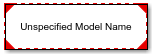
The corners of the Model block indicate the simulation
mode of the Model block. For normal mode, the corners
have empty triangles. For accelerator mode, the corner triangles are
filled in. For SIL and PIL modes, the corners are filled in and the word
(SIL) or (PIL) appears on the
block icon.
Although you can specify any simulation mode for a model, when you reference that model, the Model block specifies the simulation mode of the referenced model instance. The simulation mode of a parent model can override the simulation mode of a Model block.
For more information, see Choose Simulation Modes for Model Hierarchies.
Programmatic Use
To set the block parameter value programmatically, use
the set_param function.
| Parameter: | SimulationMode |
| Values: | "Normal" (default) | "Accelerator" | "Software-in-the-loop (SIL)" | "Processor-in-the-loop (PIL)" |
Example: set_param(gcb,SimulationMode="Accelerator")
Specify whether to generate the code from the top model or the
referenced model for SIL and PIL simulation modes. To deploy the
generated code as part of a larger application that uses the referenced
model, specify Model reference. To deploy the
generated code as a standalone application, specify Top
model.
Model reference— The code is generated from the referenced model as part of a model hierarchy. Code generation uses a command similar to this command, which generates code for a model namedModelName.slbuild("ModelName","ModelReferenceCoderTarget")
Top model— The code is generated from the top model with the standalone code interface. Code generation uses a command similar to this command, which generates code for a model namedModelName.slbuild("ModelName")
Dependencies
To enable this parameter, set Simulation mode to either
Software-in-the-loop (SIL) or
Processor-in-the-loop (PIL).
Programmatic Use
To set the block parameter value programmatically, use
the set_param function.
| Parameter: | CodeInterface |
| Values: | "Model
reference" (default) | "Top model" |
Example: set_param(gcb,CodeInterface="Top
model")
Model Events Simulation
Control when the referenced model executes and changes states.
Select this parameter to display the initialize event port. Clear this parameter to remove the port.
Dependencies
To enable this parameter, reference a model that is not configured for conditional execution.
Programmatic Use
To set the block parameter value programmatically, use
the set_param function.
| Parameter: | ShowModelInitializePort |
| Values: | "off" (default) | "on" |
Example: set_param(gcb,ShowModelInitializePort="on")
Select this parameter to display the reinitialize event ports. Clear this parameter to remove the ports.
Dependencies
To enable this parameter, reference a model that is not configured for conditional execution and contains a Reinitialize Function block.
Programmatic Use
To set the block parameter value programmatically, use
the set_param function.
| Parameter: | ShowModelReinitializePorts |
| Values: | "off" (default) | "on" |
Example: set_param(gcb,ShowModelReinitializePorts="on")
Select this parameter to display the reset event ports. Clear this parameter to remove the ports.
Dependencies
To enable this parameter, reference a model that is not configured for conditional execution and contains a Reset Function block.
Programmatic Use
To set the block parameter value programmatically, use
the set_param function.
| Parameter: | ShowModelResetPorts |
| Values: | "off" (default) | "on" |
Example: set_param(gcb,ShowModelResetPorts="on")
Select this parameter to display the terminate event port. Clear this parameter to remove the port.
Dependencies
To enable this parameter, reference a model that is not configured for conditional execution. Then, select Show model initialize port.
Programmatic Use
To set the block parameter value programmatically, use
the set_param function.
| Parameter: | ShowModelTerminatePort |
| Values: | "off" (default) | "on" |
Example: set_param(gcb,ShowModelTerminatePort="on")
Control the execution of the referenced model with periodic events.
Depending on the value of the Schedule rates with parameter, selecting this parameter
will either display the periodic event ports on the Model
block or create partitions to use with the Schedule Editor. When the Schedule rates
with parameter is not visible, its default value
(Ports) applies.
Clearing this parameter hides the periodic event ports and does not create partitions.
Dependencies
To enable this parameter, reference a model with discrete sample times that is not configured for conditional execution and is not an export-function model. When the parent model is rate based and the referenced model is an export-function model, Schedule rates is automatically selected.
Programmatic Use
To set the block parameter value programmatically, use
the set_param function.
| Parameter: | ScheduleRates |
| Values: | "off" (default) | "on" |
Example: set_param(gcb,ScheduleRates="on")
Create ports or partitions.
Ports— Display periodic event ports for discrete rates in the referenced model.To manually specify port rates, use the
set_paramfunction to set theAutoFillPortDiscreteRatesparameter of the Model block to"off". Then, specify the port rates with thePortDiscreteRatesparameter.Schedule Editor— Create partitions for the referenced model to use with the Schedule Editor.
Dependencies
To enable this parameter:
The parent model must not be an export-function model.
The parent model must not use a fixed-step solver and single-tasking mode.
Select Schedule rates. When the parent model is rate based and the referenced model is an export-function model, Schedule rates is automatically selected.
Clear Show model initialize port, Show model reset ports, and Show model reinitialize ports.
Programmatic Use
To set the block parameter value programmatically, use
the set_param function.
| Parameter: | ScheduleRatesWith |
| Values: | "Ports" (default) | "Schedule Editor" |
Example: set_param(gcb,ScheduleRatesWith="Schedule
Editor")
Instance Parameters
Specify instance-specific values for model arguments.
Display instance parameters and specify instance-specific values. Instance parameters are block parameters that have been configured in the referenced model to use a different value for each instance of the model.
To specify instance-specific values, use the Value column in the table. To specify that a parameter value can be overridden by the parent model, select the Argument check box. For more information about configuring instance parameters in a referenced model and specifying instance-specific values at the Model block, see Configure Instance-Specific Values for Block Parameters in a Referenced Model.
When changing instance-specific values, you can use a partial structure that has fields that correspond to only the instance parameters whose values you want to change. Instance parameters not included in the partial structure retain their values. In the structure, include the instance parameter names and values, specified as character vectors.
Programmatic Use
To set the block parameter value programmatically, use
the set_param function.
| Parameter: | ParameterArgumentNames |
| Values: | comma-separated parameter names in quotes |
| Parameter: | InstanceParameters |
| Values: | structure with fields Name,
Value, Path, and
Argument |
| Data Types: | struct |
For an example of how to set these programmatic parameters, see Parameterize a Referenced Model Programmatically.
To get the instance parameter names and values for a
Model block, query
InstanceParameters or
ParameterArgumentValues with the get_param function.
Do not use ParameterArgumentValues to set the
instance-specific
values.
Dependencies
To enable this parameter, the referenced model must have
MATLAB variables or Simulink.Parameter
objects in the model workspace that are configured as model
arguments. To configure a variable or object as a model argument,
select the Argument property.
Solver
Configure a referenced model to use a local solver by using a combination of the configuration parameters for the referenced model and the block parameters for each Model block that references the model.
Referenced Model Configuration Parameters
This parameter provides a hyperlink that opens the Configuration Parameters dialog box for the model referenced by the block. In the Configuration Parameters dialog box, select or clear the Use local solver when referencing model parameter of the referenced model.
When you select Use local solver when referencing model, the software uses a local solver to solve the system implemented in the referenced model as a separate system of differential equations. During simulation, the local solver computes the values of continuous states in the referenced model and the output values for the blocks inside the referenced model.
Using a local solver can facilitate system composition and integration. When you use local solvers, you can solve referenced models in system-level simulations using the same solver and step size used to design and test each model in isolation. Using local solvers can also reduce the number of configuration adjustments you need to make to configuration parameters in referenced models while integrating the model into a larger system.
For some systems, using a local solver can improve simulation performance by allowing you to:
Choose a solver that is more appropriate to solve the system in the referenced model
Use different step sizes for different components to reduce the number of redundant calculations in systems that have a wide range of dynamics among components.
For more information, see Use Local Solvers in Referenced Models.
This parameter provides a hyperlink that opens the Configuration Parameters dialog box for the model referenced by the block. In the Configuration Parameters dialog box, select a value for the Solver parameter of the referenced model. When you use a local solver, the Solver parameter of the referenced model specifies the solver to use as the local solver.
In some systems, using a different local solver can improve simulation performance. For example, when the system is not stiff but the component implemented by the referenced model is stiff, using a stiff local solver can improve performance when simulating the system.
The top solver can be a variable-step or fixed-step solver. The local solver can be a variable-step (since R2025a) or fixed-step solver.
For more information, see Use Local Solvers in Referenced Models.
Dependencies
To enable this parameter, select Use local solver when referencing model in the configuration parameters for the model referenced by this block.
This parameter provides a hyperlink that opens the Configuration Parameters dialog box for the model referenced by the block. In the Configuration Parameters dialog box, specify the value for the Fixed-step size (fundamental sample time) parameter of the referenced model to specify the step size for the local solver. The step size you specify for the local solver is not registered as a discrete rate in either the referenced model or the parent model.
The local step size can be greater than, less than, or equal to the parent solver step size. However, the communication step size, which determines when the local and parent solvers exchange data, constrains possible values for the local step size.
The local step size must be less than or equal to the communication step size.
When the local step size is smaller than the communication step size, the local step size must be an integer divisor of the communication step size.
For example, when the communication step size is 0.1 seconds, the local solver can be an integer divisor such as 0.1 seconds, 0.05 seconds, 0.025 seconds, and so on.
Before R2024a: When the parent solver is a fixed-step solver, the local solver step size must be an integer multiple of the parent solver step size.
For more information, see Use Local Solvers in Referenced Models.
Dependencies
To enable this parameter, in the configuration parameters for the model referenced by this block:
Set Type to
Fixed-step.
Model Block Parameters
The communication step size specifies the rate at which the local and parent solvers exchange data. The communication step size is registered as a periodic sample time of the Model block in the parent model.
By default, the communication step size is inherited
(-1) and determined by the software.
Fixed-step local solver — The inherited communication step size is the fixed step size of the local solver.
Variable-step local solver (since R2025a) — The inherited communication step size depends on the sample times in the referenced model, the maximum step size of the local solver, and the simulation stop time.
When the referenced model contains periodic sample times, the inherited communication step size is the greatest common divisor of the periodic sample times.
When the referenced model does not contain periodic sample times, the inherited communication step size is:
The maximum step size of the local solver, if the maximum step size is finite
2% of the simulation stop time if the stop time is finite and the maximum step size is
Inf0.2if both the maximum step size and simulation stop time areInf
When you explicitly specify the communication step size, the value you specify must satisfy all of these constraints:
Every periodic sample time in the referenced model must be evenly divisible by the communication step size.
The communication step size must be greater than or equal to the smallest periodic sample time in the referenced model.
For a variable-step local solver, the communication step size must be greater than or equal to the minimum step size of both the local and parent solvers.
For a fixed-step local solver, the communication step size must be an integer multiple of the fixed step size of both the parent and local solver.
When the local step size is larger than the parent step size, specify
the communication step size as inherited (-1) or
equal to the local step size. For example, if the parent step size is 1
second and the local step size is 2 seconds, specify the communication
step size as -1 (inherited) or 2.
Specifying the communication step size as a larger value, such as
4, could reduce accuracy without providing any
performance improvement.
For a variable-step local solver (since R2025a):
When the communication step size is smaller than the local maximum step size, the local solver does not step farther than the communication step size.
Within the interval between hit times for the communication step size, the local solver determines the size of each local step based on the dynamics of the continuous states in the referenced model and the tolerance values you specify for the local solver.
Programmatic Use
To set the block parameter value programmatically, use
the set_param function.
| Parameter: | CommunicationStepSize |
| Values: | -1 (default) | positive scalar double |
| Data Types: | double |
Example: set_param(gcb,CommunicationStepSize="0.5")
The local solver computes continuous state values and block output values inside the referenced model by extrapolating continuous derivative or input signal values that come from the parent solver. For more information, see Use Local Solvers in Referenced Models.
This parameter specifies the method the local solver uses to extrapolate continuous derivative or input signal values to the local simulation time.
Auto— The software determines the extrapolation method. The local solver extrapolates input values to the local simulation time using a zero-order hold when:You select a variable-step solver or an implicit solver, such as
ode1beorode14x.The referenced model has no input ports.
The local step size is smaller than the communication step size.
Otherwise, the local solver extrapolates continuous derivatives to the local simulation time using an extrapolation algorithm that is appropriate for the selected solver. The extrapolation algorithms can improve the accuracy of simulation results but increase computational complexity compared to zero-order hold extrapolation.
Before R2024a: The software determines how to extrapolate continuous derivative or input signal values based only on the selected solver, and the local step size is always greater than or equal to the parent solver step size.
Zero-Order Hold— The local solver extrapolates input values to the local simulation time using a zero-order hold. Each input value at the local simulation time is equal to the value the parent solver calculated for the signal at the most recent communication step.
Consider using Zero-order hold input
handling in any of these situations:
When simulation results are acceptable with
Zero-order holdinput handling and performance is a concernWhen input values do not affect continuous state computations
When a significant part of the derivative is based on the state itself, for example, from feedback loops in the model
To improve local solver stability for a given step size
Variable-step local solvers (since R2025a),
support only Zero-order hold input signal
handling.
Dependencies
To enable this parameter, select Use local solver when referencing model in the model configuration parameters for the model referenced by this block.
Programmatic Use
To set the block parameter value programmatically, use
the set_param function.
| Parameter: | InputSignalHandling |
| Values: | "Auto" (default) | "Zero-order hold" |
Example: set_param(gcb,InputSignalHandling="Zero-order
hold")
When a parent solver takes a step that does not correspond to a communication step for a local solver, the local solver provides output values to the parent solver by interpolating the output signal values and continuous states that affect the output values. For more information, see Use Local Solvers in Referenced Models.
This parameter specifies how the local solver interpolates the continuous state or output signal values.
Auto(since R2024a) — The software determines the interpolation method.For variable-step local solvers and fixed-step local solvers with a fixed step size that is smaller than the communication step size, the interpolation method depends on the Model block output sample times and data types.
If the Model block produces any continuous, double output signals, the local solver linearly interpolates the output values. (since R2026a)
If all Model block outputs have a sample time other than continuous and a data type other than double, the local solver interpolates the output values using a zero-order hold.
Fixed-step local solvers with a fixed step size that is larger than the communication step size use the solver interpolant to interpolate output values.
Linear(since R2026a) — The local solver linearly interpolates values of continuous, double output signals using the output value from the last communication step and the value the local solver computed for the next communication step. The local solver applies a zero-order hold to output signals that have a sample time other than continuous or a data type other than double. This option is supported only when the Model block produces at least one continuous, double output signal.Linear output signal handling can improve accuracy and reduce the number of parent solver resets.
Zero-order hold— The local solver interpolates continuous state and output signal values using a zero-order hold.Zero-order hold output signal handling reduces computational complexity but can also reduce accuracy.
Use solver interpolant— The local solver interpolates continuous state and output signal values using the interpolant of the local solver. This option is supported only for fixed-step local solvers with a fixed step size that is larger than the communication step size.Using the solver interpolant can increase accuracy but increases the computational complexity.
Before R2026a: When you set this parameter to
Auto, fixed-step local solvers with a
fixed step size that is smaller than the communication step size use
zero-order hold output signal handling.
In R2025a: When you use a variable-step local
solver, only Zero-order hold output signal
handling is supported.
Dependencies
To enable this parameter, select Use local solver when referencing model configuration parameter of the model referenced by this block.
Programmatic Use
To set the block parameter value programmatically, use
the set_param function.
| Parameter: | OutputSignalHandling |
| Values: | "Auto" (default) | "Linear" | "Use solver interpolant" | "Zero-order Hold" |
Example: set_param(gcb,OutputSignalHandling="Linear")
Block Characteristics
Tips
To programmatically determine whether a Model block references a
protected model, use the get_param function to query the
read-only ProtectedModel parameter of the Model block.
If the referenced model is protected, the function returns "on". If
the referenced model is unprotected, the function returns
"off".
Extended Capabilities
Actual code generation support depends on block implementation.
HDL Coder™ provides additional configuration options that affect HDL implementation and synthesized logic. For more information about using the Model block for HDL code generation and best practices and limitations, see Model Referencing for HDL Code Generation (HDL Coder).
See also Generate Black Box Interface for Referenced Model (HDL Coder) and Generate Parameterized Code for Referenced Models (HDL Coder).
| Architecture | Description |
|---|---|
ModelReference (default) | When you want to generate code from a referenced model and
any nested models, use the
ModelReference implementation.
For more information, see Model Referencing for HDL Code Generation (HDL Coder). |
BlackBox | Use the For more information, see Generate Black Box Interface for Referenced Model (HDL Coder). |
For the BlackBox architecture, you
can customize port names and set attributes of the external component
interface. See Customize Black Box or HDL Cosimulation Interface (HDL Coder).
| BalanceDelays | Detects introduction of new delays along one path and inserts
matching delays on the other paths. The default is |
| ConstrainedOutputPipeline | Number of registers to place at
the outputs by moving existing delays within your design. Distributed
pipelining does not redistribute these registers. The default is
|
| DistributedPipelining | Pipeline register distribution,
or register retiming. The default is |
| InputPipeline | Number of input pipeline stages
to insert in the generated code. Distributed pipelining and constrained
output pipelining can move these registers. The default is
|
| OutputPipeline | Number of output pipeline stages
to insert in the generated code. Distributed pipelining and constrained
output pipelining can move these registers. The default is
|
| ReferenceModelPrefix | Prefix of the referenced model to insert in the generated code.
The code generator applies this prefix to submodel file names and
HDL identifiers. The default prefix is Note
|
| SharingFactor | Number of functionally equivalent resources to map to a single shared resource. The default is 0. See also Resource Sharing (HDL Coder). |
| StreamingFactor | Number of parallel data paths, or vectors, that are time multiplexed to transform into serial, scalar data paths. The default is 0, which implements fully parallel data paths. See also Streaming (HDL Coder). |
| SynthesisAttributes |
Specifies the synthesis attributes for the blocks and block output signals in the model. The generated HDL code contains these attributes. For more information, see SynthesisAttributes (HDL Coder). |
Actual data type support depends on block implementation.
Version History
Introduced before R2006aLoading a model that contains many instances of the same referenced model is faster in R2026a than in R2025b. The more times you reference the same model, the larger the performance improvement you experience.
For a simple example, suppose you create a model that references the
vdp model many times. Open an example that uses the
vdp model. Check that the vdp model is
closed.
openExample("simulink_general/VanDerPolOscillatorExample") close_system("vdp")
The following function creates a model that references the vdp
model the number of times specified by num_instances. The
function saves and closes the new model hierarchy and times how long it takes to
load the top model.
function t = timingTest(num_instances) % Create top model topModel = "top"; new_system(topModel); open_system(topModel); % Add num_instances of vdp to top refModel = "vdp"; for i = 1:num_instances add_block("simulink/Ports & Subsystems/Model", ... topModel+"/Model",MakeNameUnique="on", ... ModelName=refModel); end % Save and close top model close_system(topModel,1); % Measure performance of load_system function tic; load_system(topModel); t = toc; % Close and delete top model close_system(topModel); topFile = topModel+".slx"; delete(topFile); end
Loading a model that contains 10 to 100 instances of a referenced model like
vdp is about 1.9–2.8x faster than in the previous
release.
This table provides the approximate execution times.
| Number of Instances | R2025b | R2026a |
|---|---|---|
| 10 | 0.34 s | 0.18 s |
| 20 | 0.43 s | 0.23 s |
| 50 | 0.80 s | 0.40 s |
| 100 | 1.6 s | 0.57 s |
This evaluation was performed on a Windows® 11, AMD EPYC™ 74F3 @ 3.19 GHz test system.
Saving a model hierarchy that contains many modified referenced models is faster in R2026a and R2025b than in R2025a. The more modified referenced models and levels of model hierarchy, the larger the performance improvements you experience.
The following function creates a vertical model reference hierarchy composed of
the number of models specified by num_models. The function
modifies each model in the hierarchy and times how long it takes to save the models.
The function uses a temporary directory. After timing, the function closes the
models and removes the temporary directory.
function t = timingTest(num_models) % Navigate into temporary directory currDir = pwd; tempDir = tempname; mkdir(tempDir) cd(tempDir) % Track created models createdModels = cell(1,num_models); topModel = "Model1"; % Create the hierarchy: Model1 -> Model2 -> ... -> ModelN for i = num_models:-1:1 mdl = sprintf("Model%d",i); createdModels{i} = mdl; new_system(mdl); open_system(mdl); if i < num_models refName = sprintf("Model%d", i+1); add_block("simulink/Ports & Subsystems/Model", ... mdl+"/Model",ModelName=refName); end save_system(mdl); end % Make all models in hierarchy dirty cellfun(@(x) set_param(x,Description="Dirty"),createdModels); % Measure performance of save_system function tic; save_system(topModel,SaveDirtyReferencedModels="on"); t = toc; % Close created models cellfun(@(x) close_system(x), createdModels); % Remove temporary directory and created models cd(currDir) rmdir(tempDir,"s") end
The performance improvement increases with the number of modified referenced models and levels of model hierarchy:
For a vertical model reference hierarchy that contains 10 modified models, saving the models is about 2x faster than in R2025a.
For a vertical model reference hierarchy that contains 50 modified models, saving the models is about 4x faster than in R2025a.
This table provides the approximate execution times.
| Number of Models | R2025a | R2025b | R2026a |
|---|---|---|---|
| 10 | 1.5 s | 0.82 s | 0.86 s |
| 20 | 3.6 s | 1.7 s | 1.6 s |
| 30 | 6.4 s | 2.9 s | 2.4 s |
| 50 | 17 s | 4.6 s | 4.2 s |
This evaluation was performed on a Windows 11, AMD EPYC 74F3 @ 3.19 GHz test system.
When a parent solver takes a step that does not correspond to a communication step for a local solver, Model blocks that reference models configured to use a local solver provide an interpolated output value to the parent solver. You can configure Model blocks that produce real, double, continuous output signals to linearly interpolate these output values. Previously, only zero-order hold output signal handling was supported for variable-step local solvers and for fixed-step solvers that have a smaller step size than the parent solver.
To configure a model reference to linearly interpolate output values, set the
Output signal handling parameter of the
Model block to Linear. For parent
solver time steps that do not correspond to communication steps, the
Model block provides outputs by linearly interpolating the output
value from the last communication step and the value the local solver computed for
the next communication step.
When you set the Output signal handling parameter to
Auto, the software selects the new linear output
signal handling option in some cases. The table summarizes the output signal
handling selection before R2026a and in R2026a.
| Model Block Outputs | Local Solver Configuration | Auto Selection Before R2026a | Auto Selection in R2026a |
|---|---|---|---|
| Any continuous double outputs | Variable-step | Zero-order hold | Linear |
| Fixed-step with smaller step size than parent solver | |||
All outputs have one or both of these characteristics:
| Variable-step | Zero-order
hold | |
| Fixed-step with smaller step size than parent solver | |||
| Any output supported by local solvers | Fixed-step with larger step size than parent solver | Use solver
interpolant | |
You can initialize a simulation to a partial operating point by specifying the initial operating point of one or more Model blocks in the simulated model hierarchy. In previous releases, you could specify only a complete operating point for the top model, and the operating point of the top model initialized the entire model hierarchy.
You can configure multiple Model blocks in the same model hierarchy
to save their final operating point or simulate from an initial operating point. By
default, each Model block operating point is saved as a Simulink.op.ModelBlockOperatingPoint object in a property of the
Simulink.SimulationOutput object
returned by the simulation.
Saving and loading Model block operating points is not supported for Model blocks that:
Simulate in a mode other than normal mode
Reference a model that is referenced by another Model block in the hierarchy
Are part of a variant subsystem or variant assembly subsystem
Use the SynthesisAttributes HDL block property to specify the synthesis attributes for the block and its output signals. HDL Coder includes these attributes in the generated HDL code.
The DSPStyle HDL block property has been removed. To specify synthesis attributes for multiplier mapping, use the SynthesisAttributes HDL block property instead.
You can now configure a referenced model to use a variable-step local solver. Previously, only fixed-step local solvers were supported.
When you use a variable-step local solver, the Communication step size parameter of the Model block specifies when the parent and local solvers exchange data. Within the interval between hit times for the communication step size, the variable-step local solver determines the size of each local step based on the dynamics of the continuous states in the referenced model and the tolerance values you specify for the local solver.
When you use a variable-step local solver, only Zero-order
hold input and output signal handling are supported.
For more information, see Use Local Solvers in Referenced Models.
Instance parameters are supported in all simulation modes for referenced models configured to use a local solver.
Model blocks that reference models configured to use local solvers now propagate a discrete sample time to the block output ports if the local solver uses zero-order hold output signal handling. The Communication step size parameter of the Model block defines the discrete sample time propagated to the block output ports. In previous releases, the Model block propagated the sample time of the port in the referenced model to the block output ports.
This change to sample time propagation:
Simplifies the interactions between the parent solver and local solver
More clearly reflects the effect of the zero-order hold output signal handling in the context of the parent model
Reduces the number of parent solver resets
In some cases, the change to sample time propagation causes warnings about sample time discrepancies or collisions. For example, when a Model block output port that now has a discrete sample time drives the input port of another model reference, the software issues a warning if the sample time of the input port in the referenced model does not match the sample time of the input signal in the top model. For more information, see Improve Simulation Performance Using Performance Advisor.
In most cases, this change does not affect numerical results and only results in fewer or different points in logged data for the Model block output signals. The table summarizes the impact of this change for different local solver configurations.
| Local Solver Step Size | Output signal handling Parameter Value | Effect of Sample Time Propagation Change |
|---|---|---|
| Local solver step size less than communication step size |
| Model block output ports have a discrete sample time defined by the Communication step size parameter of the block. The change in sample time does not affect the numerical results of the simulation but can result in different or fewer data points in logged data for Model block output signals in the top model. |
Only zero-order hold output signal handling is supported. | ||
| Local solver step size equal to communication step size |
| No change to sample time propagation. |
| ||
Zero-order hold | Model block output ports have a discrete sample time defined by the Communication step size parameter of the block. The change in sample time can result in different or fewer data points in logged data for Model block output signals in the top model. In rare cases, the change in sample time can affect numerical results as a result of:
|
You can use local solvers for system components with faster dynamics by specifying a local step size that is smaller than the parent solver step size. The new Communication step size parameter specifies the discrete rate for communication between the parent and local solver. The communication step size is registered as a discrete rate in the parent model instead of the local solver step size.
The default value of the Output signal handling parameter is
the new value Auto. When the Output signal
handling parameter value is Auto, the
software determines the method to use to interpolate continuous state or input
signal values to the parent solver simulation time based on how the local step size
compares to the communication step size. In previous releases, the local step size
had to be greater than or equal to the parent solver step size, and the
Auto option did not exist.
When the Input signal handling parameter value is
Auto, the software now determines how to extrapolate
continuous derivative or input signal values to the local simulation time based on
the model structure and how the local step size compares to the communication step
size. In previous releases, the software did not consider the model structure when
selecting the interpolation method. Considering how the local step size compares to
the communication step size was also not relevant because the
Communication step size parameter did not exist.
You can configure a model that contains one or more blocks with wrapped states to use a local solver when referenced in a model hierarchy. Wrapping states can improve numerical stability for systems with cyclical state values and allows the state value to wrap to the start of the cycle without resetting the solver, which can slow simulation performance.
For example, you can model the angular position of a wheel as having a value that is always between 0 and 2π. When the wheel rotates beyond an angular position of 2π, the angular position wraps back to 0 rather than continually increasing.
Starting in R2023b, you can create ports on Model blocks without entering the referenced model the same way you can on a Subsystem block.
To create a port, pause on any of the four edges of the Model block. When your pointer turns into a cross, click. A new port appears on the edge you clicked, highlighted in blue. Pause your pointer on the new port. In the action menu that expands, select the type of port you want to create.
To delete an existing port, select the port and press Delete. To delete multiple ports, press Shift and select the ports. Then, press Delete.
For more information about creating Model block ports, see Add Ports to Model Reference Interface.
Model blocks at any location in a model hierarchy can use a local solver, including Model blocks inside referenced models that use local solvers.
Accelerator and rapid accelerator mode support simulating model reference hierarchies that use local solvers.
You can configure a referenced model to use a local solver when referenced by another model. The local solver solves the referenced model as a separate system of differential equations.
Using a local solver can facilitate system composition and integration. When you use local solvers, you can solve referenced models in system-level simulations using the same solver and step size used to design and test each model in isolation. Using local solvers can also reduce the amount of configuration adjustments you need to make to configuration parameters in referenced models while integrating the model into a larger system.
For some systems, using a local solver can improve simulation performance by allowing you to choose a solver that is more appropriate to solve the system in the referenced model or by reducing the number of redundant calculations in systems that have a wide range of dynamics among components.
These limitations apply for model hierarchies that reference one or more models configured to use a local solver:
Only models referenced from the top model can use local solvers.
Local solvers are supported for only normal mode simulations.
The parent solver can be a variable-step or fixed-step solver. The local solver must be a fixed-step solver.
When the parent solver is a fixed-step solver, the local solver step size must be larger than the top solver step size.
For more information, see Use Local Solvers in Referenced Models.
Starting in R2019a, specifying variant models in Model blocks is no longer supported. The Model Variants block, which was a Model block preconfigured to specify variant models, is also no longer supported. Loading a model that contains these blocks converts them to Variant Subsystem blocks that contain Model blocks that represent the variant choices.
Variant Subsystem blocks provide these advantages:
You can mix Model blocks and Subsystem blocks as variant choices.
You can specify variants that have different numbers of input and output ports.
The Variant Subsystem block parameter Analyze all choices during update diagram and generate preprocessor conditionals behaves differently from the Model block parameter Generate preprocessor conditionals. Instead of causing simulation and update diagram to compile the active variant only, the Variant Subsystem block parameter compiles all variants.
If you have scripts that use Model block parameters for variants, you must update them to use Variant Subsystem block parameters.
See Also
Blocks
Functions
find_mdlrefs|depview|Simulink.VariantUtils.convertToVariantSubsystem|Simulink.SubSystem.convertToModelReference
Objects
Topics
- Compare Capabilities of Simulink Components
- Model Reference Behavior and Capabilities
- Reference Existing Models
- Configure Instance-Specific Values for Block Parameters in a Referenced Model
- Choose Simulation Modes for Model Hierarchies
- Protect Models to Conceal Contents (Simulink Coder)
- Use Local Solvers in Referenced Models
MATLAB Command
You clicked a link that corresponds to this MATLAB command:
Run the command by entering it in the MATLAB Command Window. Web browsers do not support MATLAB commands.
Select a Web Site
Choose a web site to get translated content where available and see local events and offers. Based on your location, we recommend that you select: .
You can also select a web site from the following list
How to Get Best Site Performance
Select the China site (in Chinese or English) for best site performance. Other MathWorks country sites are not optimized for visits from your location.
Americas
- América Latina (Español)
- Canada (English)
- United States (English)
Europe
- Belgium (English)
- Denmark (English)
- Deutschland (Deutsch)
- España (Español)
- Finland (English)
- France (Français)
- Ireland (English)
- Italia (Italiano)
- Luxembourg (English)
- Netherlands (English)
- Norway (English)
- Österreich (Deutsch)
- Portugal (English)
- Sweden (English)
- Switzerland
- United Kingdom (English)