compressNetworkUsingTaylorPruning
R2026bSyntax
Description
Add-On Required: This feature requires the Deep Learning Toolbox Model Compression Library add-on.
The compressNetworkUsingTaylorPruning function reduces the
number of learnable parameters in a neural network by pruning the least important filters in
convolutional layers.
The compressNetworkUsingTaylorPruning function prunes a network
iteratively by repeating these steps:
Compute the importance score of each prunable filter.
Prune the least important filters.
Fine-tune the pruned network.
Tip
If you cannot train your network using the trainnet
function, then create a custom pruning loop by using the taylorPrunableNetwork function instead.
netPruned = compressNetworkUsingTaylorPruning(___,Name=Value)compressNetworkUsingTaylorPruning(net,data,lossFcn,options,LearnablesReductionGoal=0.3)
tries to remove 30% of learnable parameters.
[
also returns information about the pruning process, such as the number of learnables in each
pruning iteration and the training loss in each fine-tuning iteration. You can use this
syntax with any of the input argument combinations in the previous syntaxes.netPruned,info] = compressNetworkUsingTaylorPruning(___)
Examples
This example shows how to compress a trained neural network using Taylor pruning.
Load Data
Load a pretrained network and the data and training options used to train it. To learn how this network was trained, see Train Sequence Classification Network for Road Damage Detection.
load("RoadDamageAnalysisNetwork.mat")
loadAndPreprocessDataForRoadDamageDetectionExample
Prune Network
Compress the network using Taylor pruning. Use the same training predictors and targets, loss function, and training options used to train the network.
[netPruned,info] = compressNetworkUsingTaylorPruning(netTrained,XTrain,TTrain,lossFcn,options)
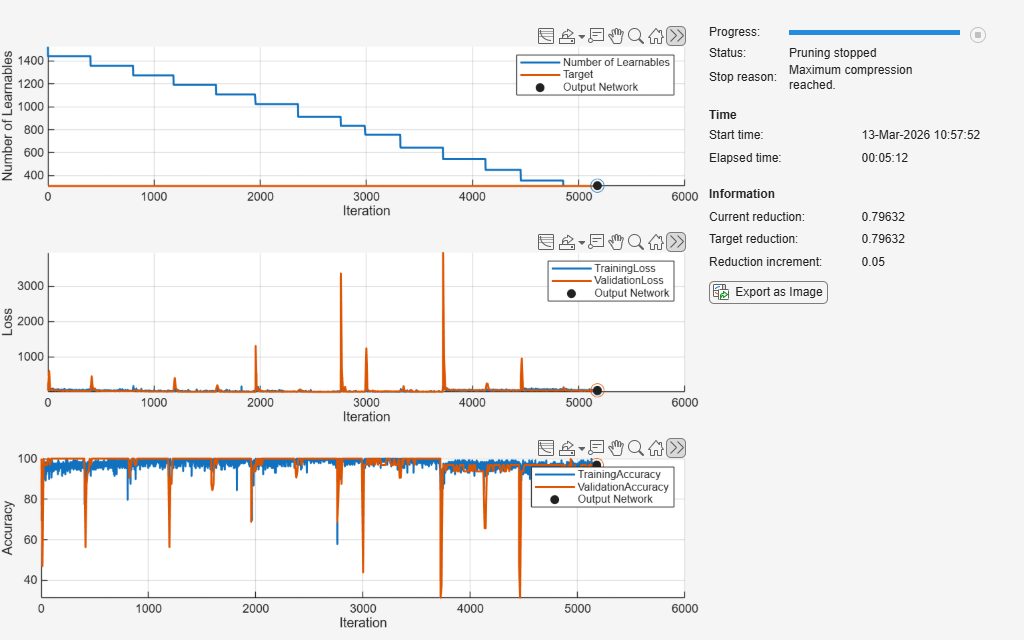
Compressed network has 79.6% fewer learnable parameters.
Pruning compressed 5 layers: "conv1d_1","batchnorm_1","conv1d_2","batchnorm_2","fc_1"
netPruned =
  dlnetwork with properties:

         Layers: [14×1 nnet.cnn.layer.Layer]
    Connections: [13×2 table]
     Learnables: [12×3 table]
          State: [4×3 table]
     InputNames: {'sequenceinput'}
    OutputNames: {'softmax'}
    Initialized: 1

  View summary with summary.
info = struct with fields:
       PruningHistory: [15×3 table]
    ValidationHistory: [530×5 table]
      TrainingHistory: [5160×7 table]
         PrunedLayers: [5×1 string]
           StopReason: "Maximum compression reached."
      ProgressMonitor: [1×1 deep.TrainingProgressMonitor]
The pruning progress plots shows that in this example, the function performs 14 pruning iterations. During each iteration, the software removes 5% of learnable parameters, until it reaches the maximum possible compression of 79.632%. At the beginning of each pruning iteration, the loss spikes and the accuracy drops, but both loss and accuracy recover during fine-tuning.
Input Arguments
Name-Value Arguments
Specify optional pairs of arguments as
Name1=Value1,...,NameN=ValueN, where Name is
the argument name and Value is the corresponding value.
Name-value arguments must appear after other arguments, but the order of the
pairs does not matter.
Example: netPruned =
compressNetworkUsingTaylorPruning(net,data,lossFcn,options,LearnablesReductionGoal=0.3)
tries to remove 30% of learnable parameters.
Target proportion of the network learnable parameters to remove, specified as a scalar between 0 and 1.
If LearnablesReductionGoal is greater than the maximum
possible reduction in learnables, then the function removes the maximum possible
proportion of learnables. To determine the maximum reduction in learnables, open the
input network in the Deep Network Designer app, and then select
Compression Analysis.
If LearnablesReductionGoal is smaller than the maximum
possible reduction in learnables, then the function removes at least the proportion of
learnables specified by LearnablesReductionGoal. The function
removes learnables in sets of entire convolutional filters, so the final reduction of
learnables can be greater than LearnablesReductionGoal.
Data Types: single | double
Validation metric threshold at which to stop pruning, specified as
[] or as a numeric scalar.
Specify this option to stop pruning early if the quality of the network predictions deteriorates too much.
The software stops pruning if the validation metric exceeds the validation metric
threshold at the end of fine-tuning. If pruning stops early, the
compressNetworkUsingTaylorPruning function returns the last
pruned network that does not exceed the validation metric threshold.
By default, the validation metric is the loss. To specify a different validation metric:
Specify the
Metricsproperty of the training optionsoptions.Specify the
ObjectiveMetricNameproperty of the training optionsoptions.
You can specify ValidationThreshold only if the training
options options contains validation data. The value of the
ValidationFrequency property of the training options must be
small enough that validation can occur before the end of fine-tuning.
For an example showing how to use a validation threshold to stop pruning early, see Prune Neural Network with Accuracy Requirement.
Data Types: single | double | int8 | int16 | int32 | int64 | uint8 | uint16 | uint32 | uint64
Minimum proportion of learnable parameters to remove in each pruning iteration, specified as a scalar between 0 and 1.
During each pruning iteration, the function removes the least important parameters before fine-tuning the network and reevaluating the importance scores. Removing a large proportion of learnable parameters per iteration results in faster pruning. Removing a small proportion of learnable parameters per iteration results in higher-quality network predictions.
For example, if LearnablesReductionIncrement is 0.05, then it
takes up to 1/0.05=20 pruning iterations to remove the maximum possible number of
learnable parameters from the network. Each pruning iteration includes fine-tuning,
therefore in this example, the pruning process can include up to
20*options.MaxEpochs training epochs.
Data Types: single | double
Number of mini-batch updates to use for calculating the importance scores,
specified as "auto" or as a positive integer.
Taylor pruning relies on data to estimate the importance score of each learnable
parameter. Typically, it is enough to use a subset of the dataset. To specify the size
of the dataset to use for estimating the importance scores, specify the number of
mini-batch updates. For example, if you have 200 datapoints (that is, if the batch
dimension of your data is equal to 200), and if the MiniBatchSize
property of the training options options is set to 25, then to
use half of your dataset, specify NumImportanceScoreIterations as
4.
For faster pruning, use fewer mini-batch updates. For more accurate importance scores, use more mini-batch updates.
If NumImportanceScoreIterations is "auto",
then the software uses 100 mini-batch updates or the entire dataset, whichever is
smaller.
If NumImportanceScoreIterations is greater than the number of
mini-batches in the dataset, then the software uses the entire dataset once.
If NumImportanceScoreIterations is smaller than the number of
mini-batches in the dataset, then for best results, set the
Shuffle property of the training options
options to "every-epoch".
Data Types: string | char | single | double | int8 | int16 | int32 | int64 | uint8 | uint16 | uint32 | uint64
Names of layers to compress, specified as a string array, cell array of character vectors, or a character vector containing a single layer name.
By default, the software compresses all the layers in the network that support Taylor pruning.
If you specify the names of layers to compress, the software compresses those layers as well as any upstream or downstream layers that they affect.
To compress a specific nested layer inside a network layer, specify the name of
the network layer and the name of the nested layer separated by a forward slash
"/". For example, the path to a layer named
"nestedLayerName" in a network layer named
"networkLayerName" is
"networkLayerName/nestedLayerName". If there are multiple levels
of nested layers, then specify the path using the form
"networkLayerName1/.../networkLayerNameN/nestedLayerName".
Data Types: string | cell
Path for saving the checkpoint neural networks, specified as a string scalar or character vector.
The software saves checkpoint neural networks at the end of retraining every
PruningCheckpointFrequency pruning iterations. Saving checkpoint
neural networks lets you experiment with different levels of compression.
If you do not specify a path (that is, you use the default
''), then the software does not save any checkpoint neural networks.If you specify a path, then the software saves each checkpoint neural network to a separate MAT-file on the path.
If the folder does not exist, then you must first create it before specifying the path for saving the checkpoint neural networks. If the path you specify does not exist, then the software throws an error.
Data Types: char | string
Frequency of saving checkpoint neural networks, specified as a positive integer.
The software saves checkpoint neural networks at the end of retraining every
PruningCheckpointFrequency pruning iterations.
This option only has an effect when PruningCheckpointPath is
nonempty.
Data Types: single | double | int8 | int16 | int32 | int64 | uint8 | uint16 | uint32 | uint64
Verbosity level, specified as one of these values:
"summary"— Display a summary of the pruning algorithm."pruning"— Display information about the pruning iterations."training"— Display information about the pruning and fine-tuning iterations. To change the number of fine-tuning iterations to display, set theVerboseFrequencyproperty of the training optionsoptions."off"— Do not display information.
Plots to display during pruning, specified as one of these values:
"none"— Do not display plots during pruning."pruning-progress"— Plot the number of learnable parameters and the fine-tuning progress during pruning.
To programmatically open the pruning progress plot after training, set the
Visible property of the training progress monitor object
info.ProgressMonitor to true. To close the
plot, set the Visible property to false.
To switch the y-axis scale to logarithmic, use the axes toolbar. 
Output Arguments
More About
Tips
To speed up pruning, increase
LearnablesReductionIncrement, reduceNumImportanceScoreIterations, or reduce theMaxEpochsproperty of the fine-tuning optionsoptions.You can also stop fine-tuning early based on custom criteria by specifying the
OutputFcnproperty of the fine-tuning optionsoptions. To learn how to use an output function for early stopping, see Custom Stopping Criteria for Deep Learning Training.The
compressNetworkUsingTaylorPruningfunction retrains the pruned network during each fine-tuning iteration. If you speed up the training process, then the overall pruning process will speed up as well. To learn how to speed up neural network training, see Speed Up Deep Neural Network Training.To improve the predictive capability of the pruned network, reduce
LearnablesReductionIncrement, increaseNumImportanceScoreIterations, or increaseMaxEpochs.
Algorithms
Pruning a neural network means removing the least important parameters to reduce the size of the network while preserving the quality of its predictions.
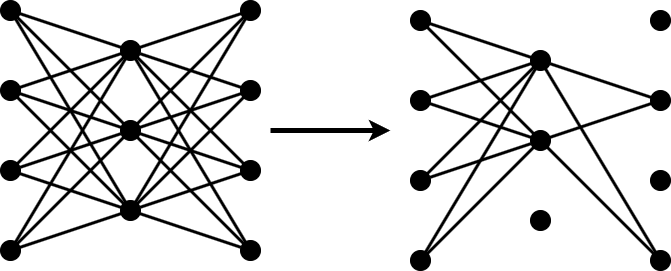
You can measure the importance of a set of parameters by the change in loss after you remove the parameters from the network. If the loss changes significantly, then the parameters are important. If the loss does not change significantly, then the parameters are not important and can be pruned.
Neural networks typically contain too many parameters for you to calculate the change in loss for all possible combinations of parameters. In that case, follow these steps to apply an iterative workflow instead.
Use an approximation to find and remove the least important parameter or a specified number of the least important parameters. For example, if you approximate the parameters to be independent, then you can measure the change in loss after removing each parameter by itself.
Fine-tune the new, smaller network by retraining it for several iterations.
Repeat steps 1 and 2 until you reach your compression goal.
To perform the approximation in step 1, calculate the Taylor expansion of the loss as a function of the individual network parameters. This method is called Taylor pruning.
For some types of layers, including convolutional layers, removing a parameter is equivalent to setting it to zero. In this case, the change in loss resulting from pruning a parameter θ can be expressed as
X is the training data of your network.
Calculate the Taylor expansion of the loss as a function of the parameter θ to first order using
Then, you can express the change of loss as a function of the gradient of the loss with respect to the parameter θ using
References
[1] Molchanov, Pavlo, Stephen Tyree, Tero Karras, Timo Aila, and Jan Kautz. "Pruning Convolutional Neural Networks for Resource Efficient Inference." arXiv, June 8, 2017. https://arxiv.org/abs/1611.06440.

