Automatically Search and Label Video Frames Using VLMs
R2026bThis example demonstrates how to use vision-language models (VLMs) to automatically retrieve and label image frames from videos. Because VLMs connect image content with natural language, you can use them to search for specific frames in a video using text queries and to detect objects based on descriptive prompts. This approach enables you to perform content-based video retrieval and object detection without the need for additional training data or manual annotation.
In this example, you use VLMs to perform image frame retrieval and object detection in these steps.
Search for image frames within aerial video footage using the Contrastive Language–Image Pre-training (CLIP) model.
Refine the image search results using the Moondream™ model.
Detect object bounding boxes using Grounding DINO.
Segment the detected objects using Segment Anything Model 2 (SAM 2).
This example requires the Computer Vision Toolbox™ Model for OpenAI CLIP Network, the Computer Vision Toolbox Model for Moondream™ Vision Language Model, the Computer Vision Toolbox Model for Grounding DINO Object Detection, and the Image Processing Toolbox™ Model for Segment Anything Model 2. You can install these add-ons from Add-On Explorer. For more information about installing add-ons, see Get and Manage Add-Ons. This example also requires Deep Learning Toolbox™ and Statistics and Machine Learning Toolbox™ license. Processing image data on a GPU requires a supported GPU device and Parallel Computing Toolbox™.
Load Video Frames
This example uses a video file of aerial footage of an airport, available from the U.S. Geological Survey (USGS).
Download the data set and unzip the contents of the folder into a specified location.
videoFile = fullfile(tempdir,"NAIPAerialImagery.avi");
if ~exist(videoFile,"file")
    unzip("https://ssd.mathworks.com/supportfiles/vision/data/NAIPAerialImagery.zip",tempdir)
end
Read the video file using the VideoReader object, and extract the frames.
V = VideoReader(videoFile);
frames = read(V);
Configure CLIP VLM for Image Retrieval
Create a pretrained CLIP network with the ViT-B/16 backbone using the clipNetwork object.
clip = clipNetwork("vit-b-16");Define the search criteria using a text description. In this example, you search for frames that contain airplanes by specifying an initial search query.
initialSearch = "An image of an airplane";Extract Image and Text Embeddings
Extract the image embeddings from each frame of the video using the CLIP network by using the extractImageEmbeddings object function of the clipNetwork object.
imgEmbeds = extractImageEmbeddings(clip,frames,MiniBatchSize=16);
Extract the text embeddings for the specified text search query initialSearch using the extractTextEmbeddings object function of the clipNetwork object.
txtEmbeds = extractTextEmbeddings(clip,initialSearch);
Identify and Display Specific Frames
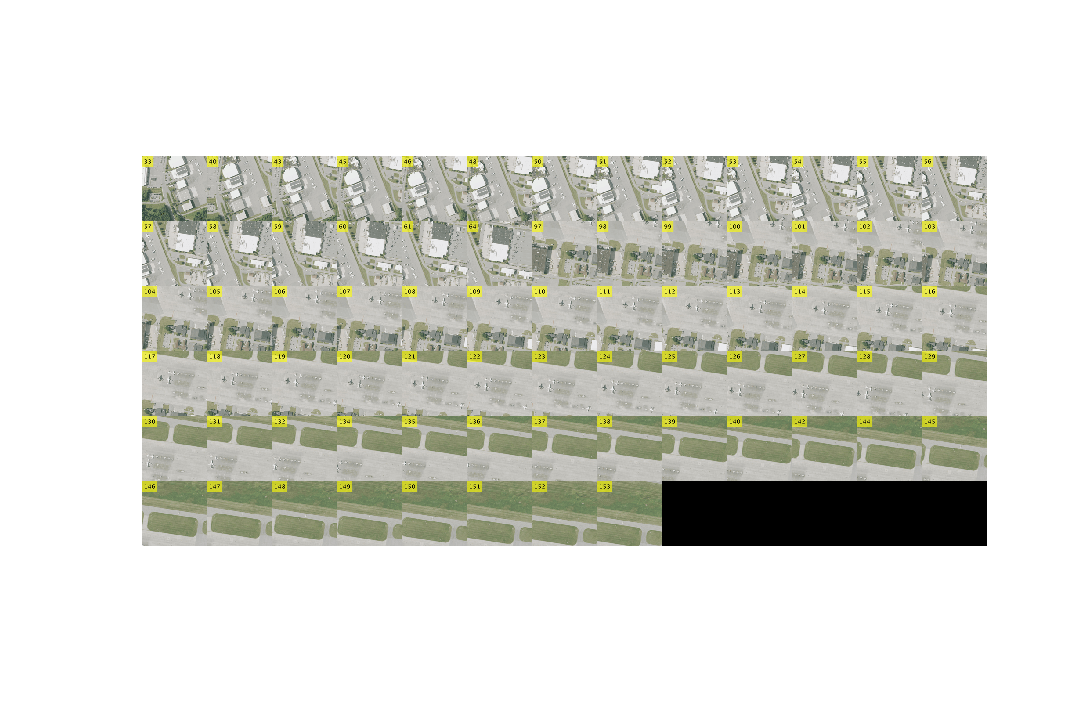
Compute similarity scores between the image and text embeddings by using the clipScore helper function to identify frames that match the search criteria. Specify a threshold to select frames whose contents closely match the search query.
threshold = 0.7;
simScores = clipScore(imgEmbeds,txtEmbeds);
relevantIdx = find(simScores > threshold);
Add labels to the frames using the addFrameLabel helper function. Display the frames that meet or exceed the threshold to visualize the search results.
numberedFrames = addFrameLabel(frames);
figure(Position=[100 100 1200 800])
montage(numberedFrames,Indices=relevantIdx,Size=[6 NaN])
Refine Search Results Using Moondream
To generate captions for a sample of the frames identified in the initial search, create a Moondream model using the moondream object.
md = moondream;
To gain insight into the content of the frames that match the search criteria, select a random sample of 10 frames from the set of matched frame indices using the randsample function.
sampleIdx = randsample(relevantIdx,10);
Process each sampled frame, and generate a natural-language caption describing its content using the captionImage object function of the moondream object.
captions = captionImage(md,frames(:,:,:,sampleIdx))
captions = 10×1 string array
    " An aerial view of an airport reveals a bustling scene of airplanes, tarmac, and buildings, with a clear sky and lush green trees in the background."
    " An aerial view of an airport reveals a bustling scene with airplanes, tarmac, and buildings, with a red and white striped barrier in the center."
    " An aerial view of an airport reveals a bustling scene with airplanes, tarmac, and buildings, with a red and white striped barrier in the foreground."
    " An aerial view of a bustling airport reveals a complex network of runways, taxiways, and planes, with a large airplane in the foreground."
    " An aerial view of an airport reveals a bustling scene with multiple airplanes, a large white airplane, and a green grassy area."
    " An aerial view of a green airport runway, with a small airplane parked on the right side, is surrounded by a grassy area and a concrete runway."
    " An aerial view of a bustling airport reveals a complex network of runways, terminals, and aircraft, with a large airplane parked on the tarmac."
    " An aerial view of an airport reveals a runway, taxiways, and a small airplane, with a grassy area and trees in the background."
    " An aerial view of an airport reveals a bustling scene with airplanes, tarmac, and buildings, with a red and white striped barrier in the foreground."
    " An aerial view of an airport reveals a bustling scene with airplanes, tarmac, and buildings, with a red and white airplane parked on the tarmac."
Create a word cloud visualization from the Moondream-generated captions using the wordcloudFromCaptions helper function.
figure, wordcloudFromCaptions(captions)
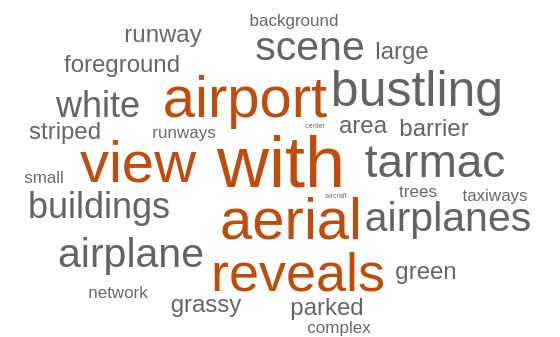
Refine your search criteria based on insights from the generated captions.
refinedSearch = "An aerial view of airplanes at an airport.";Extract Frames Using Refined Search Criteria
Use the refined text description to perform a new search over the video frames. Extract the text embeddings for the updated query using the extractTextEmbeddings object function of the clipNetwork object.
txtEmbeds = extractTextEmbeddings(clip,refinedSearch);
Select a similarity threshold.
threshold = 0.7;
Compute the similarity scores using the clipScore helper function, and select the frames that meet the threshold.
simScores = clipScore(imgEmbeds,txtEmbeds);
relevantIdx = find(simScores > threshold);
relevantFrames = frames(:,:,:,relevantIdx);
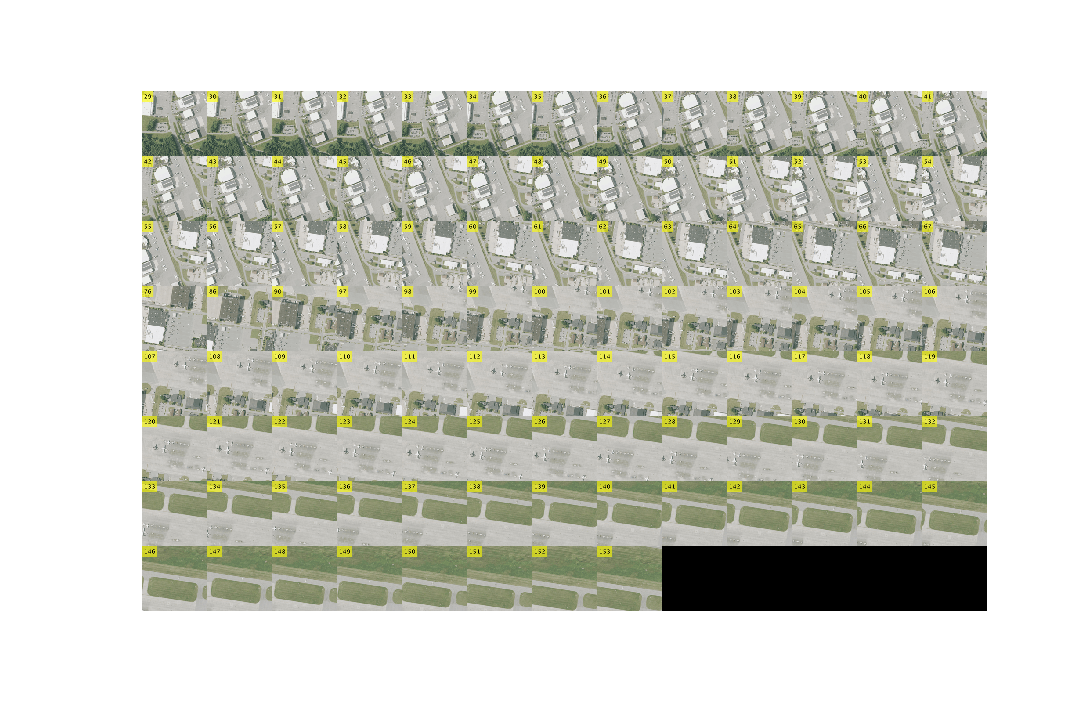
Display the updated set of frames that match the refined search criteria.
numberedFrames = addFrameLabel(frames);
figure(Position=[100 100 1200 800])
montage(numberedFrames,Indices=relevantIdx,Size=[8 NaN])
Detect Objects in Test Frame Using Grounding DINO
In this step, you detect objects of interest in the CLIP-selected frames using Grounding DINO.
To detect specific types of airplanes in the selected frames, create a pretrained Grounding DINO object detector using the groundingDinoObjectDetector object.
gdino = groundingDinoObjectDetector("swin-base");Specify the object classes to detect and annotate in the frame.
objectSearch = ["commercial jet","private jet"];
First, initialize the variable labeledFrames using the matched frames from the refined search, and select a single test frame.
labeledFrames = relevantFrames;
numFrames = size(labeledFrames,4);
frameIdx = 5;
I = labeledFrames(:,:,:,frameIdx);
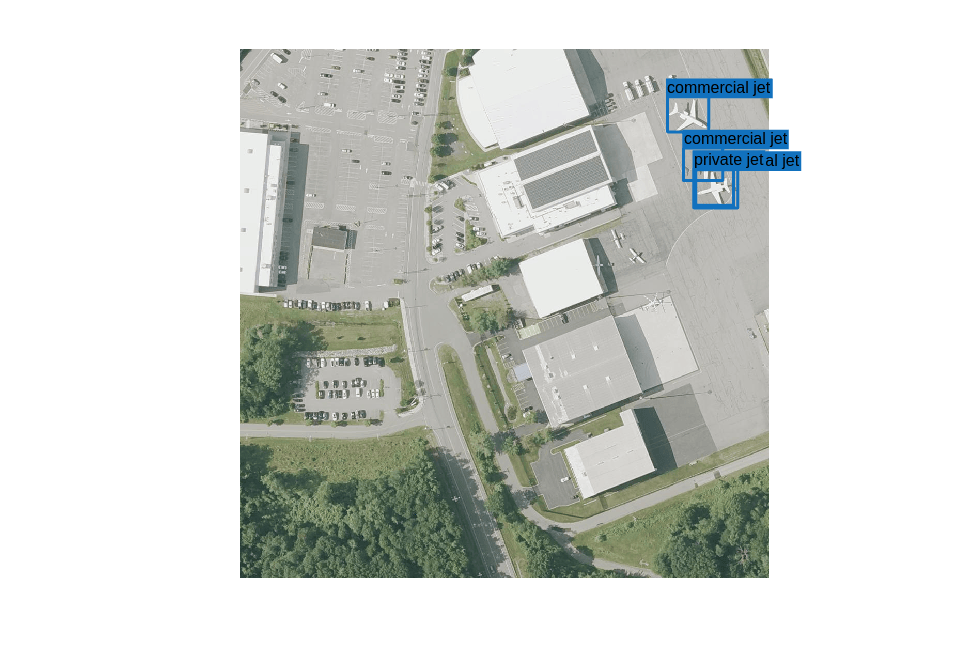
Detect objects using the detect object function of the groundingDinoObjectDetector object. Specify class names, threshold, and maximum object size using name-value arguments. Annotate the detected objects with bounding boxes and labels on each frame using the insertObjectAnnotation function. Store the annotated frames back into labeledFrames.
[bboxes,~,labels] = detect(gdino,I,ClassNames=objectSearch,Threshold=0.25,MaxSize=[300 300]);
Display the bounding boxes generated using Grounding DINO.
montage(labeledFrames,indices=[55 60 65 70 75 80],Size=[2 3])
Segment Detected Objects in Test Frame Using SAM 2
Load the Segment Anything Model 2 (SAM 2) using the segmentAnythingModel object.
sam = segmentAnythingModel("sam-base");First, extract the image embeddings of the frame using the extractEmbeddings object function of the segmentAnythingModel object. Then, segment the detected objects using the segmentObjectsFromEmbeddings object function. To use the bounding boxes from Grounding DINO as prompts, specify the BoundingBox input argument.
embeddings = extractEmbeddings(sam,I);
numObjects = size(bboxes,1);
masks = false(size(I,1), size(I,2), numObjects);

for j = 1:size(bboxes,1)
    masks(:,:,j) = segmentObjectsFromEmbeddings(sam,embeddings,size(I), ...
                                                BoundingBox=bboxes(j,:));
end
Overlay the segmentation masks on the annotated frame using the insertObjectMask function.
labeledFrame = insertObjectMask(I,masks);
imageshow(labeledFrame)
Next Steps
Automatically generated labels using VLMs can sometimes result in misclassifications or missed detections. To address this, you can use the Image Labeler and Video Labeler apps to automatically annotate ground truth using VLM algorithms, review and validate the results, and then export high-quality ground truth data for training. This workflow enables you to combine the efficiency of automated labeling with the accuracy of manual review.
To learn how to automate polygon labeling in the Video Labeler app using Grounding DINO and SAM 2 (Grounded SAM), see Automate Ground Truth Polygon Labeling Using Grounded SAM Model. This example demonstrates how to integrate the Grounded SAM algorithm into ground truth image and video labelers, allowing you to:
Automatically generate polygon labels for objects in your selected image frames
Review and validate the generated labels within the Video Labeler interface
Export the validated ground truth for training deep learning models
Supporting Functions
addFrameLabel
The addFrameLabel function adds the frame numbers to each frame, for displaying them in a montage.
function outImgs = addFrameLabel(I)
    outImgs = zeros(size(I),"uint8");
    for i = 1:size(I,4)
        outImgs(:,:,:,i) = insertText(I(:,:,:,i),[0 0],string(i),FontSize=96);
    end
end
clipScore
The clipScore function computes the pairwise cosine similarities between two sets of vectors. The function scales the similarity scores by a factor of 2.5, so that the range of scores is between 0 and 1.
function simScores = clipScore(x,y)
    simScores = 2.5*(x'*y)./(vecnorm(x)'.*vecnorm(y));
end
wordcloudFromCaptions
The wordcloudFromCaptions function creates a word cloud chart from caption data.
function wordcloudFromCaptions(captions)
    punctuationCharacters = ["." "?" "!" "," ";" ":"];
    words = replace(captions,punctuationCharacters," ");
    words = split(join(words));
    words(strlength(words)<4) = [];
    words = lower(words);
    words = categorical(words);
    wordcloud(words,MaxDisplayWords=30);
end
Copyright 2025 The MathWorks, Inc.
See Also
clipNetwork | moondream | captionImage | groundingDinoObjectDetector | segmentAnythingModel

