Import Trained Model into Classification Learner or Regression Learner
R2026bYou can import a trained machine learning model into the Classification Learner app or the Regression Learner app using several different methods:
To start a new session by importing a trained MATLAB® model and its training data from a workspace variable, see Start New Session from Trained MATLAB Model.
To import a trained MATLAB model from a workspace variable into the current app session, see Import Trained Model into Current Session.
To import a trained Python® XGBoost model into the current app session, see Import Trained Model into Current Session or Import Trained XGBoost Model from JSON File.
A trained model must meet certain requirements to be importable. For details, see Restrictions on Importing Models.
After you import a trained model, you can compare its performance with other models in the app using test metrics, and explain the imported model's behavior using model interpretability plots available in the app.
Start New Session from Trained MATLAB Model
If you have a trained MATLAB model in your workspace, you can import the model and its training data into a new app session. You cannot import a compact model.
On the Apps tab, display the apps gallery. Under Machine Learning and Deep Learning, click the icon for the app you want to open.
On the Learn tab of the app, in the File section, select New Session > From Trained Model.
In the New Session from Trained Model dialog box, under Workspace Model Variable, select a trained model from the list of supported trained models. The dialog box displays details about the model's training data set in the workspace variable.
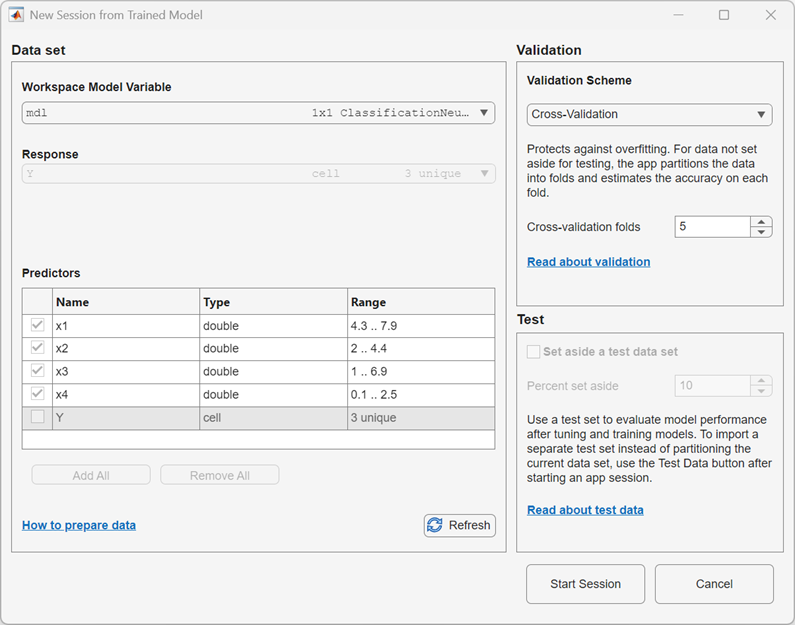
You can select a validation scheme for new models that you create and train in the app session. Note that the validation scheme does not apply to imported models. The default validation scheme is 5-fold cross-validation, which protects against overfitting.
Tip
If you are importing a large data set, you might want to select holdout validation. For more information, see Select Validation Scheme in Classification Learner or Regression Learner.
To accept the default validation scheme and continue, click Start Session. The imported model appears in the Models pane with the label
 .
.On the Summary tab, expand the Model Hyperparameters section to view a list of hyperparameters in the imported model. The hyperparameter names correspond to the input arguments of the MATLAB fit function used to train the model. The app retrieves the hyperparameter values from the
ModelParametersproperty in the workspace model variable.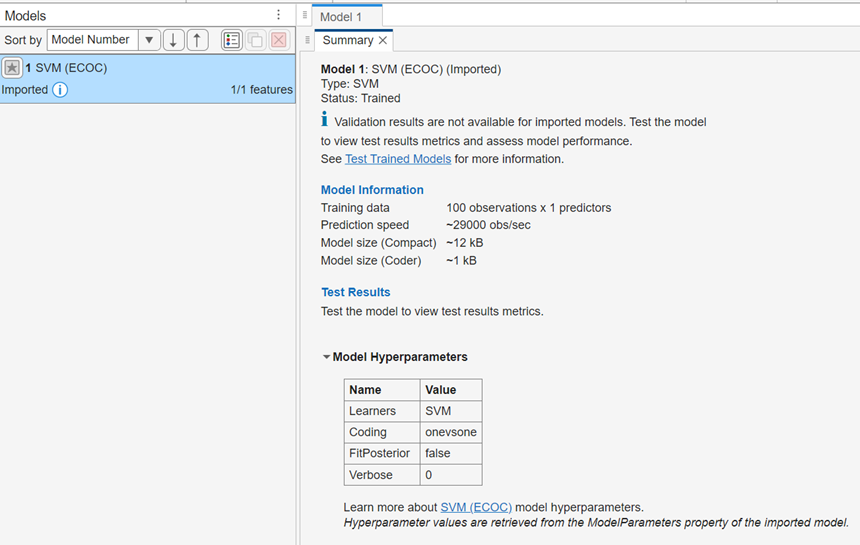
For information on how to train new models, see Train Classification Models in Classification Learner App and Train Regression Models in Regression Learner App.
Import Trained Model into Current Session
You can import any of the following models into the current session, provided that the model satisfies the requirements listed in Restrictions on Importing Models.
A model trained in Classification Learner or Regression Learner.
A model trained at the MATLAB command line using a supported function (see Restrictions on Importing Models).
An XGBoost model trained in Python and imported into the MATLAB workspace using
importModelFromXGBoost.A trained XGBoost model saved as a JSON file in Python. See Import Trained XGBoost Model from JSON File.
To import a trained model from the MATLAB workspace, complete the following steps.
On the Learn tab, in the File section, select Import Model > Import Trained Model from Workspace.
In the Import Trained Model from Workspace dialog box, under Workspace Model Variable, select a supported trained model from the list of workspace variables. To examine the details of a trained model in the workspace, select the workspace variable and view the information in the Model information section of the dialog box.
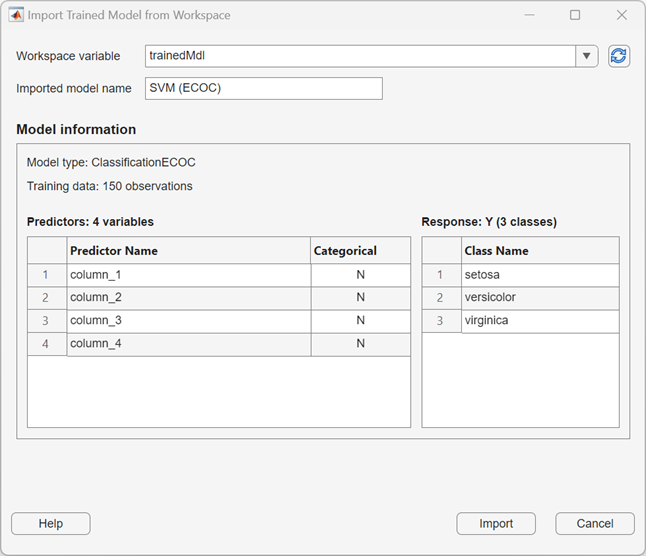
Modify the imported model name, if necessary, and click Import. The model appears in the Models pane with the imported model name and the label
.Note
When you import a trained model, its training data remains attached to the model but is not used in the app. The current app session's training data set remains unaffected. XGBoost models in the workspace do not contain training data.
On the Summary tab, click Model Hyperparameters to view a list of model hyperparameters. The hyperparameter names correspond to the input arguments of the MATLAB fit function used to train the model. The app retrieves the hyperparameter values from the
ModelParametersproperty in the workspace model variable. Model hyperparameter information is not available for imported compact models or XGBoost models.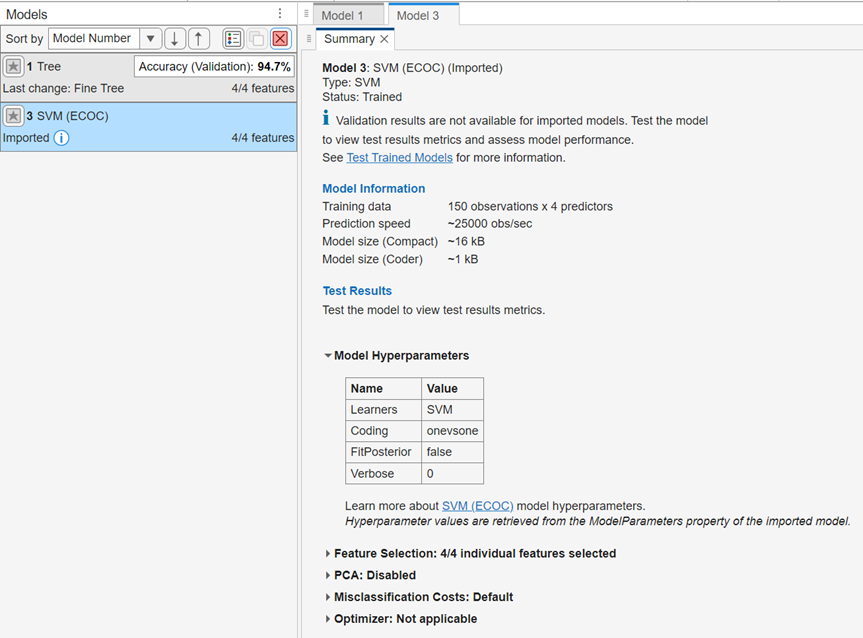
Import Trained XGBoost Model from JSON File
Since R2026b
In the current app session, you can import a trained XGBoost model saved as a JSON
file in Python with the extension ".json". For more information,
see Save XGBoost Model in Python.
On the Learn tab, in the File section, select Import Model > Import Trained XGBoost Model from JSON File.
In the Import Trained XGBoost Model from JSON File dialog box, select or enter the name of the JSON file you want to import. The Model information section of the dialog box displays information about the XGBoost model. The predictors in the model must be compatible with those in the training data set of the current session (see Restrictions on Importing Models).
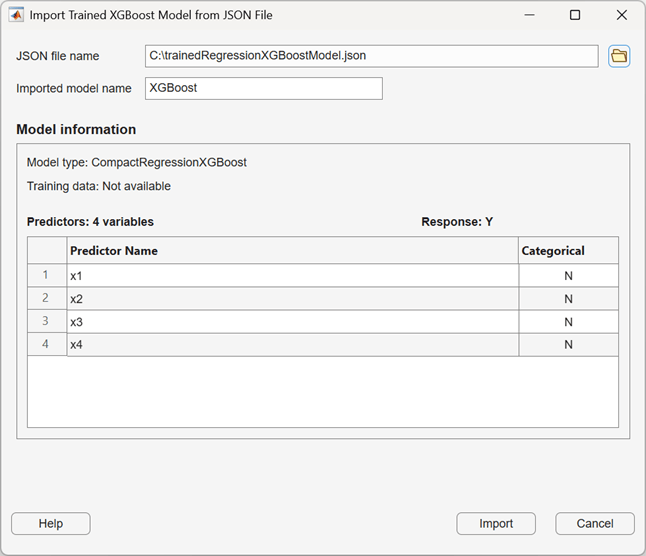
Modify the imported model name, if necessary, and click Import. The model appears in the Models pane with the imported model name and the label
. The model Summary
tab lists additional information about the model. Model hyperparameter
information is not available for imported XGBoost models.
Restrictions on Importing Models
The following restrictions apply to all imported models:
You cannot import a regression model into Classification Learner, or import a classifier model into Regression Learner.
When you import a trained model into the current session, each predictor in the model must have a corresponding predictor, with the same name, in the current session's training data set. If a model predictor is categorical (according to the model's
CategoricalPredictorsproperty), the corresponding predictor in the training data set must also be categorical. In Classification Learner, the response variable in the trained model must have the same data type and the same set of classes as the response variable in the current session.Tip
If you start a new app session by importing data from a file or from a matrix variable in the workspace, the app might assign default names to the response variable and predictors. These default names might not match the names in a command-line trained model that you train on the same data set. To ensure matching predictor and response variable names, convert your data into a table variable before training models at the command line or importing the data into Classification Learner or Regression Learner.
The model must be trained on predictor and response variables that are numeric, categorical, string, or logical vectors, cell arrays of character vectors, or character arrays. A variable cannot contain all
NaNvalues.You cannot duplicate imported models or train them on the training or validation data sets in the app. The app does not display validation metrics or plots of validation results for an imported model, because the model was not trained using the same validation scheme as other models in the app session. You can assess the performance of an imported model by testing it on a test data set in Classification Learner or Regression Learner. For more information, see Test Trained Models in Classification Learner or Regression Learner.
You cannot export an imported model to Experiment Manager.
The following restrictions apply to XGBoost models:
The XGBoost model must either be in a JSON file saved in Python, or a
CompactClassificationXGBoostorCompactRegressionXGBoostmodel object imported into the MATLAB workspace usingimportModelFromXGBoost.You cannot start a new session by importing an XGBoost model, because this type of model does not contain training data.
For a list of additional restrictions on XGBoost models, see
importModelFromXGBoost.
The following restrictions apply to MATLAB models:
The model must be trained in Classification Learner or Regression Learner, or at the MATLAB command line using one of the supported functions listed in the following tables.
Supported Classifier Types
Classifier Type Function Decision Trees fitctreeDiscriminant Analysis fitcdiscrLogistic Regression Classifiers (Except binary logistic regression classifiers) fitclinear,fitcecoc(for multiclass)Naive Bayes Classifiers fitcnbfitcsvm,fitcecoc(for multiclass)Efficiently Trained Linear Classifiers fitclinear,fitcecoc(for multiclass)Nearest Neighbor Classifiers fitcknnKernel Approximation Classifiers fitckernel,fitcecoc(for multiclass)Ensemble Classifiers fitcensembleNeural Network Classifiers fitcnetCustomizable Neural Network Classifiers fitcnet(withNetworkargument)Supported Regression Model Types
When you start a new session from a trained MATLAB model in the workspace, the model must also contain its training data set (that is, the model cannot be a compact model). See Start New Session from Trained MATLAB Model. You cannot set aside a test data set. To learn how to load a test data set in a learner app session, see Test Trained Models in Classification Learner or Regression Learner.
If the imported model was trained in Classification Learner or Regression learner with PCA enabled, the model Summary tab lists only the number of PCA components retained in the model.
See Also
Topics
- Start a Classification Learner or Regression Learner Session
- Select Validation Scheme in Classification Learner or Regression Learner
- Train Classification Models in Classification Learner App
- Train Regression Models in Regression Learner App
- Test Trained Models in Classification Learner or Regression Learner

